
1. Introduction
This manual provides detailed instructions for the installation, operation, and maintenance of your VECHTEL 4G+128G Android 15 Car Stereo. Please read this manual thoroughly before using the product to ensure proper function and safety. Keep this manual for future reference.

Image: VECHTEL Android 15 Car Stereo installed in a Jeep Wrangler dashboard, showcasing the modern interface.
2. Product Compatibility
This car stereo is designed for specific vehicle models. Verify your vehicle's compatibility before installation.
- For Chrysler Sebring (2006–2010)
- For Dodge Avenger (2007–2011)
- For Dodge Caliber (2006–2010)
- For Dodge Nitro (2007–2011)
- For Jeep Wrangler (2007–2017)
- For Jeep Cherokee (2007–2012)
- For Jeep Commander (2005–2010)
- For Jeep Compass (2011–2015)
- For Jeep Grand Cherokee (2005–2010)
- For Jeep Patriot (2007–2017)
If you are unsure about compatibility, consult a professional or the manufacturer.

Image: Comparison of a car dashboard before and after installing the VECHTEL car stereo, with a list of compatible vehicle models.
3. Package Contents
Verify that all items are present in the package before proceeding with installation.
- VECHTEL Android 15 Car Stereo Unit
- Power Cable
- Installation Tool
- Canbus Decoder
- GPS Antenna
- RCA Cable Set
- Rear Camera Input Cable
- USB Cable
- User Manual (this document)
- Rear Camera
- Radio Antenna
- Microphone (MIC)

Image: Diagram illustrating the dimensions of the car stereo and a comprehensive list of all components included in the package.
4. Setup and Installation
Professional installation is recommended. Ensure the vehicle's battery is disconnected before starting installation.
4.1 General Installation Steps
- Remove the original car radio unit.
- Connect the power cable and Canbus decoder to the new stereo and vehicle's wiring harness.
- Connect the GPS antenna and radio antenna. Position the GPS antenna in a location with a clear view of the sky.
- Connect the RCA cables and USB cables as needed for external devices.
- Install the rear camera wiring (refer to section 4.2).
- Mount the new car stereo securely into the dashboard.
- Reconnect the vehicle's battery and test all functions.

Image: Visual comparison of the car dashboard before and after the installation of the new stereo unit.
4.2 Backup Camera Wiring
Follow these steps for proper backup camera installation:
- Red Cable (1 and 3): Connect to the positive (+) terminal of the car's reverse light power supply.
- Black Cable (2): Connect to the negative (-) terminal of the car's reverse light power supply.
- Black Cable (4): Connect to the reverse trigger wire on the stereo's power harness. This signal tells the stereo to switch to the camera view when reverse gear is engaged.

Image: Detailed wiring diagram for the backup camera, indicating connections for power and trigger signals.
5. Operating Instructions
This section details the various functions and features of your car stereo.
5.1 Wireless CarPlay / Android Auto
Connect your smartphone wirelessly to access navigation, music, calls, and messages through the car stereo interface. This feature supports both Apple CarPlay and Android Auto.
- Ensure Bluetooth and Wi-Fi are enabled on your smartphone.
- On the car stereo, select the CarPlay or Android Auto icon.
- Follow the on-screen prompts to pair your device.
- Use voice commands for safe operation while driving.

Image: The car stereo displaying both Wireless CarPlay and Android Auto interfaces, demonstrating wireless smartphone connectivity.
5.2 GPS Navigation / WiFi
The stereo supports online navigation with real-time traffic updates and offline map downloads. Connect to Wi-Fi for internet access, app downloads, and streaming.
- GPS: Open the navigation application. Ensure the GPS antenna is properly installed for accurate positioning.
- WiFi: Go to Settings > Network > Wi-Fi to connect to an available network.
- Download offline maps from the app store for navigation without an internet connection.

Image: The car stereo displaying GPS navigation with online and offline map capabilities, alongside a screen showing WiFi connectivity options.
5.3 Bluetooth 5.0
Connect your phone via Bluetooth for hands-free calling and audio streaming.
- Go to Settings > Bluetooth on the stereo.
- Enable Bluetooth on your phone and search for the stereo's device name.
- Pair the devices. Once connected, you can make/receive calls and play music directly from your phone.
5.4 FM/RDS Radio
Tune into your favorite radio stations with FM and RDS (Radio Data System) support.
- Select the 'Radio' application from the main menu.
- Use the scan function to find available stations or manually tune to a frequency.
- RDS provides station information, song titles, and traffic announcements where available.

Image: The car stereo displaying the FM/RDS radio interface, showing current frequency and options for station selection.
5.5 Mirror Link
Project your smartphone's screen wirelessly onto the car stereo display for navigation and online streaming.
- Ensure your phone and the stereo are connected via Wi-Fi or USB.
- Open the 'Mirror Link' application on the stereo.
- Follow the specific instructions for Android or iOS devices to establish the connection.
5.6 Steering Wheel Control (SWC)
Control essential functions like volume, track changes, and calls directly from your vehicle's steering wheel buttons.
- The stereo supports the original car's steering wheel controls.
- Configuration may be required in the stereo's settings menu under 'SWC' or 'Steering Wheel Learning'.
- Follow the on-screen instructions to map your steering wheel buttons to the desired functions.

Image: A car's steering wheel with integrated control buttons, demonstrating the stereo's compatibility with steering wheel controls for safe operation.
5.7 Backup Camera
The included AHD backup camera provides a clear view of the area behind your vehicle when reversing.
- When the vehicle is shifted into reverse gear, the stereo automatically displays the backup camera feed.
- The camera features ultra-high-definition resolution, IP69 waterproofing, wide-angle view, and night vision capabilities.

Image: The car stereo displaying the backup camera view, illustrating features such as HD image quality, wide-angle perspective, and night vision.
5.8 Split Screen
Utilize the split-screen function to view two applications simultaneously on the 7-inch display.
- While an application is open, long-press the recent apps button or drag an app to one side of the screen (depending on the Android interface version).
- Select a second application to occupy the other half of the screen.
- This allows for tasks like navigation on one side and music control on the other.
5.9 32-Band Equalizer (EQ)
Customize your audio experience with the built-in 32-band equalizer.
- Access the 'EQ' or 'Sound Settings' menu.
- Adjust individual frequency bands to tailor the sound output to your preference.
- Pre-set equalizer modes may also be available for quick adjustments.
6. Specifications
| Feature | Specification |
|---|---|
| Operating System | Android 15 |
| RAM | 4GB |
| Internal Storage | 128GB |
| Display Size | 7 Inches |
| Display Resolution | 1024*600P |
| Connectivity | Wireless CarPlay, Android Auto, GPS, WiFi, Bluetooth 5.0, FM/RDS Radio |
| Audio Features | 32-band EQ |
| Camera Support | AHD Backup Camera (included) |
| Special Features | Mirror Link, Split-screen, Steering Wheel Control (SWC) |
| Item Weight | 2.2 pounds (approx. 1 kg) |
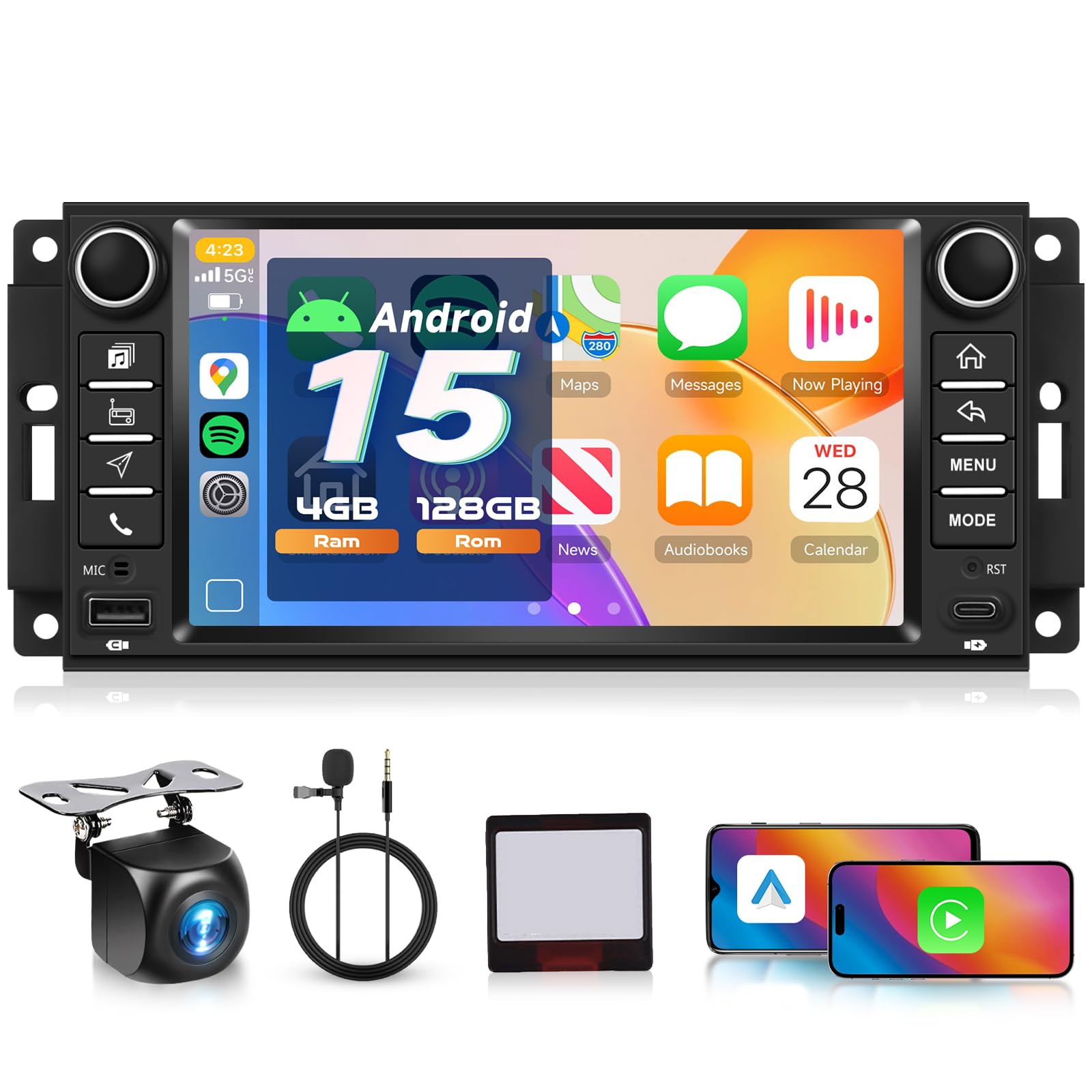
Image: Close-up of the 7-inch IPS HD screen, highlighting its 1024x600P resolution.
7. Maintenance
Proper maintenance ensures the longevity and optimal performance of your car stereo.
- Cleaning: Use a soft, dry cloth to clean the screen and exterior. Avoid abrasive cleaners or solvents. For stubborn smudges, lightly dampen the cloth with water.
- Software Updates: Periodically check for software updates through the system settings or the manufacturer's website to ensure the latest features and bug fixes.
- Environmental Conditions: Avoid exposing the unit to extreme temperatures, direct sunlight for prolonged periods, or excessive moisture.
- Cable Connections: Ensure all cables are securely connected. Loose connections can lead to intermittent issues.
8. Troubleshooting
Refer to this section for common issues and their solutions. If problems persist, contact customer support.
| Problem | Possible Cause | Solution |
|---|---|---|
| No power | Loose power connection, blown fuse | Check power cables and vehicle fuses. Ensure proper wiring. |
| No sound | Volume too low, incorrect audio source, loose speaker wires | Increase volume. Verify correct audio source. Check speaker connections. |
| CarPlay/Android Auto not connecting | Bluetooth/Wi-Fi off, phone compatibility, app issues | Ensure phone's Bluetooth/Wi-Fi is on. Restart phone and stereo. Check phone's compatibility with CarPlay/Android Auto. |
| GPS signal lost or inaccurate | GPS antenna obstruction, poor placement | Ensure GPS antenna has a clear view of the sky. Check antenna connection. |
| Backup camera not displaying | Incorrect wiring, faulty camera, reverse trigger issue | Verify camera wiring (refer to section 4.2). Check if reverse gear activates the trigger signal. |
| Steering Wheel Controls not working | Incorrect wiring, not configured | Check SWC wiring. Perform 'Steering Wheel Learning' in settings. |
9. Warranty and Support
Your VECHTEL car stereo comes with a standard manufacturer's warranty. For specific warranty terms and conditions, please refer to the documentation included with your purchase or contact VECHTEL customer support.
For technical assistance, troubleshooting not covered in this manual, or warranty claims, please contact VECHTEL customer service through their official website or the retailer where the product was purchased.