1. Introduction
This manual provides detailed instructions for the setup, operation, and maintenance of your EZON S7 Smartwatch. Please read this manual thoroughly before using the device to ensure proper functionality and to maximize your user experience.

Image 1.1: The EZON S7 Smartwatch, featuring a large 1.83-inch display and a gray strap.
2. Package Contents
Verify that all items are present in your package:
- EZON S7 Smartwatch (Model L822)
- Charging Cable (Magnetic USB)
- User Manual (English and Chinese versions)
3. Initial Setup
3.1. Charging the Smartwatch
Before first use, fully charge your EZON S7 Smartwatch. The device uses a magnetic charging cable.
- Connect the USB end of the charging cable to a power adapter (5V/1A recommended) or a computer's USB port.
- Attach the magnetic end of the cable to the charging contacts on the back of the smartwatch. Ensure it snaps securely into place.
- The watch display will show a charging indicator. A full charge typically takes approximately 2 hours.

Image 3.1: The smartwatch connected to its magnetic charging cable, showing the charging indicator. Also displays typical battery life: 15-20 days standby, 5-7 days average use, 2 hours charging time.
3.2. App Installation and Device Pairing
The EZON S7 Smartwatch requires connection to a smartphone app for full functionality. The app is compatible with Android 5.0+ and iOS 9.0+ devices (PC and tablets are not supported).
- Download the App: Scan the QR code provided in the physical user manual or search for "Da Fit" in your smartphone's app store (Google Play Store for Android, Apple App Store for iOS). Install the application.
- Enable Bluetooth: Ensure Bluetooth is enabled on your smartphone.
- Open the App: Launch the Da Fit app and follow the on-screen instructions to create an account or log in.
- Add Device: In the app, navigate to the "Add Device" section. The app will search for available devices.
- Select "S7": From the list of found devices, select "S7" (or "L822" if shown). Confirm the pairing request on both your phone and the smartwatch.
- Enable Call/Answer Function (Optional): To use the call/answer feature, you may need to enable a secondary Bluetooth connection. Go to your phone's Bluetooth settings, find the "S7" device, and ensure all permissions, including call audio, are enabled. Some devices may show a separate Bluetooth entry (e.g., "S7_Audio" or "S7_Call") that needs to be paired.

Image 3.2: Visual guide for downloading the Da Fit app, enabling Bluetooth, adding the S7 device, and enabling call functions on Android and iOS.
4. Operating Instructions
4.1. Basic Navigation
- Power On/Off: Press and hold the side button to power on or off the device.
- Wake Screen: Press the side button or raise your wrist (if enabled in settings) to wake the screen.
- Swipe Gestures:
- Swipe Up: Access quick settings/notifications.
- Swipe Down: View notifications.
- Swipe Left/Right: Navigate through widgets (e.g., activity data, heart rate, weather).
- Tap: Select an item or open an application.
4.2. Communication Features
Once paired with your smartphone, the EZON S7 Smartwatch allows for wireless call reception and transmission directly from your wrist.

Image 4.1: The smartwatch screen showing an incoming call, call history, and contact list, demonstrating its wireless communication capabilities.
- Answering Calls: When a call comes in, the watch will display the caller ID. Tap the green icon to answer.
- Making Calls: Use the dial pad on the watch or access your contacts through the app to initiate calls.
- Notifications: Receive notifications for calls, messages, and various social media apps directly on your watch. Note: Message sending or replying is not supported directly from the watch.

Image 4.2: The smartwatch screen showing icons for various social media and communication app notifications, indicating its notification capabilities.
4.3. Health Monitoring
The EZON S7 Smartwatch is equipped with sensors to track various health metrics.
- Heart Rate Monitoring: The watch continuously monitors your heart rate. View real-time data on the watch or detailed trends in the app.
- Blood Oxygen (SpO2) Monitoring: Measures your blood oxygen saturation levels.
- Sleep Monitoring: Tracks your sleep patterns, including deep sleep, light sleep, and awake times. Detailed analysis is available in the app.
- Pedometer & Calorie Counter: Automatically tracks your steps taken and estimated calories burned throughout the day.
- Stress Monitoring: The watch may offer stress level assessments. Refer to the app for interpretation.
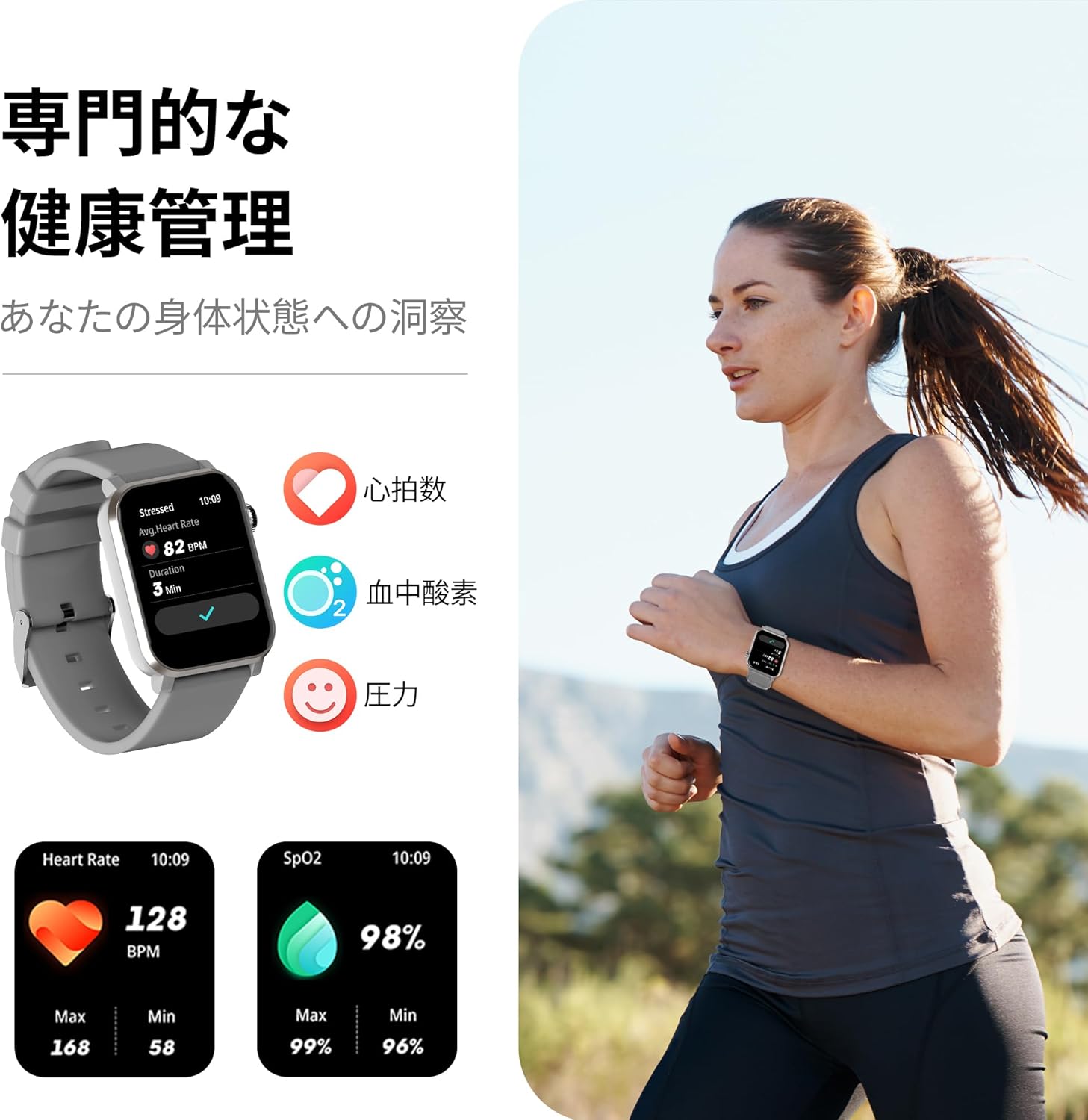
Image 4.3: The smartwatch displaying real-time heart rate (BPM) and blood oxygen saturation (SpO2) levels, along with a visual representation of health management.

Image 4.4: The smartwatch displaying detailed sleep data, including total sleep duration, awake time, REM sleep, and light sleep, with an accompanying graphic of a person sleeping.

Image 4.5: A banner illustrating the sleep quality monitoring feature, showing detailed sleep analysis including deep sleep, light sleep, rapid eye movement, and awake periods.
Note: The health monitoring functions of this smartwatch are for reference purposes only and should not be used for medical diagnosis or treatment. Consult a medical professional for any health concerns.
4.4. Sports Modes and Activity Tracking
The smartwatch supports over 120 sports modes to track your physical activities.
- Selecting a Sport: Navigate to the sports mode menu on the watch and select your desired activity.
- Tracking Data: The watch will record data such as steps, distance, calories burned, and heart rate during your workout.
- Activity Summary: View a summary of your workout on the watch and detailed reports in the Da Fit app.
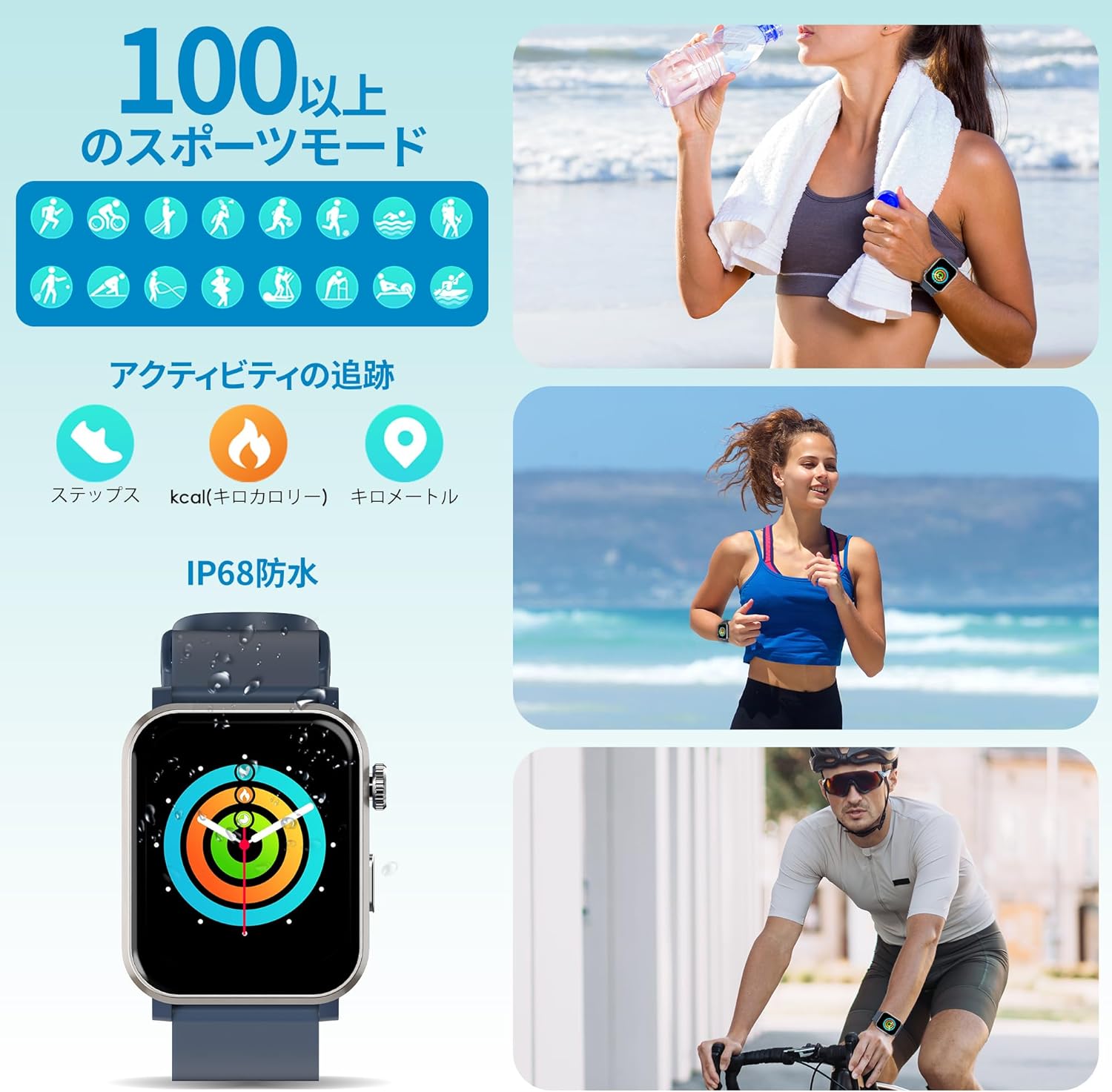
Image 4.6: The smartwatch interface showing icons for over 100 sports modes, alongside visuals of people engaging in various activities like running and cycling, and tracking metrics such as steps, calories, and distance.

Image 4.7: A banner showing the smartwatch tracking all-day activity, including steps, heart rate, oxygen, calories, distance, and barometric pressure, with people hiking in the background.
4.5. Music Control
Control music playback on your smartphone directly from your smartwatch.
- Play/Pause: Tap to play or pause the current track.
- Skip Tracks: Swipe or tap to skip to the next or previous song.
- Volume Control: Adjust the volume of your smartphone's media playback.

Image 4.8: A banner illustrating the music control feature, showing the smartwatch interface for playing, pausing, and skipping tracks, with a person listening to music with headphones.
4.6. Other Features
- Voice Assistant: The smartwatch may support voice commands through its built-in speaker when connected to your phone.
- Watch Faces: Customize your watch face from a variety of options available on the device or through the Da Fit app.
- Alarm Clock: Set alarms directly from the watch or app.
- Weather: View current weather conditions when connected to your smartphone.
- Remote Camera Control: Use the watch as a remote shutter for your smartphone's camera.
- Women's Health Tracking: The Da Fit app may offer features for tracking menstrual cycles and other related health data.

Image 4.9: A banner showing a person interacting with the smartwatch, highlighting the convenience of voice commands and smart device operation.

Image 4.10: A banner illustrating the comprehensive women's health care feature, showing the Da Fit app's device reminder function for tracking menstrual cycles and safe periods.
5. Maintenance
5.1. Cleaning
- Regularly clean your smartwatch and strap to prevent skin irritation and maintain device performance.
- Wipe the screen and body with a soft, lint-free cloth. If necessary, slightly dampen the cloth with water.
- Avoid using harsh chemicals, abrasive cleaners, or solvents, as these can damage the device.
5.2. Waterproofing (IP68)
The EZON S7 Smartwatch is rated IP68 waterproof, meaning it is protected against dust ingress and can withstand immersion in water up to 1.5 meters for up to 30 minutes.
- It is suitable for daily use, such as washing hands, showering (cold water), and light rain.
- Avoid using the watch in hot water, saunas, or steam rooms, as high temperatures and steam can compromise the waterproof seals.
- Do not press buttons underwater.
- After exposure to water, especially saltwater, gently wipe the watch dry to prevent corrosion.
6. Troubleshooting
| Problem | Possible Cause / Solution |
|---|---|
| Watch does not turn on. |
|
| Cannot pair with smartphone. |
|
| Inaccurate health data (e.g., heart rate, steps). |
|
| Notifications not received. |
|
| Short battery life. |
|
7. Specifications
| Feature | Detail |
|---|---|
| Model | L822 |
| Brand | EZON |
| Display Size | 1.83 inches |
| Color | Gray |
| Connectivity | Bluetooth |
| Compatibility | Android 5.0+ / iOS 9.0+ |
| Water Resistance | IP68 |
| Battery Capacity | 200 mAh |
| Charging Time | Approx. 2 hours |
| Typical Usage Time | 5-7 days |
| Standby Time | 10-15 days |
| Product Dimensions | 4.5 x 3.7 x 1 cm |
| Product Weight | 0.15 kg (150 g) |
8. Warranty and Support
For warranty information and customer support, please refer to the documentation included with your purchase or contact EZON customer service through their official channels. Details may vary by region and retailer.
You can also visit the EZON Brand Store on Amazon for additional product information and support resources.


