
1. Introduction
This manual provides essential instructions for the safe and effective use of your Tosisot S5 Kids Instant Print Camera. Please read this manual thoroughly before operating the device and retain it for future reference.
The Tosisot S5 is a multifunctional digital camera designed for children, featuring instant photo printing, 1080P video recording, and various creative functions. It includes a 2.4-inch HD screen, 32GB storage support, MP3 playback, puzzle games, 6x digital zoom, burst shooting, time-lapse photography, filters, and photo frames.

Figure 1: Tosisot S5 Kids Instant Print Camera (Blue)
2. Setup
2.1 Charging the Camera
Before first use, fully charge the camera. Connect the camera to a power source using the provided USB cable. The charging indicator will illuminate during charging and turn off when fully charged.

Figure 2: Charging the camera and connecting to a computer.
2.2 Inserting the Memory Card
The camera supports a 32GB memory card (included). Locate the memory card slot, usually on the side of the camera. Insert the memory card with the gold contacts facing down until it clicks into place.
2.3 Loading Print Paper
The camera uses thermal printing paper. Follow these steps to load the paper:
- Open the paper chamber cover.
- Insert the paper roll into the chamber. Ensure the smooth, reflective side of the paper faces upwards.
- Pull a small length of paper out of the slot before closing the cover.
- Close the paper chamber cover securely.

Figure 3: Steps for loading print paper.
3. Operating Instructions
3.1 Power On/Off
Press and hold the power button (usually marked with a power icon) to turn the camera on or off.
3.2 Taking Photos
Navigate to photo mode using the menu buttons. Frame your shot using the 2.4-inch HD screen. Press the shutter button to capture a photo. The camera features dual lenses for front and rear photography.
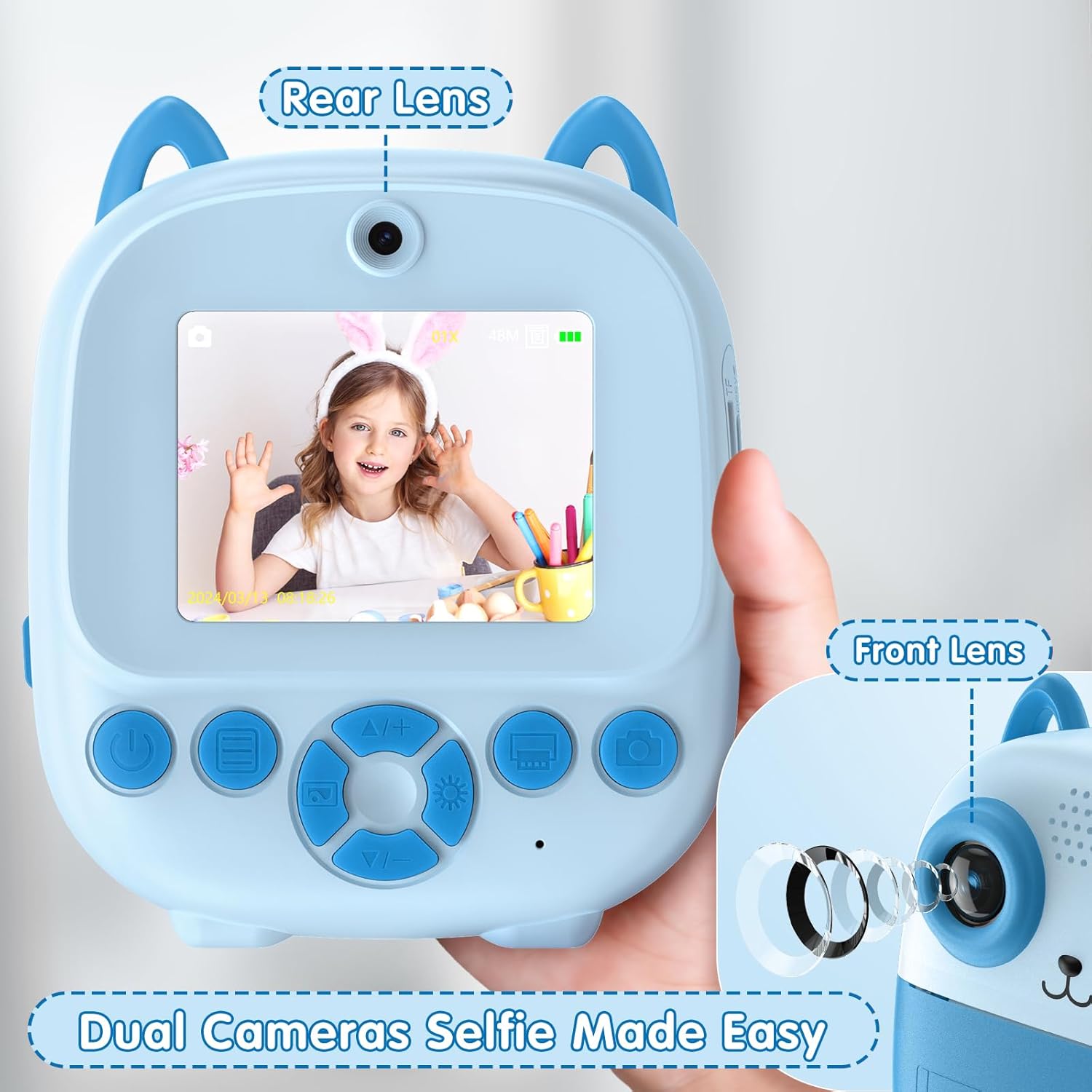
Figure 4: Dual camera lenses for versatile photography.
3.3 Instant Printing
After taking a photo, you can choose to print it instantly. The camera offers two printing modes: Gray Printing and Dot Printing. Select your preferred mode from the settings. Press the print button to initiate printing. The camera prints black-and-white images on thermal paper.

Figure 5: Gray Printing vs. Dot Printing modes.
Children can color or doodle on the printed photos to personalize them.

Figure 6: Personalizing instant prints with coloring.
3.4 Video Recording
Switch to video mode. Press the shutter button to start recording and press it again to stop. The camera supports 1080P video resolution.
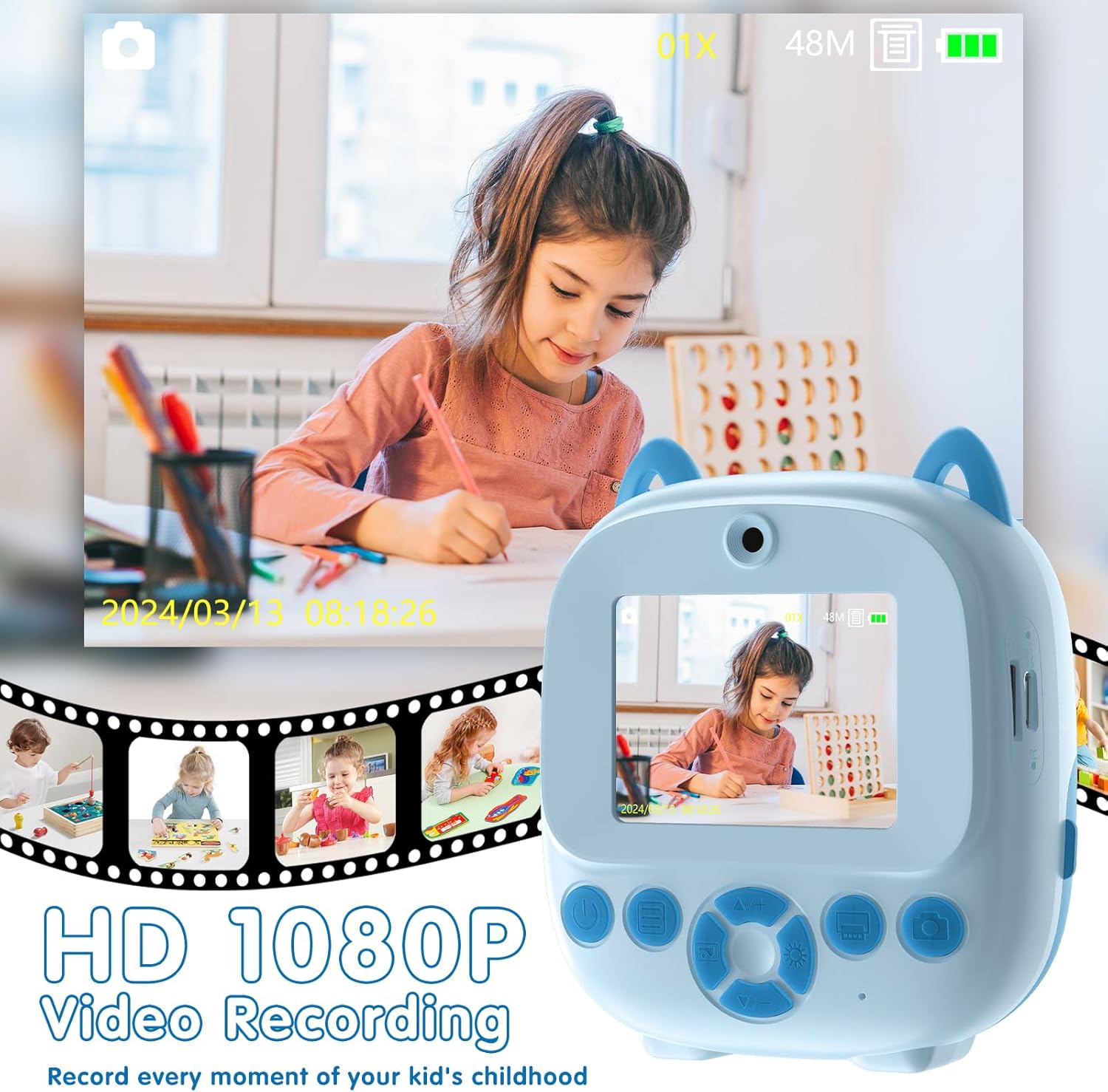
Figure 7: HD 1080P Video Recording feature.
3.5 Special Features
- Digital Zoom: Use the zoom buttons to adjust the 6x digital zoom.
- Burst Shooting: Capture multiple photos in quick succession.
- Time-Lapse Photography: Set intervals to capture a series of photos over time.
- Filters and Frames: Apply various filters and fun photo frames to your pictures before printing or saving.
- MP3 Player: The camera includes an MP3 player function. Load music files onto the memory card to use this feature.
- Puzzle Games: Engage with pre-installed puzzle games for entertainment.

Figure 8: Creative filters, mirror effects, and frames.

Figure 9: Music Player and Puzzle Games features.
4. Maintenance
4.1 Cleaning the Camera
Use a soft, dry cloth to clean the camera body. For the lens, use a specialized lens cleaning cloth. Do not use liquid cleaners or abrasive materials.
4.2 Storage
Store the camera in a cool, dry place away from direct sunlight and extreme temperatures. Remove the memory card if the camera will not be used for an extended period.
4.3 Paper Refills
Ensure you use BPA-free thermal printing paper designed for instant print cameras to maintain print quality and safety.
5. Troubleshooting
| Problem | Possible Cause | Solution |
|---|---|---|
| Camera does not turn on. | Low battery. | Charge the camera fully. |
| Cannot take photos. | Memory card full or not inserted correctly. | Check memory card insertion or delete old files. |
| Photos are not printing. | No print paper, paper loaded incorrectly, or printer jam. | Load new paper, ensure correct orientation, or clear any paper jams. |
| Poor print quality. | Low battery, dirty print head, or low-quality paper. | Charge camera, gently clean print head with a soft cloth, use recommended thermal paper. |
| Camera freezes. | Software issue. | Press and hold the power button for 10 seconds to force a restart. |
6. Specifications
- Model Name: S5
- Brand: Tosisot
- Screen: 2.4-inch HD Screen
- Video Resolution: 1080P
- Storage: Supports up to 32GB memory card (included)
- Digital Zoom: 6x
- Photo Sensor Technology: CCD
- Supported File Format: MP4 (for video)
- Batteries: 1 Lithium Ion battery (included)
- Item Weight: 9.9 ounces
- Package Dimensions: 5.08 x 3.46 x 2.28 inches
- Manufacturer: Tosisot
- Date First Available: October 7, 2024
7. Warranty & Support
7.1 Warranty Information
Please refer to the product packaging or the official Tosisot website for detailed warranty information. Typically, products come with a limited manufacturer's warranty covering defects in materials and workmanship.
7.2 Customer Support
For technical assistance, troubleshooting not covered in this manual, or warranty claims, please contact Tosisot customer support through their official website or the retailer where the product was purchased.
Online Support: Visit the Tosisot Store on Amazon for more information and contact options.