
1. Introduction
Thank you for choosing the Anmite 24-inch IPS 100Hz Full HD Gaming Monitor, model AN-238W02. This manual provides essential information for setting up, operating, and maintaining your new monitor. Please read this manual thoroughly before use to ensure proper functionality and to maximize your viewing experience.
This monitor features a 24-inch IPS panel with a 1920 x 1080 Full HD resolution, a 100Hz refresh rate, and a 1ms response time, designed to deliver smooth and vibrant visuals for gaming and multimedia. It also includes AMD FreeSync Premium technology for tear-free gameplay and specialized FPS/RTS game modes.
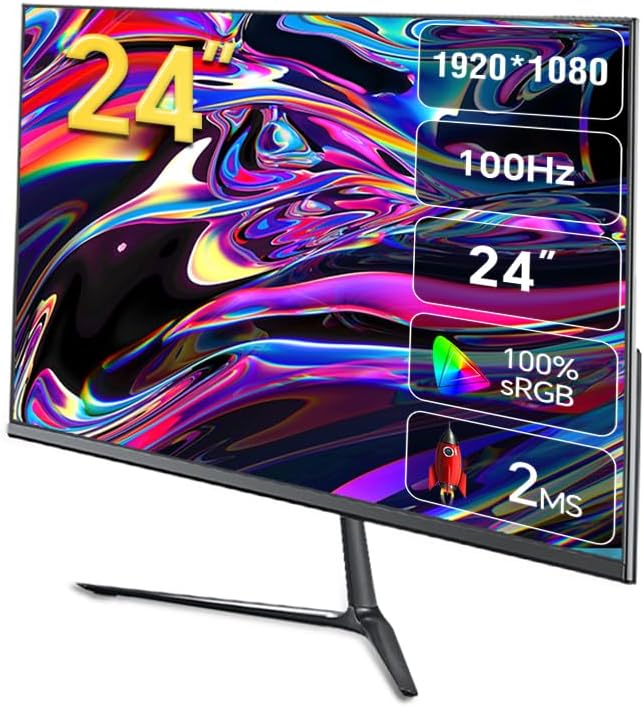
Image 1.1: Front view of the Anmite AN-238W02 monitor, showcasing its 24-inch display, 1920x1080 resolution, 100Hz refresh rate, and 1ms response time.
2. Safety Information
- Always place the monitor on a stable, flat surface to prevent it from falling.
- Do not block ventilation openings. Ensure adequate space around the monitor for proper airflow.
- Use only the power adapter supplied with the monitor.
- Keep the monitor away from water, moisture, and direct sunlight.
- Do not attempt to open the monitor casing. Refer all servicing to qualified personnel.
- Unplug the monitor from the power outlet during lightning storms or when unused for long periods.
3. Package Contents
Please check the package contents upon unboxing. If any items are missing or damaged, contact your retailer.
- Anmite 24" IPS 100Hz Full HD Gaming Monitor (AN-238W02)
- Monitor Stand (Base and Neck)
- Power Adapter and Power Cable
- HDMI Cable
- User Manual (this document)
4. Setup
4.1 Assembling the Monitor Stand
- Carefully remove the monitor from its packaging, keeping the screen protected.
- Attach the stand neck to the back of the monitor by aligning the mounting points and securing with screws (if provided).
- Connect the stand base to the stand neck, ensuring it clicks into place or is secured with the provided screw.
- Place the assembled monitor on a stable, flat surface.
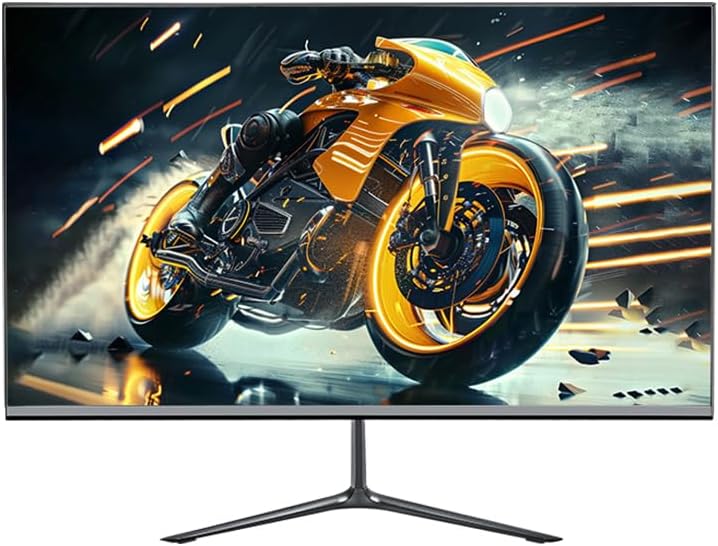
Image 4.1: The Anmite AN-238W02 monitor fully assembled with its stand, ready for connection.
4.2 Connecting Your Monitor
Ensure all devices are powered off before making any connections.
- Power Connection: Connect the power adapter to the monitor's power input, then plug the power cable into a wall outlet.
- Video Connection: Connect one end of the HDMI cable (or VGA cable) to the corresponding port on your computer's graphics card and the other end to the HDMI (or VGA) input on the monitor. For optimal performance and 100Hz refresh rate, HDMI is recommended.
- Audio Output: If you wish to connect external speakers or headphones, plug them into the Audio Out Jack on the monitor.
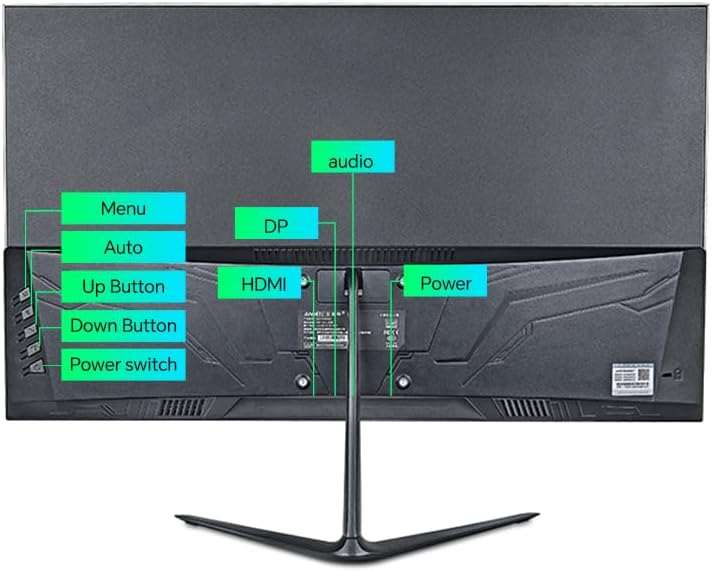
Image 4.2: Rear view of the monitor, highlighting the power input, HDMI, DP (DisplayPort, if available), VGA, and audio ports, along with the control buttons.
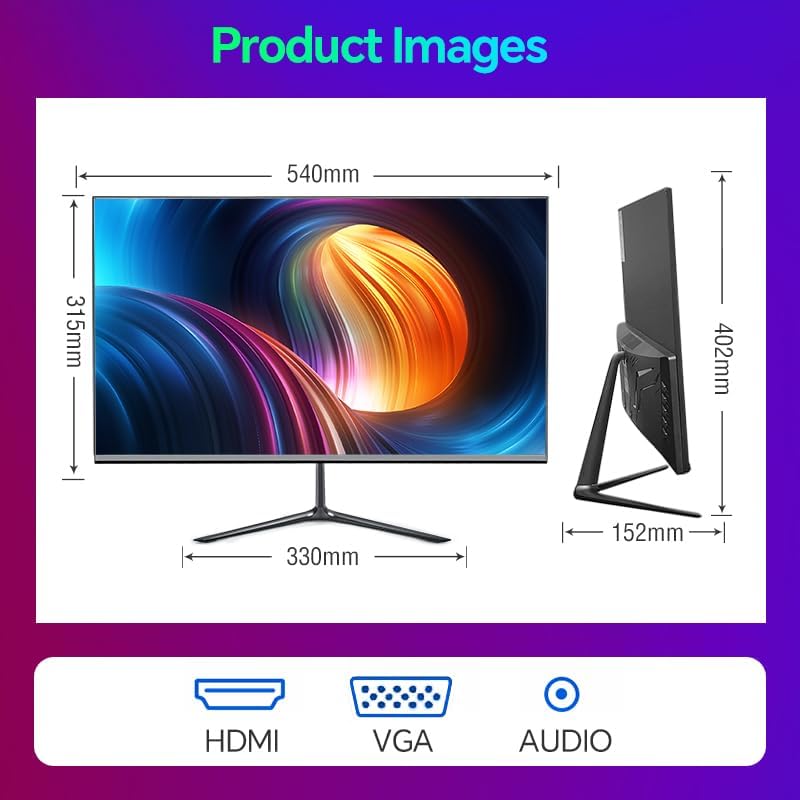
Image 4.3: Diagram illustrating the monitor's physical dimensions and the types of input ports available: HDMI, VGA, and Audio Out.
5. Operating Instructions
5.1 Power On/Off
Press the Power Switch button located on the back of the monitor to turn it on or off. The power indicator light will illuminate when the monitor is on.
5.2 On-Screen Display (OSD) Menu
The OSD menu allows you to adjust various monitor settings. Use the buttons on the back of the monitor to navigate:
- Menu: Press to open the OSD menu or enter a sub-menu.
- Up Button: Navigate up or increase a value.
- Down Button: Navigate down or decrease a value.
- Auto (or Exit): Automatically adjust image settings (VGA only) or exit the current menu.
5.3 Key Features and Settings
- 100Hz Refresh Rate: This monitor supports a 100Hz refresh rate, providing smoother motion and reduced input lag compared to standard 60Hz monitors. Ensure your graphics card and connection cable (HDMI recommended) support this refresh rate, and set it in your operating system's display settings.
- AMD FreeSync Premium: This technology synchronizes the monitor's refresh rate with your AMD graphics card's frame rate, eliminating screen tearing and stuttering. Enable FreeSync in your graphics card's control panel and ensure it is active in the monitor's OSD settings (if applicable).
- FPS/RTS Game Modes: The monitor includes pre-calibrated display settings optimized for First-Person Shooter (FPS) and Real-Time Strategy (RTS) games. Access these modes through the OSD menu to enhance visibility and color profiles for specific game genres.
- Anti-Flicker: This feature reduces screen flickering, which can cause eye strain during prolonged use. It operates by preventing the backlight from flickering periodically, providing a more comfortable viewing experience.
- Micro-Bezel Design: The monitor features a micro-bezel on three sides, maximizing the visible screen area and providing an immersive viewing experience.

Image 5.1: The monitor displaying a high-refresh-rate gaming experience, emphasizing smooth visuals.

Image 5.2: A detailed view of the monitor's micro-bezel design, illustrating the minimal border around the display.
6. Maintenance
6.1 Cleaning the Monitor
- Always unplug the monitor before cleaning.
- Use a soft, lint-free cloth lightly dampened with water or a non-abrasive screen cleaner to wipe the screen.
- For the monitor casing, use a soft, dry cloth. Avoid using harsh chemicals or abrasive materials.
6.2 Storage
If storing the monitor for an extended period, unplug it, cover it to protect from dust, and store it in a cool, dry place.
7. Troubleshooting
| Problem | Possible Cause | Solution |
|---|---|---|
| No power | Power cable not connected; Power outlet not working | Ensure power cable is securely connected to monitor and outlet; Test outlet with another device. |
| No signal | Video cable not connected; Incorrect input source selected | Check video cable connections (HDMI/VGA); Use OSD menu to select correct input source. |
| Image is blurry or distorted | Incorrect resolution; Cable issue | Set display resolution to 1920 x 1080 in your computer's display settings; Try a different video cable. |
| Screen flickering | Refresh rate mismatch; Cable issue | Ensure refresh rate is set to 100Hz in display settings; Check for Anti-Flicker setting in OSD; Try a different video cable. |
8. Specifications
| Feature | Specification |
|---|---|
| Model Number | AN-238W02 |
| Screen Size | 23.8 Inches |
| Panel Type | IPS |
| Resolution | 1920 x 1080 (Full HD) |
| Refresh Rate | Up to 100Hz |
| Response Time | 1ms |
| Connectivity | VGA, HDMI, Audio Out Jack |
| AMD FreeSync | Yes (Premium Compatible) |
| Anti-Flicker | Yes |
| Product Dimensions (with stand) | 21 x 38 x 49 inches |
| Item Weight | 5.5 pounds |
| Manufacturer | Shenzhen Anmite Technology Co.,Ltd. |
9. Warranty and Support
Anmite monitors are designed for reliability and performance. For information regarding warranty coverage, please refer to the warranty card included with your purchase or the retailer's policy where the product was acquired.
For technical support, troubleshooting assistance beyond this manual, or service inquiries, please contact Anmite customer support through the contact information provided with your product documentation or visit the official Anmite website.