1. Introduction
Thank you for choosing the DISHENGZHEN D80 A4 Thermal Printer. This compact and portable printer utilizes advanced thermal printing technology, eliminating the need for ink, toner, or ribbons. Designed for convenience, it supports wireless Bluetooth connectivity for mobile devices and USB connection for computers, making it ideal for office, home, school, and travel use. This manual provides detailed instructions to help you get started and make the most of your new printer.
2. Product Features
- Mini and Portable: Compact design, lightweight, and easy to carry for printing on the go.
- Inkless Thermal Printing: Uses thermal technology, requiring no ink, toner, or ribbon.
- Easy Paper Installation: Designed for quick and simple loading of thermal paper.
- Clear and Fast Printing: Delivers sharp prints with a resolution of 203 dpi and a print speed of 10 mm/s.
- Wireless Connectivity: Connects via Bluetooth to smartphones and tablets using a dedicated application.
- Wired Connectivity: Supports USB connection for printing from computers and laptops.
- Multifunction Application: Comes with an APP featuring rich templates suitable for various documents including office files, design drawings, educational materials, receipts, and invoices.
- Low Noise Operation: Ensures a quiet printing experience.
3. Package Contents
Please check the box for the following items:
- 1 x A4 Thermal Printer
- 1 x Thermal Paper Roll (original for clearer printing)
- 2 x Paper Limiters
- 1 x Type-C USB Cable
- 1 x User Manual (this document)
4. Specifications
| Feature | Specification |
|---|---|
| Printer Model | D80 |
| Type | A4 Thermal Printer |
| Weight | 635 g (approx. 1.4 lbs) |
| Dimensions | 10.4" x 3.15" x 1.89" (262mm x 80.7mm x 46.8mm) |
| Maximum Print Width | 210 mm |
| Print Speed | 10 mm/s |
| Resolution | 203 dpi |
| Battery Capacity | 2600 mAh |
| Charging Port | Type-C |
| Connectivity | Bluetooth, USB Cable |
| Compatible Devices | Smartphones, Tablets, PCs |
| Supported Paper Types | Thermal Roll Paper, Folding Paper |
| Paper Roll Max Diameter | 30mm |
5. Getting Started (Setup)
5.1 Charging the Printer
Before first use, ensure the printer is fully charged. Connect the provided Type-C USB cable to the printer's charging port and the other end to a compatible USB power adapter (not included) or a computer's USB port. The indicator light will show charging status (refer to the printer's LED indicator guide for specific light behaviors).
5.2 Loading Thermal Paper
The D80 printer supports both thermal paper rolls and folding thermal paper. Ensure you use A4 size thermal paper for optimal results.
- Open the printer's paper compartment cover.
- Insert the thermal paper roll or folding paper into the compartment, ensuring the printing side of the paper faces upwards.
- Pull a small amount of paper out of the printer's exit slot.
- Close the paper compartment cover securely.

Image: Loading thermal paper into the D80 printer. The image illustrates the correct orientation for inserting the paper roll and highlights the 107mm paper width.

Image: The D80 printer supports various paper sizes and types, including thermal rolls and folding paper, with a maximum roll diameter of 30mm.
5.3 Installing Paper Limiters
The included paper limiters help guide the paper and ensure straight printing, especially for narrower paper types. Insert the limiters into the designated slots within the paper compartment, adjusting them to fit the width of your paper.
6. Connectivity and Printing (Operating)
6.1 Bluetooth Connection (Mobile App)
For wireless printing from your smartphone or tablet, use the dedicated mobile application (e.g., Marklife APP). This app provides rich templates and easy printing functionality.
- Download the official application (e.g., Marklife) from your device's app store.
- Ensure your printer is turned on and fully charged.
- Enable Bluetooth on your mobile device.
- Open the downloaded application and follow the in-app instructions to search for and connect to your D80 printer via Bluetooth.
- Once connected, you can select documents, images, or use templates within the app to print.
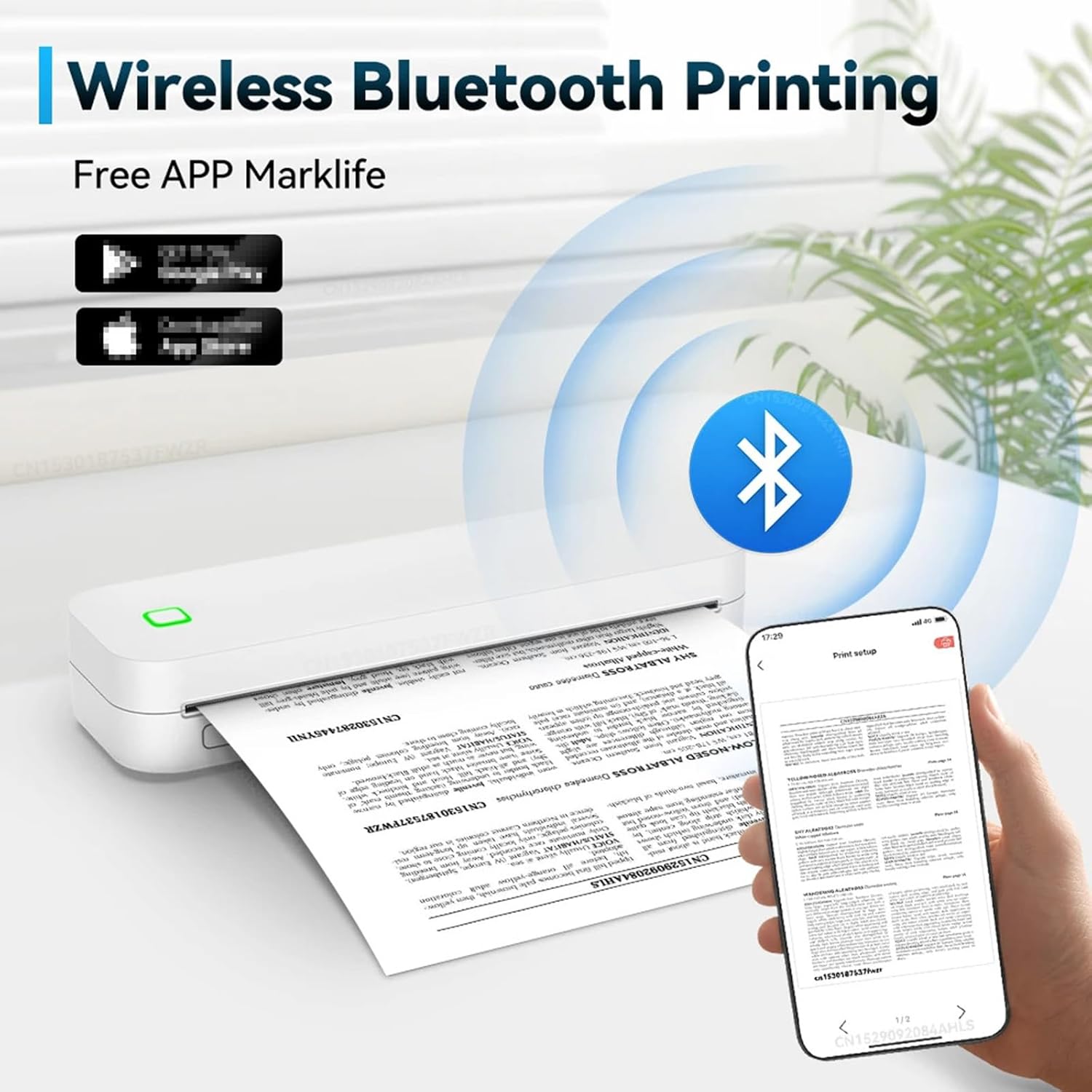
Image: Wireless Bluetooth printing in action, showing the D80 printer connected to a mobile phone via the Marklife app.
6.2 USB Connection (PC Printing)
To print from your computer or laptop, use the provided Type-C USB cable.
- Ensure the printer is turned on.
- Connect one end of the Type-C USB cable to the printer and the other end to an available USB port on your computer.
- Your computer should automatically detect the printer and install necessary drivers. If not, you may need to manually install drivers from the manufacturer's website (refer to the official website or included software for driver downloads).
- Once installed, you can print documents from any application on your computer as you would with a standard printer.

Image: Support for PC printing, demonstrating the printer connected to a laptop via a USB cable.
6.3 Supported File Types
The D80 printer supports various document and image formats for printing, including but not limited to:
- TXT (Text files)
- WPS (Word Processing System files)
- Excel (Spreadsheet files)
- PDF (Portable Document Format files)
- JPG (JPEG image files)

Image: The D80 printer supports various file formats like TXT, WPS, Excel, PDF, and JPG, enhancing work efficiency.
7. Maintenance
7.1 Cleaning the Print Head
To ensure optimal print quality, regularly clean the print head. Use a soft, lint-free cloth lightly dampened with isopropyl alcohol. Gently wipe the print head surface. Do not use abrasive materials or harsh chemicals.
7.2 General Care
- Keep the printer in a clean, dry environment, away from direct sunlight and extreme temperatures.
- Avoid dropping or subjecting the printer to strong impacts.
- When replacing paper rolls, be careful to avoid scratches to the internal components.
- Keep the printer out of reach of children.
8. Troubleshooting
If you encounter issues with your DISHENGZHEN D80 printer, please refer to the following common problems and solutions:
- Printer not turning on: Ensure the printer is fully charged. Connect it to a power source and check the charging indicator light.
- No print output: Check if thermal paper is loaded correctly and that the printing side is facing up. Ensure the paper compartment cover is securely closed.
- Poor print quality (faint or unclear prints): The print head might be dirty. Refer to Section 7.1 for cleaning instructions. Ensure you are using high-quality thermal paper.
- Bluetooth connection issues: Make sure Bluetooth is enabled on your mobile device and the printer is within range. Restart both the printer and your device. Try re-pairing the devices through the app.
- USB connection issues: Ensure the USB cable is securely connected to both the printer and the computer. Try a different USB port or cable. Verify that the printer drivers are correctly installed on your computer.
- Printer not recognized by computer: Install or update the printer drivers. Refer to the manufacturer's website for the latest drivers.
- Paper jam: Open the paper compartment and carefully remove any jammed paper. Ensure paper is loaded correctly and not wrinkled.

Image: High-speed HD printing capability of the D80 printer, showcasing its 203dpi resolution and 2600mAh battery for clear and efficient output.
9. Warranty and Support
DISHENGZHEN is committed to providing comprehensive customer service. If you encounter any issues that cannot be resolved using this user manual or the product details page, please do not hesitate to contact us via email. We aim to respond to all inquiries within 24 hours.
For further assistance or warranty claims, please reach out to our customer support team through the contact information provided at your point of purchase or on the official DISHENGZHEN website.


