CarlinKit Tbox Ambient AI Box User Manual
Model: CPC200-Tbox S
1. Introduction
The CarlinKit Tbox Ambient AI Box is a multi-functional device designed to enhance your in-car entertainment and connectivity. It converts your car's wired CarPlay or Android Auto system into a wireless one, providing access to Android 13.0 features, app downloads, and seamless switching between CarPlay and Android Auto. This manual provides detailed instructions for setup, operation, and maintenance of your device.

Image: Front view of the CarlinKit Tbox Ambient AI Box, a compact black square device with a circular center featuring an ambient light ring.
2. Package Contents
Please verify that all items are present in your package:
- CarlinKit Tbox Ambient AI Box
- USB-A to USB-C Cable
- USB-C to USB-C Cable
- User Manual (this document)
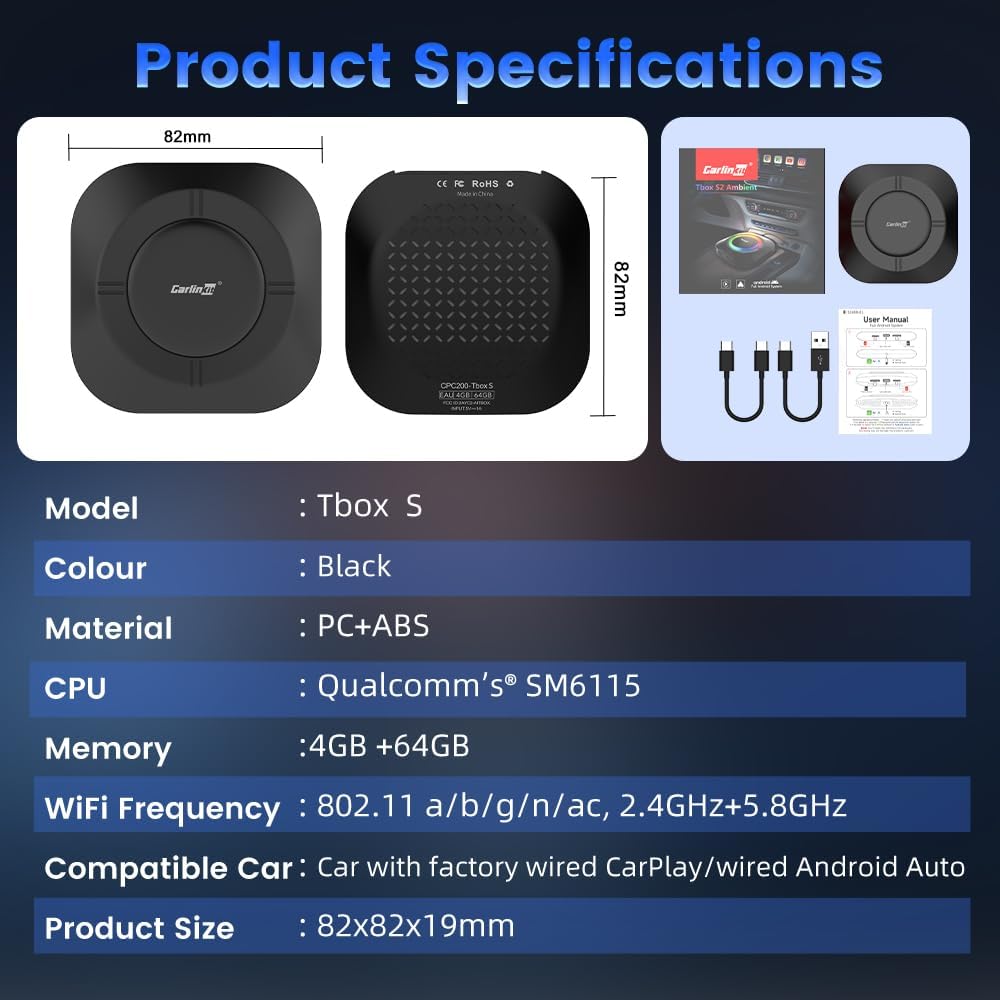
Image: Diagram showing the CarlinKit Tbox Ambient AI Box, two USB cables (USB-A to USB-C and USB-C to USB-C), and a user manual, alongside product specifications.
3. Product Overview
Familiarize yourself with the device's ports and indicators:
- LED Indicator: Displays device status.
- TF Card Slot: For expandable storage (up to 256GB).
- SIM Card Slot: For 4G cellular connectivity.
- Type-C Port: For power supply and data connection to the car.
- Adjustment Button: Used for switching between CarPlay and Android Auto modes.

Image: Detailed diagram of the CarlinKit Tbox Ambient AI Box, highlighting the LED indicator, TF Card Slot, SIM Card Slot, Type-C Port, and the adjustment button, along with dimensions (82mm x 82mm x 19mm).
4. Setup Instructions
Follow these steps for initial setup:
- Connect the Device: Plug the CarlinKit Tbox Ambient AI Box into your car's USB port (USB-A or Type-C) using the provided cable. Ensure your car supports wired CarPlay or Android Auto.
- Access AutoKit: On your car's infotainment screen, locate and click the "AutoKit" icon to enter the connection interface.
- Enable Bluetooth and Wi-Fi: On your smartphone, turn on both Bluetooth and Wi-Fi.
- Pair with Device: Pair your phone's Bluetooth with the device. The device name will typically appear as "Tbox S".
- Confirm Connection: Wait for the connection to succeed. Once connected, wireless CarPlay or Android Auto will activate on your car's display.
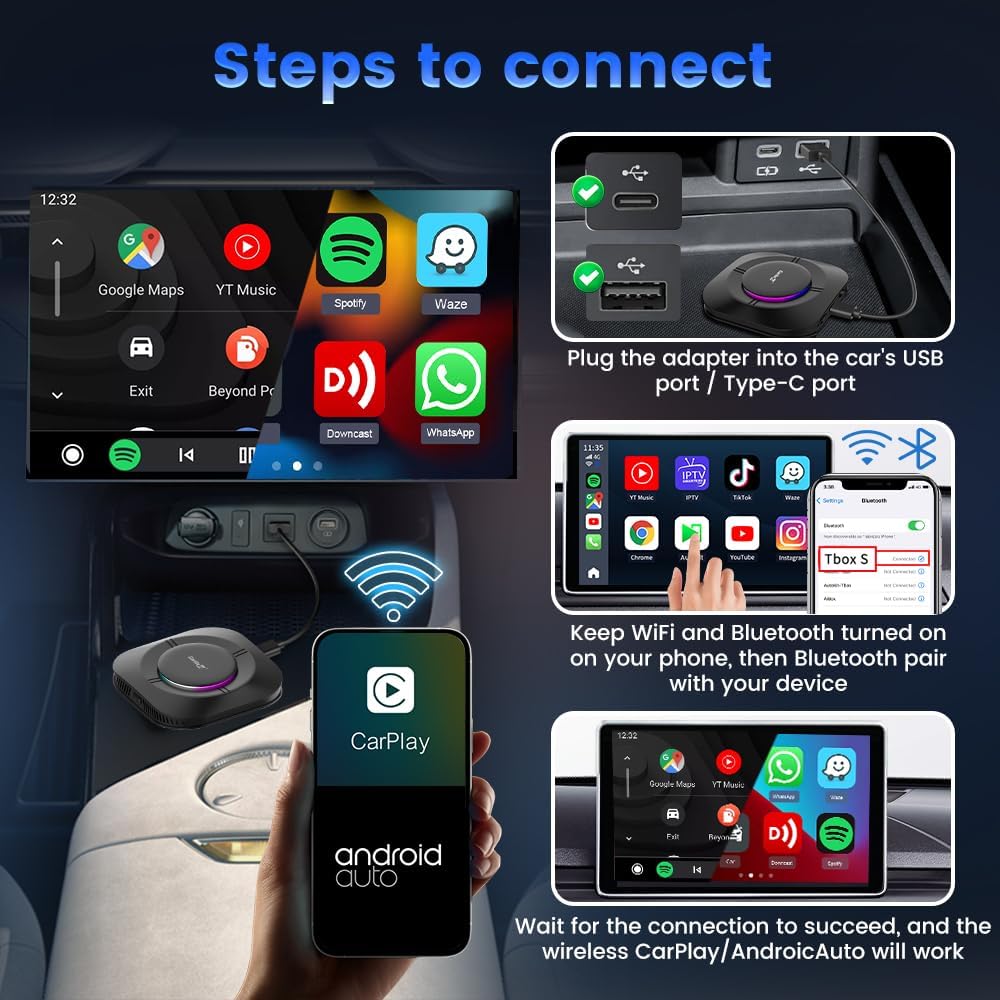
Image: Visual guide showing the three steps to connect the device: plugging it into the car's USB port, enabling Wi-Fi and Bluetooth on the phone and pairing, and finally, the successful connection displaying wireless CarPlay/Android Auto.
5. Operating Instructions
5.1 Switching Between CarPlay and Android Auto
The device supports seamless switching between wireless CarPlay and Android Auto. The default setting is CarPlay.
- To switch to Android Auto, press and hold the adjustment button on the device for 2-3 seconds.
- To switch back to CarPlay, repeat the same action.

Image: Diagram illustrating the process of switching between Android Auto and CarPlay by pressing and holding the adjustment button on the device, also showing the Micro SD Card, Type-C Slot, and Nano SIM Card slots.
5.2 App Downloads and Entertainment
Powered by Android 13.0, the AI Box allows you to download various applications from the Google Play Store, transforming your car's display into an entertainment and utility center.
- Access the Google Play Store from the device's interface to download apps such as Netflix, YouTube, Spotify, Waze, and more.
- Utilize the 4G SIM card or Wi-Fi hotspot for internet connectivity to stream content and use online services.

Image: Car infotainment screen displaying various entertainment apps like YouTube, Netflix, TikTok, and Pluto TV, indicating the device's capability for video entertainment.
5.3 Control Methods
The AI Box integrates with your car's existing control systems:
- Voice Control: Use voice commands for navigation, calls, and music playback.
- Steering Wheel Control: Operate functions directly from your car's steering wheel buttons.
- Touch Control: Interact with the interface via the car's touchscreen display.
- OEM Knob Control: For vehicles with rotary knob controllers, the device supports control via these knobs.

Image: Four panels demonstrating different control methods: Voice Control (Siri icon), OEM Knob Control, Touch Control (finger on screen), and Steering Wheel Control.
6. Specifications
| Feature | Detail |
|---|---|
| Model | CPC200-Tbox S |
| Operating System | Android 13.0 |
| RAM | 4GB |
| ROM (Storage) | 64GB |
| Expandable Storage | Up to 256GB (TF Card) |
| Connectivity | Wi-Fi (802.11 a/b/g/n/ac, 2.4GHz+5.8GHz), Bluetooth, 4G Cellular |
| Compatible Cars | Cars with factory wired CarPlay/Android Auto (requires touchscreen) |
| Compatible Phones | iPhone (iOS 10+), Android (Android 11+) |
| Dimensions | 82mm x 82mm x 19mm (3.23 x 3.23 x 0.75 inches) |
| Weight | 85 Grams (3 ounces) |
| CPU | Qualcomm SM6115 |
7. Troubleshooting
If you encounter issues, refer to the following common problems and solutions:
- Device not powering on:
- Ensure the USB cable is securely connected to both the device and the car's USB port.
- Verify that the car's USB port is active and providing power.
- Try a different USB port in your vehicle if available.
- No CarPlay/Android Auto connection:
- Confirm your car has factory wired CarPlay or Android Auto.
- Ensure Bluetooth and Wi-Fi are enabled on your phone and correctly paired with the device.
- Restart both the device (by unplugging and replugging) and your phone.
- Check for software updates for the device (see Section 8.1).
- Apps not loading or slow performance:
- Verify strong 4G cellular signal or Wi-Fi hotspot connection.
- Clear app caches or reinstall problematic applications.
- Ensure sufficient storage space is available on the device.
- Cannot switch between CarPlay and Android Auto:
- Ensure you are pressing and holding the adjustment button for the specified 2-3 seconds.
- Restart the device and try again.
8. Maintenance
8.1 Software Updates (FOTA)
Regularly check for and install software updates to ensure optimal performance and access to new features.
- On the device's interface, navigate to the "FOTA Update" or "System Update" section.
- Click "Check Version" to see if a new update is available.
- If an update is found, follow the on-screen prompts to download and install it. Ensure the device has stable power during the update process.

Image: Four-step visual guide demonstrating how to check for and perform a FOTA (Firmware Over-The-Air) update on the device's system settings.
8.2 Cleaning
Use a soft, dry cloth to clean the device. Avoid using liquid cleaners or abrasive materials.
9. Warranty and Support
CarlinKit provides comprehensive after-sales service for your product:
- 30-Day Money Back Guarantee: Unconditional money back within 30 days of purchase for product-related problems (non-artificial damage).
- 12-Month Replacement Warranty: We provide a one-year free replacement service for product issues.
- 24-Hour Support: If you encounter any product problems, please contact customer service. We aim to reply within 24 hours.
For support, please contact CarlinKit via your order details or email: support@carlinkit.com
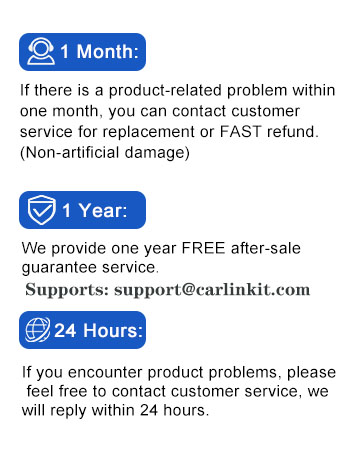
Image: Graphic summarizing CarlinKit's customer support policies: 1 Month (money back), 1 Year (replacement), and 24 Hours (response time).