
AS03
AS03 WiFi Camera User Manual
Model: AS03 | Brand: Generic
Introduction
This user manual provides comprehensive instructions for the setup, operation, and maintenance of your AS03 WiFi Camera. Please read this manual thoroughly before using the device to ensure proper functionality and safety.

Figure 1: AS03 WiFi Camera with stand.
The AS03 WiFi Camera is a compact, low-power consumption device designed for home security and sports monitoring. It features HD night vision, two-way intercom functionality, and supports local storage via TF card.
Package Contents
Verify that all items are present in the package:
- 1 x AS03 WiFi Camera
- 1 x Stand
- 1 x Type-C Charging Cable
- 1 x Instruction Manual (this document)
Product Overview
Familiarize yourself with the camera's components and dimensions.

Figure 2: Various angles of the AS03 WiFi Camera.

Figure 3: AS03 WiFi Camera dimensions.
The camera measures approximately 36mm x 40mm x 36mm, making it highly compact and discreet.
Setup
1. Charging the Camera
Before initial use, fully charge the camera using the provided Type-C charging cable and a 5V/1A power adapter (not included).

Figure 4: Charging the AS03 WiFi Camera.
The camera can record while charging, allowing for continuous operation when connected to a power source.
2. Inserting a TF Card (Optional)
For local video storage, insert a TF (microSD) card into the designated slot. The camera supports up to a 32GB TF card (not included). Ensure the camera is powered off before inserting or removing the card.
3. App Installation and Connection
The AS03 WiFi Camera uses the iWFCam application for remote monitoring and control. Download the app from your device's app store (iOS/Android).
- Download and install the iWFCam app.
- Power on the camera. The camera will emit a WiFi hotspot.
- On your smartphone, go to WiFi settings and connect to the camera's hotspot (usually named something like "iWFCam-XXXXXX").
- Open the iWFCam app. The camera should automatically be detected and added.
- Follow the in-app instructions to connect the camera to your home 2.4GHz WiFi network for remote access.

Figure 5: Connecting to the camera via iWFCam app.
Operating Instructions
Live View and Recording
Once connected to the iWFCam app, you can access the live video feed from your camera. The app allows you to:
- View real-time video.
- Initiate manual video recording.
- Capture still images.
- Engage in two-way audio communication.
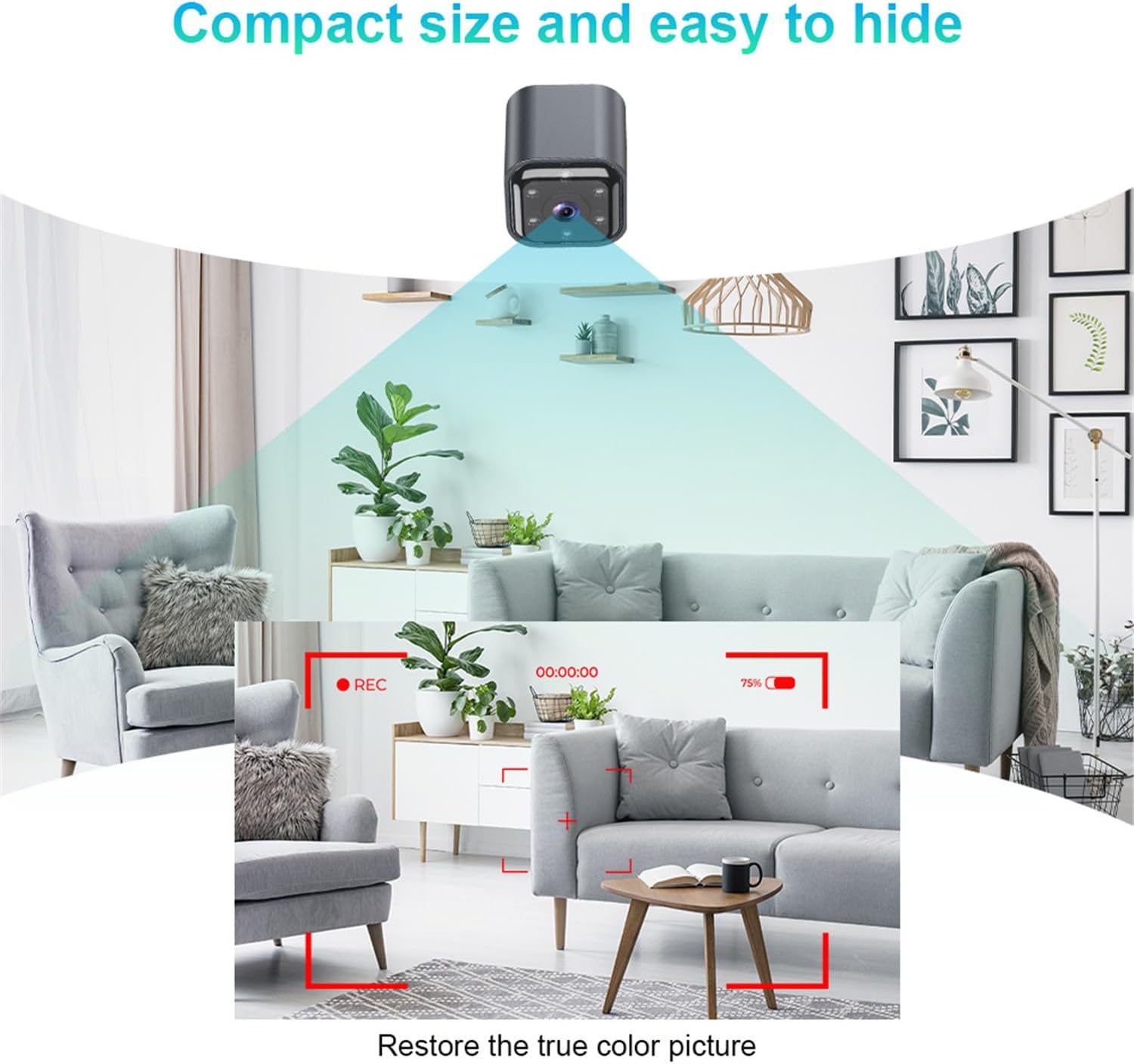
Figure 6: Camera's field of view and image clarity.
Night Vision
The camera features automatic infrared night vision, enabling clear video capture in low-light or no-light conditions. The infrared irradiation distance is effective up to 5 meters, with optimal results within 2 meters.
Two-Way Intercom
Utilize the built-in microphone and speaker for two-way audio communication through the iWFCam app. This allows you to speak to and hear from the area where the camera is placed.
Motion Detection and Alarms
The camera supports motion detection. When motion is detected, the camera can trigger an alarm and send push notifications to your smartphone via the iWFCam app.
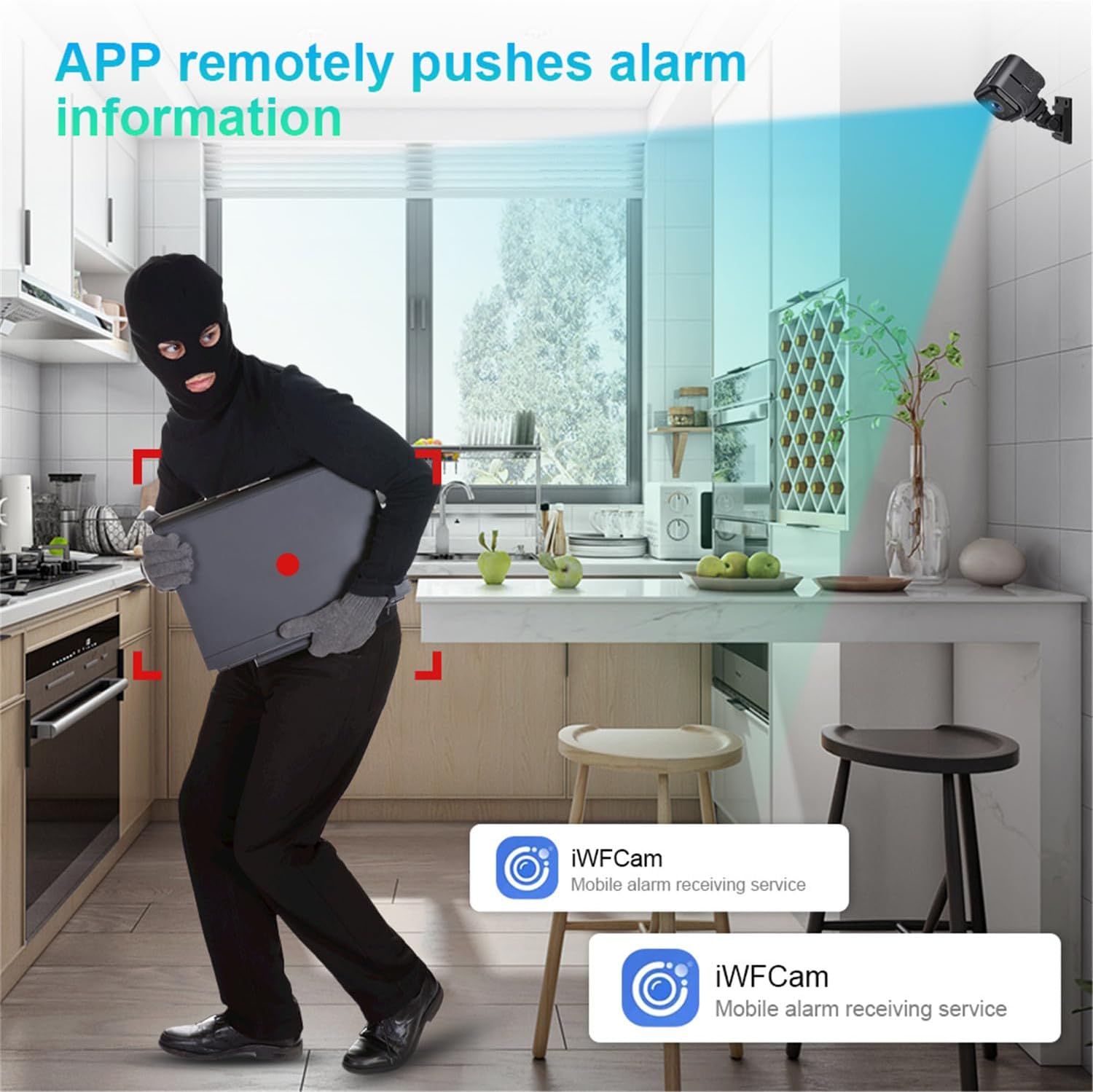
Figure 7: Motion detection and alarm notification.
Loop Recording
When a TF card is inserted, the camera supports loop recording. This means that when the memory card is full, the oldest video files will be automatically overwritten by new recordings, ensuring continuous surveillance.
Maintenance
- Cleaning: Use a soft, dry cloth to clean the camera lens and body. Avoid using liquid cleaners or abrasive materials.
- Storage: If storing the camera for an extended period, ensure it is fully charged and stored in a cool, dry place.
- Firmware Updates: Periodically check the iWFCam app for any available firmware updates for your camera to ensure optimal performance and security.
Troubleshooting
| Problem | Possible Cause | Solution |
|---|---|---|
| Camera not powering on. | Low battery; faulty charging cable/adapter. | Charge the camera for at least 2 hours. Try a different Type-C cable and 5V/1A adapter. |
| Cannot connect to camera WiFi hotspot. | Camera not powered on; too far from camera; WiFi interference. | Ensure camera is on. Move closer to the camera. Restart camera and phone. |
| Camera offline in iWFCam app. | No internet connection; incorrect WiFi password; camera too far from router. | Check your home WiFi. Reconfigure camera's WiFi settings in the app. Move camera closer to router. |
| No recording to TF card. | TF card not inserted; card full; card corrupted; incorrect format. | Ensure TF card is inserted correctly. Check card capacity. Format the TF card via the app or on a computer. Try a different TF card. |
| Poor night vision quality. | Obstruction in front of lens; camera too far from subject. | Clean the lens. Ensure no objects are blocking the infrared lights. Position camera closer to the area of interest (optimal within 2 meters). |
Specifications
| Product Name | AS03 WiFi Camera |
| Model Number | AS03 |
| Image Sensor | COMS |
| Display Resolution | 640*480P (30W) |
| TF Card Support | Max 32GB (not included) |
| Input | Built-in microphone |
| Output | Speaker |
| Charging Voltage | 5V/1A |
| Battery Capacity | 960mAH/4.2V |
| Battery Standby Time | Approx. 6.2 hours continuous use; 45 days low power standby |
| Infrared Distance | 1-5 meters (optimal 2 meters) |
| Operating Temperature | -10 ℃ ~ 50 ℃ |
| Network | 2.4G Wireless Connection (IEEE802.11b/g/n) |
| Audio | Built-in noise cancelling microphone, Two-way intercom |
| Power Connector | Type-C |
| App | iWFCam |
| Dimensions | 36mm x 40mm x 36mm |
| Weight | 166g |

Figure 8: Versatile applications of the AS03 WiFi Camera.
Warranty and Support
For warranty information and technical support, please refer to the seller's policy on the purchase platform or contact the seller directly. Keep your purchase receipt as proof of purchase.
Seller: Kasongde
ASIN: B0DFQ1TDRH
Date First Available: 30 August 2024
Ask a question about this manual
Ask about setup, troubleshooting, compatibility, parts, safety, or missing instructions. Manuals+ will review the question and use this page’s manual context to help answer it.