
CSNTWK GF10
CSNTWK Easy Mount GF10 Portable GPS Tracking Device
User Manual - Model GF10
1. Introduction
The CSNTWK Easy Mount GF10 is a compact and portable GPS tracking device designed for real-time location monitoring of vehicles, assets, children, or pets. It utilizes 4G-LTE and GSM networks for global coverage and integrates GPS, Glonass, and Galileo satellite systems for precise positioning. This manual provides essential information for setting up, operating, and maintaining your GF10 device.

Image 1.1: The CSNTWK Easy Mount GF10 Portable GPS Tracking Device. This image shows the compact, rectangular device with indicator lights on its surface.
Key Features
- Precise Positioning: Utilizes GPS, Glonass, Galileo, and LBS/WiFi for accurate location data.
- Strong Magnetic Mount: Allows for easy and secure attachment to metallic surfaces.
- Extended Standby: Offers long battery life in power-saving modes.
- Safety Fence (Geofencing): Define virtual boundaries and receive alerts when the device enters or exits these areas.
- Historical Track: Access and review past movement data.
- Stable Performance: Designed for reliable operation across various environments.

Image 1.2: Icons representing key features of the GF10 GPS tracker, including precise positioning, strong magnetic attachment, long standby time, safety fence (geofencing), historical tracking, WiFi positioning, and stable performance.
2. Package Contents
Verify that all items are present in your package:
- GF10 GPS Tracker
- Access to Mobile Applications (Android & Apple)
- Charging Cable
- User Manual (this document)
- Global GPS Card (for data service)
3. Setup Guide
3.1 Charging the Device
Before first use, fully charge the GF10 device. Connect the provided charging cable to the device and a standard USB power adapter. A full charge typically takes approximately 2 hours.
3.2 Activating Service and Mobile App Installation
- The GF10 requires a data service plan for real-time tracking. A Pay-As-You-Go Global GPS card is included. Follow the instructions provided with the GPS card to activate your service.
- Download the official GPScards Mobile App from the Apple App Store (for iOS devices) or Google Play Store (for Android devices). Search for "GPScards Mobile App".
- Install the application on your smartphone or tablet.
- Open the app and follow the on-screen instructions to register your device using the unique identifier found on your GF10 tracker.
3.3 Device Placement and Installation
The GF10 features a strong 6lb earth magnet for secure attachment to metallic surfaces. It also includes a hook/loop attachment for non-metallic surfaces. Consider the following for optimal performance:
- For Vehicles: Common placement areas include under the rear windshield, around the dashboard, under the front trim panel, under the hood, or inside the center console. For motorcycles, consider under the foot pedal, inside the lampshade, near the stopwatch, near the taillights, or under the rear seat.
- For Assets/Luggage: Place the device in a location where it has a clear line of sight to the sky for better GPS signal reception, if possible.
- Ensure the device is securely attached to prevent dislodgement during movement.

Image 3.1: Examples of installation locations for the GF10 GPS tracker in a car and a scooter. The image illustrates various points such as under the rear windshield, around the dashboard, under the front trim panel for cars, and under the foot pedal, inside the lampshade, near the stopwatch, or near the taillights for scooters.

Image 3.2: Examples of installation locations for the GF10 GPS tracker in a truck and a motorcycle. The image shows placement options like under the windshield or inside the center console for trucks, and under the rear seat for motorcycles.
4. Operating Instructions
4.1 Using the Mobile Application
The GPScards Mobile App provides comprehensive control and monitoring features:
- Real-Time Tracking: View the current location and movement of your GF10 device on Google Maps.
- Tracking History: Access up to one year of location history, with options to export data.
- Mobile Alerts: Configure alerts for various events, including low battery, speeding, geofence entry/exit, parking, and movement detection.
- Multiple Users: Allow multiple users to view the tracker's location simultaneously.
- Commands: Send commands to control your GPS tracker directly from the app.

Image 4.1: The GF10 device shown alongside a smartphone displaying the tracking application interface. The image highlights the 4G LTE connectivity and the app's ability to show tracking data.
4.2 Global Tracking Capabilities
The GF10 offers global tracking with fast and accurate positioning, typically with an error of less than 1 meter. It supports various tracking scenarios, including vehicles, pets, and individuals.
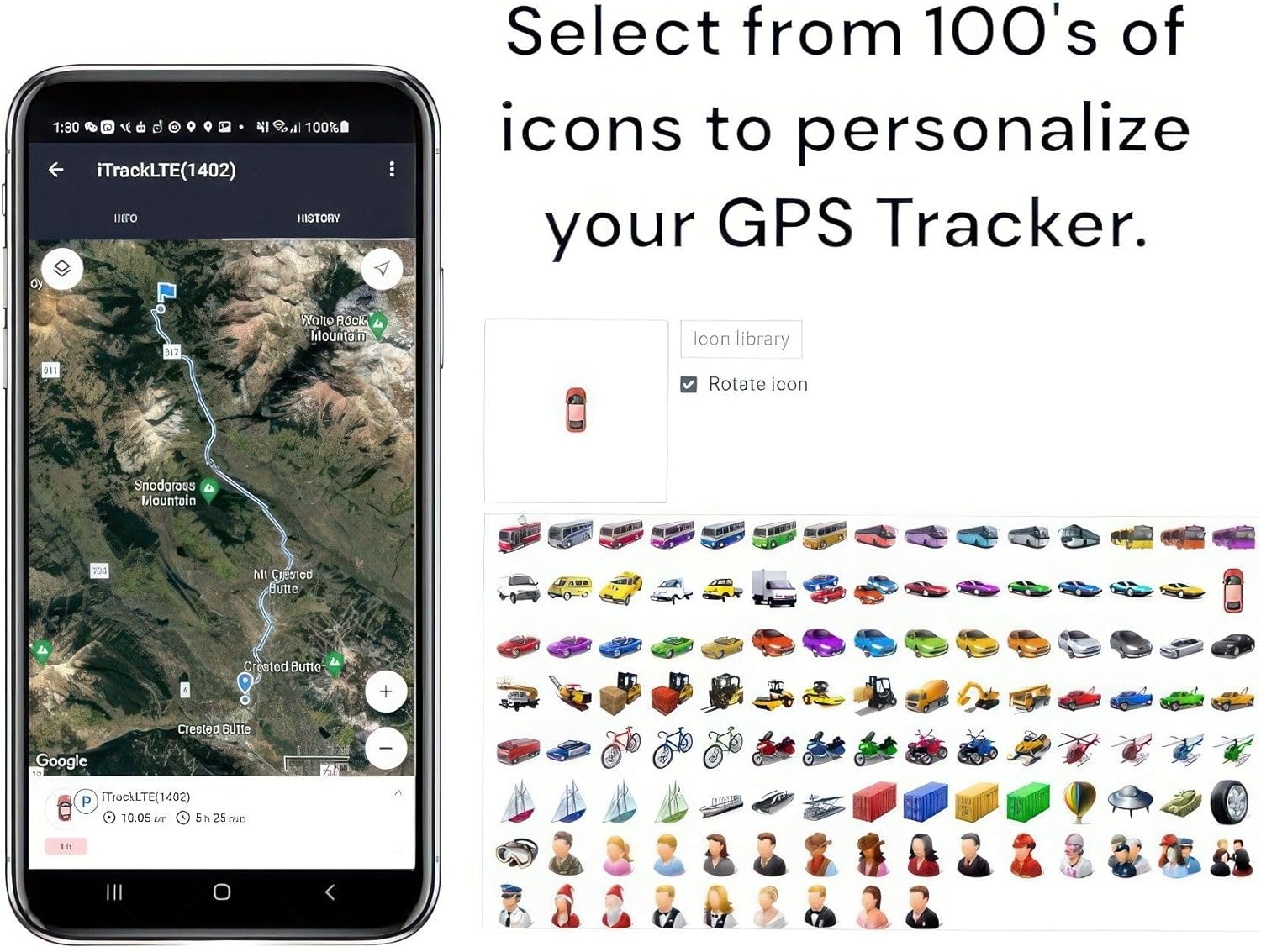
Image 4.2: An illustration demonstrating the global tracking capabilities of the GF10, showing various assets like a car, a dog, and people being tracked on a map with precise location markers.
4.3 Customizing Your Tracker Icon
The mobile application allows you to personalize the icon representing your GF10 tracker on the map. You can select from a library of icons to match the asset being tracked (e.g., car, bicycle, person, pet).

Image 4.3: A smartphone screen displaying the option to select from a variety of icons to personalize the appearance of your GPS tracker on the map within the application.
5. Maintenance
5.1 Battery Management
The GF10 is equipped with a rechargeable Lithium-Ion battery. Battery life varies based on usage mode:
- Power Saving Mode: Up to 9 days of operation.
- Workhorse Mode (constant tracking): Up to 3 days of operation.
To maximize battery lifespan, avoid extreme temperatures and fully discharge the battery periodically before recharging. An optional car wire harness for permanent power is available separately.
5.2 Cleaning and Care
The device has an IP66 waterproof rating, meaning it is protected against dust ingress and powerful water jets. To clean, wipe the device with a soft, damp cloth. Do not use harsh chemicals or abrasive cleaners. Ensure the charging port cover is securely closed to maintain water resistance.
6. Troubleshooting
If you encounter issues with your GF10 device, refer to the following common solutions:
| Problem | Possible Cause / Solution |
|---|---|
| Device not tracking / Inaccurate location |
|
| Battery drains quickly |
|
| Cannot connect to mobile app |
|
If the problem persists, please contact customer support.
7. Specifications
Detailed technical specifications for the CSNTWK Easy Mount GF10:
| Feature | Detail |
|---|---|
| Model | GF10 |
| Dimensions (L x W x D) | 2.24 x 1.37 x 0.75 inches (5.7 x 3.5 x 1.9 cm) |
| Weight | 1.4 ounces (40 grams) |
| Waterproof Rating | IP66 |
| Battery Type | Rechargeable Lithium-Ion HiCap Mini Battery |
| Battery Usage | Up to 9 days (Power Saving Mode), 3 days (Workhorse Mode) |
| Battery Charge Time | Approximately 2 hours |
| Satellite Networks | GPS L1 Band + Glonass L1 Band + Galileo E1B/L1 (connects to up to 64 satellites) |
| Data Networks | 4G-LTE FDD B1/B2/B3/B4/B5/B7/B8/B28/B66 | Backup GSM 850/900/1800/1900MHz |
| Tracking Storage History | Up to one year, with export option |
| Compatible Applications | Windows, Mac, iPhone (APP Included), Android (APP Included), iPad/Tablet (APP Included) |
| Language Support | English, Spanish, Portuguese, French |

Image 7.1: The GF10 device measured with calipers, showing its dimensions: 2.24 inches in length, 1.37 inches in width, and 0.75 inches in depth.
8. Warranty and Support
8.1 Lifetime Warranty
The CSNTWK Easy Mount GF10 comes with a Lifetime Warranty, which includes a replacement GPS device twice a year. Please refer to the warranty terms provided with your purchase for full details.
8.2 Customer Support
For technical assistance, service activation inquiries, or any other support needs, please contact GPScards customer support. Support is provided by an American team, and the tracking application and website are American-designed.
Refer to the GPScards website or your service activation documents for contact information.
Ask a question about this manual
Ask about setup, troubleshooting, compatibility, parts, safety, or missing instructions. Manuals+ will review the question and use this page’s manual context to help answer it.