
Byintek U12
BYINTEK U12 Portable Projector User Manual
Model: U12
Brand: Byintek
1. Introduction
Thank you for purchasing the BYINTEK U12 Portable Projector. This manual provides essential information for setting up, operating, and maintaining your projector. The U12 projector is designed to deliver a high-quality visual experience with its 1080p Full HD resolution, 800 ANSI lumens brightness, and support for 4K content. It features smart Android capabilities, dual-band Wi-Fi, Bluetooth 5.0, and powerful stereo speakers, making it ideal for home theater, office presentations, and outdoor entertainment.
2. Safety Information
Please read all safety instructions carefully before using the projector. Keep this manual for future reference.
- Do not look directly into the projector lens when the lamp is on. The intense light can cause eye damage.
- Ensure proper ventilation around the projector. Do not block ventilation openings.
- Use only the power adapter supplied with the projector.
- Do not expose the projector to rain, moisture, or extreme temperatures.
- Avoid placing the projector on unstable surfaces.
- Disconnect the power cord during lightning storms or when unused for long periods.
- Do not attempt to disassemble or repair the projector yourself. Refer all servicing to qualified personnel.
3. Package Contents
Verify that all items are present in the package:
- BYINTEK U12 Portable Projector
- Remote Control
- Power Cable (EU, US, UK, AU compatible)
- User Manual

Figure 3.1: Front view of the BYINTEK U12 Portable Projector, showcasing its lens and fabric-covered front panel.
4. Product Overview
4.1 Key Features
- 1080p Full HD Resolution & 4K Support: Delivers sharp and vibrant images with native 1920x1080P resolution, compatible with 4K content.
- 800 ANSI Lumens Brightness: Provides clear and bright projections suitable for various lighting conditions.
- Powerful Stereo Sound: Equipped with two 5W speakers for deep bass and clear highs, also functions as a Bluetooth speaker.
- Dual-Band Wi-Fi (5G/2.4G): Supports wireless screen mirroring from mobile devices and laptops.
- Intelligent Screen Adaptation: Features automatic focus, automatic keystone correction, and intelligent obstacle avoidance for quick and easy setup.
- Dustproof Optical Engine: 100% sealed design prevents dust accumulation, reduces noise, and enhances cooling for extended lifespan.
- Multiple Connectivity Options: Includes HDMI and USB ports for versatile device connections.
4.2 Design and Aesthetics
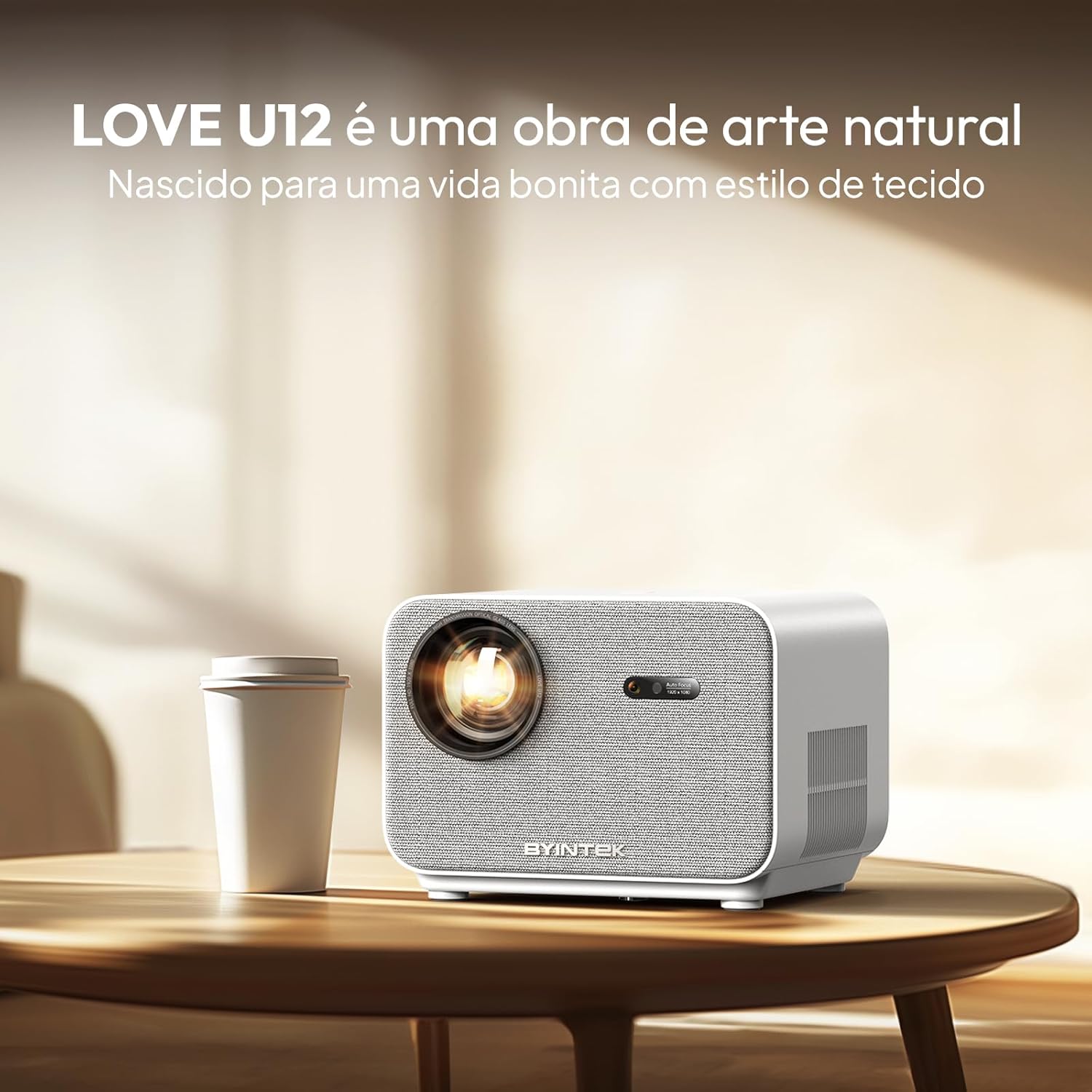
Figure 4.1: The BYINTEK U12 projector placed on a wooden table in a living room setting, highlighting its aesthetic design with a fabric-covered front.
4.3 Dustproof Technology
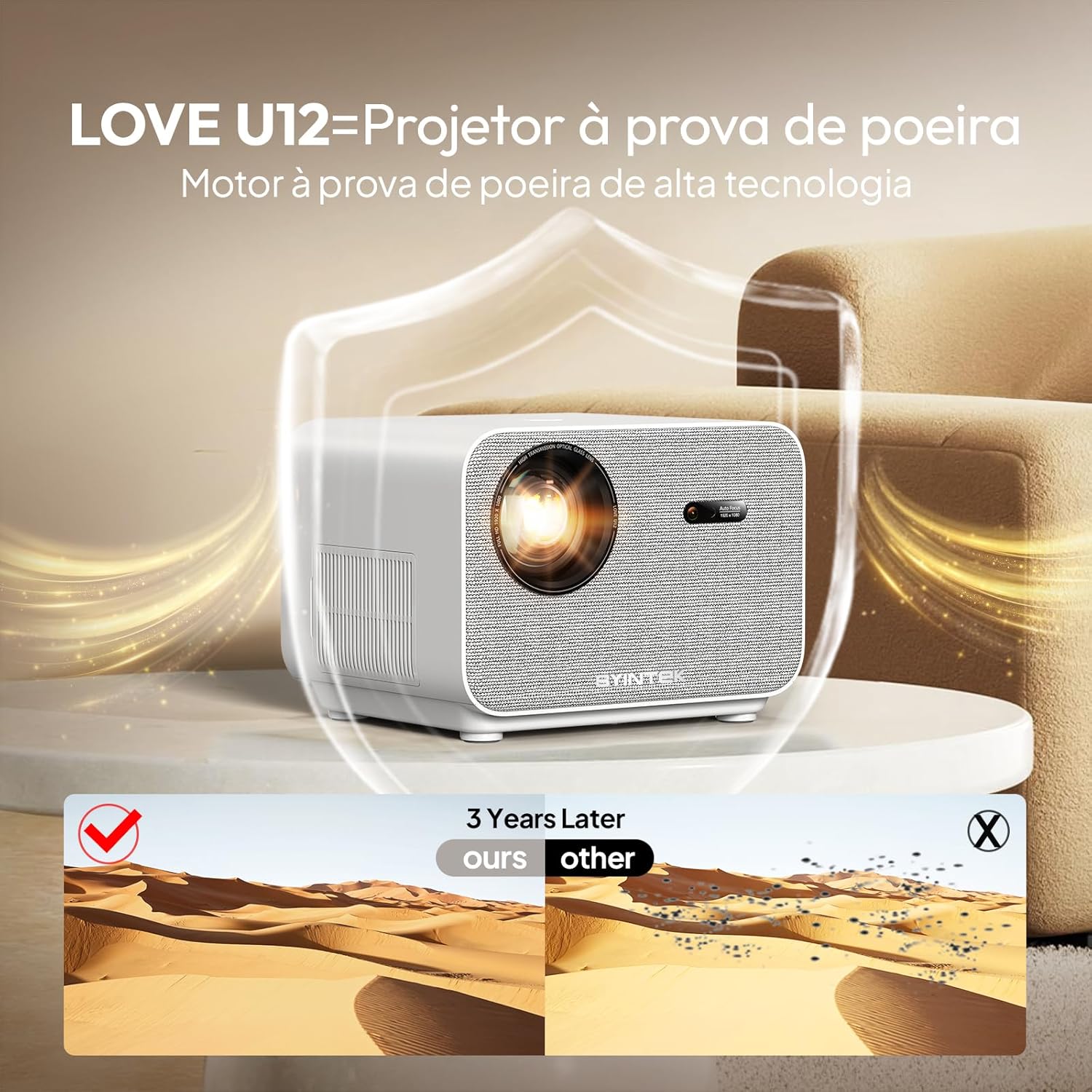
Figure 4.2: An illustration demonstrating the dustproof optical engine of the BYINTEK U12 projector, comparing its longevity against non-sealed projectors in dusty environments. This design helps maintain image quality over time.
4.4 Audio Capabilities
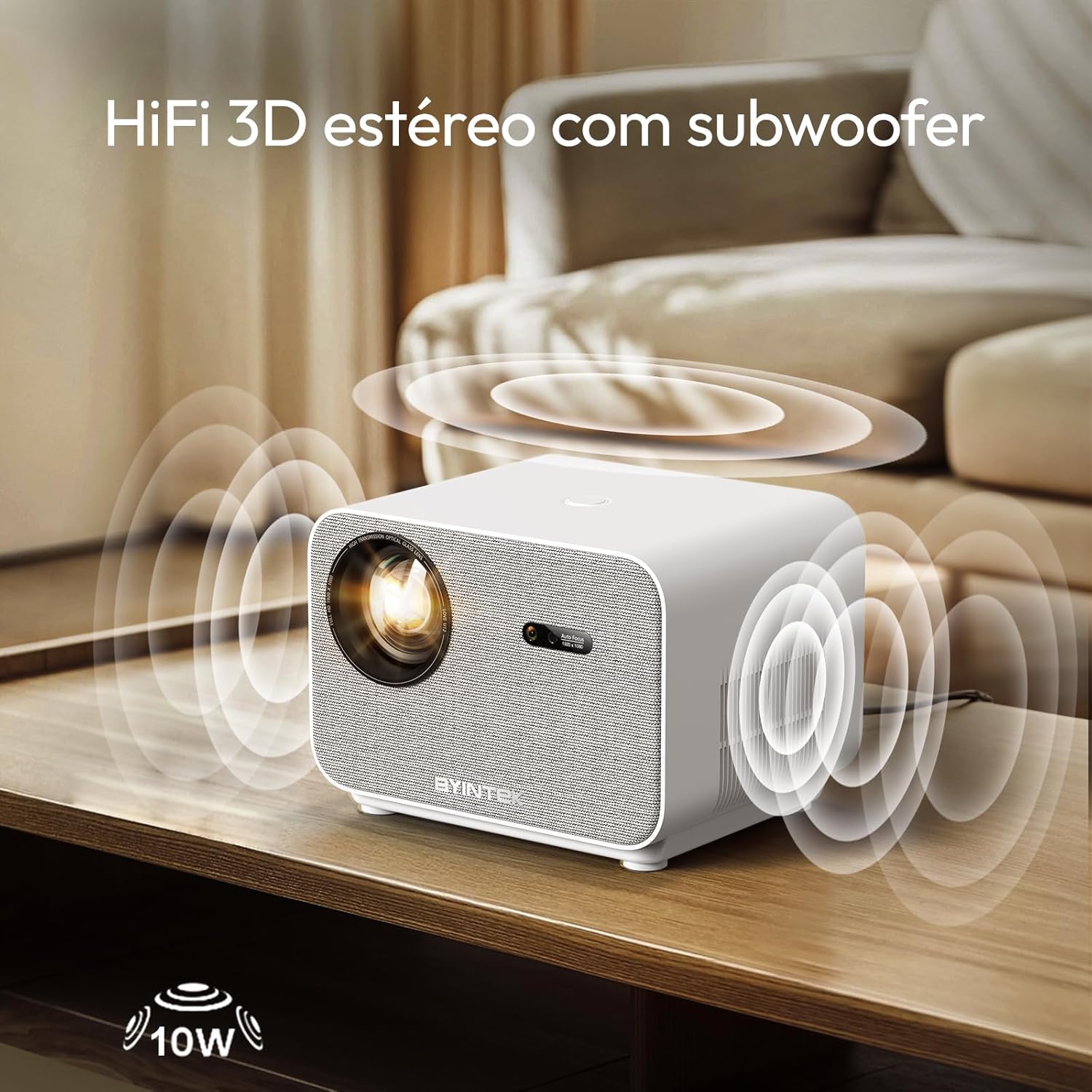
Figure 4.3: The BYINTEK U12 projector on a table, with sound waves emanating from it, illustrating its powerful stereo speakers and subwoofer for an immersive audio experience.
4.5 Intelligent Screen Adaptation

Figure 4.4: A projected image on a wall with overlayed graphics showing the intelligent screen adaptation technology, including auto-focus, automatic keystone correction, and intelligent obstacle avoidance for optimal projection.
4.6 Resolution and Image Quality
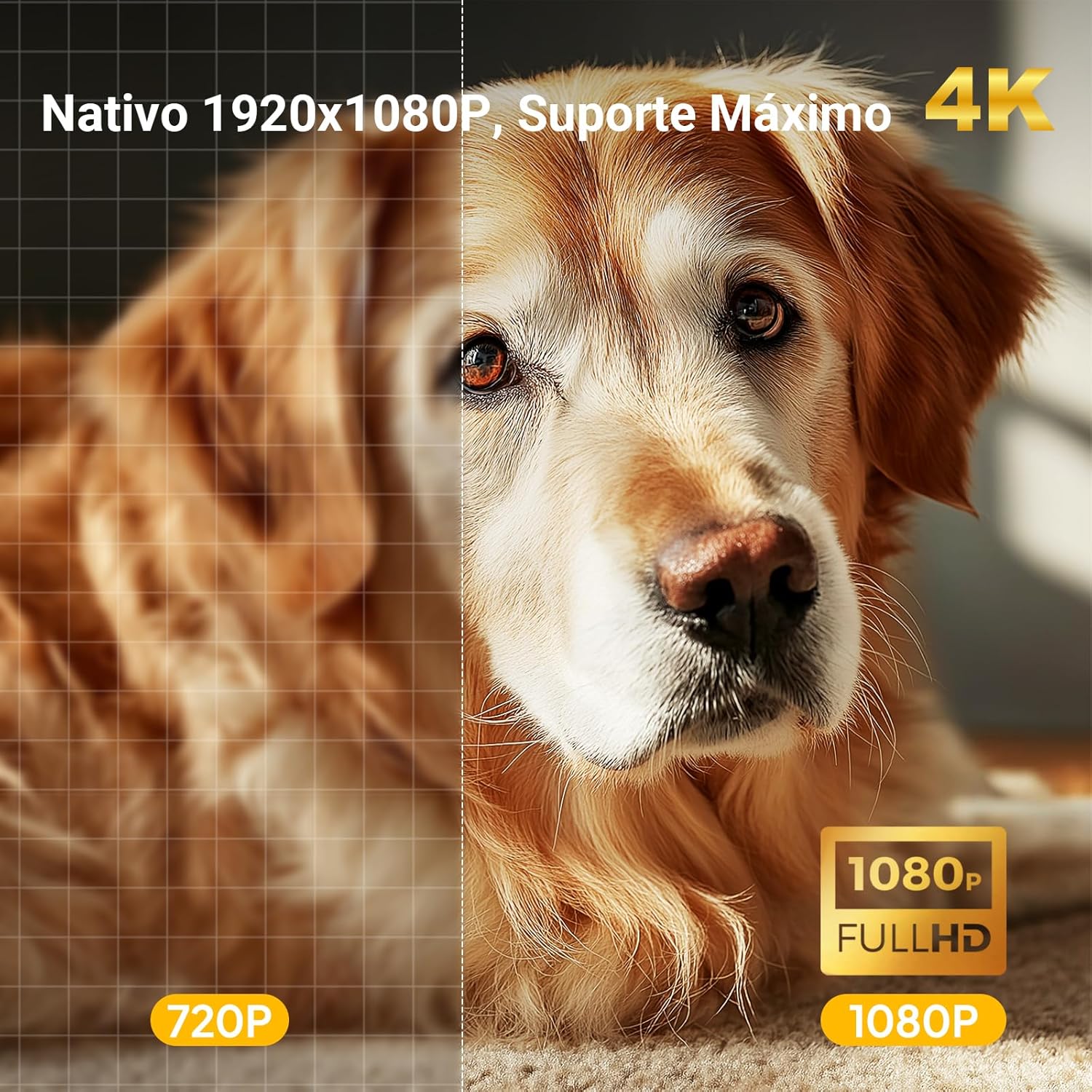
Figure 4.5: A split image comparing 720P resolution on the left with 1080P Full HD resolution on the right, demonstrating the superior clarity of the BYINTEK U12 projector's native 1080P display and its support for 4K content.
5. Setup
- Placement: Place the projector on a stable, flat surface or mount it on a compatible tripod/ceiling mount. Ensure there are no obstructions in front of the lens.
- Power Connection: Connect the power cable to the projector's power input and then plug it into a power outlet.
- Initial Power On: Press the power button on the projector or the remote control to turn it on.
- Focus and Keystone: The BYINTEK U12 features automatic focus and keystone correction. Allow the projector a few moments to adjust the image. If manual adjustment is needed, use the settings menu.
- Network Setup: Navigate to the settings menu to connect to your Wi-Fi network (2.4G or 5G).
6. Operating Instructions
6.1 Navigating the Interface
Use the remote control to navigate the Android smart interface. The main screen will display various applications and input options.
6.2 Input Source Selection
Select the desired input source from the main menu:
- HDMI: For connecting external devices like laptops, gaming consoles, or Blu-ray players.
- USB: For playing media files directly from a USB flash drive.
- Screen Mirroring (Wi-Fi): For wirelessly casting content from your smartphone, tablet, or computer.
- Built-in Apps: Access pre-installed streaming services and other applications.
6.3 Audio Output
The projector has built-in 5W stereo speakers. You can also connect external audio devices via Bluetooth 5.0 or the audio output port (if available).
7. Connectivity
- Wi-Fi: Supports 2.4G and 5G Wi-Fi for stable and fast wireless connections, enabling online streaming and screen mirroring.
- Bluetooth 5.0: Connect external Bluetooth speakers, headphones, or other compatible devices for enhanced audio. The projector can also function as a standalone Bluetooth speaker.
- HDMI: Connect devices such as laptops, game consoles, and media players.
- USB: Plug in USB drives to play videos, music, and view photos directly.
Note: No official product videos with "Seller" creator type were found in the provided data to embed.
8. Maintenance
- Cleaning the Lens: Use a soft, lint-free cloth specifically designed for optical lenses. Do not use abrasive cleaners or cloths.
- Cleaning the Exterior: Wipe the projector's exterior with a soft, dry cloth. For stubborn marks, use a slightly damp cloth and then dry thoroughly.
- Dust Prevention: The U12 features a sealed optical engine to minimize dust ingress. However, regular cleaning of the exterior and ensuring a clean operating environment will further prolong its lifespan.
- Storage: When not in use for extended periods, store the projector in a cool, dry place, away from direct sunlight and extreme temperatures.
9. Troubleshooting
| Problem | Possible Cause | Solution |
|---|---|---|
| No image projected | Power cable disconnected; Incorrect input source; Lens cap on. | Check power connection; Select correct input source; Remove lens cap. |
| Image is blurry | Out of focus; Projector too close/far from screen. | Allow auto-focus to adjust; Adjust projector distance; Check for manual focus option in settings. |
| No sound | Volume too low; Muted; Incorrect audio output selected; External device audio issue. | Increase volume; Unmute; Check audio settings; Verify audio on source device. |
| Wi-Fi connection unstable | Weak signal; Interference; Incorrect password. | Move projector closer to router; Reduce interference; Re-enter Wi-Fi password. |
| Remote control not working | Dead batteries; Obstruction; Not paired (if Bluetooth remote). | Replace batteries; Remove obstructions; Re-pair remote if necessary. |
10. Specifications
| Feature | Specification |
|---|---|
| Brand | Byintek |
| Model | U12 |
| Native Resolution | 1920 x 1080 Pixels (Full HD) |
| Supported Resolution | Up to 4K |
| Brightness | 800 ANSI Lumens |
| Contrast Ratio | 1,500:1 |
| Display Technology | LCD |
| Light Source Lifespan | Up to 50,000 hours |
| Speakers | 2 x 5W Stereo Speakers |
| Wireless Connectivity | Wi-Fi (2.4G/5G), Bluetooth 5.0 |
| Wired Interfaces | HDMI, USB |
| Special Features | Automatic Obstacle Avoidance, Automatic Focus, Integrated Wi-Fi, Dustproof |
| Power Consumption | 140 watts |
| Voltage | 240 Volts |
| Product Weight | 3.64 Kilograms |
| Product Dimensions | 230 x 190 x 162 cm |
11. Warranty and Support
The BYINTEK U12 Portable Projector comes with a one-year manufacturer's warranty. This warranty covers defects in materials and workmanship under normal use.
For technical support, warranty claims, or any inquiries regarding your product, please contact BYINTEK customer service. Refer to the contact information provided on the product packaging or the official BYINTEK website.
Please retain your proof of purchase for warranty validation.
Ask a question about this manual
Ask about setup, troubleshooting, compatibility, parts, safety, or missing instructions. Manuals+ will review the question and use this page’s manual context to help answer it.