
1. Introduction
This user manual provides comprehensive instructions for the Chainway P80 RFID Scanner Android Tablet. The P80 is a robust and versatile device designed for demanding industrial environments, offering advanced RFID reading capabilities, barcode scanning, and a powerful Android 13 operating system. It is ideal for applications requiring efficient data collection, inventory management, and asset tracking. Please read this manual thoroughly before operating the device to ensure proper use and maintenance.
2. Product Overview
2.1 Key Features
- Advanced RFID Capabilities: Integrated Impinj E710 RFID Tag Reader for fast and accurate UHF RFID reading (GS1 EPC GEN2 standard).
- Versatile Barcode Scanning: Equipped with a Zebra SE4710 2D/1D/QR Code Scanner for quick and precise barcode data capture.
- Latest Android OS: Runs on Android 13, providing a modern, user-friendly interface and access to the latest applications and security features.
- Robust Connectivity: Features WiFi, GPS, NFC, and Bluetooth for seamless communication and data transfer.
- Rugged and Durable Design: Built to withstand harsh environments, ensuring reliability in challenging industrial conditions.
- Long-Lasting Battery: Powered by an 8700mAh battery for extended operational periods, supporting all-day use.
- Powerful Processor: Features a Qualcomm Octa-Core 2.0GHz processor optimized for heavy workloads.
2.2 Device Components
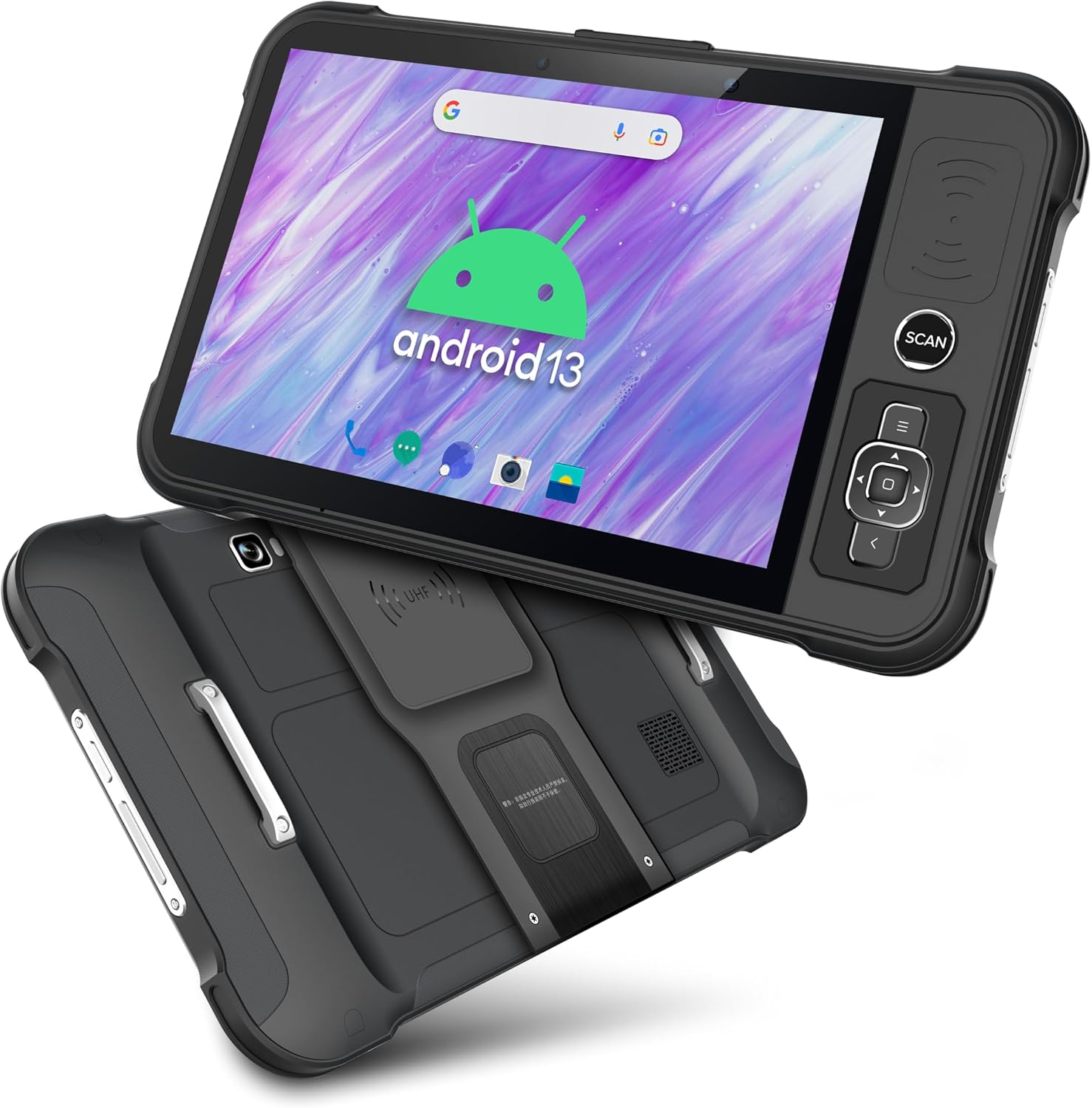
Figure 2.1: Front and back view of the Chainway P80 RFID Scanner Android Tablet, showcasing its rugged design and integrated RFID antenna.

Figure 2.2: Illustration of the Impinj E710 RFID chip, highlighting its capability to read over 900 tags per second with a maximum range of up to 10 meters.

Figure 2.3: Close-up view emphasizing the 8700mAh battery, designed for extended use throughout the day.

Figure 2.4: Detail of the integrated Zebra SE4710 scanner, capable of reading 2D, 1D, and QR codes efficiently.

Figure 2.5: Side view showing the Zebra SE4710 scanner and the 13MP camera lens, indicating comprehensive data capture capabilities.

Figure 2.6: Diagram illustrating the Qualcomm Octa Core 2.0GHz processor, highlighting its role in optimizing performance for demanding applications.
3. Setup
3.1 Initial Charging
Before first use, fully charge the Chainway P80 tablet. Connect the provided power adapter to the charging port on the device and plug it into a power outlet. The charging indicator will typically show the charging status. A full charge ensures optimal battery performance.
3.2 Powering On/Off
- To Power On: Press and hold the Power button (usually located on the side) until the screen illuminates and the device boots up.
- To Power Off: Press and hold the Power button until a power-off menu appears. Select "Power off" or "Shut down" from the options.
3.3 Initial Configuration
Upon first boot, follow the on-screen prompts to complete the initial Android setup.
- Selecting your preferred language.
- Connecting to a Wi-Fi network.
- Setting up your Google account (optional, but recommended for app downloads).
- Configuring date, time, and other basic settings.
4. Operating Instructions
4.1 Using the RFID Reader (Impinj E710)
The Chainway P80 features an integrated Impinj E710 RFID reader for UHF RFID tag detection.
- Ensure the RFID application is open on the tablet.
- Point the top part of the tablet, where the RFID antenna is located, towards the RFID tags you wish to read.
- Press the dedicated "SCAN" button on the side of the device or activate scanning through the application interface.
- The application will display the read tag data.

Figure 4.1: Overview of the configurable interface, showing the built-in scan button, D-pad for navigation, and NFC reader area.
4.2 Using the Barcode Scanner (Zebra SE4710)
The Zebra SE4710 scanner allows for quick and accurate reading of 1D, 2D, and QR codes.
- Open an application that supports barcode scanning (e.g., inventory management software).
- Aim the scanner window (located on the side/top of the device) at the barcode.
- Press the "SCAN" button. A red aiming beam will appear.
- Ensure the entire barcode is within the aiming beam for optimal reading. The device will typically provide an audible or visual confirmation upon successful scan.
4.3 NFC Functionality
The P80 supports Near Field Communication (NFC) for short-range wireless interactions.
- Ensure NFC is enabled in the tablet's settings.
- To read an NFC tag or interact with an NFC-enabled device, bring the NFC area of the tablet (refer to Figure 4.1) close to the target.
- Follow any on-screen prompts or application-specific instructions.
4.4 Connectivity (Wi-Fi, Bluetooth, GPS)
- Wi-Fi: Access Wi-Fi settings from the Android notification shade or Settings app to connect to available wireless networks.
- Bluetooth: Enable Bluetooth in settings to pair with compatible devices such as headsets, printers, or other peripherals.
- GPS: Location services (GPS) can be enabled/disabled via quick settings or the Settings app. Ensure it's enabled for applications requiring location data.
5. Maintenance
5.1 Battery Care
- To maximize battery life, avoid extreme temperatures.
- Charge the device regularly; avoid letting the battery completely drain before recharging.
- Use only the original or approved charging accessories.
5.2 Cleaning the Device
- Use a soft, lint-free cloth slightly dampened with water or a mild screen cleaner to clean the display and exterior.
- Do not use harsh chemicals, abrasives, or solvents.
- Ensure all ports are closed before cleaning to prevent liquid ingress.
5.3 Software Updates
Regularly check for and install software updates to ensure optimal performance, security, and access to new features. Updates can typically be found in the tablet's "Settings" under "System" or "About tablet."
6. Troubleshooting
| Problem | Possible Cause | Solution |
|---|---|---|
| Device does not power on. | Low or no battery charge. | Connect to charger and allow to charge for at least 30 minutes before attempting to power on. |
| RFID/Barcode scanner not working. | Application not open or scanner module disabled. | Ensure the correct application is running and the scanner is enabled within the app or device settings. Check for obstructions on the scanner window. |
| Wi-Fi/Bluetooth connectivity issues. | Out of range, incorrect password, or module disabled. | Ensure you are within range of the network/device. Verify password. Toggle Wi-Fi/Bluetooth off and on in settings. Restart the tablet. |
| Device is slow or unresponsive. | Too many apps running, low storage, or software glitch. | Close unnecessary applications. Clear cache. Restart the device. Check for system updates. |
If you encounter issues not listed here or if the suggested solutions do not resolve the problem, please contact customer support.
7. Specifications
| Feature | Detail |
|---|---|
| Model Number | P80 RFID |
| Manufacturer | Chainway |
| Operating System | Android 13 |
| RFID Reader | Impinj E710 (UHF GS1 EPC GEN2) |
| Barcode Scanner | Zebra SE4710 (2D/1D/QR Code) |
| Processor | Qualcomm Octa Core 2.0GHz |
| Battery Capacity | 8700mAh |
| Connectivity | WiFi, Bluetooth, NFC, UHF RFID |
| Compatible Devices | Tablet |
| Power Source | Battery Powered |
8. Warranty and Support
8.1 Warranty Information
The Chainway P80 RFID Scanner Android Tablet is covered by a manufacturer's warranty. Please refer to the warranty card included with your product or visit the official BARCODE-USA website for detailed warranty terms and conditions. Keep your proof of purchase for warranty claims.
8.2 Customer Support
For technical assistance, troubleshooting, or service inquiries, please contact BARCODE-USA customer support.
- Online Support: Visit the BARCODE-USA Store on Amazon for FAQs and support resources.
- Contact Information: Refer to the packaging or the official BARCODE-USA website for direct contact methods (phone, email).


