
1. Introduction
The FancyDove Language Translator Device is an advanced AI-powered tool designed to facilitate seamless communication across various languages. This device supports real-time two-way voice translation in up to 149 languages and regional accents, offline voice translation in 17 essential language pairs, and photo OCR translation in 41 languages. It features an 8MP camera, a 5-inch HD touchscreen, noise-canceling microphones, and a BOX cavity speaker for clear audio. This manual provides comprehensive instructions for setting up, operating, maintaining, and troubleshooting your device.
2. What's in the Box
- AI Language Translator Device
- Charging Cable (USB to Type C)
- Anti-lost rope
- User Manual
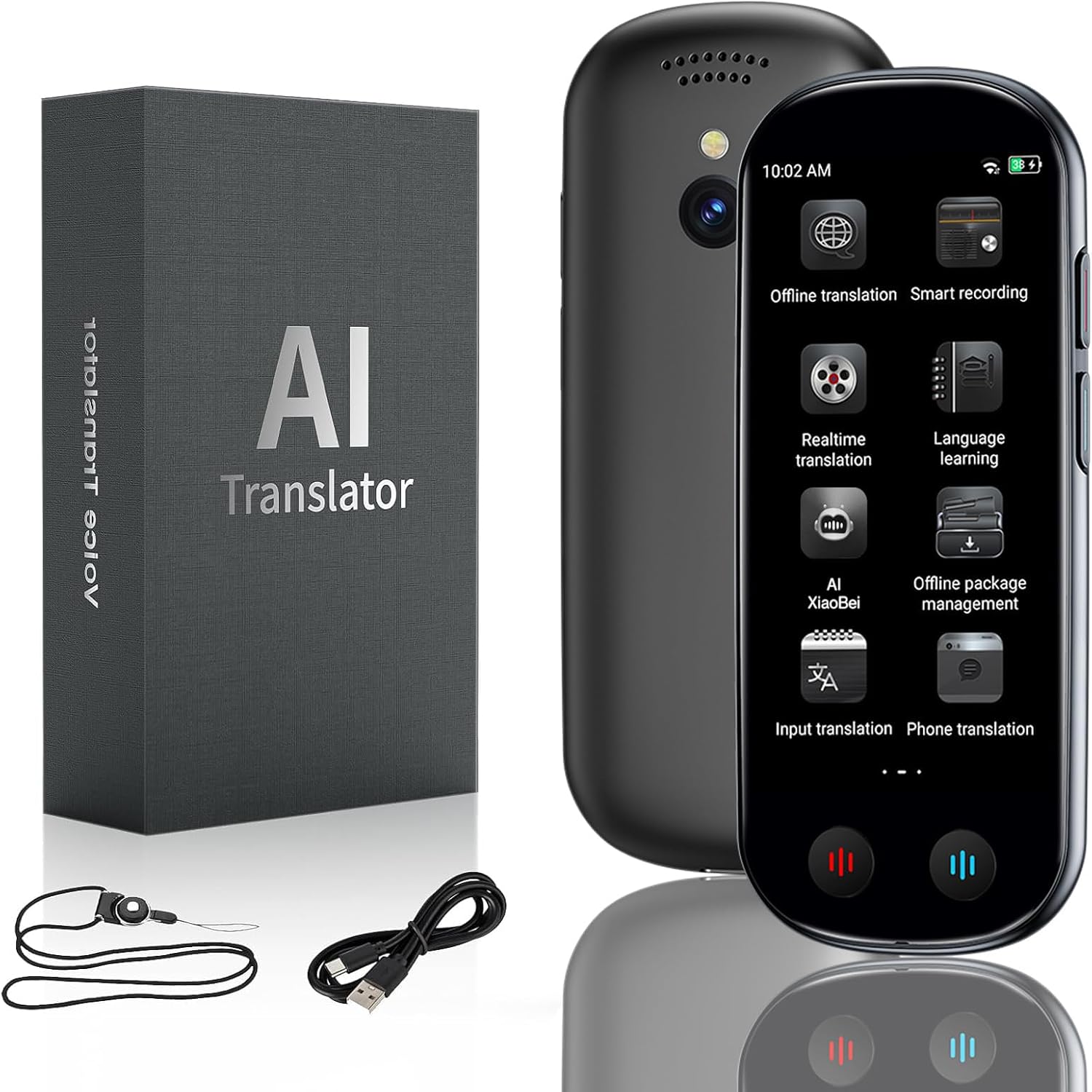
3. Device Overview
The FancyDove Language Translator Device is designed for intuitive use with a responsive touchscreen and physical buttons. Familiarize yourself with its components:
- 5-inch HD Touchscreen: Main interface for navigation and displaying translations.
- Power Button: Located on the side, used for powering on/off and screen lock.
- Microphones: Dual noise-reduction microphones for clear voice input.
- BOX Speaker: Ensures loud and clear audio output.
- 8MP Camera: For photo translation (OCR).
- USB-C Port: For charging the device.
- Translation Buttons: Dedicated buttons for initiating two-way voice translation.

4. Setup
4.1 Charging the Device
Before first use, fully charge the device. Connect the provided USB-C cable to the device's charging port and the other end to a compatible USB power adapter (not included). A full charge takes approximately 1.5 hours and provides 7-8 hours of continuous use or up to 13 days of standby time.
4.2 Powering On/Off
- To Power On: Press and hold the Power button on the side until the screen illuminates.
- To Power Off: Press and hold the Power button, then select 'Power Off' on the screen.
- To Lock/Unlock Screen: Briefly press the Power button.
4.3 Initial Setup and Wi-Fi Connection
- Upon first power-on, follow the on-screen prompts to select your preferred system language.
- Navigate to the 'Settings' menu.
- Select 'Wi-Fi' and connect to an available network by entering the password. A stable internet connection is required for online translation features.
4.4 Downloading Offline Language Packs
For translation without an internet connection, download offline language packs:
- Ensure the device is connected to Wi-Fi.
- From the home screen, select 'Offline Package Management'.
- Choose the desired language pairs for offline use and initiate the download.
- Once downloaded, these languages will be available for offline voice and photo translation. The device supports 17 essential language pairs for offline voice translation and 41 languages for offline photo translation.

5. Operating the Device
5.1 Real-Time Two-Way Voice Translation (Online)
This feature allows for instant communication in 149 languages and regional accents.
- Ensure the device is connected to Wi-Fi or a mobile hotspot.
- From the home screen, select 'Realtime Translation'.
- Choose the source and target languages.
- Press and hold the designated translation button (e.g., red for your language, blue for the other person's language) and speak clearly into the microphone.
- Release the button, and the device will display and speak the translation.

5.2 Offline Voice Translation
After downloading language packs (Section 4.4), you can use voice translation without internet access.
- From the home screen, select 'Offline Translation'.
- Choose the pre-downloaded source and target languages.
- Proceed with voice input as described in Section 5.1.
5.3 Photo Translation (OCR)
Translate text from images using the built-in 8MP camera.
- From the home screen, select 'Photo Translation'.
- Point the camera at the text you wish to translate (e.g., menus, signs, documents).
- Tap the screen to capture the image.
- The device will process the image and display the translated text. This feature supports 75+ online and 41 offline photo translation languages.

5.4 Group Translation Mode
Facilitate multilingual communication in meetings or tours.
- Select 'Group Translation' from the home screen.
- Create a new group or join an existing one using a provided code.
- Participants can speak in their native language, and real-time subtitles will appear on all connected devices in their preferred language.
5.5 Phone Translation
Translate phone conversations without needing an app on your smartphone.
- Select 'Phone Translation' on the device.
- Scan the displayed QR code with your smartphone.
- Your smartphone will connect to the translator, allowing live subtitles and translations to appear in your browser during phone calls.

5.6 Secure Voice Recording & Transcription
Record and transcribe audio securely on the device.
- Select 'Smart Recording' from the home screen.
- Start recording audio memos (up to 60 minutes) in 13 languages.
- Transcribe and translate these recordings into 138+ languages. All data is stored securely on-device.
5.7 Language Learning & Pronunciation Feedback
Improve your language skills with real-time feedback.
- Access 'Language Learning' from the home screen.
- Practice phrases and receive instant pronunciation scoring and feedback to enhance fluency.
6. Maintenance
6.1 Cleaning the Device
Use a soft, dry, lint-free cloth to clean the screen and exterior of the device. Avoid using abrasive cleaners or solvents.
6.2 Software Updates
Periodically check for software updates in the 'Settings' menu to ensure optimal performance and access to the latest features and language support. Ensure the device is connected to Wi-Fi during updates.
6.3 Battery Care
To prolong battery life, avoid exposing the device to extreme temperatures. Charge the device regularly, but avoid leaving it fully discharged for extended periods.
7. Troubleshooting
This section addresses common issues you might encounter with your FancyDove Language Translator Device.
| Problem | Possible Cause | Solution |
|---|---|---|
| Device does not turn on | Low battery; device frozen. | Charge the device for at least 30 minutes. If still unresponsive, perform a forced restart by holding the power button for 10-15 seconds. |
| Cannot connect to Wi-Fi | Incorrect password; out of range; network issue. | Verify Wi-Fi password. Move closer to the Wi-Fi router. Restart the device and the router. Ensure the device's Wi-Fi is enabled in settings. |
| Translation is inaccurate or slow | Poor internet connection; unclear speech; complex sentence structure. | Ensure a strong Wi-Fi signal. Speak clearly and at a moderate pace. Break down long sentences. Update device software. |
| Device switches to an unexpected language (e.g., Chinese) | Accidental language setting change. | Navigate to 'Settings' (usually represented by a gear icon). Look for 'Language' or 'System Language' (often indicated by an 'A' or globe icon) and select your desired system language. |
| Offline translation not working | Language packs not downloaded or corrupted. | Connect to Wi-Fi and verify that the required offline language packs are fully downloaded in 'Offline Package Management'. Re-download if necessary. |
8. Specifications
| Feature | Detail |
|---|---|
| Product Dimensions | 6.3 x 3.54 x 1.38 inches |
| Item Weight | 7 ounces |
| Item Model Number | BBATZ9 |
| Batteries | 1 Lithium Ion battery (included) |
| Manufacturer | FancyDove |
| Screen Size | 5-inch HD Touchscreen |
| Camera | 8MP for Photo OCR Translation |
| Online Voice Translation | 149 Languages & Accents |
| Offline Voice Translation | 17 Language Pairs |
| Offline Photo Translation | 41 Languages |
9. Warranty and Support
FancyDove products are manufactured to high-quality standards. For warranty information and customer support, please refer to the documentation included with your purchase or visit the official FancyDove website. Keep your purchase receipt for warranty claims.