
1. Introduction
This manual provides essential information for the safe and efficient operation of your CRUA Smart TV 24" (60 cm), model 24F1D. Please read this manual thoroughly before using the television and retain it for future reference.
Your CRUA Smart TV features an integrated triple tuner (DVB-T2, DVB-C, DVB-S2), Android 11 certification for access to a wide range of applications, and voice control capabilities via Amazon Alexa or Google Assistant (requires a separate smart speaker).

Image: Front view of the CRUA 24-inch Smart TV, highlighting its smart features and connectivity options.
2. Safety Information
Always observe the following safety precautions to prevent electric shock, fire, or injury:
- Do not expose the TV to rain or moisture.
- Do not open the TV casing; refer all servicing to qualified personnel.
- Ensure proper ventilation around the TV.
- Keep the TV away from direct sunlight, heat sources, and strong magnetic fields.
- Use only the power cord supplied with the TV.
- Unplug the TV during lightning storms or when unused for long periods.
3. Setup
3.1 Physical Installation
Your CRUA Smart TV can be placed on a flat surface using the included stand or mounted on a wall (wall mount sold separately).
- Stand Installation: Carefully attach the two stand feet to the bottom of the TV using the provided screws. Ensure they are securely fastened.
- Wall Mounting: The TV is compatible with VESA standard wall mounts. Refer to your wall mount's instructions for installation. Ensure the wall can support the TV's weight.

Image: The CRUA Smart TV mounted in a caravan, illustrating its compact size and versatility for various environments.

Image: Rear view of the CRUA Smart TV, detailing the VESA mounting points for wall installation.
3.2 Power Connection
Connect the power cord to the TV's power input and then to a suitable electrical outlet (100-240V ~ 50/60Hz). For use in a mobile home or caravan, a power inverter may be required.
3.3 Initial Setup Wizard
Upon first power-on, the TV will guide you through an initial setup process. This includes selecting your language, connecting to a Wi-Fi network, and scanning for available channels (DVB-T2, DVB-C, DVB-S2).
4. Operating the TV
4.1 Remote Control
Use the provided remote control to navigate menus, adjust volume, change channels, and access smart features. Familiarize yourself with the button layout for optimal use.
4.2 Smart TV Features and Applications
Your CRUA Smart TV runs on Android 11, providing access to the Google Play Store and a wide array of streaming services and applications. Popular apps like Prime Video, Netflix, YouTube, DAZN, and Twitch are readily available. Note that some streaming services may require separate subscriptions.
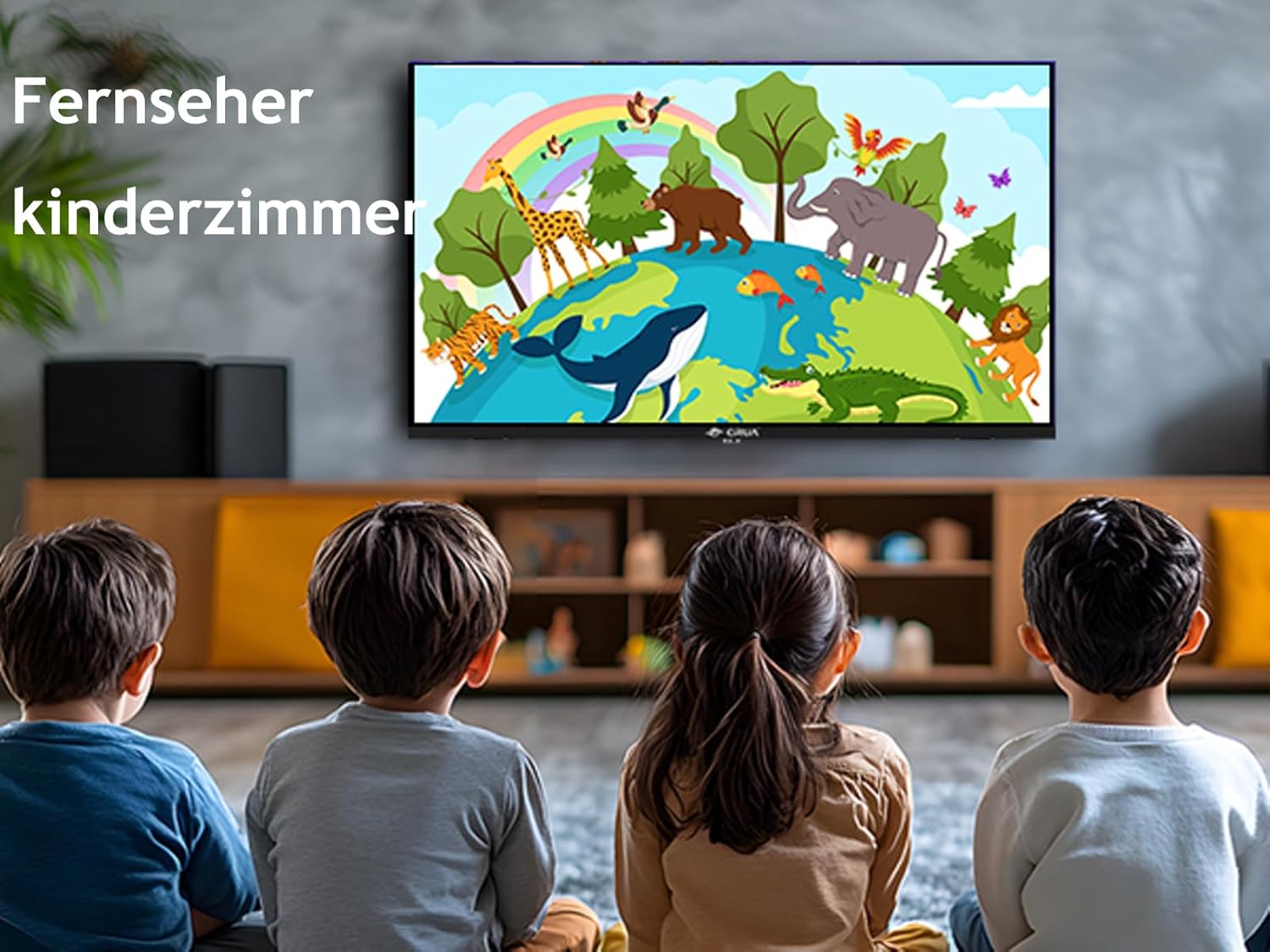
Image: The CRUA Smart TV in a child's room, displaying animated content, suitable for various family settings.
4.3 Voice Control
Control your Smart TV hands-free using Amazon Alexa or Google Assistant. Simply connect a compatible smart speaker (sold separately) and use voice commands to change channels, adjust volume, open applications, and more.
4.4 Input Selection
To switch between different input sources (e.g., HDMI for a game console, USB for media playback), use the 'Source' or 'Input' button on your remote control.
4.5 Screen Mirroring and Casting
The TV supports screen mirroring and casting features, allowing you to display content from your smartphone or tablet directly onto the TV screen. This is ideal for sharing photos, videos, or playing mobile games on a larger display.

Image: A collage demonstrating the TV's capabilities for streaming, mirroring, and casting, showing various entertainment scenarios.

Image: A smartphone screen being cast to the CRUA Smart TV, demonstrating the ease of sharing media from mobile devices.
5. Connectivity
The CRUA Smart TV offers a variety of connection ports for external devices:
- HDMI (x2): For connecting high-definition devices like game consoles, Blu-ray players, or set-top boxes. Supports CEC (Consumer Electronics Control) and ARC (Audio Return Channel).
- USB (x2): For connecting USB storage devices to play media files (photos, videos, music).
- RJ45 (Ethernet): For a wired internet connection.
- Optical: Digital audio output for connecting to soundbars or home theater systems.
- Earphone: 3.5mm audio jack for headphones.
- CVBS/Audio In: Composite video and analog audio input for older devices.
- RF (x2): Antenna inputs for DVB-T2/C and DVB-S2 signals.
- CI Slot: Common Interface slot for conditional access modules (CAMs) to decrypt pay-TV channels.

Image: Detailed diagram of the CRUA Smart TV's connectivity ports, illustrating its extensive compatibility.
6. Maintenance
6.1 Cleaning
To clean the screen, gently wipe it with a soft, lint-free cloth. For stubborn marks, slightly dampen the cloth with water or a screen cleaner specifically designed for electronics. Do not spray liquids directly onto the screen.
To clean the TV casing, use a soft, dry cloth. Avoid abrasive cleaners or solvents.
6.2 Software Updates
Your Smart TV may receive software updates periodically to improve performance and add new features. Ensure your TV is connected to the internet to receive these updates. You can usually check for updates in the TV's settings menu.
7. Troubleshooting
If you encounter issues with your TV, refer to the following common solutions:
- No Power: Check if the power cord is securely connected to both the TV and the power outlet. Try a different outlet.
- No Picture/Sound: Ensure the correct input source is selected. Check all cable connections (HDMI, antenna).
- No Wi-Fi Connection: Verify your Wi-Fi router is on and working. Re-enter the Wi-Fi password in the TV's network settings.
- Remote Control Not Working: Replace the batteries. Ensure there are no obstructions between the remote and the TV's IR sensor.
- Picture Quality Issues: Adjust picture settings (brightness, contrast, sharpness) in the TV menu. Ensure the input source is providing a good quality signal.
For persistent issues, consult the online support resources or contact CRUA customer service.
8. Specifications
| Feature | Specification |
|---|---|
| Brand | CRUA |
| Model Number | 24F1D (CR2400) |
| Screen Size | 24 inches (60 cm) |
| Display Technology | LCD |
| Resolution | 720p (1366 x 768 pixels) |
| Refresh Rate | 60 Hz |
| Aspect Ratio | 16:9 |
| Operating System | Android 11 |
| Connectivity | 2x HDMI (CEC+ARC), 2x USB, RJ45, Optical, Earphone, CVBS/Audio In, 2x RF, CI Slot |
| Power Input | 100-240V ~ 50/60Hz |
| Energy Efficiency Class | E (19 kWh/1000h) |

Image: Dimensions of the CRUA 24-inch Smart TV.

Image: EU Energy Label for the CRUA Smart TV. For more details, visit the EPREL database.
9. Warranty and Support
For warranty information, please refer to the documentation included with your purchase or contact your retailer. For technical support, visit the official CRUA website or contact their customer service department. Please have your model number (24F1D) and purchase details ready when seeking support.