
1. Introduction
This manual provides essential information for the proper use and maintenance of your NetumScan USB Type C Barcode Scanner Cable. This cable is designed to connect NetumScan L-Series barcode scanners, including models NSL6, NSL8, and NSL8BLS, to a host device for data transmission and power.
Please read this manual thoroughly before using the product to ensure optimal performance and longevity.
2. Setup Instructions
Follow these steps to correctly set up your NetumScan USB Type C Barcode Scanner Cable:
- Identify Connectors: The cable features a USB Type C connector on one end and a standard USB-A connector on the other.
- Connect to Scanner: Insert the USB Type C end of the cable firmly into the corresponding port on your NetumScan L-Series barcode scanner (e.g., NSL6, NSL8, NSL8BLS). Ensure the connection is secure.
- Connect to Host Device: Insert the standard USB-A end of the cable into an available USB port on your computer, POS system, or other compatible host device.
- Verify Connection: Once connected, your operating system should automatically detect the scanner. Refer to your scanner's specific manual for any driver installation or configuration steps, if necessary.
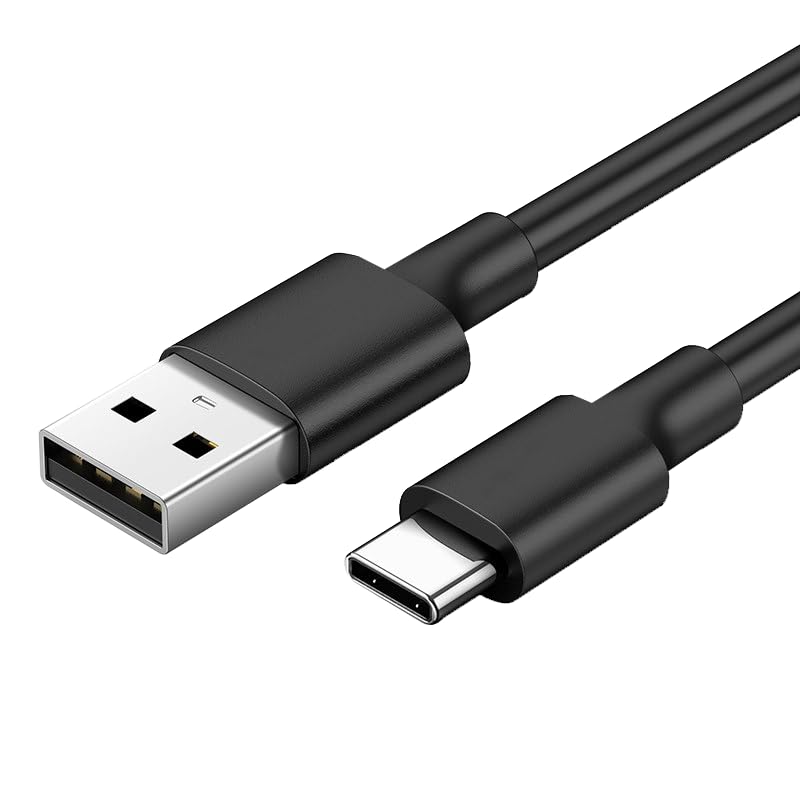
Image showing the NetumScan USB Type C connector on one end and a standard USB-A connector on the other, designed for connecting barcode scanners to host devices.
3. Operating Instructions
The NetumScan USB Type C Barcode Scanner Cable functions as a data and power conduit between your barcode scanner and the host device. Its operation is largely passive once correctly connected.
- Plug and Play: After connecting the cable as described in the 'Setup Instructions', the cable facilitates communication between the scanner and the host device.
- Data Transmission: The cable enables the barcode scanner to transmit scanned data to the connected computer or POS system.
- Power Supply: For scanners that draw power via USB, this cable also provides the necessary power from the host device.
Ensure that both the scanner and the host device are powered on and functioning correctly for the cable to facilitate data transfer.
4. Maintenance
Proper care and maintenance will extend the life of your NetumScan USB Type C Barcode Scanner Cable:
- Cleaning: Use a soft, dry, lint-free cloth to gently wipe the cable and connectors. Avoid using harsh chemicals, solvents, or abrasive materials.
- Handling: Always grasp the connector ends when plugging or unplugging the cable. Avoid pulling directly on the cable itself, as this can damage the internal wires or the connector.
- Storage: When not in use, store the cable in a clean, dry place, away from direct sunlight and extreme temperatures. Avoid tightly coiling or bending the cable sharply, which can cause internal damage.
- Inspection: Periodically inspect the cable for any signs of wear, fraying, or damage to the connectors. If damage is observed, discontinue use and replace the cable.
5. Troubleshooting
If you encounter issues with your NetumScan USB Type C Barcode Scanner Cable, consider the following troubleshooting steps:
- Scanner Not Recognized:
- Ensure both the USB Type C and USB-A connectors are fully inserted into their respective ports.
- Try connecting the USB-A end to a different USB port on your host device.
- Verify that your barcode scanner is powered on and functioning correctly.
- Restart your host device.
- Intermittent Connection:
- Check for any physical damage to the cable or connectors.
- Ensure the cable is not being bent or strained during use.
- Test the cable with another compatible scanner or host device, if available, to isolate the issue.
- No Data Transmission:
- Confirm that the scanner itself is able to read barcodes.
- Check the software settings on your host device to ensure the scanner is properly configured.
If these steps do not resolve the issue, please refer to the 'Support Information' section for further assistance.
6. Specifications
| Feature | Description |
|---|---|
| Brand | NetumScan |
| Model | USB Type C Barcode Scanner Cable |
| Compatible Devices | NetumScan L-Series Barcode Scanners (NSL6, NSL8, NSL8BLS, etc.) |
| Connector 1 | USB Type C (for scanner) |
| Connector 2 | USB-A (for host device) |
| Number of Items | 1 |
7. Warranty and Support Information
For warranty claims, technical support, or further inquiries regarding your NetumScan USB Type C Barcode Scanner Cable, please contact NetumScan customer service.
Please have your product model information and purchase details ready when contacting support.