
1. Introduction
This manual provides essential information for setting up, operating, maintaining, and troubleshooting your HP ZBook Studio G11 16-inch Touchscreen Mobile Workstation. Designed for professionals, this workstation combines powerful performance with a sleek, portable design.
Key features include an Intel Core Ultra 9 185H processor, 64 GB RAM, 2 TB NVMe SSD, a 16-inch WQUXGA (3840 x 2400) touchscreen display, and Windows 11 Pro operating system.
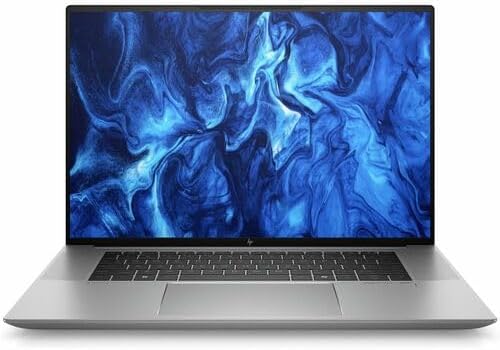
Figure 1: Front view of the HP ZBook Studio G11 Mobile Workstation.
2. Setup
2.1 Unpacking and Initial Inspection
Carefully remove the workstation and all accessories from the packaging. Verify that all components are present and undamaged. The standard package includes the HP ZBook Studio G11 workstation and its power adapter.
2.2 Connecting to Power
- Connect the power adapter to the workstation's power input port.
- Plug the power cord into a grounded electrical outlet.
- Allow the battery to charge for a few minutes before initial use, or use it while connected to power.
2.3 Initial Power-On and Windows 11 Pro Setup
- Press the power button located on the keyboard deck.
- Follow the on-screen instructions to complete the Windows 11 Pro setup process. This includes selecting your region, language, connecting to a network, and creating a user account.
- HP recommends connecting to the internet during setup to ensure the latest updates are installed.
3. Operating the Workstation
3.1 Power Management
- Power On: Press the power button.
- Sleep Mode: Close the lid or select 'Sleep' from the Windows Start menu.
- Shut Down: Select 'Shut down' from the Windows Start menu.
3.2 Using the Touchscreen Display
The 16-inch WQUXGA (3840 x 2400) display supports multi-touch gestures. Use gestures such as tap, swipe, pinch-to-zoom, and rotate for navigation and interaction with applications.
3.3 Keyboard and Touchpad
The workstation features an English keyboard with a spill-resistant design. In case of minor spills, the keyboard is designed with drain holes to protect internal components. The integrated touchpad supports multi-finger gestures for enhanced navigation.
3.4 Connecting Peripherals (Ports)
The HP ZBook Studio G11 offers a variety of ports for connecting external devices:
- USB-C (Thunderbolt): For high-speed data transfer, video output, and power delivery.
- USB-A: For standard USB devices like mice, keyboards, and external drives.
- HDMI: For connecting to external displays or projectors.
- Audio Jack: For headphones or external speakers.
- SD Card Reader: For transferring data from memory cards.

Figure 2: Left side ports including USB-C and audio jack.

Figure 3: Right side ports including USB-A and possibly an SD card reader.
4. Maintenance
4.1 Cleaning the Workstation
- Screen: Use a soft, lint-free cloth lightly dampened with water or a screen cleaner. Avoid harsh chemicals.
- Chassis and Keyboard: Use a soft, dry cloth. For stubborn dirt, a slightly damp cloth can be used. Ensure no liquid enters the ports.
4.2 Battery Care
To maximize battery lifespan:
- Avoid extreme temperatures.
- Do not fully discharge the battery regularly.
- Utilize HP Fast Charge for quick recharging (up to 50% in 30 minutes).
4.3 Software Updates
Regularly update your Windows 11 Pro operating system and HP drivers to ensure optimal performance and security. Use Windows Update and the HP Support Assistant application.
5. Troubleshooting
This section addresses common issues you might encounter with your HP ZBook Studio G11.
5.1 Power Issues
- Workstation does not power on: Ensure the power adapter is securely connected to both the workstation and a working electrical outlet. Check the power button for proper function.
- Battery not charging: Verify the power adapter and cable are not damaged. Try a different outlet.
5.2 Display Issues
- No image on screen: Ensure the workstation is powered on. If an external monitor is connected, try disconnecting it or switching display modes (Fn + F4, or Windows Key + P).
- Touchscreen unresponsive: Restart the workstation. Ensure display drivers are up to date.
5.3 Connectivity Problems
- Wi-Fi not connecting: Check if Wi-Fi is enabled in Windows settings. Restart your router and the workstation.
- Bluetooth device not pairing: Ensure Bluetooth is enabled on both devices. Place devices close to each other and try pairing again.
For more complex issues, refer to the HP Support website or contact HP customer service.
6. Specifications
Detailed technical specifications for the HP ZBook Studio G11 16" Touchscreen Mobile Workstation (Model: AN6D7UT#ABA).
| Feature | Specification |
|---|---|
| Processor | Intel Core Ultra 9 185H (Hexadeca-core, 16 Core) |
| Operating System | Windows 11 Pro |
| Display | 16-inch WQUXGA (3840 x 2400) Touchscreen |
| RAM | 64 GB DDR4 SDRAM |
| Storage | 2 TB NVMe SSD |
| Graphics Card | Integrated |
| Color | Black |
| Item Weight | 6.25 pounds |
| Package Dimensions | 20.4 x 13.6 x 2.7 inches |
| Special Feature | Spill Resistant Keyboard |
7. Warranty and Support
Your HP ZBook Studio G11 Mobile Workstation comes with a standard manufacturer's warranty. For detailed warranty terms and conditions, please refer to the warranty documentation included with your product or visit the official HP support website.
For technical assistance, driver downloads, and additional support resources, please visit HP Support.