
1. Introduction
The Kapbom G4-5 360° IP Wi-Fi HD Bulb Security Camera offers comprehensive surveillance for your home or business. Designed to blend discreetly into any environment, this camera installs easily into a standard E27 light bulb socket, providing high-definition monitoring day and night. With features like 360° pan/tilt, night vision, two-way audio, and motion detection, it ensures you stay connected and aware of your surroundings from anywhere via your smartphone.
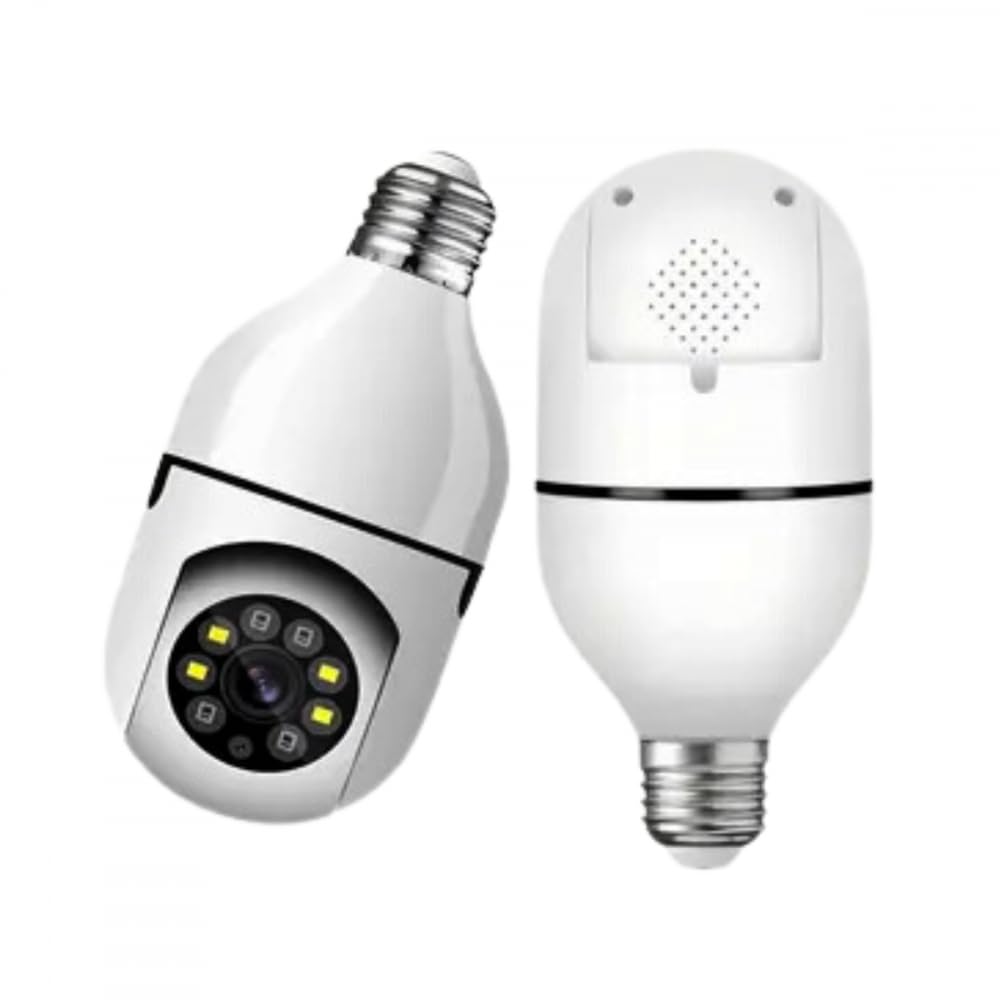
Image 1.1: Kapbom G4-5 camera and a smartphone showing the live monitoring interface.
This manual provides detailed instructions for the installation, operation, and maintenance of your Kapbom G4-5 camera. Please read it carefully before use to ensure proper functionality and safety.
2. Safety Information
- Ensure the power supply is disconnected before installing or removing the camera.
- Use only the specified power voltage (110-240V) for the E27 socket.
- Do not expose the camera to extreme temperatures, humidity, or direct water immersion. While suitable for outdoor areas, ensure it is protected from direct heavy rain.
- Avoid placing the camera near strong electromagnetic fields.
- Keep out of reach of children.
- Do not attempt to disassemble or repair the camera yourself. Contact customer support for assistance.
3. Package Contents
Verify that all items are present in your package:
- 1 x Kapbom G4-5 Security Camera
- 1 x E27 Fixing Bracket
- 1 x Instruction Manual (this document)
- 1 x Installation Accessory Pack
4. Product Overview
Familiarize yourself with the components of your Kapbom G4-5 camera:

Image 4.1: Front view of the camera with key components labeled.
- E27 Light Socket Connector: For power supply and mounting.
- Wi-Fi Module: Enables wireless network connection.
- HD Lens: Captures high-definition video.
- Infrared LEDs: Provide night vision capabilities.
- White LEDs: For enhanced color night vision or illumination.
- Microphone: For audio input and two-way communication.
- Speaker (rear): For audio output and two-way communication.
- Light Sensor: Detects ambient light for automatic day/night mode switching.

Image 4.2: Rear view of the camera, highlighting the reset button and SD card slot.
- Reset Button: Used to restore factory settings.
- SD Card Slot: For local video storage (supports up to 128GB).
5. Setup
5.1. Physical Installation
- Power Off: Ensure the power to the E27 light socket is turned off before installation.
- Insert SD Card (Optional): If you plan to use local storage, gently insert a formatted Micro SD card (up to 128GB) into the SD card slot on the camera.
- Mount Camera: Screw the camera firmly into a standard E27 light bulb socket.
- Power On: Turn on the power to the E27 socket. The camera will power on and begin its self-test, indicated by a rotating motion and possibly an audible prompt.

Image 5.1: The camera is designed for easy installation into a standard E27 light socket.
5.2. App Installation and Connection
- Download App: Search for and download the recommended mobile application (e.g., Yoosee) from your smartphone's app store (available for Android and iOS).
- Register/Login: Open the app and follow the on-screen instructions to register a new account or log in if you already have one.
- Add Device: Tap the "+" icon or "Add Device" option in the app.
- Select Device Type: Choose the appropriate camera type (e.g., Smart Camera, Wi-Fi Camera).
- Connect to Wi-Fi: Follow the app's instructions to connect the camera to your 2.4GHz Wi-Fi network. You may need to scan a QR code on the camera or enter your Wi-Fi password. Ensure your phone is connected to the same 2.4GHz Wi-Fi network during setup.
- Pairing: The camera will emit a sound or voice prompt indicating successful connection. Once paired, you can name your camera and begin monitoring.

Image 5.2: The camera is compatible with mobile applications like Yoosee for remote control and monitoring.
6. Operating Instructions
Once connected, you can access and control your camera via the mobile application.

Image 6.1: Icons illustrating the camera's key functionalities including HD video, Wi-Fi, two-way audio, alarm, motion detection, night vision, TF card slot, and remote view.
6.1. Live View and Pan/Tilt Control
- Open the app and select your camera to view the live feed.
- Use the on-screen joystick or swipe gestures to remotely control the camera's 355° horizontal pan and 90° vertical tilt.
6.2. Two-Way Audio
- Tap the microphone icon in the app to speak through the camera's speaker.
- The camera's built-in microphone allows you to hear audio from the camera's environment.
6.3. Night Vision
- The camera automatically switches to infrared night vision in low-light conditions, providing clear black and white images up to 10 meters.
- White LEDs can be activated for color night vision or additional illumination, depending on app settings.
6.4. Motion Detection and Alarms
- Enable motion detection in the app settings.
- When motion is detected, the camera can send instant notifications to your smartphone and trigger an alarm.
- Auto Tracking: The camera can automatically track moving objects within its field of view.
6.5. Video Recording and Storage
- The camera supports continuous recording or event-triggered recording.
- Recordings can be stored on a Micro SD card (up to 128GB) or via cloud storage services (subscription may be required).
- Access recorded footage through the app's playback feature.
6.6. Application Scenarios
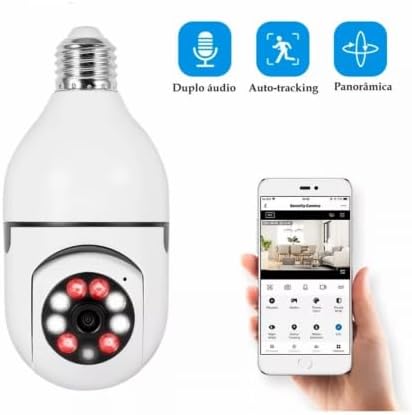
Image 6.2: The camera is suitable for monitoring various environments such as homes, offices, schools, shops, and warehouses.
7. Maintenance
- Cleaning: Use a soft, dry cloth to clean the camera lens and body. Do not use harsh chemicals or abrasive cleaners.
- Firmware Updates: Regularly check the mobile application for available firmware updates to ensure optimal performance and security.
- SD Card Management: If using an SD card, periodically check its status and format it through the app to maintain recording efficiency.
- Network Stability: Ensure your Wi-Fi network is stable and strong for uninterrupted camera operation.
8. Troubleshooting
- Camera Not Connecting to Wi-Fi:
- Ensure your Wi-Fi network is 2.4GHz. The camera does not support 5GHz Wi-Fi.
- Check Wi-Fi password for correctness.
- Move the camera closer to the Wi-Fi router.
- Reset the camera using the reset button (refer to Section 4. Product Overview) and try pairing again.
- No Live View/Offline Status:
- Check if the camera is powered on and the E27 socket has power.
- Verify your smartphone has a stable internet connection.
- Restart the camera by turning off and on the power to the socket.
- Poor Image Quality:
- Clean the camera lens with a soft cloth.
- Ensure sufficient lighting in the environment or check night vision settings.
- Check your internet speed; a slow connection can affect streaming quality.
- Motion Detection Not Working:
- Ensure motion detection is enabled in the app settings.
- Adjust motion sensitivity settings.
- Check notification settings on your smartphone to ensure app notifications are allowed.
9. Specifications
| Feature | Specification |
|---|---|
| Model | G4-5 |
| Manufacturer | Kapbom |
| Sensor | 1/3 inch RGB 1080p CMOS |
| Lens | 3.6mm Standard Lens |
| Video Capture Resolution | 1080p (1920x1280), 720p (1280x720) Optical |
| Frame Rate | 1080p @ 20fps, 720p @ 20fps |
| Video Stream | 1080p: 1.2-1.5 Mbps, 720p: 512 Kbps |
| Pan Angle | 355° |
| Tilt Angle | 90° |
| Audio Format | G.711A |
| Wireless Communication Technology | Wi-Fi (2.4GHz) |
| Mounting Type | Standard E27 Lamp Socket |
| Power Source | Wired Electric |
| Voltage | 110-240V (Bivolt) |
| Power Consumption | <5W |
| Night Vision Range | 10 Meters |
| Storage | Cloud Storage, Micro SD Card (up to 128GB) |
| Controller Type | Android, iOS |
| Item Dimensions (L x W x H) | 9.5 x 18.5 x 9 cm |
| Certification | Anatel Approval: 12989-22-05662 |
10. Warranty and Support
For warranty information and technical support, please refer to the retailer where you purchased the product or contact Kapbom customer service through their official channels. Keep your purchase receipt as proof of purchase.


