
1. Introduction
This manual provides comprehensive instructions for the Annadue 5G Mobile Hotspot, a portable Wi-Fi 6 device designed for high-speed internet access. It supports 5G and 4G networks, dual-band Wi-Fi (2.4GHz and 5.8GHz), and can connect up to 16 devices simultaneously. Please read this manual thoroughly before using the device to ensure proper operation and safety.
Package Contents
- 1 x Annadue 5G Mobile Hotspot Router
- 1 x USB Charging Cable
- 1 x User Manual (This document)
2. Product Overview
The Annadue 5G Mobile Hotspot features a compact, white design with clear indicators for network status and Wi-Fi connectivity.
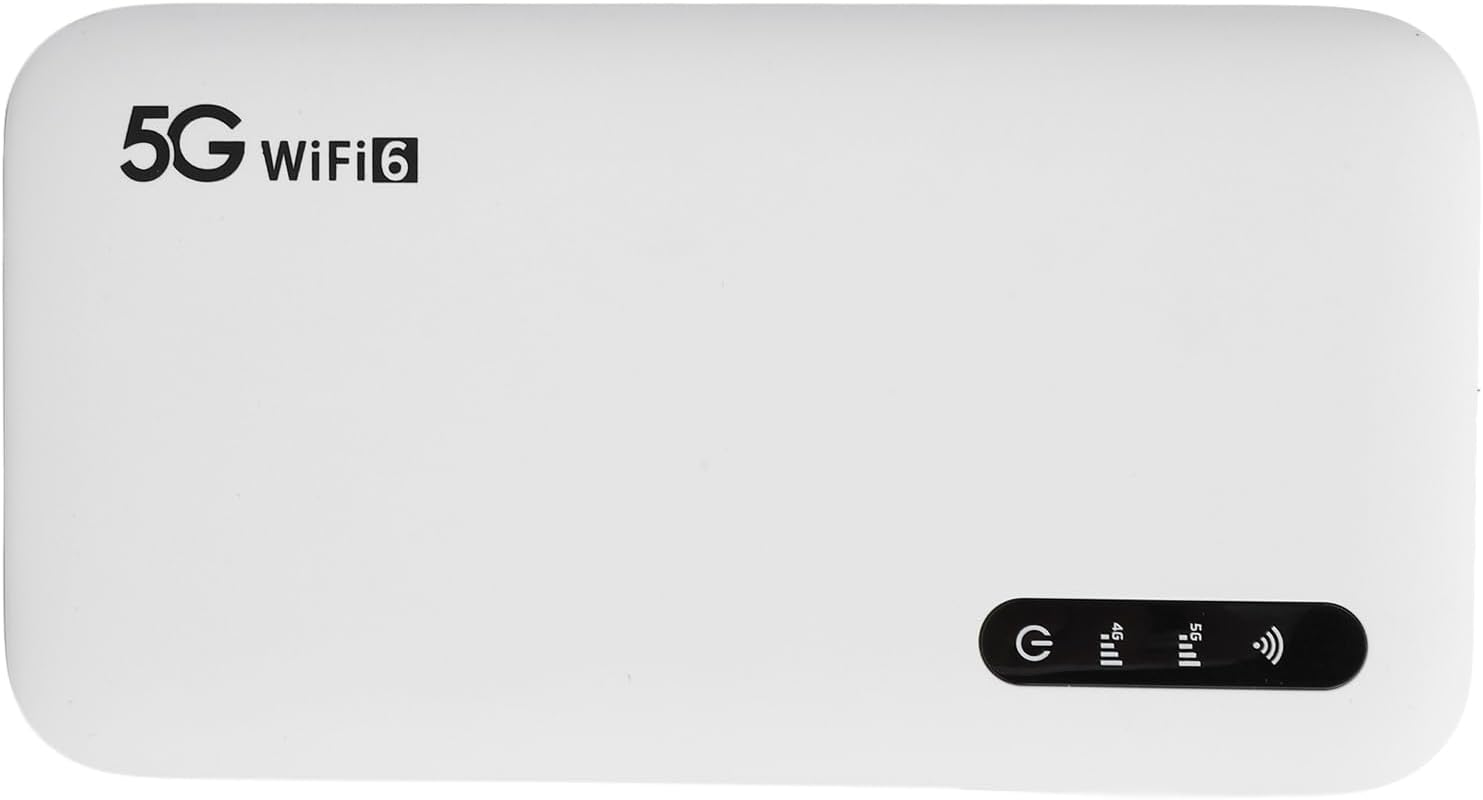
Figure 2.1: Front view of the Annadue 5G Mobile Hotspot, displaying the '5G WiFi 6' branding and a row of LED indicators for power, 4G signal, 5G signal, and Wi-Fi status.

Figure 2.2: The back panel of the Annadue 5G Mobile Hotspot, which includes printed labels for the default 5.8G SSID (MIFI-780194-5G), 2.4G SSID (MIFI-780194-2.4G), and their respective Wi-Fi Keys (12345678). It also shows the IMEI number.
3. Specifications
Detailed technical specifications for the Annadue 5G Mobile Hotspot.
| Feature | Detail |
|---|---|
| Item Type | Mobile 5G WiFi 6 Hotspot |
| Material | ABS |
| Color | White |
| Dimensions | approx. 136 x 72 x 16mm / 5.35 x 2.83 x 0.63 inch |
| Battery | 6100mAh lithium polymer battery |
| Memory | LPDDR4X 4 GB RAM, NAND 2 GB ROM |
| Charging Port | Type C |
| SIM Card Type | Nano SIM (not included) |
| Network Support | 3GPP Rel.15, 5G NR, SA/NSA, Sub 6G/LTE Category 18 |
| 5G Bands | FDD: N1/N3/N28 TDD: N41/N78 |
| 4G Bands | FDD: B1/B3/B5/B8, TDD: B34/38/39/40/41 |
| 3G Bands | B1 |
| WiFi Bands | WiFi 6 (802.11 a/b/g/n/ac/ax) 2.4 GHz, 5.8 GHz |
| Max Speed | 2.77 Gbps (Download) / 1.25 Gbps (Upload) |
| Max Wi-Fi Connections | Up to 16 devices simultaneously |
| Water Resistance | IP67 |
4. Setup
4.1 SIM Card Installation
The Annadue 5G Mobile Hotspot requires a Nano SIM card for network connectivity.
- Locate the SIM card slot on the side of the device.
- Carefully insert your Nano SIM card into the slot until it clicks into place. Ensure the card is oriented correctly according to the diagram on the device or slot.
- Close the SIM card slot cover securely to maintain the device's IP67 water resistance.
4.2 Charging the Device
Before initial use, ensure the hotspot is fully charged.

Figure 4.1: The Annadue 5G Mobile Hotspot shown alongside its USB charging cable.
- Connect the provided USB cable to the Type-C charging port on the device.
- Connect the other end of the USB cable to a compatible USB power adapter (not included) or a computer USB port.
- The charging indicator light will illuminate. The device is fully charged when the indicator changes or turns off (refer to specific LED behavior in the Product Overview section for details).
4.3 Powering On/Off
To power the device on or off, press and hold the power button (indicated by the power symbol) for a few seconds. The LED indicators will light up during startup and shut down.
5. Operating Instructions
5.1 Connecting Devices to Wi-Fi
The hotspot broadcasts two distinct Wi-Fi networks (SSIDs) for 2.4GHz and 5.8GHz bands.
- Ensure the hotspot is powered on and has an active SIM card with data.
- On your phone, tablet, or computer, navigate to the Wi-Fi settings and search for available networks.
- Select either the 2.4GHz network (e.g., MIFI-780194-2.4G) or the 5.8GHz network (e.g., MIFI-780194-5G). The default SSIDs and Wi-Fi Keys are printed on the back of the device (refer to Figure 2.2).
- Enter the default Wi-Fi Key (12345678) when prompted.
- Your device should now be connected to the internet.
5.2 Understanding Wi-Fi Bands
The hotspot supports dual-band Wi-Fi, offering flexibility for various usage scenarios:
- 2.4GHz Band: Offers wider coverage and better penetration through walls, making it suitable for general browsing and devices located further away from the hotspot.
- 5.8GHz Band: Provides faster speeds and less interference, ideal for high-bandwidth activities like streaming and gaming when devices are closer to the hotspot.
5.3 Monitoring Device Status
The LED lights on the front of the device provide visual feedback on its operational status:
- Power Indicator: Shows if the device is powered on or off.
- 4G/5G Signal Indicators: Display the current network connectivity (4G or 5G) and signal strength.
- Wi-Fi Indicator: Illuminates when Wi-Fi is active and may indicate connected devices.
6. Maintenance
6.1 Cleaning
To clean the device, gently wipe it with a soft, dry cloth. Avoid using liquid cleaners, abrasive materials, or solvents, as these can damage the device's surface or internal components.
6.2 Water Resistance (IP67)
The Annadue 5G Mobile Hotspot is rated IP67 for water and dust resistance. This means it is protected against dust ingress and can withstand immersion in up to 1 meter of fresh water for up to 30 minutes. To maintain this protection, ensure all ports and covers (especially the SIM card slot cover) are securely closed at all times. Avoid intentional submersion, exposure to high-pressure water jets, or use in saltwater.
6.3 Battery Care
To prolong the lifespan of the built-in 6100mAh lithium polymer battery:
- Avoid exposing the device to extreme temperatures (very hot or very cold).
- Charge the device regularly, but avoid leaving it connected to a charger for extended periods after it is fully charged.
- If storing the device for a long time, charge it to about 50% before storage.
7. Troubleshooting
This section addresses common issues you might encounter with your Annadue 5G Mobile Hotspot.
- No Power:
Ensure the device is sufficiently charged. Press and hold the power button for a few seconds to attempt to turn it on. If the battery is completely drained, it may take a few minutes of charging before the device can power on. - No Internet Connection:
- Verify that the SIM card is correctly inserted and active with a valid data plan.
- Check the network signal strength via the LED indicators on the device. If the signal is weak or absent, try moving to an area with better coverage.
- Restart the hotspot by powering it off and then on again.
- Ensure your connected device's Wi-Fi is enabled and connected to the correct SSID of the hotspot.
- Slow Internet Speed:
- Move closer to the hotspot to improve signal strength.
- If your device supports it, try connecting to the 5.8GHz Wi-Fi band for potentially faster speeds and less interference.
- Reduce the number of devices connected to the hotspot, as too many devices can share bandwidth.
- Check your mobile network provider's coverage and network congestion in your current location.
- Cannot Connect to Wi-Fi:
- Double-check that you are entering the correct Wi-Fi Key (password). The default key is 12345678, found on the back of the device.
- Restart both the hotspot and your connecting device.
- Ensure the hotspot's Wi-Fi function is enabled (indicated by the Wi-Fi LED).
8. Safety Information
Please read the following safety information carefully to prevent injury or damage to the device.

Figure 8.1: Important warning label advising users to read product instructions carefully.
- Do not attempt to disassemble, repair, or modify the device yourself. This may void your warranty and cause damage.
- Use only approved chargers and accessories. Using incompatible accessories may cause fire, explosion, or other hazards.
- Avoid exposing the device to extreme temperatures, direct sunlight, or fire. High temperatures can damage the battery and internal components.
- Keep the device and its accessories out of reach of children and pets.
- Dispose of the device and its battery responsibly according to local environmental regulations. Do not dispose of it in household waste.
- Avoid dropping or subjecting the device to severe impact.
- Do not use the device in environments where electronic devices are prohibited or may cause interference.
9. Warranty and Support
For warranty information, technical support, or service inquiries, please refer to the documentation provided at the time of purchase or contact Annadue customer service through the official channels. Please have your product model number (Annadue7thpw9fo6q) and purchase details ready when contacting support.