
Thunderobot ONCE81
Thunderobot ONCE81 Gaming Keyboard FC User Manual
Model: ONCE81
1. Introduction
Thank you for choosing the Thunderobot ONCE81 Gaming Keyboard FC. This mechanical keyboard is designed for an enhanced gaming and typing experience, featuring a vibrant RGB backlight, versatile tri-mode connectivity, and hot-swappable switches. This manual provides detailed instructions on how to set up, operate, maintain, and troubleshoot your keyboard to ensure optimal performance.

Image: The Thunderobot ONCE81 Gaming Keyboard FC, showcasing its full layout and design.
2. What's in the Box
Please check the contents of your package. If any items are missing or damaged, please contact Thunderobot support.
- Thunderobot ONCE81 Gaming Keyboard FC
- USB Cable
- User Manual (this document)
3. Setup and Connection
The Thunderobot ONCE81 keyboard offers three versatile connection modes: Wired USB, 2.4G Wireless, and Bluetooth. You can switch effortlessly between them as needed.
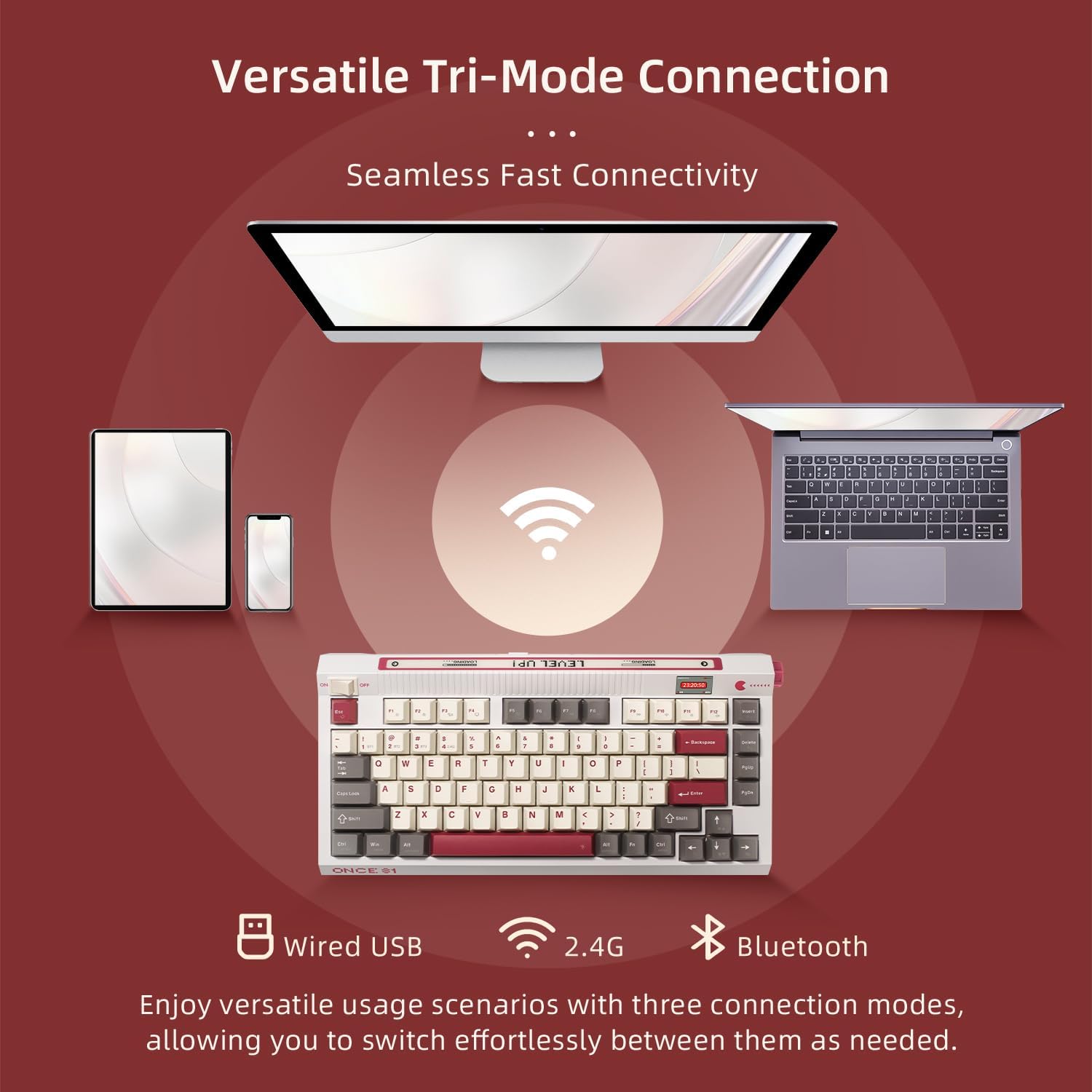
Image: Diagram illustrating the three connection modes: Wired USB, 2.4G Wireless, and Bluetooth, connecting the keyboard to various devices like laptops, PCs, smartphones, and tablets.
3.1. Wired USB Connection
- Connect the provided USB-C cable to the keyboard's USB-C port.
- Connect the other end of the USB cable to an available USB port on your computer.
- The keyboard will be automatically recognized and ready for use.
3.2. 2.4G Wireless Connection
- Locate the 2.4G USB receiver (usually stored in a compartment on the keyboard).
- Plug the 2.4G USB receiver into an available USB port on your computer.
- Ensure the keyboard's mode switch (if present) is set to 2.4G mode.
- The keyboard should connect automatically.
3.3. Bluetooth Connection
The keyboard supports connecting to up to 5 devices via Bluetooth.
- Ensure the keyboard's mode switch is set to Bluetooth mode.
- On your device (computer, smartphone, tablet), go to Bluetooth settings and turn Bluetooth on.
- On the keyboard, press and hold Fn + BT1 (or BT2, BT3, BT4, BT5) for 3-5 seconds until the indicator light flashes rapidly, indicating pairing mode.
- On your device, select "Thunderobot ONCE81" from the list of available Bluetooth devices.
- Once paired, the indicator light on the keyboard will stop flashing.
- To switch between paired Bluetooth devices, simply press Fn + BT1/BT2/BT3/BT4/BT5.
4. Operating Your Keyboard
The Thunderobot ONCE81 keyboard is equipped with various features to enhance your user experience.

Image: An infographic detailing various features of the Thunderobot ONCE81 keyboard, including Retro Design, Ultra-Low Front Height, Skin-Like Coating, 1.14" TFT Screen, Gasket HIFI Mounted, Metallic Roller, 6000mAh Battery, RGB Backlight, Tri-Mode Wireless, Hot-Swappable, Multi-Device, Anti-ghosting Keys, 75% TKL Layout, and Dual OS support.
4.1. RGB Backlight
The keyboard features a vibrant RGB backlight with 20 distinctive lighting effects. You can customize the lighting to enhance your gaming environment or typing experience.
- Press Fn + \| to cycle through different lighting effects.
- Press Fn + ↑ / Fn + ↓ to adjust backlight brightness.
- Press Fn + ← / Fn + → to adjust lighting effect speed.
4.2. Hot-Swappable Switches
The ONCE81 keyboard features hot-swappable switches, allowing you to easily swap and install your preferred switch type for a unique, customized feel without soldering.

Image: Close-up view of the keyboard demonstrating the hot-swappable switch feature, with several keycaps and switches removed to show the sockets.
4.3. Built-in 6000mAh Battery
The keyboard is equipped with a 6000mAh rechargeable lithium battery, ensuring long-lasting performance. When connected via wired mode, it continues to charge, meeting the demands of heavy typists and gamers for sustained usage.

Image: A graphic highlighting the 6000mAh built-in battery, emphasizing its capacity for extended use.
4.4. PBT Doubleshot Keycaps
The standard edition of the ONCE81 comes with PBT Doubleshot Keycaps. Crafted from high-purity PBT material, these keycaps offer a delicate texture for comfortable typing. The cherry profile and curvature align with the natural angle of the hand, ensuring a comfortable experience even during extended use.

Image: Close-up of the keyboard showcasing the PBT Doubleshot Keycaps, highlighting their texture and profile.
4.5. Custom Thunderobot POM Linear Switch - Fire Switch
Experience early bottoming out with a clean and crisp feel. The LY switch core, combined with a POM top and nylon base, enhances the overall smoothness of the switch. With a quick actuation distance of 1.2mm, enjoy faster response times during gaming and urgent actions. A 2-3 degree angle on the spring reduces jitter and delays caused by switch contact.

Image: Diagram showing the internal components of the Thunderobot POM Linear Fire Switch, along with its specifications.
Switch Specifications:
- Actuation Force: 43±8gf
- Bottom-Out Force: 53±8gf
- Actuation Distance: 1.2±0.4mm
- Total Travel Distance: 3.6±0.4mm
- Spring Length: Single 20mm
- Lifespan: Approx. 70 million key presses
4.6. Other Features
- 1.14" TFT Screen: Vintage UI icons for status display.
- Metallic Roller: Adjust volume, backlight, and screen settings.
- Multi-Device Connectivity: Connect up to 5 devices across systems.
- Dual OS Support: Easily switch between Windows and Mac systems.
- Anti-ghosting Keys (N-key Rollover): Ensures all key presses are registered accurately, even during rapid simultaneous inputs.
5. Maintenance
Proper care will extend the life of your Thunderobot ONCE81 keyboard.
- Cleaning: Use a soft, dry cloth to wipe down the keyboard. For deeper cleaning, use compressed air to remove dust and debris from between the keycaps. You may carefully remove keycaps for thorough cleaning if needed.
- Battery Care: To prolong battery life, avoid fully discharging the battery frequently. Store the keyboard in a cool, dry place when not in use for extended periods.
- Avoid Liquids: Keep the keyboard away from liquids to prevent damage to internal components.
6. Troubleshooting
If you encounter issues with your keyboard, please refer to the following common solutions:
| Problem | Possible Solution |
|---|---|
| Keyboard not responding (Wired) | Ensure the USB cable is securely connected to both the keyboard and the computer. Try a different USB port or cable. |
| Keyboard not connecting (2.4G Wireless) | Ensure the 2.4G receiver is properly plugged in. Check if the keyboard is in 2.4G mode. Re-pair the keyboard with the receiver if necessary. |
| Keyboard not connecting (Bluetooth) | Ensure Bluetooth is enabled on your device and the keyboard is in Bluetooth pairing mode. Forget the device on your computer/phone and re-pair. Ensure the keyboard is charged. |
| Backlight not working or dim | Adjust brightness using Fn + ↑. Ensure the keyboard battery is charged. |
| Keys not responding or double-typing | Clean under the keycap. If hot-swappable, try reseating the switch or replacing it with a spare. |
| Short battery life | Reduce backlight brightness. Ensure the keyboard is fully charged before use. |
7. Specifications
| Feature | Detail |
|---|---|
| Model Number | ONCE81 |
| Connectivity Technology | Bluetooth, USB-C, 2.4G Wireless |
| Keyboard Description | Mechanical |
| Number of Keys | 81 |
| Keyboard Backlighting | RGB (20 effects) |
| Special Features | Backlit, Customizable Display Keys, Ergonomic, Hot-Swappable, Rechargeable |
| Compatible Devices | Laptop, PC, Smartphone, Tablet |
| Battery | 6000mAh Lithium Polymer (included) |
| Item Weight | 1.76 pounds |
| Package Dimensions | 12.99 x 8.66 x 2.36 inches |
| Keycap Material | PBT Doubleshot |
| Switch Type | Thunderobot POM Linear Fire Switch |
| TFT Screen | 1.14 inches |
8. Warranty and Support
Thunderobot products come with a standard manufacturer's warranty. For detailed warranty information, technical support, or service inquiries, please visit the official Thunderobot website or contact their customer service directly. Please retain your proof of purchase for warranty claims.
Ask a question about this manual
Ask about setup, troubleshooting, compatibility, parts, safety, or missing instructions. Manuals+ will review the question and use this page’s manual context to help answer it.