
1. Introduction
This manual provides detailed instructions for the setup, operation, and maintenance of your Dpofirs 5G Router with SIM Card Slot. This device offers high-speed 5G cellular network access, dual-band Wi-Fi (2.4G and 5.8G), and supports up to 32 users, making it suitable for indoor home and office environments.
2. Product Overview
Familiarize yourself with the components and features of your 5G router.
2.1 Package Contents
- 1 x Dpofirs 5G Router
- 1 x Power Cord
- 1 x Instruction Manual (this document)
- 1 x Network Cable
2.2 Router Components and Indicators
The router features various ports and indicator lights for easy monitoring and connectivity.
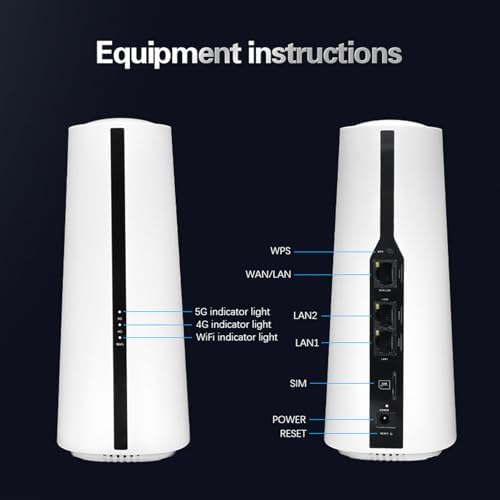
Image: Front and back view of the Dpofirs 5G Router. The front shows indicator lights for 5G, 4G, and WiFi. The back panel includes ports for WPS, WAN/LAN, LAN2, LAN1, SIM card slot, Power input, and a Reset button.
- 5G Indicator Light: Indicates 5G network status.
- 4G Indicator Light: Indicates 4G network status.
- WiFi Indicator Light: Indicates Wi-Fi activity.
- WPS Button: For Wi-Fi Protected Setup.
- WAN/LAN Port: Connects to an external modem or acts as a LAN port.
- LAN1/LAN2 Ports: Connects to wired devices.
- SIM Card Slot: Insert your 5G/4G SIM card here.
- Power Input: Connect the power adapter.
- Reset Button: Press and hold to restore factory settings.
2.3 Product Dimensions and Weight
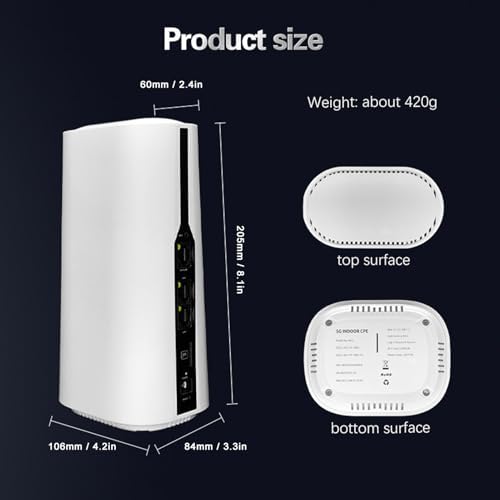
Image: Diagram showing the physical dimensions of the Dpofirs 5G Router. The router measures approximately 60mm (2.4in) at the top, 108mm (4.2in) at the base, 205mm (8.1in) in height, and 84mm (3.3in) in depth. Its weight is approximately 420g.
3. Setup Instructions
Follow these steps to set up your 5G router.
3.1 Inserting the SIM Card
- Ensure the router is powered off.
- Locate the SIM card slot on the back of the router.
- Insert your activated 5G/4G SIM card into the slot until it clicks into place. Ensure the correct orientation as indicated on the device.
- Do not force the SIM card. If it does not fit, check the orientation or SIM card size.
3.2 Connecting Power
- Connect the provided power adapter to the Power Input port on the router.
- Plug the other end of the power adapter into a standard electrical outlet (100-240V).
- The router will power on automatically. Wait for the indicator lights to stabilize.
3.3 Initial Network Configuration (Optional)
For advanced settings or initial setup, you can access the router's web interface.
- Connect a computer to one of the LAN ports using the provided network cable, or connect wirelessly to the default Wi-Fi network (SSID and password usually found on a sticker on the router's bottom).
- Open a web browser and enter the default IP address (e.g., 192.168.1.1) into the address bar.
- Log in using the default username and password (refer to the sticker on the router or the quick start guide).
- Follow the on-screen prompts for initial setup, such as changing the default Wi-Fi name and password.
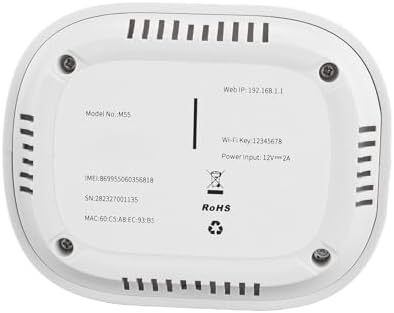
Image: The bottom surface of the Dpofirs 5G Router, displaying important information such as Model No.: M55, Web IP: 192.168.1.1, Wi-Fi Key: 12345678, and Power Input: 12V=2A. This information is crucial for initial setup and access.
4. Operating Instructions
Once set up, your router provides internet access to multiple devices.
4.1 Connecting Devices
- Wireless Connection: On your Wi-Fi enabled device (smartphone, laptop, tablet), search for available Wi-Fi networks. Select your router's SSID (network name) and enter the Wi-Fi password.
- Wired Connection: Connect devices like desktop computers, gaming consoles, or smart TVs to the LAN1 or LAN2 ports using an Ethernet cable.
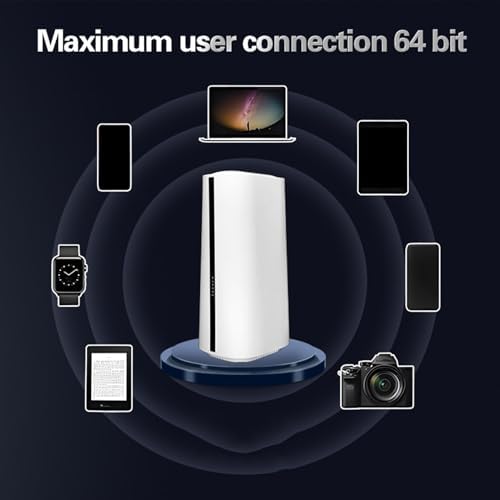
Image: Illustration demonstrating the Dpofirs 5G Router's capability to connect to multiple devices simultaneously. Devices shown include a laptop, smartphones, tablets, a smartwatch, and a camera, indicating support for up to 32 users.
4.2 Understanding Indicator Lights
- Solid Green (5G/4G): Connected to the respective cellular network.
- Blinking Green (5G/4G): Data activity on the respective cellular network.
- Solid Blue (WiFi): Wi-Fi is active.
- Blinking Blue (WiFi): Wi-Fi data activity.
- No Light: Network not connected or feature is off.
5. Maintenance
Proper maintenance ensures optimal performance and longevity of your router.
5.1 General Care
- Keep the router in a cool, dry place, away from direct sunlight and heat sources.
- Ensure adequate ventilation around the device.
- Clean the exterior with a soft, dry cloth. Do not use liquid cleaners.
- Avoid placing heavy objects on the router.
5.2 Firmware Updates
Periodically check the router's web interface for available firmware updates. Firmware updates can improve performance, add new features, and enhance security. Follow the instructions provided within the web interface for safe updating.
5.3 Resetting the Router
If you encounter persistent issues or forget your login credentials, you may need to reset the router to factory default settings. To do this, with the router powered on, use a paperclip or similar pointed object to press and hold the Reset button for approximately 10 seconds until the indicator lights flash. The router will then restart with default settings.
6. Troubleshooting
Refer to this section for solutions to common issues.
6.1 No Internet Connection
- Check SIM Card: Ensure the SIM card is correctly inserted and activated with a data plan.
- Signal Strength: Verify the 5G/4G indicator light. If it's off or blinking slowly, the signal might be weak. Try repositioning the router.
- Router Status: Check if the router is powered on and all necessary indicator lights are active.
- Restart: Power cycle the router by unplugging it for 30 seconds and then plugging it back in.
- APN Settings: Access the router's web interface and verify that the Access Point Name (APN) settings are correct for your mobile carrier.
6.2 Wi-Fi Connection Issues
- Incorrect Password: Double-check the Wi-Fi password.
- Signal Range: Ensure your device is within the Wi-Fi range of the router.
- Interference: Other electronic devices can cause interference. Try changing the Wi-Fi channel in the router's settings.
- Device Limit: The router supports up to 32 users. If too many devices are connected, performance may degrade.
6.3 Slow Internet Speed
- Signal Strength: A weak 5G/4G signal will result in slower speeds.
- Network Congestion: During peak hours, cellular network speeds may decrease.
- Number of Users: More connected devices sharing bandwidth can reduce individual speeds.
- Router Placement: Place the router in a central location, away from obstructions.
7. Specifications
Detailed technical specifications for the Dpofirs 5G Router.
| Feature | Detail |
|---|---|
| Model Name | Dpofirsei2sngv1m5-12 |
| Brand | Dpofirs |
| Connectivity Technology | Ethernet, 5G Cellular |
| Wireless Communication Standard | 802.11ac, 802.11n |
| Frequency Band Class | Dual-Band (2.4 GHz, 5.8 GHz) |
| Data Transfer Rate | Up to 1800 Mbps |
| Number of Ports | 1 WAN/LAN, 2 LAN |
| Compatible Devices | Personal Computer, Laptop, Smartphone, Tablet, Gaming Console |
| Security Protocol | WPA2-PSK, WPA3 |
| Color | White |
| Power Input | 100-240V (US Plug) |
| Max Users Supported | 32 |
8. Warranty and Support
This product comes with a manufacturer's warranty and support resources.
8.1 Manufacturer's Warranty
The Dpofirs 5G Router is covered by a 90-day manufacturer's warranty from the date of purchase. This warranty covers defects in materials and workmanship under normal use. It does not cover damage caused by misuse, accidents, unauthorized modifications, or external factors.
8.2 Customer Support
For technical assistance, troubleshooting beyond this manual, or warranty claims, please contact Dpofirs customer support. Refer to the contact information provided with your purchase or visit the official Dpofirs website for support details.
Note: Keep your purchase receipt as proof of purchase for warranty purposes.