
1. Introduction
This manual provides detailed instructions for the setup, operation, and maintenance of your Cluvox 1200Mbps Dual-Band WiFi Repeater. This device is designed to extend your existing wireless network coverage, offering enhanced signal strength and speed across both 2.4GHz and 5GHz bands. Please read this manual carefully before using the product to ensure proper installation and optimal performance.
2. Safety Information
- Keep the device away from water, fire, humidity, or hot environments.
- Do not attempt to disassemble, repair, or modify the device.
- Use only the power adapter provided with the device.
- Ensure proper ventilation around the device.
- Keep out of reach of children.
3. Package Contents
The package should contain the following items:
- Cluvox 1200Mbps Dual-Band WiFi Repeater
- Ethernet Cable
- Quick Installation Guide
4. Product Overview
Familiarize yourself with the repeater's components:

Image 1: Top view of the Cluvox WiFi Repeater, showing its square design with four adjustable antennas and a central LED indicator.

Image 2: Front view of the Cluvox WiFi Repeater, highlighting the WAN/LAN port at the bottom for wired connections.

Image 3: Side view of the Cluvox WiFi Repeater, showing the WPS button and ventilation design for heat dissipation.
LED Indicators:
- Power LED: Indicates the device's power status.
- 2.4GHz LED: Indicates the status of the 2.4GHz wireless network.
- 5GHz LED: Indicates the status of the 5GHz wireless network.
- Signal LED: Indicates the signal strength received from the main router.
Ports and Buttons:
- WAN/LAN Port: Used for wired connections in Router or AP mode, or to connect a wired device in Repeater mode.
- WPS Button: For quick setup with a WPS-enabled router.
- Reset Button: Used to restore the device to factory default settings (usually a small pinhole button).
5. Setup
There are two main methods to set up your Cluvox WiFi Repeater: using the WPS button or via a web browser.
5.1 Initial Placement
Plug the repeater into a power outlet near your main router. Wait for the Power LED to turn solid. This ensures the device is powered on and ready for configuration.
5.2 WPS Setup (Recommended for quick setup)
- Plug the repeater into a power outlet near your main router. Wait for the Power LED to turn solid.
- Press the WPS button on your main router.
- Within two minutes, press the WPS button on your Cluvox WiFi Repeater.
- Wait for the Signal LED on the repeater to turn solid (green or blue), indicating a successful connection.
5.3 Web Browser Setup
- Plug the repeater into a power outlet near your main router. Wait for the Power LED to turn solid.
- Connect your computer or mobile device to the repeater's default Wi-Fi network (SSID usually found on a label on the device, e.g., "Cluvox_Extender"). No password is required for the initial connection.
- Open a web browser and enter the default IP address or domain name (e.g.,
http://repeater.localor192.168.0.254, check the Quick Installation Guide for exact details). - Create a new login password for the repeater's management page.
- Follow the on-screen instructions to select your main Wi-Fi network (2.4GHz and/or 5GHz) and enter its password.
- Customize the extended network names (SSIDs) or keep the default ones (e.g., "YourNetworkName_EXT").
- Confirm the settings and wait for the repeater to reboot.
- Once rebooted, the Signal LED should turn solid, indicating a successful connection. You can now connect your devices to the extended Wi-Fi network.
6. Operating Modes
The Cluvox WiFi Repeater supports multiple operating modes to suit various network needs:

Image 4: Diagram illustrating the three operational modes: Repeater, AP, and Router, and how they connect to the internet and devices.
6.1 Repeater Mode (Default)
Extends the range of your existing wireless network. It connects wirelessly to your main router and re-broadcasts the signal, eliminating Wi-Fi dead zones.
6.2 Access Point (AP) Mode
Transforms your wired network into a wireless one. Connect the repeater to your wired router or modem via an Ethernet cable, and it will create a new Wi-Fi access point.
6.3 Router Mode
Functions as a primary router. Connect it to your modem via an Ethernet cable to create a new private wireless network for your home or office.
7. Optimal Placement
For the best Wi-Fi coverage and performance, follow these guidelines:
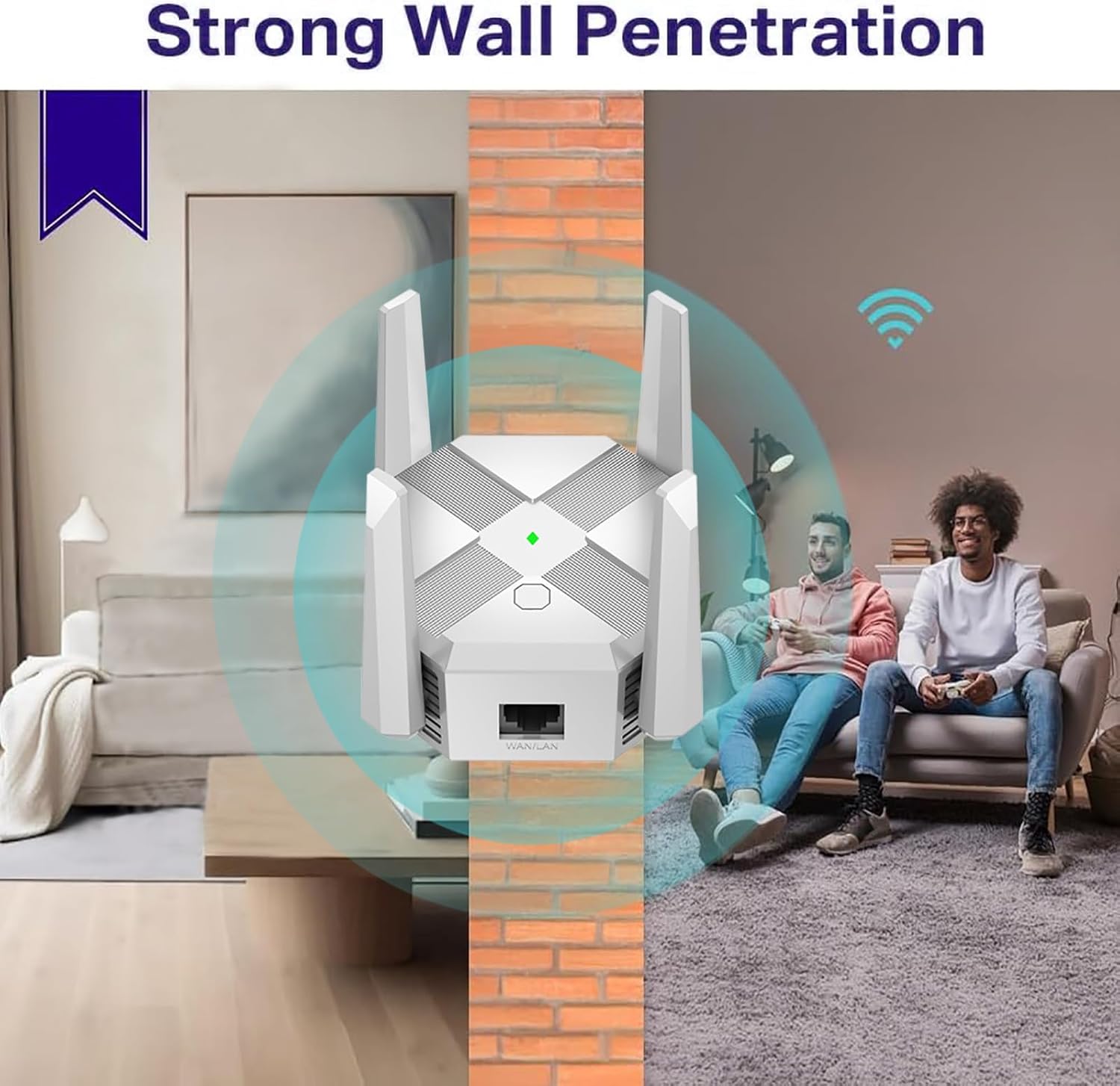
Image 5: Illustration demonstrating the repeater's ability to provide strong Wi-Fi signal penetration through walls, extending coverage to adjacent rooms.

Image 6: A floor plan diagram illustrating how strategically placing repeaters can ensure seamless Wi-Fi coverage throughout an entire house.
- Mid-way Point: Plug your repeater about halfway between your router and the Wi-Fi dead zone. The location you choose must be within the range of the host network.
- Clear Line of Sight: Place the extender in an open, unobstructed area. Avoid placing it behind large furniture or inside cabinets.
- Avoid Interference: Keep the extender away from large electrical appliances (e.g., microwave ovens, refrigerators) to minimize interference.
- Check Signal LED: After relocating the repeater, wait for the Signal LED to turn solid green/blue. If it's red or off, move the extender closer to the router to achieve better signal quality.
8. Specifications
| Feature | Detail |
|---|---|
| Brand | Cluvox |
| Color | White |
| Wireless Communication Standard | 802.11a/g/n/ac, 802.11bgn |
| Data Transfer Rate | 1200 Megabits per second |
| Supported Frequency Bands | 2.4 GHz, 5 GHz |
| Compatible Devices | Personal Computer, Laptop, Smartphone, Tablet, Mobile Phone |
9. Troubleshooting
If you encounter issues with your Cluvox WiFi Repeater, try the following steps:
- No Power: Ensure the repeater is securely plugged into a working power outlet. Check if the Power LED is on.
- No Internet Access: Verify that your main router has internet access. Check the Signal LED on the repeater; if it's red or off, the repeater is too far from the router or not connected.
- Weak Signal: Relocate the repeater to an optimal position (refer to Section 7). Ensure there are no major obstructions or sources of interference.
- Cannot Access Management Page: Ensure your device is connected to the repeater's Wi-Fi network. Try clearing your browser's cache or using a different browser. If issues persist, reset the repeater to factory defaults.
- Reset to Factory Defaults: With the repeater powered on, use a paperclip to press and hold the Reset button for about 5-10 seconds until all LEDs flash. The device will then restart with default settings.
10. Warranty and Support
For warranty information and technical support, please refer to the documentation included with your product or visit the official Cluvox website. Keep your purchase receipt for warranty claims.