Introduction
The Nova Gaming PERSEE is a wireless RGB programmable gaming mouse designed for precision and customization. It features an advanced optical sensor, adjustable DPI settings, programmable buttons, and customizable LED lighting. This manual provides instructions for setting up, operating, and maintaining your PERSEE gaming mouse.
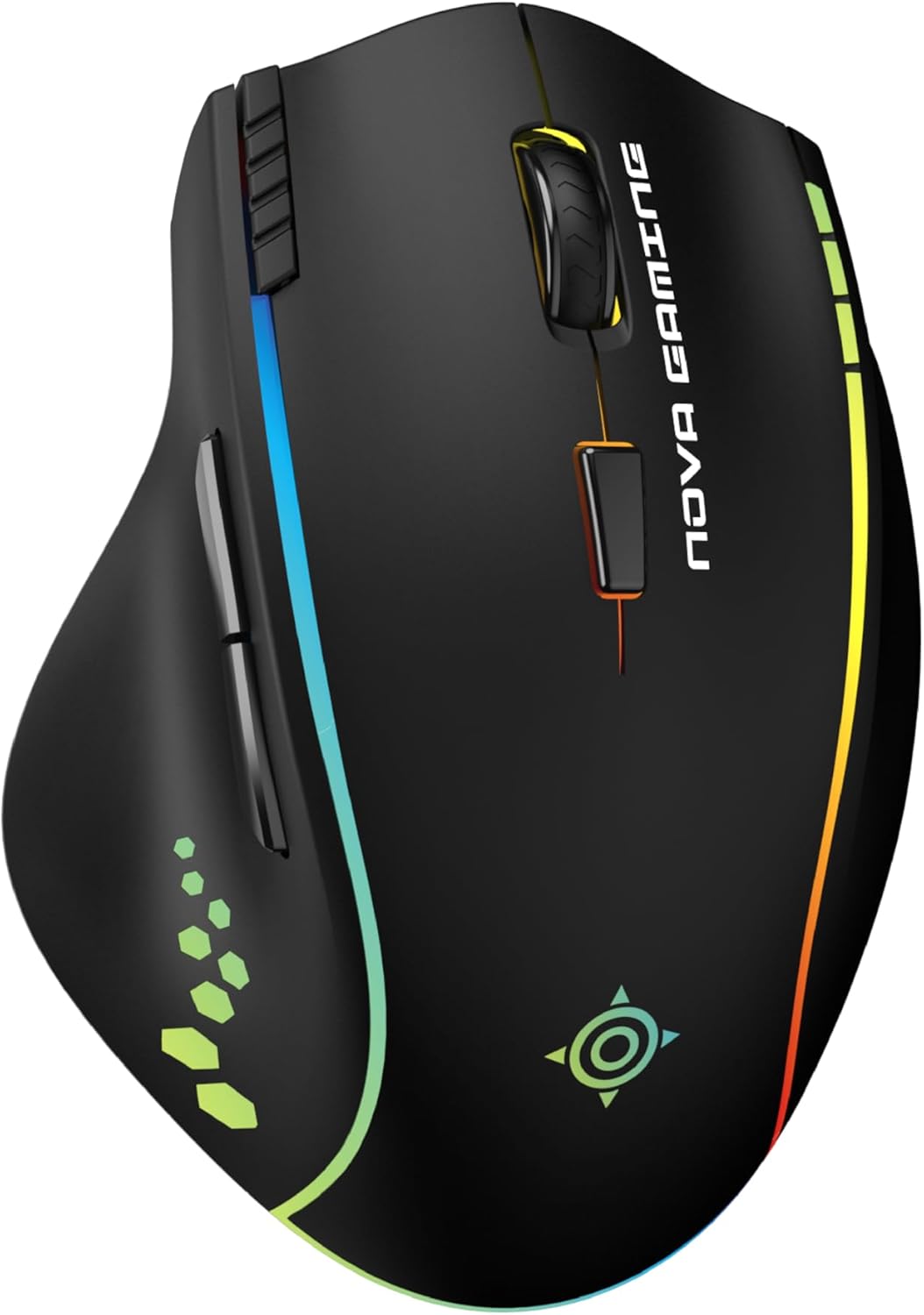
Image: The Nova Gaming PERSEE wireless RGB gaming mouse, showcasing its ergonomic design and vibrant LED lighting.
What's in the Box
Verify that all items are present in the package:
- Nova Gaming PERSEE Wireless RGB Gaming Mouse
- Instruction Manual (with software download information)
- USB Charging Cable
- USB Receiver (typically stored within the mouse or alongside the cable)
Product Overview
Familiarize yourself with the main components and buttons of your PERSEE gaming mouse.

Image: Side view of the PERSEE mouse highlighting the DPI button, fire button, and USB-C charging port.
- Left Click Button
- Right Click Button
- Scroll Wheel: Anti-slip design for precise scrolling.
- DPI Cycle Button: Adjusts sensitivity (DPI) on the fly.
- Forward/Backward Buttons: Located on the side, typically for navigation.
- Fire Button: Additional programmable button, often used for rapid actions.
- USB-C Charging Port: For recharging the internal battery.
- Power Switch: (Typically on the underside) to turn the mouse on/off.
- USB Receiver Storage: (Typically on the underside) for the wireless dongle.
Setup
- Charge the Mouse: Connect the supplied USB charging cable to the mouse's USB-C port and to a powered USB port on your computer or a USB wall adapter. Allow the mouse to fully charge before first use. The mouse can be used while charging in wired mode.
- Connect the USB Receiver: Locate the USB receiver (dongle) for wireless connectivity. Plug it into an available USB port on your computer.
- Power On: Flip the power switch on the underside of the mouse to the "ON" position. The mouse should automatically connect to the receiver.
- Install Software (Optional but Recommended): For full customization of buttons, DPI settings, and RGB lighting, download and install the dedicated Nova Gaming PERSEE software. The download link is provided in the included instruction manual.
Operating Instructions
DPI Adjustment
The PERSEE mouse features an optical sensor with adjustable DPI (Dots Per Inch) from 800 to 10,000 DPI. This allows you to change the mouse sensitivity to suit different tasks or game types.

Image: The PERSEE mouse with text indicating its DPI range of 800 to 10,000.
- Press the DPI Cycle Button (located behind the scroll wheel) to cycle through preset DPI levels.
- For precise DPI customization and to set specific levels, use the Nova Gaming PERSEE software.
Programmable Buttons and Software
The mouse is equipped with 7 programmable buttons, allowing you to assign custom functions, macros, or shortcuts for enhanced control.

Image: Top-down view of the PERSEE mouse highlighting the 7 programmable buttons.

Image: Screenshot of the Nova Gaming PERSEE customization software, showing options for button assignment and other settings.
- Download and install the Nova Gaming PERSEE customization software.
- Open the software to access button remapping, macro creation, and other advanced settings.
- Save your profiles within the software for quick switching between different configurations.
RGB Lighting
The PERSEE mouse features 9 customizable LED animations and 6 solid color options to personalize its appearance.

Image: The PERSEE mouse displaying various RGB lighting effects and colors.
- Use the Nova Gaming PERSEE software to select from various lighting effects, adjust brightness, and choose specific colors.
- Some lighting effects may be controlled directly via a dedicated button if configured in the software.
Charging the Mouse
The PERSEE mouse is equipped with a rechargeable battery for extended wireless use.
- When the battery is low, the mouse's LED indicators may change or flash.
- Connect the USB-C charging cable to the mouse and a powered USB port.
- The mouse can operate in wired mode while charging.
Specifications
| Feature | Detail |
|---|---|
| Model Name | PERSEE |
| Model Number | NG313948 |
| Connectivity | Wireless (USB Receiver), Wired (USB-C) |
| Sensor Type | Optical |
| DPI Range | 800 - 10,000 DPI (Adjustable) |
| Programmable Buttons | 7 buttons |
| LED Lighting | RGB, 9 animations, 6 solid colors |
| Polling Rate | 125 to 1000 Hz |
| Tracking Speed | 100 IPS (Inches Per Second) |
| Switch Durability | Huano switches, 20 million clicks |
| Hand Orientation | Right-handed |
| Power Source | Rechargeable Battery |
| Weight | 97 Grams |
Compatibility
The Nova Gaming PERSEE mouse is compatible with the following operating systems:
- Windows
- Linux
It is designed for use with personal computers.
Maintenance
Proper maintenance ensures the longevity and optimal performance of your gaming mouse.
- Cleaning: Use a soft, dry cloth to wipe the surface of the mouse. For stubborn dirt, slightly dampen the cloth with water or a mild cleaning solution. Avoid harsh chemicals or abrasive materials.
- Sensor Care: Keep the optical sensor on the underside of the mouse clean and free from dust or debris to ensure accurate tracking.
- Storage: When not in use for extended periods, store the mouse in a clean, dry environment.
- Battery Care: Avoid fully discharging the battery frequently. Recharge the mouse when the low battery indicator appears.
Troubleshooting
| Problem | Possible Solution |
|---|---|
| Mouse not responding wirelessly |
|
| DPI changes are not registering |
|
| RGB lighting not working or incorrect |
|
| Mouse not charging |
|
| Software not detecting mouse |
|
Warranty and Support
The Nova Gaming PERSEE mouse comes with a manufacturer's warranty.
- Manufacturer's Warranty: 2 years.
- For technical support, warranty claims, or further assistance, please refer to the contact information provided in your product packaging or visit the official Nova Gaming website.