
1. Introduction
The LINHAMCOLN Wireless CarPlay Smart Module Box enhances your driving experience by integrating advanced connectivity features into your vehicle's existing infotainment system. This module provides real-time navigation, online music streaming, and supports aftermarket cameras. It enables Siri voice control, hands-free calling, and allows you to enjoy offline videos and music via USB. With Bluetooth 5.0 and dual-band Wi-Fi (2.4GHz + 5.8GHz), it ensures stable and fast connections. The system supports original car functions, including steering wheel controls, and offers Airplay/Android Mirror-linking for HD video playback.
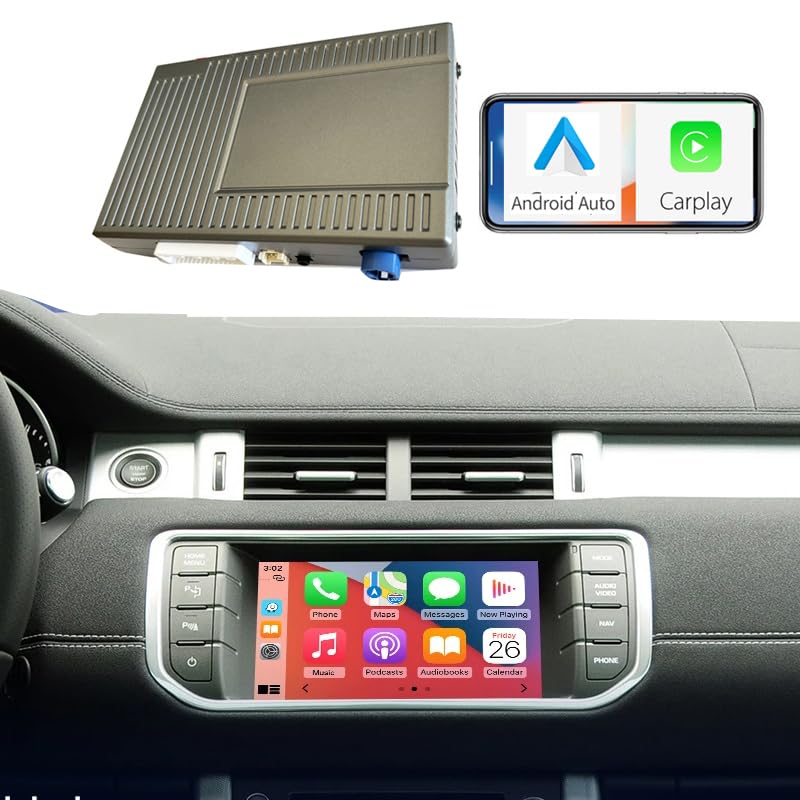
Image 1.1: The Wireless CarPlay Smart Module Box with icons indicating features like Bluetooth 5.0, dual-band Wi-Fi, CarPlay, Android Auto, YouTube, Reverse Image, Siri Voice, Maps, and Music.
2. Vehicle Compatibility
This module is designed for specific Land Rover and Jaguar models equipped with a Bosch head unit. It is crucial to verify your vehicle's head unit type before installation. The time display on a Bosch head unit is typically located on the right side of the screen.
Compatible Models and Years:
- Land Rover / Jaguar with Bosch Headunit (2012-2015): Range Rover, Range Rover Sport, Discovery, Discovery Sport, Grand Evoque, Jaguar F-TYPE, Jaguar XE.
- Land Rover / Jaguar with Bosch Headunit (2015-2016): Range Rover, Range Rover Sport, Discovery, Discovery Sport, Grand Evoque, Jaguar F-TYPE, Jaguar XF, Jaguar XE.

Image 2.1: A compatibility chart showing various Land Rover and Jaguar models and their corresponding years (2012-2015 and 2015-2016) that are compatible with the Bosch head unit.

Image 2.2: Visual guide distinguishing between Bosch and Harman head units. Bosch units typically display time on the right, while Harman units display it in the middle. This module is only compatible with Bosch head units.
3. Package Contents
Upon opening the package, please ensure all components are present and in good condition:
- Wireless CarPlay Smart Module Box
- Main Wiring Harness Cable
- USB Cable
- Wi-Fi Antenna
- GPS Antenna
- Video Input Cable (RCA)
- Mounting Adhesive Pads

Image 3.1: A complete view of all items included in the package: the main module box, various cables (harness, USB, video), antennas (Wi-Fi, GPS), and adhesive pads.
4. Setup and Installation
Installation of the Wireless CarPlay Smart Module Box requires careful handling of your vehicle's dashboard components. It is recommended that installation be performed by a qualified professional. The process generally involves removing the existing head unit, connecting the module using the provided harness, and routing cables for optimal placement.
General Installation Steps:
- Preparation: Ensure the vehicle's ignition is off and disconnect the battery to prevent electrical issues.
- Access Head Unit: Carefully remove the necessary trim panels and screws to access the vehicle's factory head unit. Refer to your vehicle's service manual for specific instructions on trim removal.
- Connect Harness: Disconnect the factory wiring harness from the head unit. Connect the provided main wiring harness from the module box in-line with the factory harness and the head unit. This is typically a "plug and play" connection.
- Connect Antennas: Connect the Wi-Fi and GPS antennas to the module box. Route them to a location that provides good signal reception, away from metal obstructions.
- USB and Video Connections: Connect the USB cable for media playback or updates. If installing an aftermarket camera, connect its video output to the module's video input.
- Secure Module: Find a suitable, secure location behind the dashboard for the module box. Use the provided adhesive pads if necessary to prevent rattling.
- Test Connections: Before reassembling the dashboard, reconnect the battery and test the module's functionality.
- Reassemble: Once confirmed working, carefully reassemble all trim panels and secure the head unit.
For a detailed visual guide on the installation process, please refer to the video below. This video demonstrates a typical installation for a Range Rover L405, which shares similar principles for other compatible models.
Video 4.1: Detailed installation guide for a Range Rover L405 radio, demonstrating the process of accessing and connecting to the head unit. This video is provided by odmcable (Seller).
5. Operating Instructions
After successful installation, the module integrates with your vehicle's display. You can switch between the original car system and the CarPlay/Android Auto interface.
5.1 Initial Connection (Bluetooth & Wi-Fi)
- Activate Module: Start your vehicle. The module should automatically power on.
- Switch to Module Interface: Use the vehicle's controls (e.g., NAV button, or a specific button as per your car's setup) to switch to the module's display.
- Pair Bluetooth: On your smartphone, enable Bluetooth and search for available devices. Select the device named "LINHAMCOLN" or similar (refer to the module's screen for the exact name) and pair.
- Connect Wi-Fi: After Bluetooth pairing, your phone will typically prompt you to enable Wi-Fi for CarPlay/Android Auto. Connect to the Wi-Fi network broadcast by the module.
- Launch CarPlay/Android Auto: Once connected, CarPlay or Android Auto should launch automatically on the car's display.
Refer to the video below for a demonstration of Bluetooth audio setup and CarPlay/Android Auto functionality.
Video 5.1: Demonstration of Carplay/Android Auto setup and Bluetooth audio connection for Land Rover Bosch systems, provided by AUTOABC (Seller).
5.2 Using CarPlay / Android Auto
- Navigation: Access real-time navigation apps like Apple Maps, Google Maps, or Waze directly on your car's screen.
- Music & Media: Stream music from Spotify, Apple Music, or other compatible apps. Control playback via the touchscreen or steering wheel controls.
- Hands-Free Communication: Make and receive calls, send messages using Siri or Google Assistant, all hands-free.
- Voice Control: Activate Siri or Google Assistant by pressing the voice command button on your steering wheel or by saying the wake phrase.
- Aftermarket Camera: If connected, the system will automatically display the feed from your aftermarket reverse camera when shifting into reverse.
- Mirror-Linking: Use Airplay (iOS) or Android Mirror-linking to cast your phone's screen to the car display for viewing videos or other content.
The images below illustrate the user interface for CarPlay and Android Auto, showing various applications and functionalities.

Image 5.2: Examples of the CarPlay and Android Auto main menus, settings, navigation, music, and phone interfaces.

Image 5.3: Further examples of the CarPlay interface, including split-screen display, various app icons, and music playback screens, demonstrating how original car functions are retained.
See the module in action with this video demonstrating wireless CarPlay functionality.
Video 5.4: A short demonstration of the Wireless CarPlay Receiver SmartBox in operation within a Land Rover Range, showing music and navigation features. This video is provided by X-yingly (Seller).
6. Key Features
- Wireless CarPlay and Android Auto support.
- Dual-band Wi-Fi (2.4GHz + 5.8GHz) for stable connectivity.
- Bluetooth 5.0 for reliable audio streaming and hands-free calls.
- Siri Voice Control for convenient operation.
- Supports aftermarket cameras (front and rear).
- Mirror-linking functionality (Airplay/Android Mirror-linking).
- USB input for offline media playback.
- Retains original car functions and steering wheel controls.
- Plug and play installation (professional installation recommended).
7. Maintenance
The Wireless CarPlay Smart Module Box is designed for durability and requires minimal maintenance. Follow these guidelines to ensure its longevity:
- Cleaning: Keep the module box and its connections free from dust and debris. Use a soft, dry cloth for cleaning. Avoid liquid cleaners directly on the unit.
- Temperature: Avoid exposing the module to extreme temperatures, both hot and cold, as this can affect performance and lifespan.
- Connections: Periodically check that all cables are securely connected. Loose connections can lead to intermittent functionality.
- Software Updates: Check the manufacturer's website for any available firmware updates to ensure optimal performance and compatibility.
8. Troubleshooting
If you encounter issues with your Wireless CarPlay Smart Module Box, refer to the following common problems and solutions:
- No Power/Module Not Turning On:
- Check all power connections to ensure they are secure.
- Verify the vehicle's fuse related to the infotainment system is intact.
- Ensure the vehicle's battery is properly connected and charged.
- No Sound or Poor Audio Quality:
- Ensure the car's audio input is set to the correct AUX or Media source for the module.
- Check Bluetooth connection between your phone and the module.
- Adjust volume levels on both your phone and the car's head unit.
- If using Android Auto or CarPlay, ensure the audio output is correctly routed.
For specific audio settings, refer to the video below:
Video 8.1: Guide on selecting sound output options for Android Auto or CarPlay, provided by odmcable (Seller).
- CarPlay/Android Auto Not Connecting:
- Ensure Bluetooth and Wi-Fi are enabled on your smartphone.
- Forget the device from your phone's Bluetooth settings and re-pair.
- Restart your smartphone and the car's infotainment system.
- Check for any pending software updates for your phone's operating system.
- Screen Freezes or Becomes Unresponsive:
- Restart the car's infotainment system.
- If persistent, disconnect the car battery for a few minutes to reset the module.
- Ensure the module is not overheating due to poor ventilation.
- CarPlay/Android Auto Disconnects Frequently:
- Check for Wi-Fi interference from other devices.
- Ensure the Wi-Fi antenna is properly connected and positioned for optimal signal.
- Update the module's firmware if available.
9. Specifications
| Feature | Detail |
|---|---|
| Brand | LINHAMCOLN |
| Model Name | Wireless CarPlay Smart Module Box |
| Connectivity Technology | Bluetooth 5.0, Wi-Fi (2.4GHz + 5.8GHz) |
| Special Features | Hands-Free Calls, Siri Voice Control, Aftermarket Camera Support, Mirror-Linking |
| Vehicle Service Type | Car (Land Rover, Jaguar with Bosch Headunit) |
| Mounting Type | Dashboard Mount (internal) |
| Operating System | Windows (Internal OS for module, not user-facing) |
| Item Weight | 30 Grams |
| Included Components | Module box, harness cable, USB cable, Wi-Fi antenna, GPS antenna, video cable, adhesive pads |
| Supported Navigation System | GPS (via connected smartphone apps) |
| Model Year (Compatibility) | 2012-2016 (for specific Land Rover/Jaguar models) |
| UPC | 730968615007 |
| ASIN | B0DFCPC2W5 |
10. Warranty and Support
10.1 Warranty Information
The LINHAMCOLN Wireless CarPlay Smart Module Box comes with a 1-year manufacturer's warranty from the date of purchase. This warranty covers defects in materials and workmanship under normal use. It does not cover damage caused by improper installation, accident, misuse, abuse, unauthorized modifications, or natural disasters. Please retain your proof of purchase for warranty claims.
10.2 Customer Support
For technical assistance, troubleshooting, or warranty inquiries, please contact LINHAMCOLN customer support through the platform where you purchased the product. Provide your order number and a detailed description of the issue to expedite support.
For additional resources, you may also refer to the seller's support channels or online forums dedicated to car infotainment systems for Land Rover and Jaguar vehicles.