
1. Introduction
This manual provides instructions for the installation, setup, and operation of the Huacaoe 1 Channel Smart WiFi Dry Contact Relay Module (Model TYWRA-RF). This module allows remote control of connected devices via the Tuya Smart Life app, voice assistants like Amazon Alexa and Google Home, and offers various operating modes including momentary (inching) and self-locking (latching).
2. Safety Information
- Ensure all power is disconnected before installation or maintenance to prevent electric shock.
- Installation should be performed by a qualified electrician or in accordance with local electrical codes.
- Do not exceed the maximum current rating of 10 Amps or voltage ratings of USB 5V / DC 7-32V.
- This device is designed for dry contact applications; it does not provide voltage output directly to the load.
- Keep the device away from water, moisture, and high temperatures.
3. Package Contents
The package includes the following items:
- 1 x Huacaoe 1 Channel Smart WiFi Dry Contact Relay Module (Model TYWRA-RF)
- 1 x English Instruction Manual
4. Product Overview
The Huacaoe 1 Channel Smart WiFi Dry Contact Relay Module is a compact device designed to add smart control capabilities to various electrical systems. It supports two input voltage options: USB 5V or DC 7-32V. The module features a dry contact relay, meaning it acts as a switch to open or close a circuit without providing power to the connected appliance. It integrates with the Tuya Smart Life app for remote control and offers compatibility with popular voice assistants.

Figure 1: Front view of the Huacaoe 1 Channel Smart WiFi Dry Contact Relay Module, showing model number, input voltage, and Wi-Fi/Bluetooth details.
5. Specifications
| Feature | Specification |
|---|---|
| Brand | Huacaoe |
| Model Number | TYWRA-RF |
| Input Voltage | USB 5V / DC 7-32V |
| Maximum Current | 10 Amps |
| Maximum Switching Voltage | 32 Volts |
| Minimum Switching Voltage | 7 Volts |
| Wireless Connectivity | 2.4G WiFi (b/g/n) + Bluetooth |
| RF Frequency | 433MHz (RF function not included in this model) |
| Contact Type | Normally Open (Dry Contact) |
| Dimensions | 2.87 x 1.81 x 1.14 inches |
| Item Weight | 1.6 ounces |
| Certifications | CE |
6. Setup
6.1 Wiring Instructions
The module operates as a dry contact switch. It requires a separate power source for the module itself (USB 5V or DC 7-32V) and does not provide power to the connected load. The NO (Normally Open) and COM (Common) terminals are used to complete or break the circuit of your appliance.

Figure 2: Example wiring diagram for access control in inching mode. Connect the NO and COM terminals to the two ends of the access control push switch. The module requires its own 7-32V DC power input.
Important: Ensure the power supply to the module matches the specified voltage (USB 5V or DC 7-32V). Do not connect AC power directly to the module's input terminals unless using an AC-compatible variant (not this model). The relay output is a dry contact, meaning it simply closes or opens a circuit; it does not supply voltage to the load. The load must have its own power source.
6.2 App Installation and Pairing
- Download the Tuya Smart Life app from your smartphone's app store (iOS or Android).
- Register or log in to your Tuya Smart Life account.
- Ensure your phone's Bluetooth and location services are enabled.
- Power on the Huacaoe relay module. The indicator light should flash slowly. If it does not flash quickly, press and hold the Reset button on the module until the indicator flashes rapidly.
- Open the Tuya Smart Life app. Tap the "+" icon in the upper right corner to add a device. The app should automatically discover the module via Bluetooth.
- Select the discovered device. You will be prompted to enter your 2.4GHz Wi-Fi network name (SSID) and password. Note: 5GHz Wi-Fi networks are not supported. Ensure your phone is connected to a 2.4GHz Wi-Fi network during pairing.
- Follow the on-screen instructions to complete the pairing process. Once successfully added, you can rename the device and control it from the app.
Video 1: Demonstrates the pairing process of the Huacaoe 1 Channel Smart WiFi Dry Contact Relay Module with the Tuya Smart Life app and setting up the inching function.
7. Operating Modes
The module supports two primary operating modes, configurable within the Tuya Smart Life app:
- Self-Locking (Latching) Mode: In this mode, the relay remains in its activated state (ON) until manually switched off via the app or a connected physical switch. Similarly, it remains OFF until manually switched on. This is suitable for devices that need to stay on or off for extended periods, like lights or fans.
- Momentary (Inching) Mode: When enabled, the relay will automatically turn off after a preset period of time once it's turned on. The inching time can be adjusted in the app, typically from 2 seconds to 1 hour. This mode is ideal for applications like garage door openers, gate switches, or access control systems where a brief pulse is required. You can configure two wiring ways for inching mode:
- Turn on for a set duration and then auto-off.
- Turn off for a set duration and then auto-on.
8. Smart Home Integration
8.1 Tuya Smart Life App Control
Once paired, the module can be fully controlled through the Tuya Smart Life app. Key features include:
- Remote turn on/off of connected devices.
- Setting timing schedules (single, repeat, countdown, loop timers).
- Device sharing with family members.
- Group management for controlling multiple devices simultaneously.
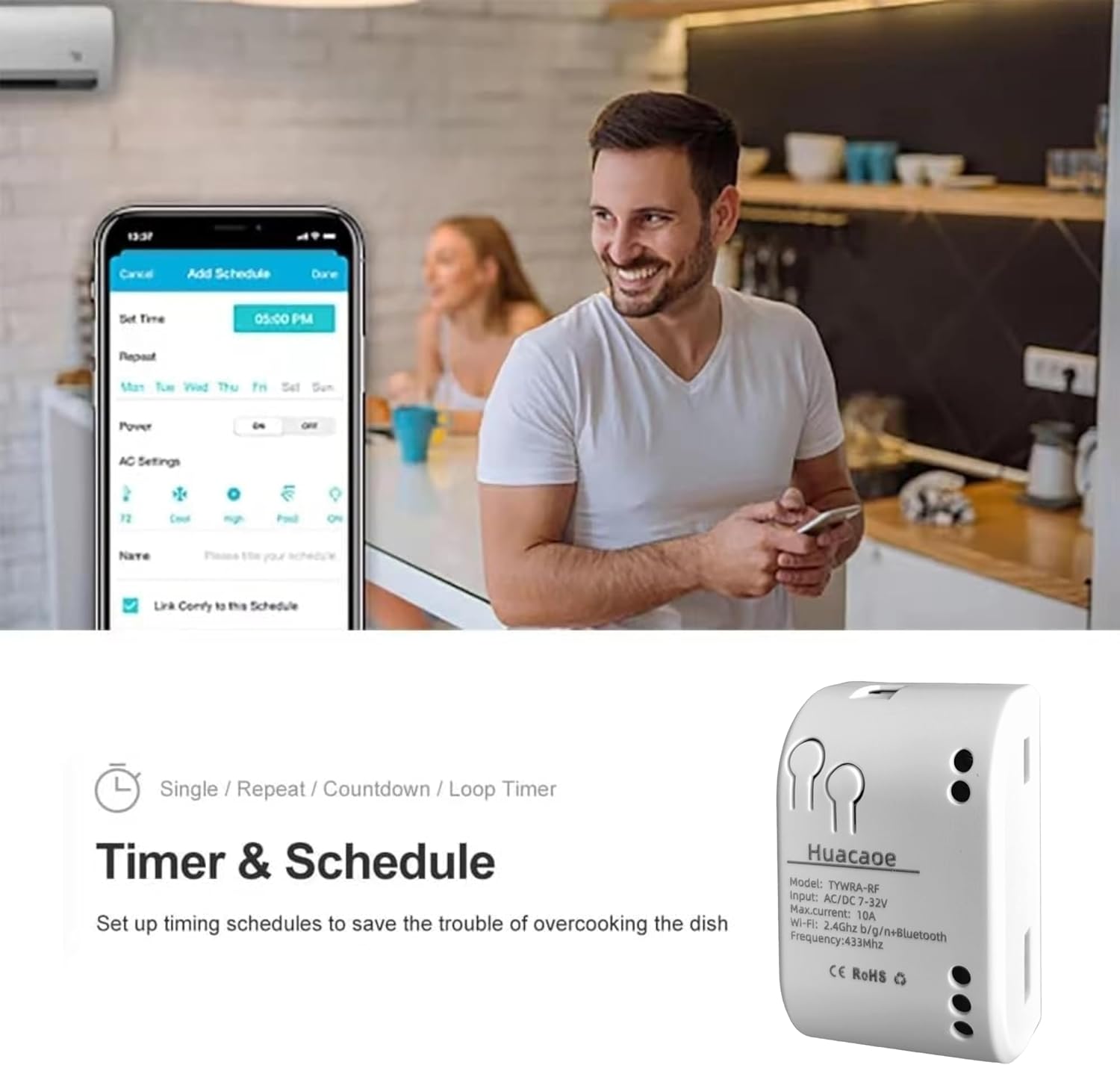
Figure 3: The Tuya Smart Life app interface for setting up timers and schedules for the relay module.

Figure 4: The Tuya Smart Life app interface demonstrating the family sharing feature, allowing multiple users to control the device.
8.2 Voice Control (Alexa/Google Assistant)
The Huacaoe relay module is compatible with Amazon Alexa and Google Assistant. After linking your Tuya Smart Life account to your Alexa or Google Home app, you can use voice commands to control the connected devices.
- For Alexa: "Alexa, turn on [Device Name]" or "Alexa, turn off [Device Name]".
- For Google Assistant: "Hey Google, turn on [Device Name]" or "Hey Google, turn off [Device Name]".
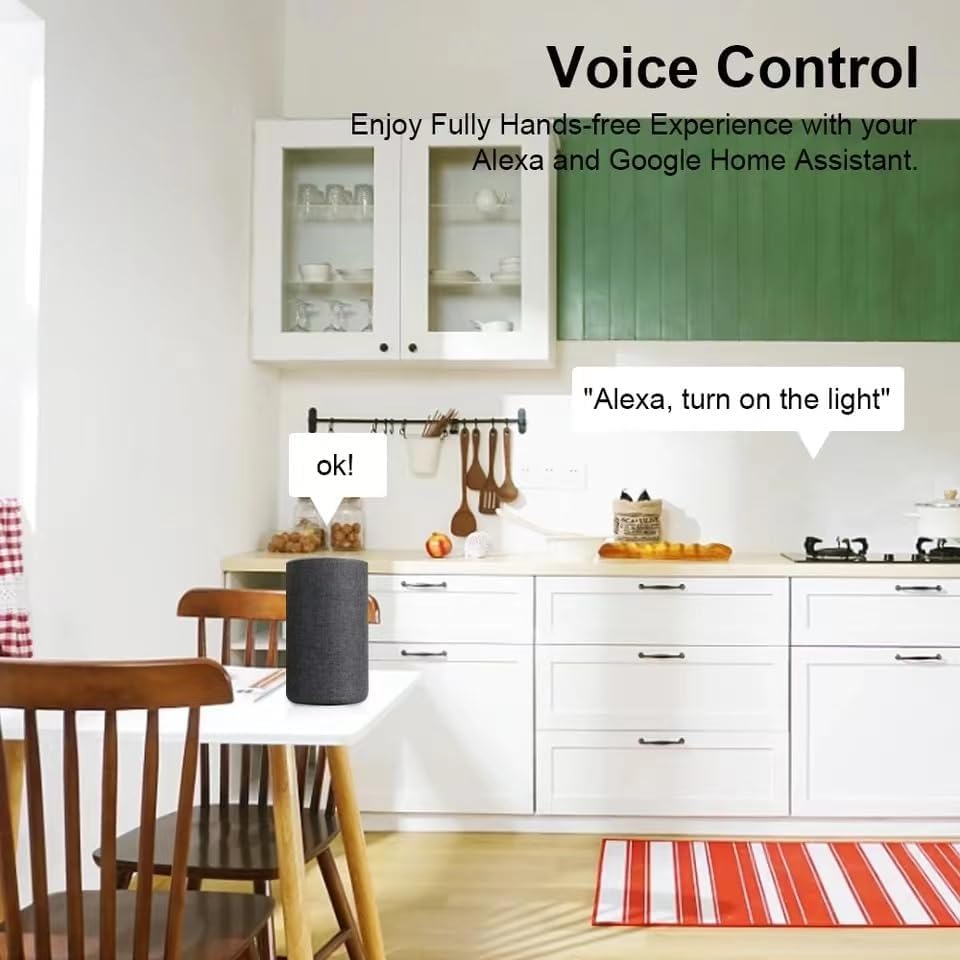
Figure 5: Example of using voice commands with a smart speaker to control a device connected to the relay module.
9. Application Scenarios
This smart relay module can be used in various home automation and control applications, including but not limited to:
- Remote control of home lighting (e.g., chandeliers, lamps).
- Automating gate switches and garage doors.
- Controlling PC power, fans, room heaters, or pool systems.
- Integration with door locks and irrigation systems.
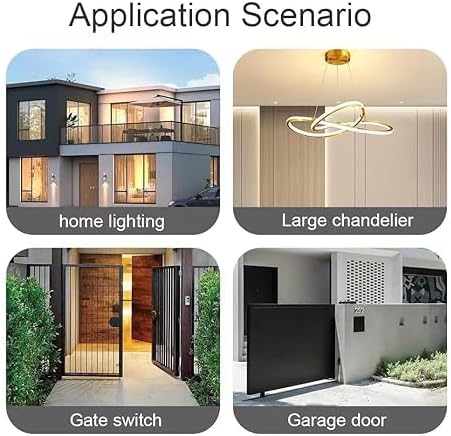
Figure 6: Visual examples of the relay module's application in home lighting, chandeliers, gate control, and garage door automation.
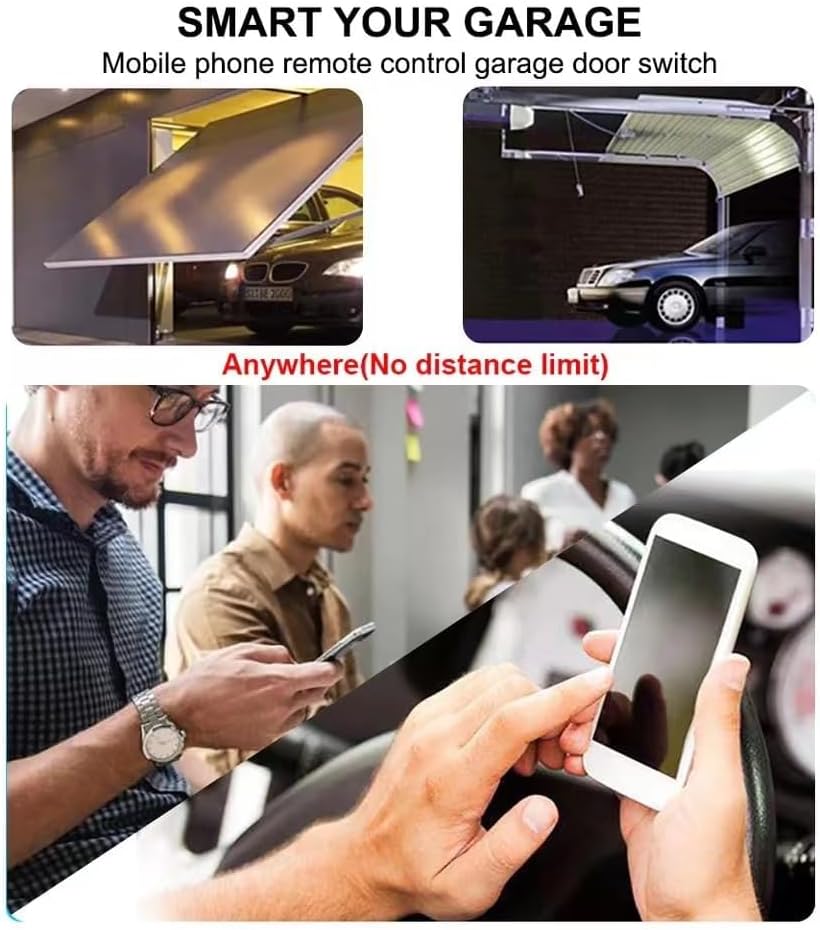
Figure 7: Demonstrating smartphone remote control for a garage door, highlighting convenience without distance limitations.
10. Troubleshooting
- Device not pairing:
- Ensure your phone's Bluetooth and location services are active.
- Verify your Wi-Fi network is 2.4GHz. 5GHz networks are not supported.
- Make sure the module's indicator is flashing rapidly. If not, press and hold the Reset button until it does.
- Keep the module close to your Wi-Fi router during the pairing process.
- If using a dual-band router with the same SSID for 2.4GHz and 5GHz, temporarily disable the 5GHz band during pairing.
- Frequent Wi-Fi disconnection:
- Check the signal strength of your 2.4GHz Wi-Fi network at the module's location.
- Ensure the module is within range of your Wi-Fi router.
- Restart the module by unplugging and re-plugging its power supply.
- Verify your router's settings are not blocking the device.
- Voice control not working:
- Confirm that your Tuya Smart Life account is correctly linked to your Alexa or Google Home app.
- Ensure the device name in the Tuya app is recognized by your voice assistant. Try simple, clear names.
- Check your internet connection.
11. Maintenance
- Keep the device clean and free from dust. Use a dry, soft cloth for cleaning.
- Avoid exposing the module to extreme temperatures or direct sunlight.
- Regularly check wiring connections to ensure they are secure.
- Periodically check the Tuya Smart Life app for firmware updates to ensure optimal performance and security.
12. Warranty and Support
For warranty information and technical support, please refer to the documentation provided at the time of purchase or contact Huacaoe customer service directly. Contact details are typically available on the product packaging or the manufacturer's official website.