
1. Introduction
Welcome to the user manual for your new YESKAMOO 5MP 360° PTZ Outdoor Wireless Security Camera. This document provides comprehensive instructions for the safe installation, configuration, operation, and maintenance of your device. Please read this manual thoroughly before using the product to ensure optimal performance and longevity.
2. Safety Information
- Ensure the power supply matches the camera's requirements (12V).
- Do not attempt to disassemble or modify the camera. This may void the warranty and cause damage.
- Keep the camera away from strong magnetic fields or corrosive environments.
- Install the camera securely to prevent it from falling.
- Avoid pointing the camera directly at strong light sources for extended periods, as this may affect image quality.
3. Package Contents
Please check the package for the following items:
- YESKAMOO 5MP PTZ Security Camera Body
- Power Adapter
- Mounting Screws and Wall Plugs
- Waterproof Kit for Cable Connections
- User Manual (this document)
4. Product Overview
The YESKAMOO JP-TJ-1080W is a high-performance outdoor wireless security camera designed for comprehensive surveillance. It features a 5-megapixel sensor, offering superior image clarity compared to standard 1080P or 3MP cameras. The camera's PTZ (Pan-Tilt-Zoom) functionality allows for 360° horizontal rotation (350° pan) and 90° vertical tilt, providing extensive coverage. Advanced AI human detection and auto-tracking capabilities ensure that any detected human movement is followed and recorded. Multiple night vision modes, including full-color night vision, provide clear visuals even in low-light conditions. Two-way audio, sound, and light alarms enhance security and communication.

Image 4.1: Front view of the YESKAMOO 5MP PTZ Outdoor Wireless Security Camera.

Image 4.2: Overview of key camera features.
5. Setup
5.1 Physical Installation
- Choose a Location: Select an outdoor location with a clear view of the area you wish to monitor. Ensure it is within range of your 2.4GHz Wi-Fi network.
- Mount the Camera: Use the provided mounting screws and wall plugs to securely attach the camera to a wall or ceiling.
- Connect Power: Connect the power adapter to the camera and plug it into a power outlet. Use the waterproof kit for outdoor cable connections to protect against moisture.

Image 5.1: Outdoor installation and IP66 waterproof feature.
5.2 App and Network Configuration
The initial setup is simple and can be completed in approximately one minute:
- Download the App: Search for and download the "YESKAMO" app from your smartphone's app store (iOS or Android).
- Power On and Reset: Power on the camera. If it's a new installation or you encounter issues, perform a factory reset if necessary (refer to troubleshooting for reset instructions).
- Connect to 2.4GHz Wi-Fi: Ensure your smartphone is connected to a 2.4GHz Wi-Fi network. The camera only supports 2.4GHz Wi-Fi.
- Scan QR Code: Follow the in-app instructions to add the camera by scanning the QR code located on the camera body.

Image 5.2: Simplified setup process.
6. Operating Instructions
6.1 Live View and PTZ Control
Once connected, you can access the live feed from your camera via the YESKAMO app on your smartphone or computer. Use the on-screen controls to pan (horizontal 350°) and tilt (vertical 90°) the camera lens to monitor different areas. The 4x digital zoom allows for closer inspection of details.

Image 6.1: Remote PTZ control via the mobile application.
6.2 Two-Way Audio
The camera is equipped with a high-sensitivity microphone and a high-performance speaker, enabling two-way communication. You can speak through the app to visitors, delivery personnel, or family members, and hear their responses in real-time.

Image 6.2: Two-way audio communication feature.
7. Advanced Features
7.1 AI Human Detection and Auto-Tracking
The camera utilizes an advanced AI detection sensor to accurately identify human figures. Upon detecting a person, it automatically begins tracking their movement and records their actions. This feature significantly reduces false alarms caused by pets or inanimate objects.

Image 7.1: AI human detection and alert notification.
7.2 Night Vision Modes
The camera offers three distinct night vision modes for various scenarios:
- Infrared Mode (Black & White): Provides clear black and white images in complete darkness using infrared LEDs.
- Smart Mode (Intelligent Vision): Records in black and white normally, but when motion is detected, the built-in floodlights activate, switching to full-color recording.
- Full-Color Mode: The camera's floodlights remain on at night, providing continuous full-color video surveillance.

Image 7.2: Night vision mode comparison.
7.3 Sound and Light Alarms
When suspicious activity is detected, the camera can trigger various deterrents:
- Sound Alarm: Emits an audible siren.
- Light Alarm: Activates the built-in floodlights.
- Sound & Light Alarm: Combines both the siren and floodlights for maximum deterrence.
You can customize the alarm sound and sensitivity via the app to suit your environment.

Image 7.3: Sound and light alarm functionality.
7.4 Recording and Storage
The camera supports continuous 24-hour recording and motion-triggered recording. Video footage can be stored in two ways:
- MicroSD Card: Supports MicroSD cards from 32GB up to 256GB (sold separately). The camera features loop recording, overwriting the oldest footage when the card is full.
- Cloud Storage: An optional cloud storage service is available for secure and convenient off-site backup of your recordings.
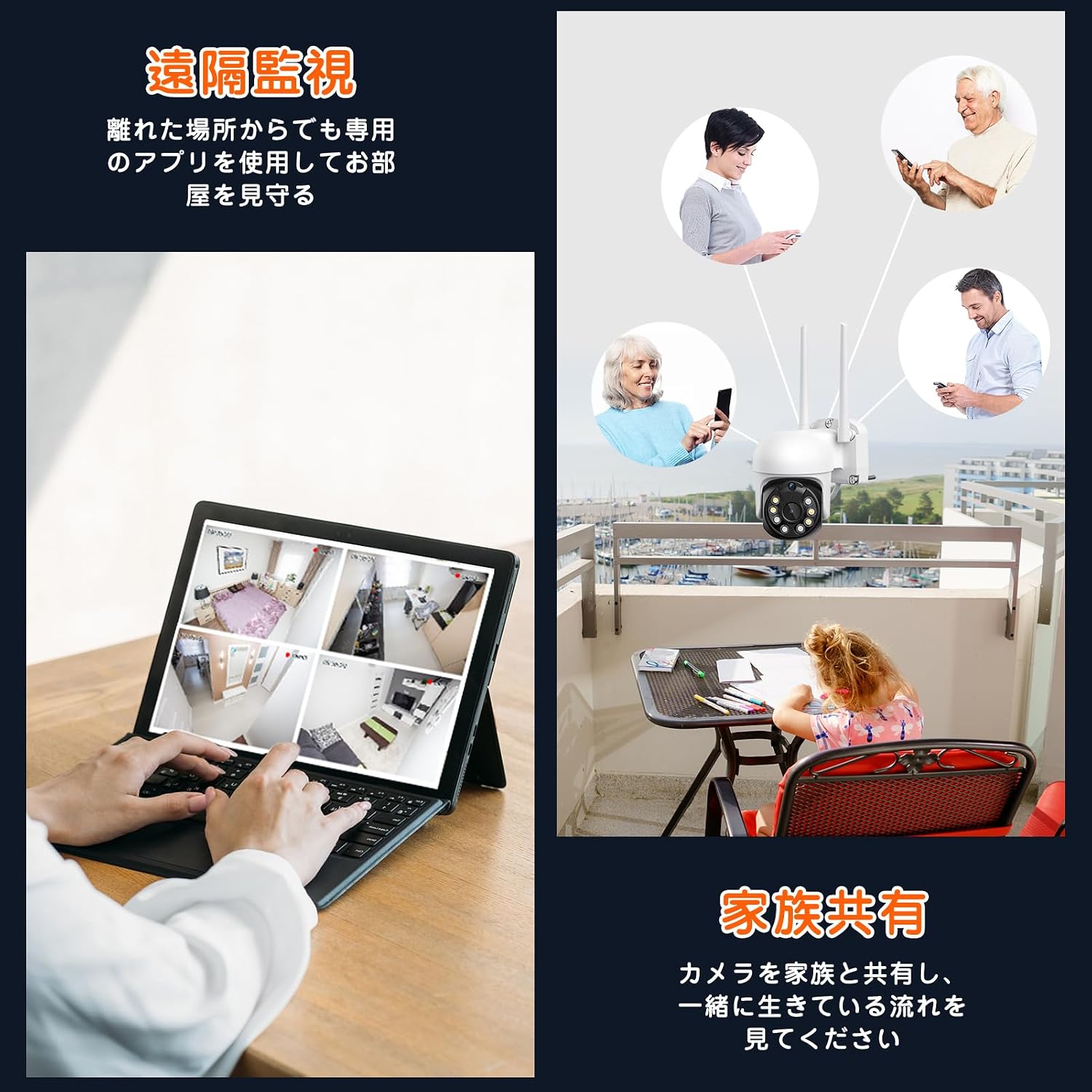
Image 7.4: Storage options for recorded footage.
7.5 Remote Monitoring and Privacy Mode
Monitor your property from anywhere using the YESKAMO app. You can also set a privacy mode to physically close the camera lens during specific times or days, ensuring your privacy when needed.
Image 7.5: Remote monitoring capabilities.
8. Maintenance
- Cleaning: Regularly wipe the camera lens with a soft, dry cloth to ensure clear image quality. Do not use harsh chemicals.
- Firmware Updates: Check the YESKAMO app periodically for available firmware updates to ensure your camera has the latest features and security enhancements.
- Power Connection: Ensure all power connections are secure and free from damage.
9. Troubleshooting
If you encounter any issues with your YESKAMOO security camera, please refer to the following common solutions:
| Problem | Possible Solution |
|---|---|
| Camera not connecting to Wi-Fi | Ensure your Wi-Fi is 2.4GHz. Check Wi-Fi signal strength. Reset the camera and try setup again. |
| Poor image quality | Clean the camera lens. Check your internet connection speed. Ensure adequate lighting for optimal night vision. |
| No motion detection alerts | Check motion detection settings in the app. Adjust sensitivity. Ensure the camera's field of view is clear. |
| Two-way audio not working | Check microphone and speaker permissions for the app on your phone. Ensure volume levels are adequate. |
For further assistance, please contact customer support.
10. Specifications
| Feature | Detail |
|---|---|
| Brand | YESKAMOO |
| Model Number | JP-TJ-1080W |
| Product Dimensions | 15 x 10 x 22 cm |
| Item Weight | 570 g |
| Color | White |
| Material | Acrylonitrile Butadiene Styrene (ABS), Metal |
| Power Source | Corded Electric |
| Voltage | 12 Volts |
| Light Source | LED |
| Video Capture Resolution | 5MP (2590P) |
| Connectivity Technology | Wireless (2.4GHz Wi-Fi only), Wired (Onvif support) |
| Special Features | HD Resolution, PTZ Technology, Night Vision, Motion Sensor, Two-Way Audio, AI Human Detection, Auto-Tracking, IP66 Waterproof |
| Operating Temperature | -20°C to +60°C |
| MicroSD Card Support | 32GB - 256GB |
11. Warranty and Support
YESKAMOO is committed to providing high-quality products. Your purchase is covered by a 12-month quality warranty from the date of purchase. If you have any questions, concerns, or require assistance with your product, please do not hesitate to contact our customer support team. We are dedicated to providing prompt and helpful solutions.
For quick support, you can also reach us via our official LINE service: https://lin.ee/5WX6Gej
12. Product Demonstration Video
Watch this video to see the camera's image quality in action:
Video 12.1: Demonstration of camera image quality, featuring birds at a feeder. This video showcases the clarity and detail captured by the camera.