
1. Introduction
This manual provides essential information for the safe and effective installation, operation, and maintenance of the GHSOGEOM TO-Q-SY2-JWT Intelligent Circuit Breaker. This device is a WiFi-enabled smart switch designed for circuit protection and remote control.
Please read this manual thoroughly before installation and use, and retain it for future reference.
2. Safety Information
WARNING: Electrical shock hazard. Installation and servicing should only be performed by qualified personnel.
- Always disconnect power at the main circuit breaker or fuse box before installing or servicing the device.
- Ensure all wiring connections are secure and comply with local electrical codes.
- The power supply must enter from the top and must be a live wire + neutral wire (L+N). Live wire + live wire (L+L) configurations are not supported.
- Do not operate the device if it appears damaged.
- This device is rated for an operating environment of IP20. Avoid exposure to water or excessive moisture.
3. Product Overview
The TO-Q-SY2-JWT is an intelligent circuit breaker designed for DIN rail mounting. It offers remote control capabilities via Wi-Fi and provides circuit protection. Some models include a power metering function.
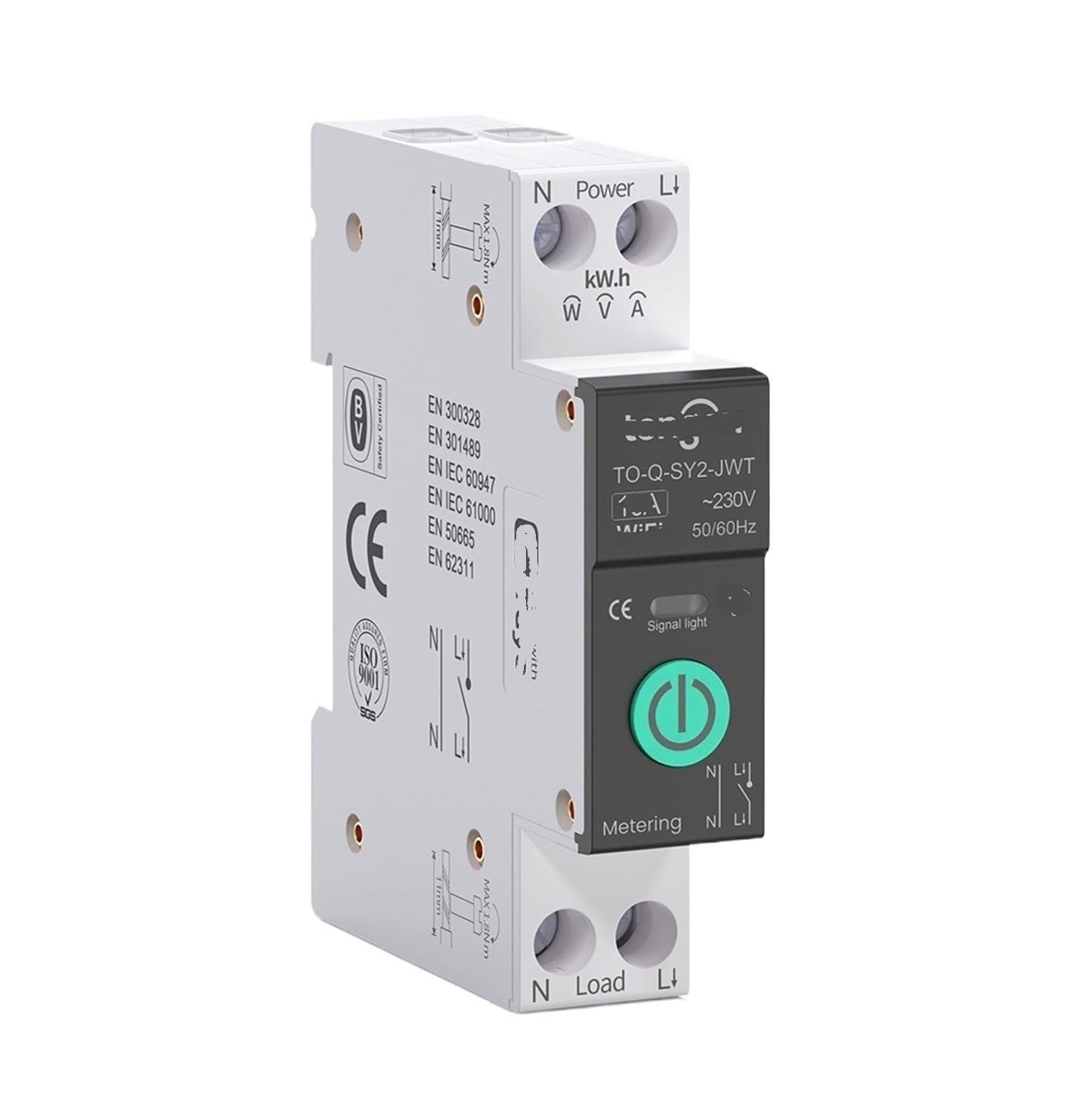
Figure 1: TO-Q-SY2-JWT Intelligent Circuit Breaker with key components and dimensions.
This image displays the front and side view of the circuit breaker, highlighting its compact design suitable for DIN rail installation. Key labels include "N Power L" for input, "kW.h W V A" indicating potential metering functions, "CE" mark, "Signal Light", and "N Load L" for output. Dimensions are shown as 18mm width, 82mm height, and 50mm depth. The brand "tongou" and model "TO-Q-SY2-JWT" are visible on the device itself.
Key Features:
- Component Type: WiFi Smart Switch
- Poles Description: 1P+N (Single Pole with Neutral)
- Control Type: Manual and Remote (via Wi-Fi)
- Communication Protocol: Wi-Fi (2.4GHz)
- Protection: VA Protection (Voltage and Amperage protection)
- Metering: Available on black models (white models do not have power meter function).
4. Specifications
| Feature | Specification |
|---|---|
| Model Number | TO-Q-SY2-JWT |
| Component Type | WiFi Smart Switch |
| Poles Description | 1P+N (Direkter N-Pol) |
| Control Type | Manual, Remote |
| Operating Environment | IP20 |
| Working Voltage | AC90-240V, 50/60Hz |
| Communication Protocol | Wi-Fi (2.4GHz) |
| Maximum Current | 63A |
| Accuracy | ± 2% |
| Dimensions (W x H x D) | 18mm x 82mm x 50mm |
| Item Weight | 1.76 ounces (approximately 50g) |
5. Installation and Wiring
This device is designed for DIN rail mounting. Follow these steps for proper installation:
- Power Disconnection: Before starting, ensure that the main power supply to the circuit is completely disconnected at the service panel.
- Mounting: Securely mount the circuit breaker onto a standard DIN rail.
- Wiring - Input: Connect the incoming live wire (L) and neutral wire (N) to the terminals marked "N Power L" at the top of the device. It is critical that the power supply enters from the top and consists of a live wire and a neutral wire (L+N). Do not use a live wire + live wire (L+L) configuration.
- Wiring - Output: Connect the load's live wire (L) and neutral wire (N) to the terminals marked "N Load L" at the bottom of the device.
- Verification: Double-check all connections for tightness and correct polarity.
- Power Restoration: Once all connections are verified, restore power to the circuit.
Refer to local electrical codes and standards for specific wiring requirements in your region.
6. Operation
Manual Control:
The circuit breaker can be manually switched ON or OFF using the physical button on the front panel. The "Signal Light" indicator will show the device's status.
Remote Control (Wi-Fi):
To enable remote control, the device must be connected to a 2.4GHz Wi-Fi network. Follow the instructions provided with the associated mobile application (not specified in product details, typically provided by manufacturer) to pair the device and control it remotely.
- Download and install the manufacturer's recommended smart home application on your smartphone or tablet.
- Follow the in-app instructions to add a new device and connect it to your home Wi-Fi network.
- Once connected, you can remotely switch the circuit breaker ON/OFF and monitor its status.
Note: The current and voltage cannot be set in the application. The device provides VA protection but does not allow user-configurable over-current settings via the app.
7. Maintenance
The TO-Q-SY2-JWT Intelligent Circuit Breaker requires minimal maintenance. Follow these guidelines:
- Cleaning: Periodically clean the exterior of the device with a dry, soft cloth. Do not use liquid cleaners or solvents.
- Inspection: Regularly inspect the wiring connections for any signs of loosening or damage.
- Environment: Ensure the operating environment remains within the specified IP20 rating (protected from solid objects larger than 12.5mm, no protection against liquids).
8. Troubleshooting
| Problem | Possible Cause | Solution |
|---|---|---|
| Device does not power on. | No power supply; incorrect wiring; device fault. | Check main power supply. Verify L+N wiring at input. Consult a qualified electrician if wiring is correct. |
| Cannot connect to Wi-Fi. | Incorrect Wi-Fi password; 5GHz network; device too far from router. | Ensure correct 2.4GHz Wi-Fi network is selected. Re-enter password. Move device closer to router or use a Wi-Fi extender. |
| Remote control not working. | No internet connection; app issue; device offline. | Check internet connectivity. Restart the app. Verify device is connected to Wi-Fi and online in the app. |
| Circuit breaker trips frequently. | Overload on circuit; short circuit; device fault. | Reduce load on the circuit. Inspect wiring for short circuits. If problem persists, consult a qualified electrician. |
9. Warranty and Support
For warranty information and technical support, please refer to the documentation provided with your purchase or contact GHSOGEOM customer service directly. Keep your purchase receipt as proof of purchase.
Contact information can typically be found on the manufacturer's official website or on the product packaging.