
1. Introduction
This manual provides comprehensive instructions for the installation, configuration, and operation of your Tenda TEG208E 8-Port Managed Gigabit Switch. The TEG208E is an easy smart managed switch designed to enhance network performance and security for both home and office environments. It features 8 Gigabit Ethernet ports, a 16Gbps switching capacity, and a fanless metal design for quiet operation.
2. Package Contents
Please verify the contents of your package. If any item is missing or damaged, contact your vendor immediately.
- Tenda TEG208E 8-Port Managed Gigabit Switch
- Power Adapter
- Quick Installation Guide
- Mounting Accessories (if applicable)
3. Physical Overview
Familiarize yourself with the ports, LEDs, and physical dimensions of the TEG208E switch.

Figure 3.1: Front Panel of Tenda TEG208E Switch
This image displays the front panel of the Tenda TEG208E switch, showing eight RJ45 Gigabit Ethernet ports labeled 1 through 8, along with corresponding LED indicators for link/activity status. The Tenda logo is visible on the top surface, and the power input (DC=9-12V) is on the right side.
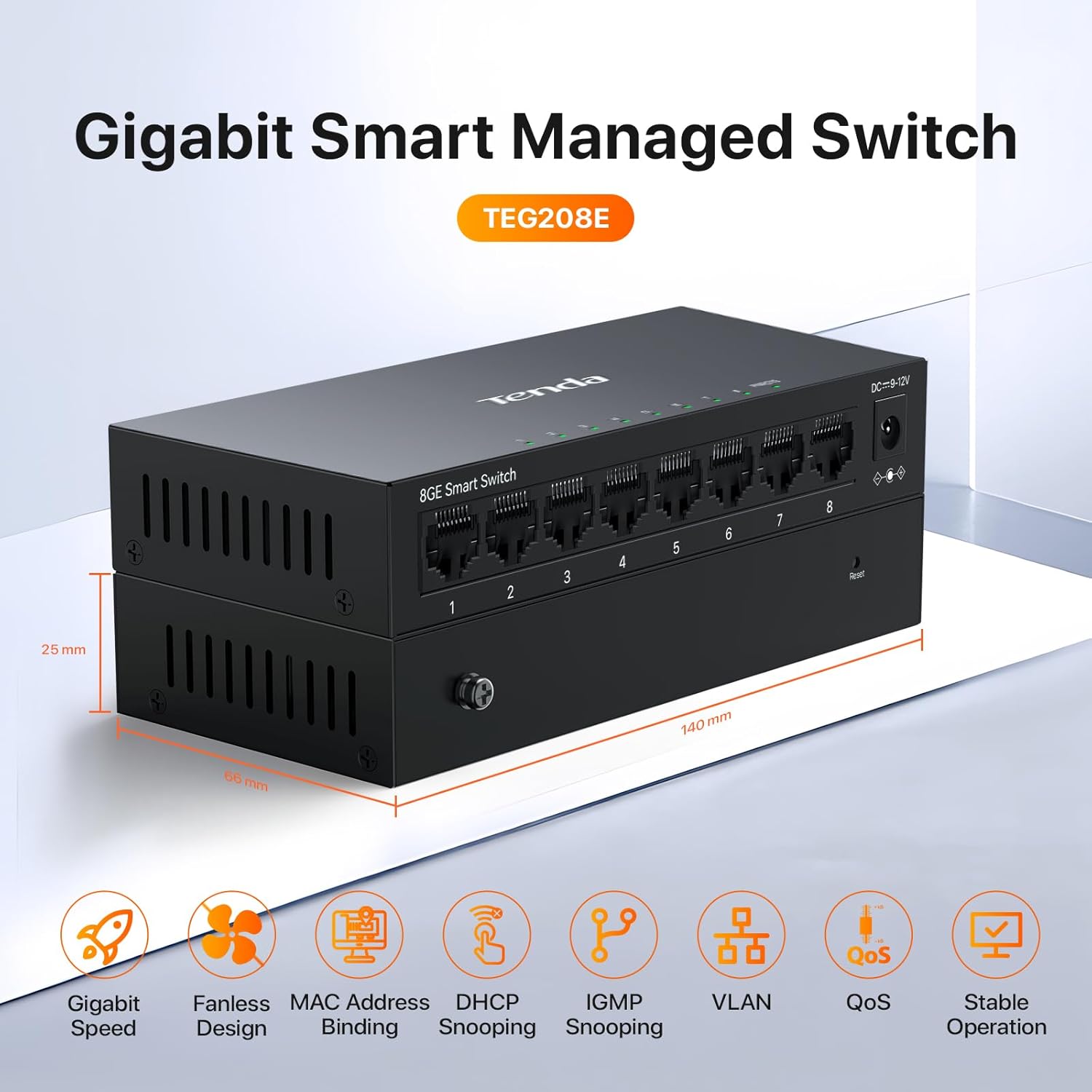
Figure 3.2: Tenda TEG208E Dimensions and Feature Icons
This image illustrates the physical dimensions of the TEG208E switch (140mm length, 66mm width, 25mm height). Below the switch, icons represent key features: Gigabit Speed, Fanless Design, MAC Address Binding, DHCP Snooping, IGMP Snooping, VLAN, QoS, and Stable Operation.
3.1. LED Indicators
- Power LED: Indicates power status. On (Green) for power on, Off for power off.
- Link/Act LEDs (1-8): Indicates port status. On (Green) for a stable link, Blinking (Green) for data activity, Off for no link.
3.2. Ports
- 1-8 (RJ45 Ports): 10/100/1000 Mbps auto-negotiating Ethernet ports for connecting network devices.
- DC Power Input: Connects to the provided power adapter.
4. Installation and Setup
4.1. Physical Installation
- Placement: Place the switch on a stable, flat surface or mount it to a wall. Ensure adequate ventilation around the device.
- Power Connection: Connect the power adapter to the DC power input on the switch and then plug the adapter into a power outlet. The Power LED should illuminate.
- Network Connections: Connect your network devices (e.g., computers, servers, routers) to the RJ45 ports (1-8) using standard Ethernet cables. The corresponding Link/Act LEDs will light up when a valid connection is established.

Figure 4.1: Multiple Mounting Options for TEG208E
This image demonstrates two installation methods for the Tenda TEG208E switch: desktop mounting, where the switch rests on a flat surface, and wall mounting, where the switch is securely attached to a wall. Both scenarios show the switch integrated into a network setup with various connected devices like routers, computers, and IP cameras.
4.2. Accessing the Web Management Interface
The TEG208E is an easy smart managed switch, allowing configuration via a web-based interface.
- Ensure your computer is connected to one of the switch's Ethernet ports.
- Open a web browser (e.g., Chrome, Firefox, Edge).
- The switch typically obtains an IP address from your network's DHCP server. You may need to use a network scanning tool to discover the switch's assigned IP address. Alternatively, some Tenda switches have a default IP address (e.g., 192.168.0.1 or 192.168.1.1) if no DHCP server is present. Refer to the Quick Installation Guide for the specific default IP or discovery method.
- Enter the switch's IP address into the browser's address bar and press Enter.
- You will be prompted for a username and password. The default credentials are often admin/admin or similar. Consult the Quick Installation Guide for exact default credentials.

Figure 4.2: Concise and Simple Management Interface
This image displays a screenshot of the Tenda TEG208E's web management interface on a laptop screen. The interface shows a device summary, port summary, and navigation options for various network settings like VLAN, QoS, and security features, indicating a user-friendly design for quick configuration.
5. Operating Instructions
The web management interface provides access to various advanced features for network optimization and security.
5.1. VLAN Configuration
VLANs (Virtual Local Area Networks) allow you to segment your network into smaller, isolated broadcast domains, improving security and performance.

Figure 5.1: Simple VLANs for Network Segmentation
This diagram illustrates how the Tenda TEG208E switch can divide a network into different VLANs. It shows three distinct VLANs: VLAN1 for Surveillance, VLAN2 for Home Network, and VLAN3 for Guest Network, demonstrating improved network processing capacity and security through segmentation.
Navigate to the VLAN section in the web interface to create, modify, or delete VLANs. Assign specific ports to different VLANs to isolate traffic.
5.2. Quality of Service (QoS)
QoS prioritizes network traffic, ensuring critical applications receive the necessary bandwidth and low latency.

Figure 5.2: Customize Port Priority for QoS
This image shows a person using a remote control in front of a TV displaying various streaming service icons (Games, Movies, TV). The accompanying text explains how to set higher priority to applications requiring higher network speed, such as video streaming and gaming, using QoS features.
Access the QoS settings to configure port-based priority, 802.1p priority, or DSCP priority to manage bandwidth for different types of traffic.
5.3. IGMP Snooping
IGMP Snooping optimizes multicast traffic transmission, preventing unnecessary flooding of multicast packets to all ports.

Figure 5.3: IGMP Snooping for Multicast Optimization
This image features a television displaying various video content thumbnails, with a game controller and soundbar in the foreground. The text highlights that IGMP Snooping ensures a better network experience by optimizing multimedia traffic transmission, leading to smooth playback of video services, especially when users are watching IPTV.
Enable IGMP Snooping in the web interface to improve the efficiency of multicast applications like IPTV.
5.4. Other Management Features
- MAC Address Binding: Enhance security by binding specific MAC addresses to switch ports.
- DHCP Snooping: Prevent unauthorized DHCP servers from operating on the network.
- Loop Guard: Detect and prevent network loops that can cause broadcast storms and network instability.
- Traffic Statistics: Monitor real-time traffic data for each port.
6. Maintenance
Regular maintenance helps ensure the longevity and optimal performance of your switch.
- Cleaning: Keep the switch clean and free from dust. Use a soft, dry cloth. Do not use liquid or aerosol cleaners.
- Ventilation: Ensure that the ventilation holes are not blocked to prevent overheating. The fanless design relies on natural convection.
- Firmware Updates: Periodically check the Tenda official website for firmware updates. Updating firmware can improve performance, add new features, and fix bugs.
- Environmental Conditions: Operate the switch within the recommended temperature and humidity ranges specified in the specifications.

Figure 6.1: Fanless Design for Quiet Operation
This image shows a person sleeping peacefully at a desk with a laptop and the Tenda TEG208E switch nearby. The text emphasizes the fanless design, which ensures quiet operation in any environment, contributing to a comfortable workspace.
7. Troubleshooting
If you encounter issues with your Tenda TEG208E switch, refer to the following common troubleshooting steps.
7.1. No Power
- Ensure the power adapter is securely connected to the switch and a working power outlet.
- Verify the power outlet is functional by plugging in another device.
- Check if the Power LED on the switch is illuminated.
7.2. No Link/Activity on a Port
- Ensure the Ethernet cable is securely connected to both the switch port and the connected device.
- Verify the connected device is powered on and functioning correctly.
- Try a different Ethernet cable to rule out cable issues.
- Try connecting the device to a different port on the switch.
- Check the Link/Act LED for the specific port. If it's off, there's no active link.
7.3. Cannot Access Web Management Interface
- Ensure your computer is on the same network segment as the switch.
- Verify the switch's IP address. If it's set to obtain an IP via DHCP, check your router's DHCP client list.
- Temporarily disable any firewall or antivirus software on your computer that might be blocking access.
- Clear your browser's cache and cookies, or try a different browser.
- If you have forgotten the login credentials, you may need to perform a factory reset (refer to the Quick Installation Guide for instructions, as this will erase all configurations).
8. Specifications
| Feature | Specification |
|---|---|
| Model | TEG208E |
| Number of Ports | 8 x 10/100/1000 Mbps RJ45 Ports |
| Switching Capacity | 16 Gbps |
| Data Transfer Rate | 1024 Megabits Per Second (per port) |
| Interface Type | RJ45 |
| Case Material | Metal |
| Design | Fanless |
| Product Dimensions | 2.5"L x 3.9"W x 1"H (63.5mm x 99.1mm x 25.4mm) |
| Item Weight | 7.3 ounces (207 Grams) |
| Voltage | 100 Volts (Input, adapter dependent) |
| Maximum Power Consumption | 3 Watts |
| Upper Temperature Rating | 70 Degrees Celsius (Operating) |
| Compatible Devices | Desktop, Laptop |
9. Warranty and Support
Tenda Technology provides comprehensive support for its products.
9.1. Manufacturer Warranty
The Tenda TEG208E switch comes with a 3-year manufacturer support warranty.
9.2. Technical Support
For technical assistance, product inquiries, or warranty claims, please contact Tenda support:
- Email Support: support.us@tenda.cn
- Refer to the official Tenda website for additional support resources, FAQs, and firmware downloads.