
BAROCCOMiSTEL MD770
MD770 RGB BT5.0 Glaze Blue TKL Ergonomic Mechanical Keyboard User Manual
Model: MD770 | Brand: BAROCCOMiSTEL
Introduction
This manual provides detailed instructions for the setup, operation, and maintenance of your BAROCCOMiSTEL MD770 RGB BT5.0 Glaze Blue TKL Ergonomic Mechanical Keyboard. Please read this manual thoroughly before using the product to ensure optimal performance and longevity.

Image: The MD770 split ergonomic mechanical keyboard with RGB backlighting, showcasing its two distinct halves connected by a cable.
Key Features
- Ergonomic Split Design: Allows for adjustable keyboard distance and position to suit individual body shapes, promoting comfortable typing.
- 75% Layout: A compact design that includes a full F-function row and arrow keys, optimized for both gaming and general use.
- CHERRY MX Switches: Equipped with German-made CHERRY MX switches, ensuring durability and a consistent, unique typing feel.
- PBT Double-Shot Keycaps: OEM height keycaps made with precision-molded PBT double-shot technology, resistant to oil and fading for long-lasting appearance.
- Adjustable Rubber Feet: Provides a tenting angle for a more natural and comfortable typing position, reducing wrist strain.
- Wireless & Wired Dual Mode: Offers flexible connectivity via Bluetooth for wireless use and USB-C for wired connection, ideal for both work and gaming.

Image: Diagram highlighting key features of the MD770 keyboard, including Type-C connector, macro function, PBT double-shot keycaps, Cherry MX switch, and Mac/Windows compatibility.
Setup
Package Contents
- BAROCCOMiSTEL MD770 Keyboard
- Keycap Puller
- USB-C Cable (for wired connection and charging)
- Adjustable Rubber Feet (pre-installed or included separately)
Physical Setup
- Positioning the Keyboard: Separate the two halves of the keyboard to a comfortable distance that aligns with your shoulder width, promoting a natural wrist and arm posture.
- Adjusting Tenting Angle: Utilize the adjustable rubber feet on the underside of each keyboard half to achieve your preferred tenting angle. This helps reduce wrist pronation and discomfort.
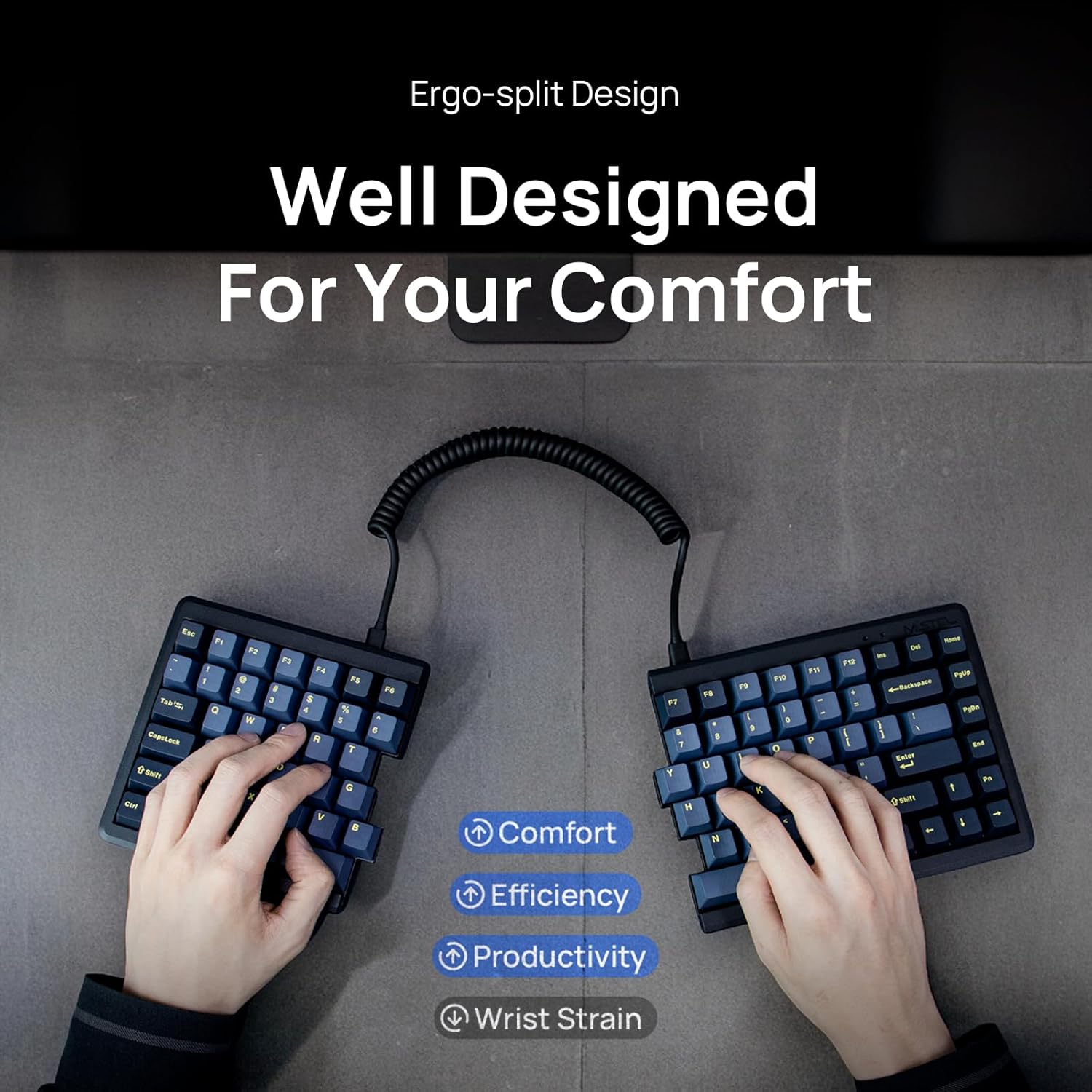
Image: An overhead view of hands typing on the split ergonomic keyboard, illustrating how the design promotes comfort, efficiency, and productivity while reducing wrist strain.

Image: Two views of the keyboard's side profile, demonstrating how the adjustable feet allow for personalized tilt settings to meet hand posture and reduce fatigue.

Image: A diagram showing the underside of the two keyboard halves with adjustable rubber feet being installed or adjusted, indicating points A and B for optimal positioning.
Connectivity
Wired Mode (USB-C)
For a stable and responsive connection, especially during gaming, use the provided USB-C cable.
- Connect one end of the USB-C cable to the USB-C port on the keyboard.
- Connect the other end of the USB-C cable to an available USB port on your computer.
- The keyboard will be automatically recognized by your operating system (Windows/Mac OS).
Wireless Mode (Bluetooth 5.0)
For a clean, cable-free setup, use the Bluetooth connection.
- Ensure the keyboard is charged or has sufficient battery life.
- Turn on the Bluetooth function on your computer or device.
- Put the keyboard into pairing mode (refer to specific key combination in Operating section).
- On your device, search for "MD770" or similar in the Bluetooth device list and select it to pair.
- Once paired, the keyboard's indicator light will confirm the connection.

Image: Two views of the keyboard, one showing wireless connectivity with a Wi-Fi symbol, and the other showing a USB-C cable connected, illustrating seamless connectivity options.

Image: The keyboard displayed with Windows and Mac OS logos, indicating its compatibility with both operating systems.
Operating Instructions
Basic Functions
- Typing: Use the standard QWERTY layout for typing.
- Function Keys (F1-F12): Access these keys directly or by holding the Fn key in combination with the corresponding number row keys, depending on the active mode.
- Arrow Keys: Located on the right half of the keyboard for navigation.
Switching Modes (Wired/Bluetooth)
The MD770 supports both wired and Bluetooth modes. Use the switch located on the keyboard (if present) or a specific key combination to toggle between modes. Consult the quick start guide for exact key combinations for mode switching and Bluetooth pairing.
RGB Backlighting Control
Your keyboard features customizable RGB backlighting. Specific key combinations (often involving the Fn key and arrow keys or dedicated lighting keys) allow you to:
- Change lighting effects.
- Adjust brightness levels.
- Change lighting colors.
Refer to the included quick start guide for detailed instructions on RGB control key combinations.
Macro Functions
The keyboard supports macro functions for enhanced productivity and gaming. Programming macros typically involves dedicated software or on-board key combinations. Please refer to the official BAROCCOMiSTEL website or the detailed software manual for macro programming instructions.
Maintenance
Cleaning Your Keyboard
- General Cleaning: Use a soft, lint-free cloth slightly dampened with water or a mild cleaning solution to wipe down the keycaps and casing. Avoid excessive moisture.
- Deep Cleaning (Keycaps): For thorough cleaning, use the provided keycap puller to carefully remove the keycaps. Clean them with mild soap and water, rinse thoroughly, and ensure they are completely dry before reattaching.
- Dust Removal: Use compressed air to remove dust and debris from between the keycaps and around the switches.

Image: A close-up view of the keyboard showing removed keycaps, revealing the Cherry MX switches underneath, emphasizing the durability and quality of the PBT double-shot keycaps.
Battery Care (for Wireless Mode)
- Charging: Charge the keyboard using the provided USB-C cable connected to a computer or a standard USB wall adapter.
- Storage: If storing the keyboard for an extended period, ensure it is partially charged (around 50%) and turn off the power to preserve battery life.
Troubleshooting
- Keyboard Not Responding (Wired):
- Ensure the USB-C cable is securely connected to both the keyboard and the computer.
- Try a different USB port on your computer.
- Test with a different USB-C cable if available.
- Restart your computer.
- Keyboard Not Connecting (Bluetooth):
- Ensure Bluetooth is enabled on your device.
- Make sure the keyboard is in pairing mode.
- Remove previous pairings of the MD770 from your device's Bluetooth settings and attempt to re-pair.
- Ensure the keyboard battery is charged.
- Move the keyboard closer to your device to rule out range issues.
- Keys Not Registering or Double-Typing:
- Clean under the affected keycap using compressed air.
- If the issue persists, it may indicate a switch problem. Contact customer support.
- RGB Lighting Not Working:
- Check the lighting control key combinations (refer to Operating Instructions or quick start guide).
- Ensure the keyboard is receiving sufficient power (especially in wired mode).
Specifications
| Feature | Detail |
|---|---|
| Model Number | MD770 |
| Product Dimensions | 13 x 5.5 x 1.3 inches (33.02 x 13.97 x 3.3 cm) |
| Item Weight | 2.8 pounds (1.27 kg) |
| Manufacturer | MISTEL Co., Ltd |
| Batteries | 1 Lithium Polymer battery (included) |
| Compatible Devices | Gaming Console, Laptop, PC |
| Connectivity Technology | Bluetooth 5.0, USB-C |
| Keyboard Description | Mechanical |
| Recommended Uses | Gaming |
| Special Feature | Ergonomic, Split Layout, RGB Backlighting |
| Color | Glaze Blue (Cherry Silent Red switches) |
| Number of Keys | 85 |
| Style | Modern |
Warranty and Support
BAROCCOMiSTEL products are designed for durability and performance. For warranty information, technical support, or service inquiries, please visit the official BAROCCOMiSTEL website or contact their customer service directly. Please retain your proof of purchase for warranty claims.
Official BAROCCOMiSTEL Store: BAROCCOMiSTEL Amazon Store