1. Introduction
This manual provides comprehensive instructions for setting up, operating, and maintaining your 5G CPE Router. Designed for high-speed internet access, this router supports 5G NR NSA and SA modes, along with 2.4G and 5.8G dual-band Wi-Fi, ensuring efficient network utilization for up to 64 users.
2. Package Contents
Please verify that all items listed below are included in your package:
- 1 x 5G CPE Router (Model M55)
- 1 x Power Cord (US Plug)
- 1 x Instruction Manual
- 1 x Network Cable

Image: The 5G CPE Router shown alongside its power adapter and an Ethernet network cable, illustrating the complete package contents.
3. Product Overview
Familiarize yourself with the router's indicators and ports before setup.

Image: A detailed diagram illustrating the front panel indicators (5G, 4G, WiFi) and the rear panel ports (WPS, WAN/LAN, LAN2, LAN1, SIM card slot, POWER, RESET button).
Front Panel Indicators:
- 5G Indicator Light: Indicates 5G network status.
- 4G Indicator Light: Indicates 4G network status.
- WiFi Indicator Light: Indicates Wi-Fi status.
Rear Panel Ports and Buttons:
- WPS Button: For quick Wi-Fi Protected Setup.
- WAN/LAN Port: Can function as either a WAN (Internet) input or a LAN (local network) output.
- LAN2 Port: Ethernet port for connecting wired devices.
- LAN1 Port: Ethernet port for connecting wired devices.
- SIM Card Slot: Insert your 5G/4G SIM card here.
- POWER Port: Connect the provided power adapter.
- RESET Button: Press and hold to restore factory settings.
4. Setup Guide
Follow these steps to set up your 5G CPE Router:
- Insert SIM Card: Locate the SIM card slot on the rear panel. Gently insert your standard-sized 5G/4G SIM card into the slot until it clicks into place. Ensure the SIM card is correctly oriented as indicated on the device.
- Connect Power: Connect the provided power adapter to the POWER port on the router and then plug the adapter into a power outlet. The router will automatically power on.
- Connect Network Cable (Optional): If you wish to connect a wired device (e.g., a computer or gaming console) directly to the router, use the included network cable to connect the device to either the LAN1 or LAN2 port on the router.
- Initial Boot-up: Wait for the router to boot up. The indicator lights on the front panel will illuminate. The 5G or 4G indicator will light up when a cellular network connection is established, and the WiFi indicator will light up when Wi-Fi is active.

Image: A clear front view of the 5G CPE Router, highlighting the 5G, 4G, and WiFi indicator lights.
5. Operating Instructions
5.1 Connecting Devices via Wi-Fi
To connect your devices wirelessly:
- On your device (smartphone, laptop, tablet), open the Wi-Fi settings.
- Search for available Wi-Fi networks. The router broadcasts both 2.4G and 5.8G networks.
- Select the network name (SSID) corresponding to your router. The default Wi-Fi Key is typically found on a label at the bottom of the router. For Model M55, the default Wi-Fi Key is 12345678.
- Enter the Wi-Fi Key when prompted and connect.
5.2 Accessing the Web Management Interface
You can configure advanced settings and monitor your network through the web interface:
- Ensure your device is connected to the router via Wi-Fi or Ethernet.
- Open a web browser (e.g., Chrome, Firefox, Edge).
- In the address bar, type the default Web IP address: 192.168.1.1 and press Enter.
- You will be prompted for a username and password. Refer to the router's bottom label or the instruction manual for default credentials.
- Once logged in, you can manage settings such as Wi-Fi name (SSID), password, network modes, and more.
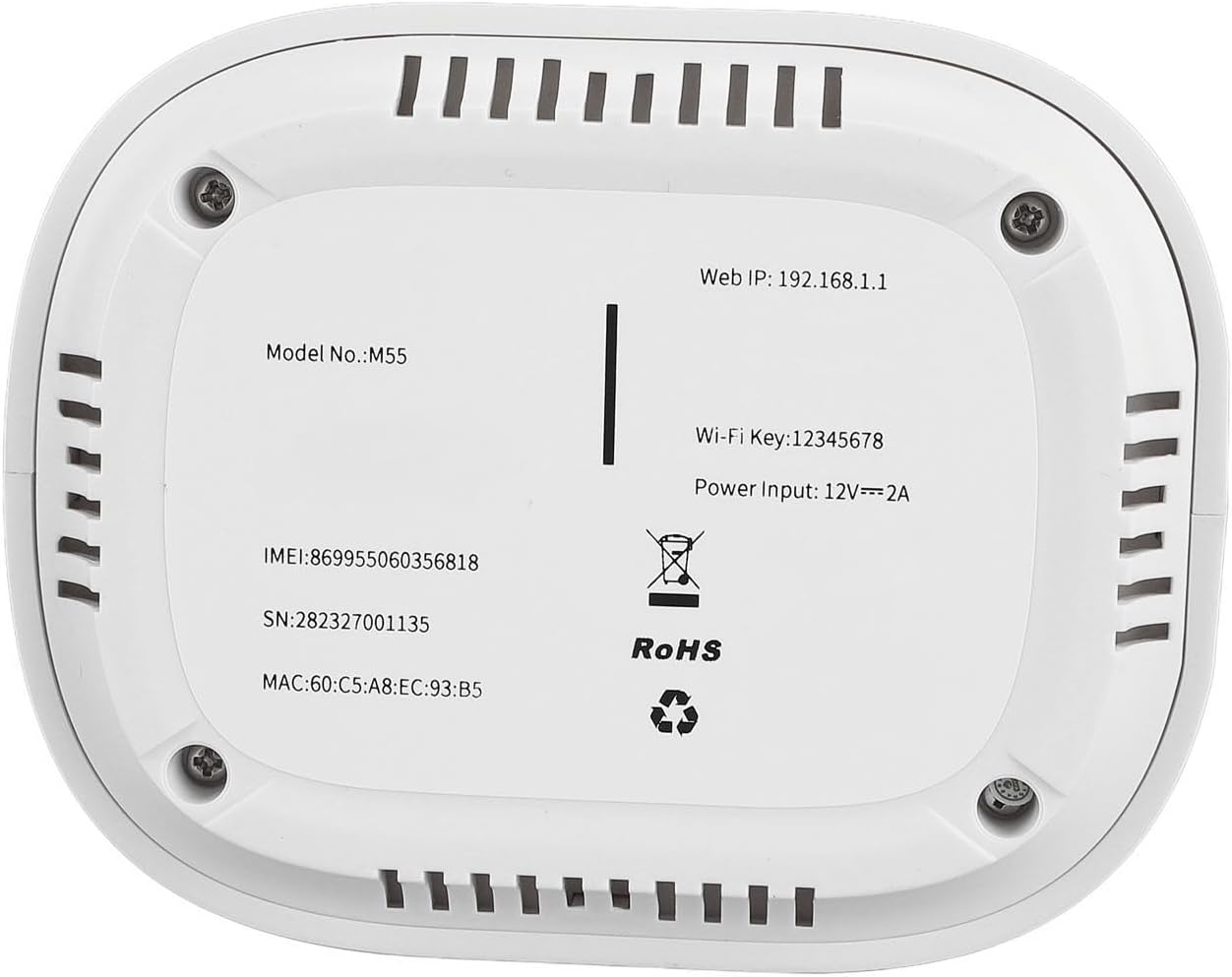
Image: The bottom label of the 5G CPE Router, displaying important information such as Model No.: M55, Web IP: 192.168.1.1, and Wi-Fi Key: 12345678.
6. Maintenance
To ensure optimal performance and longevity of your router:
- Placement: Place the router in an open area, away from obstructions, large metal objects, and other electronic devices that may cause interference.
- Cleaning: Use a soft, dry cloth to clean the router's exterior. Do not use liquid cleaners or aerosols.
- Ventilation: Ensure the ventilation slots are not blocked to prevent overheating.
- Firmware Updates: Periodically check the manufacturer's website or the router's web management interface for available firmware updates to improve performance and security.
- Restart: If you experience network issues, try restarting the router by unplugging the power cord, waiting 10 seconds, and then plugging it back in.
7. Troubleshooting
| Problem | Possible Cause | Solution |
|---|---|---|
| No Power | Power adapter not connected or faulty outlet. | Ensure the power adapter is securely connected to the router and a working power outlet. Try a different outlet. |
| No Internet Connection (5G/4G indicator off) | SIM card not inserted correctly, no signal, or data plan issue. | Reinsert the SIM card. Move the router to an area with better cellular signal. Contact your mobile carrier to check your data plan status. |
| Cannot Connect to Wi-Fi | Incorrect Wi-Fi password, Wi-Fi disabled, or too far from router. | Verify the Wi-Fi password. Ensure the Wi-Fi indicator light is on. Move closer to the router. Restart the router. |
| Slow Internet Speed | Poor signal, too many connected devices, or network congestion. | Relocate the router for better signal. Disconnect unused devices. Try restarting the router. |
| Cannot Access Web Interface | Incorrect IP address, network issue, or browser problem. | Ensure you are using the correct IP (192.168.1.1). Clear browser cache or try a different browser. Verify your device is connected to the router's network. |
8. Specifications
| Feature | Detail |
|---|---|
| Item Type | 5G CPE Router |
| Model No. | M55 |
| Material | ABS |
| 5G NR NSA Frequency Bands | N41, N78, N79 |
| 5G NR SA Frequency Bands | N1, N28, N41, N77, N78, N79 |
| LTE-FDD Frequency Bands | B1, B2, B3, B5, B7, B8, B20, B28 |
| LTE-TDD Frequency Bands | B34, B38, B39, B40, B41 |
| WCDMA Frequency Bands | B1, B2, B5, B8 (worldwide) |
| Wi-Fi Support Frequency | 2.4G and 5.8G Dual Band |
| SIM Card Slot | 1 x Standard SIM Card (Card Not Included) |
| Max. Users Supported | 64 Users |
| Dimensions (Approx.) | 106x84x205mm / 4.2x3.3x8.1in |
| Control Method | Touch (referring to physical buttons) |
| Power Input | 12V === 2A |
| Default Web IP | 192.168.1.1 |
| Default Wi-Fi Key | 12345678 |
9. Warranty and Support
This product is covered by a standard manufacturer's warranty. For specific warranty terms and conditions, please refer to the warranty card included in your package or visit the official website of the manufacturer, Generic.
For technical support, troubleshooting assistance, or further inquiries, please contact Generic customer service through their official support channels. Keep your purchase receipt and product serial number (found on the bottom label) handy when seeking support.


