
Introduction
This manual provides detailed instructions for the NLOFIN 19-Key Programmable Macro Keypad. Please read this manual thoroughly before using the product to ensure proper operation and to maximize its features. This keypad is designed for versatile use, offering customizable layouts and macros for various applications.
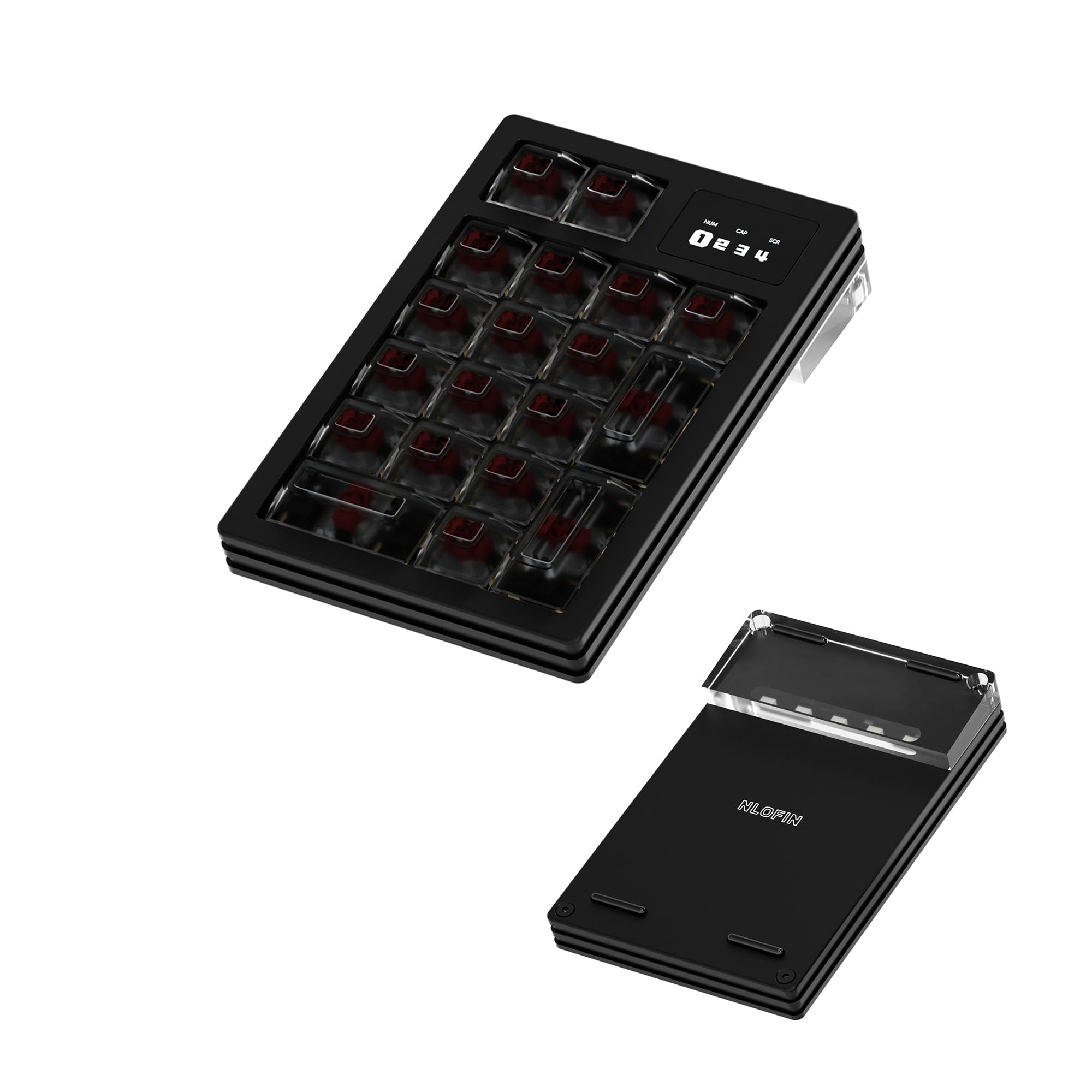
Image: The NLOFIN 19-Key Programmable Macro Keypad, showcasing its compact design and key layout.
Setup
1. Unboxing and Initial Inspection
Carefully remove all components from the packaging. Verify that all items listed in the package contents are present and undamaged.
Video: An unboxing demonstration of the NLOFIN 19-Key Programmable Number Pad, showing the contents and initial setup.

Image: Included accessories: a keycap puller and a USB-C cable for connection.
2. Connecting the Keypad
Connect the provided USB-C cable to the keypad and then to an available USB port on your computer (Windows or macOS). The keypad is plug-and-play for basic functionality.

Image: The keypad connected to a computer, highlighting its compatibility with Windows and macOS operating systems.
3. Software Installation (Vial)
For advanced customization and programming, download the Vial software from the official website. Vial allows you to remap keys, configure macros, and manage lighting effects. The settings are saved directly to the keypad's onboard memory.
- Visit the official Vial software website.
- Download and install the appropriate version for your operating system.
- Launch the Vial application.
- Connect your NLOFIN keypad. The software should automatically detect the device.

Image: Step 1 of connecting the keypad to the Vial software: Click "Start Vial".

Image: Step 2 of connecting the keypad to the Vial software: Select "NLKB19-01" and click "Connect".
Operating Instructions
1. Basic Keypad Functions
The NLOFIN 19-Key Macro Keypad functions as a standard numeric keypad out of the box. Its ergonomic design ensures comfortable use for extended periods.

Image: Close-up of the NLOFIN keypad highlighting its ergonomic design, RGB backlight, and USB-C interface.
2. RGB Backlight Control
The keypad features customizable RGB backlighting. You can adjust various lighting parameters directly from the keypad or through the Vial software.
- Speed: Increase/decrease lighting effect speed.
- Color: Cycle through different colors.
- Brightness: Adjust the intensity of the backlight.
- Lighting Mode: Switch between various lighting effects.
- Saturation: Adjust color saturation.

Image: Diagram illustrating the controls for RGB backlighting adjustments, typically found on the fourth layer of programming.
3. Layer Switching
The keypad supports up to 4 programmable layers, allowing for multiple configurations. You can switch between these layers using designated keys, often pre-set as "TO(X)" buttons in the default layout.

Image: A diagram explaining the layer parsing and switching mechanism, showing how "TO(X)" keys toggle between Layer 0, 1, 2, and 3.
Programming Keys with Vial
The NLOFIN keypad is fully programmable via the Vial web interface. This allows for extensive customization of key functions and macros across its multiple layers.
1. Remapping a Key (Example: Copy Function)
- Open the Vial software and ensure your keypad is connected.
- Select the desired layer for customization.
- Click on the key you wish to change on the virtual keypad layout.
- In the function setting zone below, navigate to the "Quantum" category.
- Find and click "LCTL(KC)" (Left Control) to assign it.
Image: Vial software interface showing the first step of remapping a key, selecting the key and then choosing a function from the "Quantum" category.
- Click the same key again on the virtual keypad.
- In the function setting zone, switch to the "Basic" category.
- Find and click "C" to complete the "Ctrl+C" (Copy) assignment.
Image: Vial software interface showing the second step of remapping a key, selecting the key again and then choosing "C" from the "Basic" category to complete the "Ctrl+C" macro.
2. Customization for Specific Applications
The keypad can be optimized for various tasks such as video editing, image processing, and programming by assigning specific functions to keys.

Image: Example of the keypad being used for video editing, demonstrating customizable buttons for workflow efficiency.

Image: Example of the keypad being used for image processing, illustrating how custom keys can streamline tasks.
Maintenance
1. Cleaning the Keypad
To maintain optimal performance and appearance, regularly clean your keypad. Use a soft, dry cloth to wipe down the surface. For deeper cleaning, you may use a slightly damp cloth with a mild cleaning solution, ensuring no liquid enters the key switches or internal components.
2. Keycap and Switch Replacement
The NLOFIN keypad features hot-swappable switches, allowing for easy replacement or customization without soldering. Use the provided keycap puller and switch puller (if included) to safely remove and install components.
- Gently use the keycap puller to remove the keycap by hooking it onto two opposite sides and pulling straight up.
- Once the keycap is removed, use the switch puller to grasp the top and bottom clips of the switch and pull it straight out.
- To install a new switch, align its pins with the sockets on the PCB and press down firmly until it clicks into place.
- Place the desired keycap onto the new switch stem and press down gently.
Video: A demonstration of removing and replacing keycaps and switches on the NLOFIN 19-Key Programmable Keypad.

Image: The NLOFIN keypad with several keycaps and switches removed, showing the hot-swappable sockets.
Troubleshooting
| Problem | Possible Cause | Solution |
|---|---|---|
| Keypad not recognized by computer. | Loose USB connection, faulty cable, driver issue. | Ensure USB-C cable is securely connected. Try a different USB port or cable. Restart your computer. |
| Keys not responding. | Faulty switch, incorrect key mapping, software glitch. | Test the switch by replacing it with a known working one. Check key mappings in Vial software. Restart Vial software or computer. |
| RGB backlight not working or incorrect. | Lighting settings misconfigured, software issue. | Adjust lighting settings using the keypad's built-in controls or through the Vial software. Ensure Vial software is up to date. |
| Vial software not detecting the keypad. | USB connection issue, software version incompatibility. | Verify USB connection. Ensure you have the latest version of Vial. Try running Vial as administrator. |
Specifications
- Model Number: 7eff5a14-f19c-48d5-9e67-647d2fe02ea1
- Keys: 19-key programmable layout
- Switches: Hot-swappable
- Backlight: RGB
- Interface: USB-C (detachable cable)
- Material: CNC machined aluminum alloy frame, Acrylic base
- Compatibility: Windows, macOS
- Dimensions: 7.87 x 5.71 x 2.95 inches (Package Dimensions)
- Item Weight: 15.5 ounces
- Special Feature: Ergonomic design, OLED dynamic screen

Image: Diagram illustrating the physical dimensions of the NLOFIN 19-Key Programmable Macro Keypad.

Image: Close-up of the OLED dynamic screen on the NLOFIN keypad, displaying layer information.
Warranty and Support
For warranty information and technical support, please refer to the manufacturer's official website or contact their customer service. Keep your purchase receipt for warranty claims.
Manufacturer: NLOFIN
Return Policy: 30-day refund/replacement (as per Amazon's policy at the time of data extraction).