
RUOVXWU X55
RUOVXWU External CD DVD Drive
User Manual
1. Introduction
Thank you for choosing the RUOVXWU External CD DVD Drive. This device provides a versatile and portable solution for reading and writing various optical disc formats, including CDs and DVDs. Designed for high-speed data transfer and broad compatibility, it is an essential accessory for laptops and PCs lacking an internal optical drive. This manual will guide you through the setup, operation, and maintenance of your new device.

Image: The RUOVXWU External CD DVD Drive, featuring its sleek black and blue design with a disc ready for insertion.
2. Product Overview
The RUOVXWU External CD DVD Drive is compact and lightweight, making it ideal for both home and travel use. It features a durable ABS plastic exterior and anti-slip feet for stability. The device integrates both USB 3.0 and Type-C interfaces for broad connectivity.
Package Contents:
- 1 x RUOVXWU External CD DVD Drive
Physical Features:
- Indicator Light: Shows device status.
- Eject Button: For opening the disc tray.
- Forced Ejection Hole: For manual tray opening in case of power failure or malfunction.
- Integrated USB 3.0 and Type-C Cable: For power and data transfer.

Image: Detailed view of the drive's dimensions (15x15x1.6 cm) and key components like the indicator light and eject button.
3. Specifications
| Feature | Description |
|---|---|
| Product Dimensions | 15 x 15 x 1.6 cm |
| Weight | 380 g |
| Material | ABS Plastic |
| Interface | USB 3.0 & Type-C (backward compatible with USB 2.0/1.0) |
| Read Speed (Max) | CD-ROM: 24x; DVD-ROM: 8x; DVD-ROM (DL): 6x |
| Write Speed (Max) | CD-R: 24x; CD-RW: 8x; DVD±R: 8x; DVD±R DL: 4x; DVD-R±9: 2.4x |
| Rewrite Speed (Max) | DVD+RW: 4x; DVD-RW: 4x; CD-RW: 10x; DVD-RAM: 3x |
| Supported Disc Formats | CD-R, CD-RW, DVD-R, DVD-RW, DVD+R, DVD+RW, DVD-RAM, DVD-R DL, DVD+R DL, DVD-ROM, VCD, SVCD |
| Operating Systems | Windows 7/8/10/11/XP/Vista, Linux, Mac OS |
| Special Features | Backward Compatible, Anti-slip, Lightweight, Error Correction, Plug & Play, Low Power Mode |

Image: Visual representation of the maximum read and write speeds for CD (24x) and DVD (8x).
4. Setup
The RUOVXWU External CD DVD Drive is designed for simple plug-and-play operation, requiring no additional drivers or external power supply.
Connection Steps:
- Locate an available USB 3.0 or Type-C port on your computer (laptop or desktop PC).
- Connect the integrated USB cable from the external drive directly into the chosen port on your computer.
- Wait a few seconds for your operating system to automatically detect and recognize the device. No driver installation is typically required.
- The indicator light on the drive will illuminate, signifying that it is powered on and ready for use.

Image: The drive connected to a laptop, demonstrating its USB 3.0 and Type-C high-speed transmission capabilities.
5. Operating Instructions
This external drive supports a wide range of functions, including playing media, burning discs, installing software, and data backup.
Basic Operation:
- Inserting a Disc: Press the eject button on the front of the drive. The disc tray will open. Carefully place your CD or DVD onto the tray, ensuring it is centered. Gently push the tray back into the drive until it clicks shut.
- Accessing Disc Content: Once the disc is inserted, your computer's operating system should recognize it. You can typically access the disc content through 'This PC' (Windows) or 'Finder' (Mac OS).
- Playing Media: Use your preferred media player software (e.g., VLC, Windows Media Player) to play audio CDs or DVD movies.
- Burning Discs: To burn data to a CD-R/RW or DVD+/-RW, use disc burning software compatible with your operating system. Follow the software's instructions to select files and initiate the burning process.
- Software Installation: Insert the software installation disc. The setup program should auto-run, or you can manually launch it from the disc's directory.
- Ejecting a Disc: Press the eject button on the drive. Alternatively, you can right-click the drive icon in your computer's file explorer and select 'Eject'.
Compatibility:
The drive is highly compatible with various operating systems, including Windows XP, Vista, 7, 8, 10, 11, Linux, and all versions of Mac OS. It is designed for use with PCs and laptops. Please note that it is not compatible with smartphones, flat-screen TVs, car systems, projectors, or Chrome OS devices.
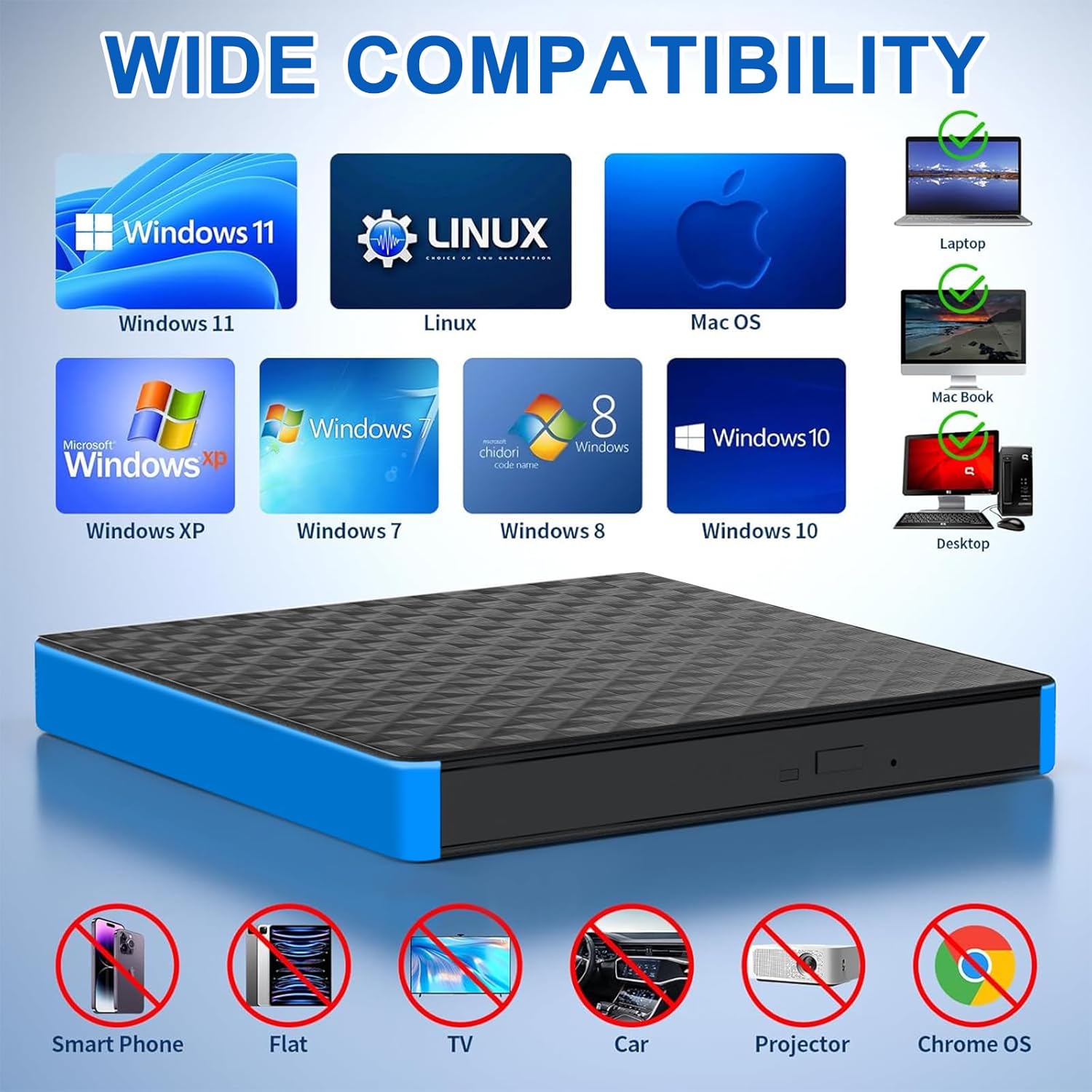
Image: Illustrates the broad operating system compatibility and specific device incompatibilities of the drive.
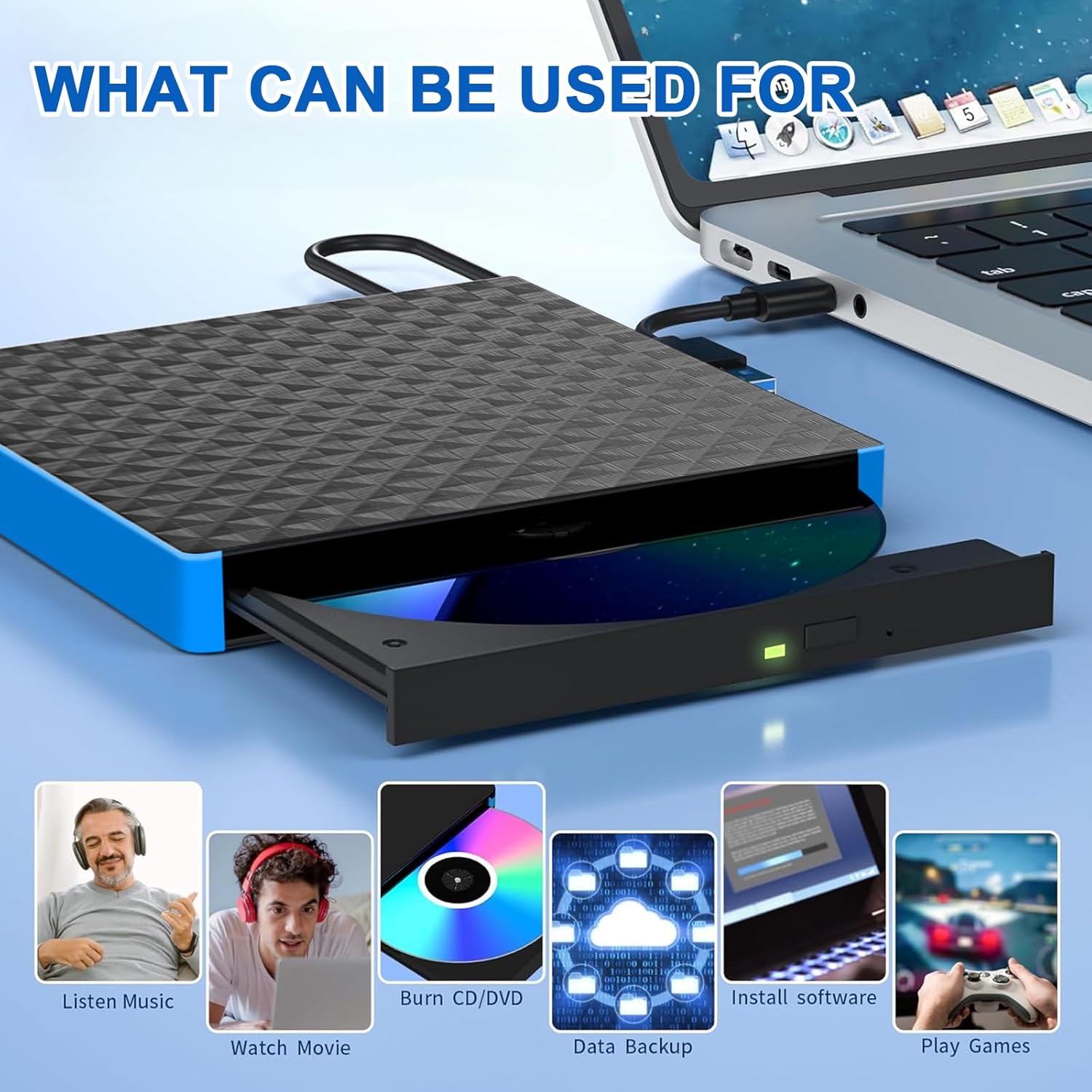
Image: Shows the diverse applications of the drive, from media consumption to data management and gaming.
6. Maintenance
Proper maintenance ensures the longevity and optimal performance of your external CD DVD drive.
- Cleaning: Use a soft, dry, lint-free cloth to wipe the exterior of the drive. Do not use liquid cleaners or abrasive materials.
- Disc Care: Always handle discs by their edges. Keep discs clean and free of scratches or smudges to ensure proper reading and writing.
- Storage: When not in use, store the drive in a cool, dry place away from direct sunlight and extreme temperatures.
- Cable Management: Avoid bending or kinking the integrated USB cable excessively to prevent internal damage.
- Low Power Mode: The drive automatically enters a low power state after data reading is complete, which helps conserve energy and extend its lifespan.
7. Troubleshooting
If you encounter issues with your RUOVXWU External CD DVD Drive, refer to the following common problems and solutions:
- Drive not recognized by computer:
- Ensure the USB cable is securely connected to both the drive and a functioning USB port on your computer.
- Try connecting to a different USB port or a different computer to rule out port issues.
- Restart your computer.
- Check Device Manager (Windows) or System Information (Mac OS) to see if the drive is listed, even with an error.
- Disc not reading or writing:
- Ensure the disc is clean and free of scratches or smudges. Clean with a soft cloth if necessary.
- Verify that the disc format is supported by the drive (refer to Specifications section).
- Try a different disc to determine if the issue is with the disc or the drive.
- Ensure your burning software is correctly configured and compatible with your operating system.
- The drive features robust error correction, but severely damaged discs may still be unreadable.
- Disc tray not opening/closing:
- Ensure the drive is properly powered by the USB connection.
- If the eject button is unresponsive, locate the small forced ejection hole on the front of the drive. Insert a straightened paperclip into this hole and gently push until the tray opens.
- Slow data transfer speeds:
- Ensure you are connected to a USB 3.0 or Type-C port on your computer for optimal speeds. Connecting to a USB 2.0 port will result in slower performance.
- Close other applications that might be consuming system resources.
8. Warranty and Support
Information regarding specific warranty terms and availability of spare parts for the RUOVXWU External CD DVD Drive is not provided in the product details. For any support inquiries or issues not covered in this manual, please refer to the seller's contact information or the platform where the product was purchased.
We recommend keeping your purchase receipt as proof of purchase for any potential warranty claims.
Ask a question about this manual
Ask about setup, troubleshooting, compatibility, parts, safety, or missing instructions. Manuals+ will review the question and use this page’s manual context to help answer it.