1. Product Overview
This Hikity Android 15 Car Radio Stereo is specifically designed for Kia Rio models manufactured between 2015 and 2018. It integrates advanced features to enhance your driving experience, including a high-definition touch screen, smartphone integration, and comprehensive navigation capabilities. The system operates on Android 15, providing a responsive and user-friendly interface.

Figure 1.1: Hikity Android 15 Car Radio Stereo installed in a Kia Rio dashboard (left-hand drive model).
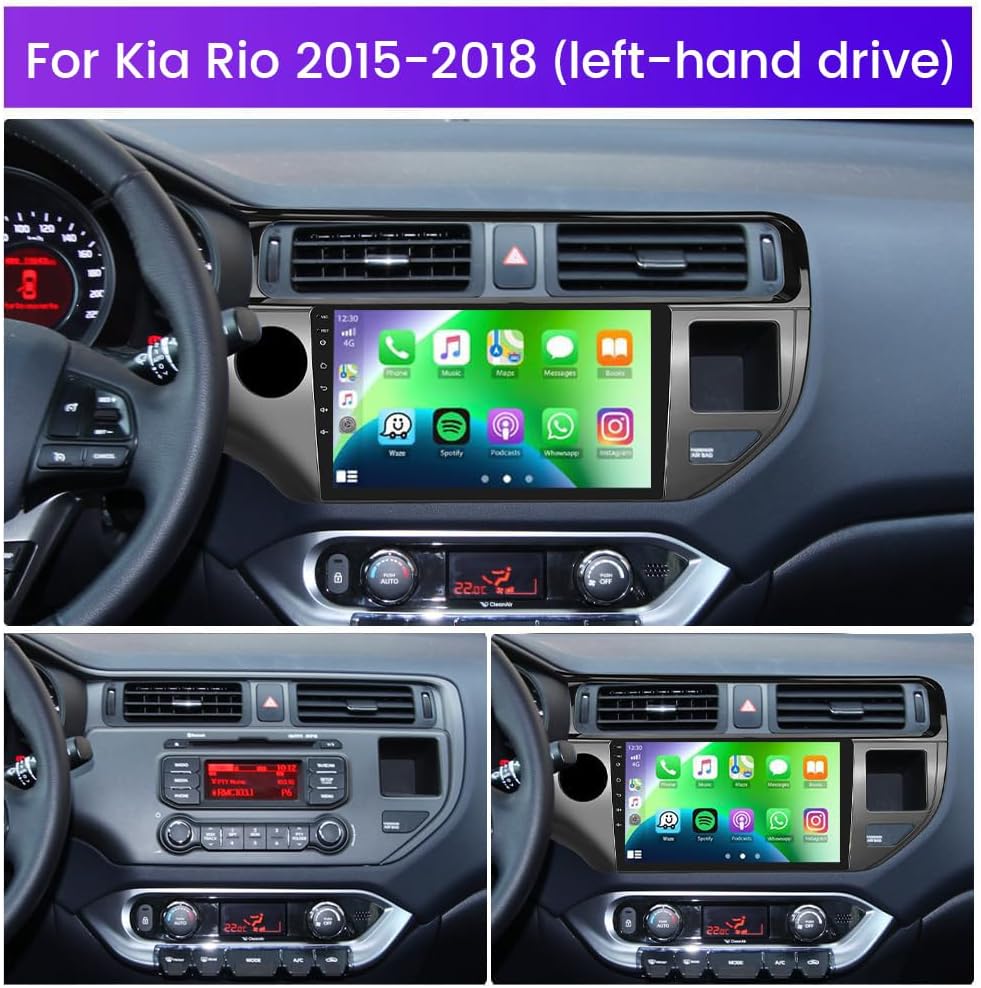
Figure 1.2: Comparison of Kia Rio dashboard configurations (2011-2014 LHD/RHD, 2015-2017 LHD/RHD) showing low and high config options. Ensure to select the correct unit for your vehicle. If your original radio has a large colorful screen, an extra CANBUS decoder may be required.
2. What's in the Box
Verify that all components are present before beginning installation.
- Car Radio for Kia Rio 2015-2018
- AHD Backup Camera & Camera Input Cable
- Microphone
- Power Cable & GPS Antenna
- RCA Cable & USB Cable

Figure 2.1: Contents of the product package and dimensions of the head unit.
3. Installation Guide
3.1. Backup Camera Connection
Proper connection of the AHD backup camera is crucial for its functionality. Follow these steps:
- Connect the red cable (1) from the camera input cable to the positive terminal of the car's reverse light cable.
- Connect the black cable (2) from the camera input cable to the negative terminal of the car's reverse light cable.
- The two red extension cables (3 and 4) are not required for this connection.

Figure 3.1: Wiring diagram for the AHD backup camera.
Video 3.1: Detailed instructions on how to connect the backup camera to the Hikity car stereo system.
3.2. Steering Wheel Control Setup
To enable steering wheel control functionality, connect the SWC wires (Key1/Key2) to the corresponding port or wire of your original car. Then, activate the buttons through the system settings:
- Go to Settings and enter Factory Setup (password: 1234).
- Select Party Control Learning.
- Release the steering wheel button, then select the function to learn and press the corresponding button on your steering wheel.

Figure 3.2: Guide for setting up steering wheel controls.
4. Operating Instructions
4.1. Wireless Carplay & Android Auto
The car stereo supports both wireless and wired Carplay and Android Auto. This intelligent interaction technology allows you to integrate your smartphone's features directly onto the 9-inch touch screen. You can activate voice control (Siri for Carplay, Google Assistant for Android Auto) and access navigation, music, messages, and other applications safely while driving.
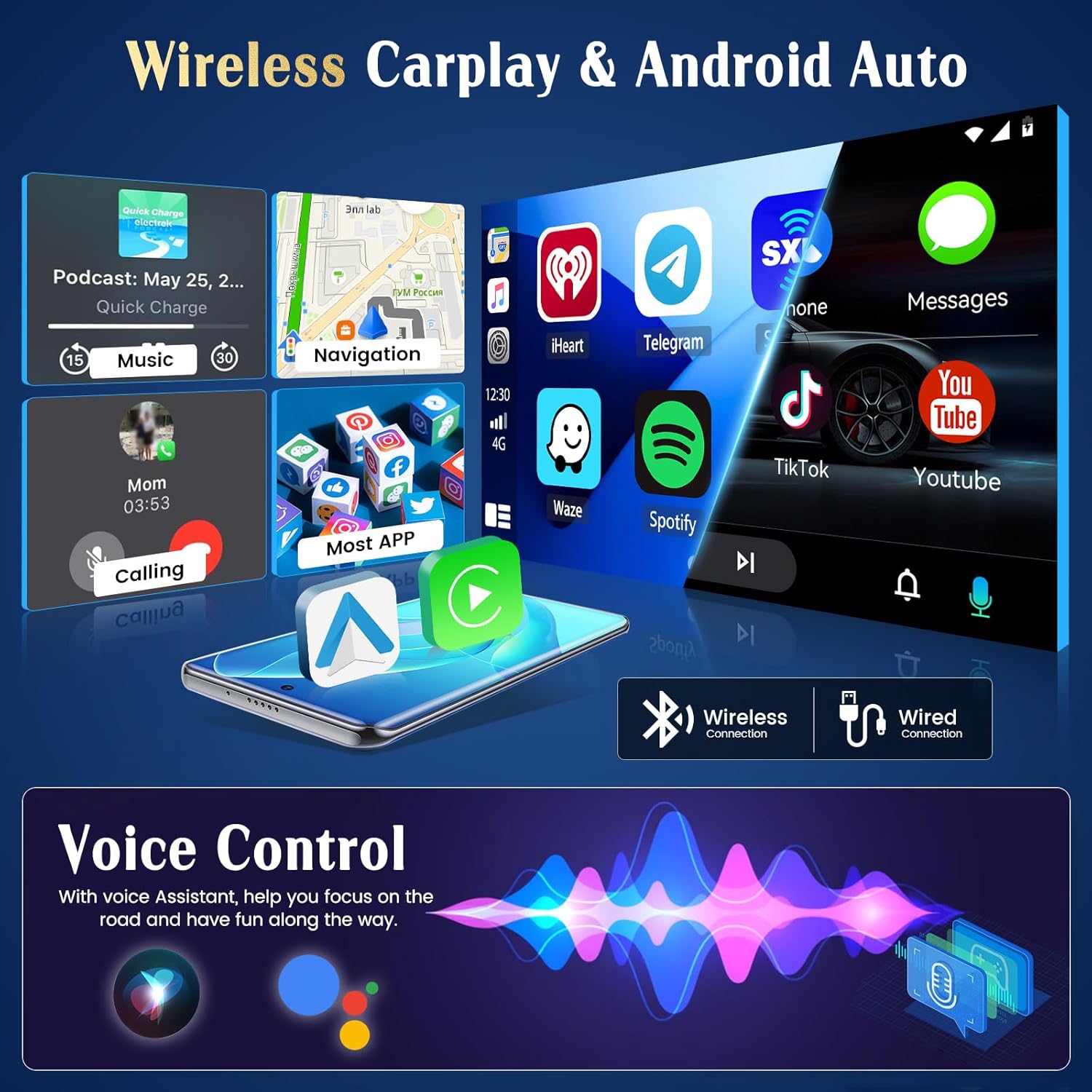
Figure 4.1: Overview of Wireless Carplay and Android Auto functionality.
Video 4.1: Demonstration of how to use Carplay with the Hikity car stereo.
To connect:
- Ensure Bluetooth is enabled on your smartphone and the car stereo.
- Search for the car stereo's Bluetooth name (e.g., "Car BTo") on your phone and pair.
- Allow all necessary permissions on your phone for Carplay or Android Auto to function correctly.
- For wired connection, connect your phone via a USB cable.
4.2. GPS Navigation & WiFi Connectivity
The unit features a built-in GPS receiver and includes a GPS antenna. It supports both online and offline navigation. You can use pre-installed offline maps (e.g., Herewego app) or download other navigation apps via WiFi. Connect to a WiFi hotspot to access online music, videos, browse the web, and install applications like YouTube, TikTok, or Spotify.

Figure 4.2: GPS Navigation and WiFi connection interface.

Figure 4.3: Benefits of online and offline navigation.
4.3. Bluetooth and Mirror Link
Pair your smartphone via Bluetooth for hands-free calling and wireless music streaming. The Mirror Link function allows you to synchronize your smartphone screen with the car stereo's display, enabling you to view multimedia content on a larger screen.

Figure 4.4: Bluetooth and Dual Microphone features for clear communication.
4.4. Audio System
Experience personalized audio with the integrated EQ and FM/RDS Radio system. Fine-tune your sound using the intuitive Equalizer to match your musical preferences. The system also supports subwoofer output for enhanced bass.
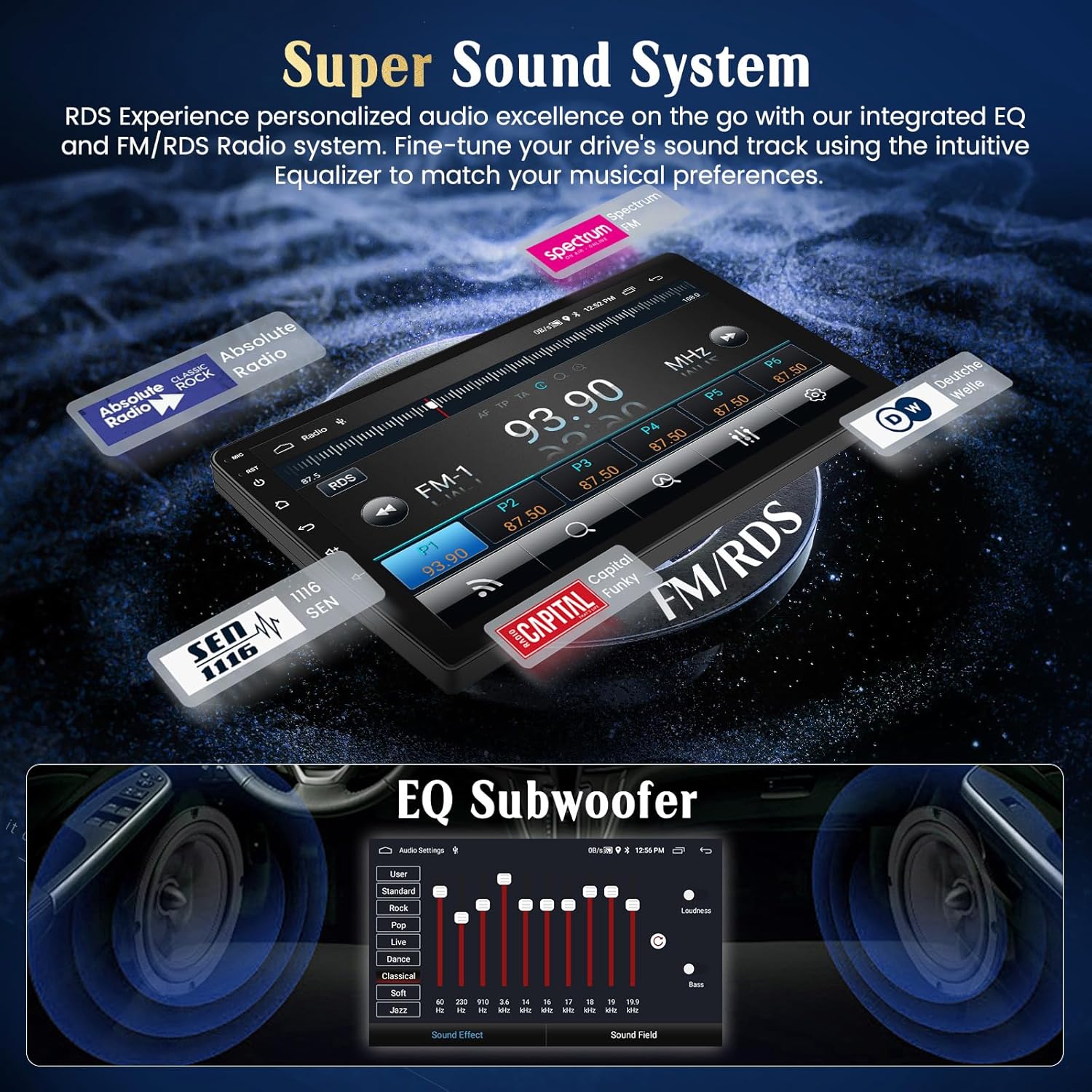
Figure 4.5: Super Sound System with EQ and FM/RDS Radio.
4.5. Display and User Interface
The 9-inch ultra HD touch screen offers a 1024*600 resolution, providing clear visuals. It features 2.5D scratch-resistant glass, anti-knock protection, and accurate color reproduction. Customize your experience with multiple UI desktop themes.

Figure 4.6: High-definition screen and customizable UI themes.
5. Additional Features
- Split Screen: Run two applications simultaneously on the screen.
- Dual USB Input: Connect multiple USB devices for media playback or charging.
- Heat Sink: Designed for efficient heat dissipation to ensure stable performance.

Figure 5.1: Split Screen, Dual USB, and Heat Sink features.
6. Maintenance
To ensure the longevity and optimal performance of your Hikity car radio stereo, follow these general maintenance guidelines:
- Screen Cleaning: Use a soft, lint-free cloth to gently wipe the touch screen. Avoid abrasive cleaners or solvents that could damage the display.
- Software Updates: Periodically check for available software updates to ensure your system has the latest features and security patches. Updates can typically be found through the system settings or the manufacturer's website.
- Environmental Care: Avoid exposing the unit to extreme temperatures, direct sunlight for prolonged periods, or excessive moisture.
- Cable Connections: Ensure all cables are securely connected. Loose connections can lead to intermittent functionality.
7. Troubleshooting
If you encounter issues with your car stereo, refer to the following common troubleshooting steps:
- No Power:
- Check the power cable connections to ensure they are secure.
- Verify the car's fuse related to the stereo is not blown.
- No Sound:
- Ensure the volume is not muted or set too low.
- Check speaker wire connections.
- Verify audio settings in the EQ menu.
- Backup Camera Not Displaying:
- Confirm the camera input cable is correctly connected to the reverse light power supply.
- Check the video input connection to the head unit.
- Carplay/Android Auto Connection Issues:
- Ensure Bluetooth is on and paired correctly (for wireless).
- For wired connection, try a different USB cable.
- Verify all necessary permissions are granted on your smartphone.
- Restart both your phone and the car stereo.
- GPS Signal Loss:
- Ensure the GPS antenna is properly installed and has a clear view of the sky.
- Check the GPS antenna connection to the head unit.
If these steps do not resolve the issue, please contact customer support.
8. Product Specifications
| Model Number | Hikity-Android13-KiaRio |
| Product Dimensions | 19.29 x 8.27 x 2.95 inches |
| Item Weight | 7.19 pounds |
| Operating System | Android 15 |
| RAM / ROM | 2GB RAM / 64GB ROM |
| Screen Size | 9 inch |
| Screen Resolution | 1024*600 |
| Connectivity | Bluetooth, USB, Wi-Fi |
| Special Features | Wireless/Wired CarPlay & Android Auto, Built-In Wi-Fi, GPS Navigation, FM RDS, EQ, Touchscreen & Microphone |
| Compatible Devices | Smartphone, Amplifier, Subwoofer, Kia Rio (2015-2018) |
| Audio Output Mode | Stereo (2.1 Surround Sound Channel Configuration) |
| Video Encoding | RMVB |
9. Warranty and Support
Hikity is committed to providing quality products and customer satisfaction.
- Warranty: The product typically comes with a 12-month quality warranty. Please refer to your purchase documentation for specific warranty details.
- Returns: A 30-day free return policy is generally available.
- Technical Support: For any questions regarding installation, operation, or troubleshooting, please contact Hikity Tech customer support. Online replies are typically provided within 24 hours.

Figure 9.1: Hikity customer support information.
When contacting support, please provide your Amazon order number for faster assistance.


