
1. Introduction
This manual provides essential information for the safe and efficient use of your Annadue 5G Mobile Hotspot. Please read this manual thoroughly before operating the device and retain it for future reference. This device offers high-speed 5G connectivity, dual-band WiFi 6, and a robust design for portable internet access.
2. Safety Information
- Do not expose the device to extreme temperatures, direct sunlight, or high humidity.
- Use only the specified charging accessories.
- Avoid dropping or subjecting the device to severe impact, despite its reinforced design.
- Keep the device away from medical devices to avoid interference.
- Do not attempt to disassemble or modify the device. This will void the warranty.
- Dispose of the device and its battery responsibly according to local regulations.
3. Package Contents
Please check the package for the following items:
- Annadue 5G Mobile Hotspot (Model: Annadue4qcewf5nr9)
- USB Charging Cable (Type-C, assumed)
- User Manual (this document)
Note: A SIM card is not included and must be purchased separately from your mobile network provider.
4. Product Overview
Front View and Indicators

This image displays the front of the Annadue 5G Mobile Hotspot. The device is orange with "5G WiFi6" printed on the lower left. On the upper right, there is a vertical strip of LED indicators: from top to bottom, these represent 5G signal strength, 4G signal strength, WiFi status, and power status. A power button is located below the indicators.
Device Dimensions

This image illustrates the physical dimensions of the Annadue 5G Mobile Hotspot. The device measures approximately 136mm (5.4 inches) in length, 72mm (2.8 inches) in width, and 16mm (0.6 inches) in thickness, highlighting its compact and portable design.
Side View and SIM Slot

This image shows a side view of the hotspot, highlighting the SIM card slot cover. Adjacent to the slot, there are two buttons: one for power control and another, likely for WPS (Wi-Fi Protected Setup) or SIM card ejection, providing easy access and control.
Back Label with Network Information
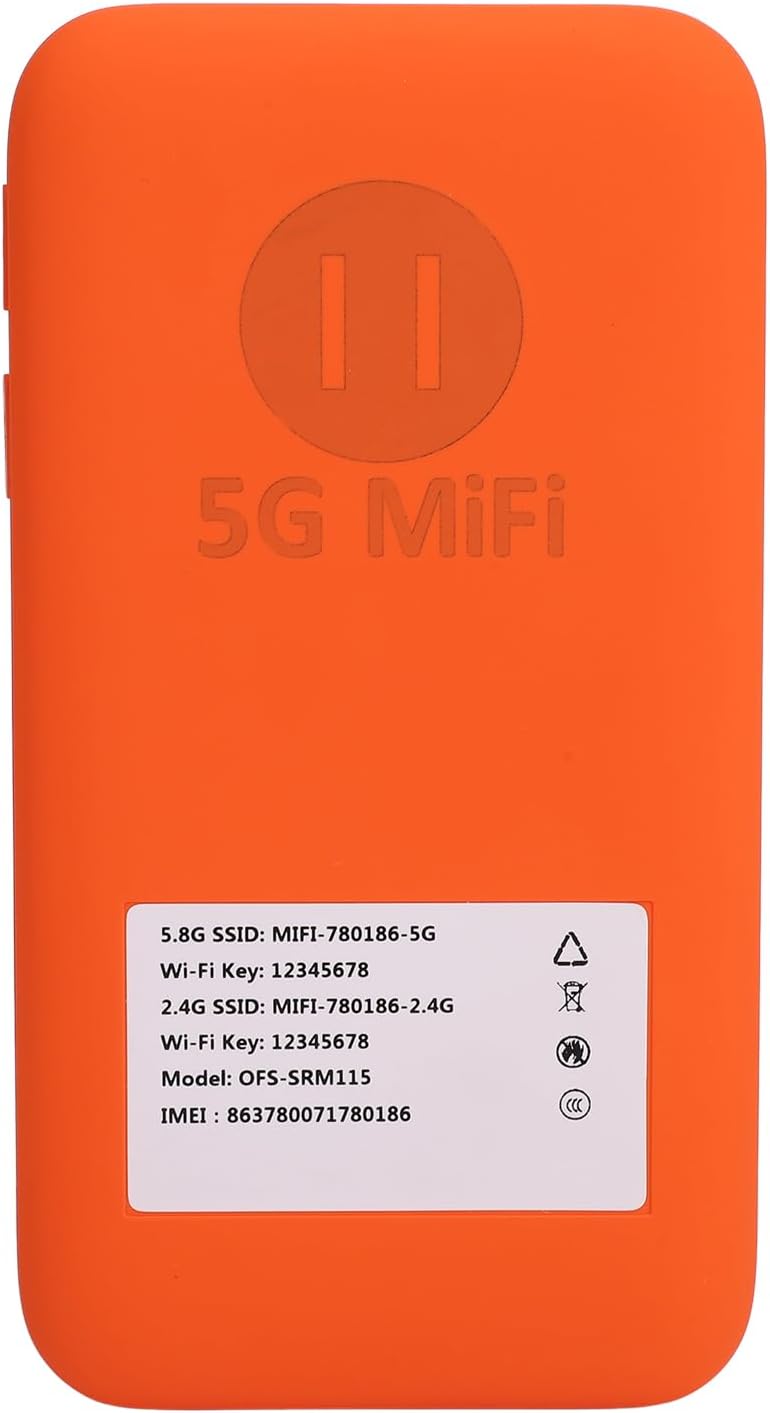
The back of the device features a label containing crucial network information. This includes the default SSID (network name) and Wi-Fi Key (password) for both the 2.4GHz and 5.8GHz bands. It also lists a model number (OFS-SRM115, which may be an internal or sub-model identifier) and the IMEI number. This information is essential for initial connection.
LED Indicator Guide:
- 5G Indicator: Indicates 5G network connectivity and signal strength.
- 4G Indicator: Indicates 4G network connectivity and signal strength.
- WiFi Indicator: Shows WiFi status (on/off, data activity).
- Power Indicator: Displays battery level and charging status.
5. Setup
5.1. Inserting the SIM Card
- Locate the SIM card slot cover on the side of the device.
- Gently open the cover.
- Insert your activated Nano-SIM card into the slot with the gold contacts facing down, ensuring it clicks into place. The device supports hot-swapping of SIM cards.
- Close the SIM card slot cover securely.
5.2. Charging the Device
- Connect the USB charging cable to the charging port on the device.
- Connect the other end of the cable to a compatible USB power adapter (not included) or a computer's USB port.
- The power indicator LED will show charging status. A full charge ensures optimal battery life (6100 mAh).
5.3. Powering On/Off
- To Power On: Press and hold the Power button (located below the LED indicators) for approximately 3 seconds until the indicators light up.
- To Power Off: Press and hold the Power button for approximately 3 seconds. The device will shut down.
6. Operating Instructions
6.1. Connecting Devices via Wi-Fi
- Ensure the hotspot is powered on and has an active SIM card with a data plan.
- On your device (smartphone, laptop, tablet), go to Wi-Fi settings.
- Look for the network name (SSID) displayed on the back label of your hotspot (e.g., "MIFI-780186-5G" or "MIFI-780186-2.4G").
- Select the desired network (2.4GHz or 5.8GHz).
- Enter the Wi-Fi Key (password) also found on the back label.
- Your device should now be connected to the internet. The hotspot supports up to 16 connected devices simultaneously.
6.2. Understanding Dual-Band Wi-Fi
Your hotspot supports both 2.4GHz and 5.8GHz (often referred to as 5GHz) Wi-Fi bands. Each band has distinct characteristics:
- 2.4GHz: Offers wider coverage and better penetration through walls, but generally lower speeds and more prone to interference. Ideal for devices further away or for general browsing.
- 5.8GHz (5GHz): Provides faster speeds and lower latency, but has a shorter range and is more susceptible to obstacles. Ideal for close-range, high-bandwidth activities like streaming 4K video or online gaming.
You can choose which band to connect to based on your needs and device proximity to the hotspot.
6.3. Accessing the Web Management Interface
For advanced settings, such as changing Wi-Fi name/password, checking data usage, or managing connected devices, you can access the hotspot's web management interface. The default IP address and login credentials are typically found on the device's back label or in a separate quick start guide. Connect to the hotspot's Wi-Fi, then open a web browser and enter the IP address (e.g., 192.168.x.x).
7. Maintenance
7.1. Cleaning the Device
- Use a soft, dry, lint-free cloth to clean the device.
- Do not use liquid cleaners, aerosols, or solvents.
7.2. Battery Care
- To prolong battery life, avoid fully discharging the battery frequently.
- Store the device in a cool, dry place if not used for extended periods.
- The 6100 mAh battery is designed for long-lasting performance.
7.3. Firmware Updates
Periodically check the manufacturer's website or the device's web management interface for available firmware updates. Updates can improve performance, add new features, and enhance security.
8. Troubleshooting
| Problem | Possible Cause | Solution |
|---|---|---|
| No internet connection | No active SIM card; no data plan; poor signal; incorrect APN settings. | Ensure SIM is inserted correctly and active. Check data plan. Move to an area with better signal. Verify APN settings via web interface (consult your carrier). |
| Cannot connect to Wi-Fi | Incorrect Wi-Fi password; hotspot not powered on; Wi-Fi disabled. | Verify Wi-Fi password. Ensure hotspot is on. Check Wi-Fi indicator. Restart hotspot. |
| Slow internet speed | Poor signal; too many connected devices; network congestion; connected to 2.4GHz band when 5.8GHz is available. | Move to an area with better signal. Disconnect unnecessary devices. Try connecting to the 5.8GHz band if supported by your device and proximity allows. |
| Device not charging | Faulty cable/adapter; charging port issue. | Try a different USB cable and power adapter. Ensure the charging port is clean and free of debris. |
9. Specifications
| Feature | Detail |
|---|---|
| Model Number | Annadue4qcewf5nr9 |
| Network Support | 5G, CA, 4G, 3G bands |
| Wi-Fi Standard | 802.11ax (Wi-Fi 6) |
| Wi-Fi Bands | 2.4 GHz, 5.8 GHz (Dual Band) |
| Max Connected Devices | Up to 16 |
| Download Speed (Max) | 2.77 Gbps |
| Upload Speed (Max) | 1.25 Gbps |
| Battery Capacity | 6100 mAh Polymer Battery |
| SIM Card Slot | Yes, Hot-swap support |
| Durability Rating | IP67 (Dust, Water, Drop Resistant) |
| Dimensions (Approx.) | 136mm x 72mm x 16mm (L x W x H) |
| Weight (Approx.) | 276 grams |
10. Warranty and Support
Annadue products are designed for reliability and performance. For specific warranty details, please refer to the warranty card included with your purchase or visit the official Annadue website. Keep your proof of purchase for warranty claims.
For technical support or further assistance, please contact Annadue customer service through the contact information provided on their official website or your retailer's support channels.
Online Resources: For the latest information, FAQs, and support, please visit the Annadue Store on Amazon.