
BoT by BlueRoad H1
BoT Smart Lock H1 Electronic Door Lock User Manual
Model: H1 | Brand: BoT by BlueRoad
1. Introduction
The BoT Smart Lock H1 is an advanced electronic door lock designed to provide secure and convenient access to your property. It offers multiple unlocking methods, including fingerprint, PIN code, RFID card, smartphone app (Bluetooth), and traditional mechanical keys. With its robust construction and smart features, the H1 lock is suitable for various applications, from residential homes to offices and rental properties.
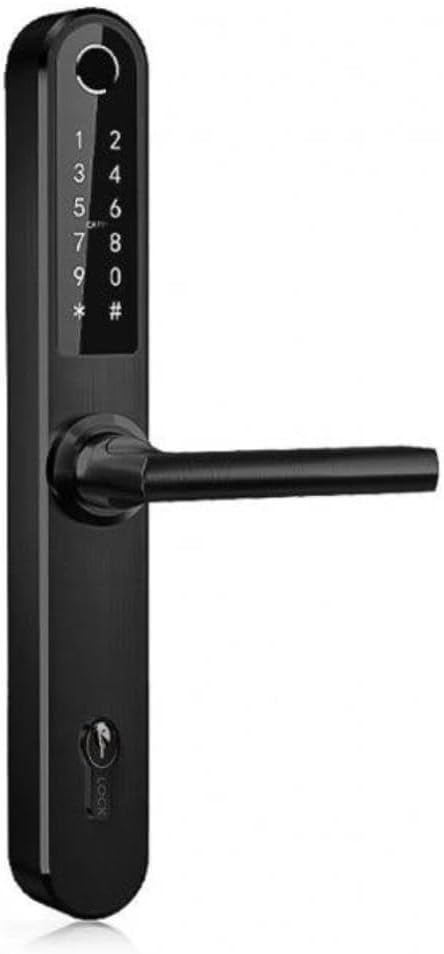
Image: The BoT Smart Lock H1, a sleek black electronic door lock featuring a numeric keypad and an integrated fingerprint scanner on the handle. A traditional keyhole is visible at the bottom.
2. Safety Information
- Always ensure the door is properly closed before attempting to lock or unlock.
- Do not expose the lock to extreme temperatures or direct water spray beyond its IP66 rating.
- Use only the specified battery type (4 AA batteries) and replace all batteries simultaneously.
- Keep mechanical keys in a secure location away from the lock.
- Regularly check for firmware updates for the TTLock app to ensure optimal performance and security.
3. Package Contents
Please verify that all components are present before beginning installation:
- BoT Smart Lock H1 (Front and Rear Panels)
- Mortise Lock Body
- Mounting Screws and Accessories
- 3 x Mechanical Keys
- 3 x Chip Key Fobs (RFID Cards)
- Installation Template (if included)
- User Manual (this document)
4. Installation
The BoT Smart Lock H1 is designed for straightforward installation on various door types, including aluminum, wood, sliding, and swing doors with a thickness of 35-75 mm. It features an adjustable screw distance (175 mm - 230 mm) to accommodate different door configurations. An existing cylinder can also be integrated.
- Prepare the Door: Ensure your door meets the required thickness and that the existing mortise lock is compatible or prepare the door for the new mortise lock body. You may need to drill new holes for mounting screws and the cable passage.
- Install Mortise Lock: Insert the mortise lock body into the door edge and secure it with screws.
- Mount Front Panel: Connect the cable from the front panel to the rear panel. Position the front panel on the exterior side of the door, aligning it with the mortise lock.
- Mount Rear Panel: Place the rear panel on the interior side of the door, ensuring the cable is not pinched. Secure both panels using the provided mounting screws. Adjust the screw distance as needed for a snug fit.
- Install Batteries: Open the battery compartment on the rear panel and insert 4 AA batteries, ensuring correct polarity.
- Test Operation: After installation, test the mechanical key and the handle's movement to ensure smooth operation before proceeding with smart features setup.
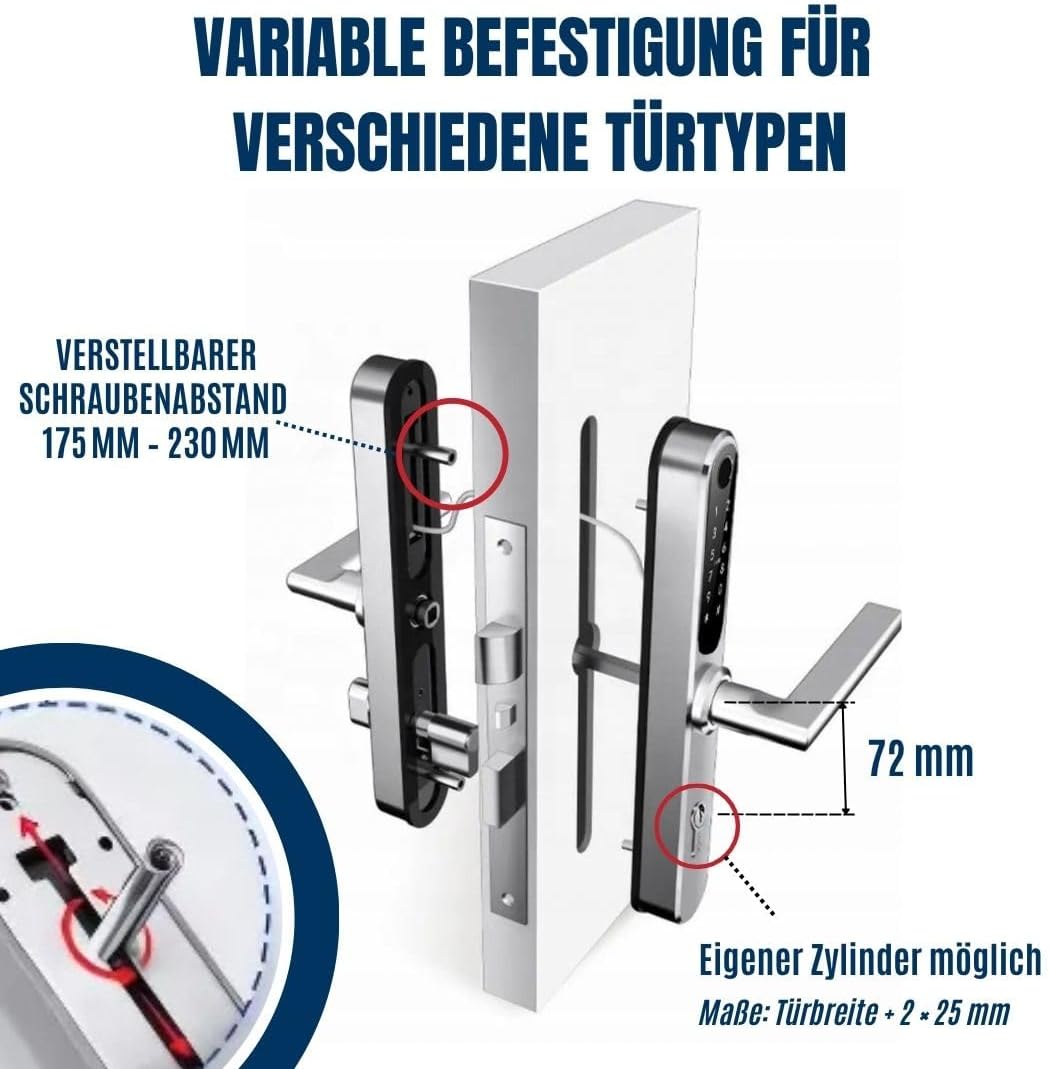
Image: An illustration demonstrating the variable mounting capabilities of the BoT Smart Lock H1, showing how the adjustable screw distance (175 mm - 230 mm) allows for installation on various door types. It also indicates the possibility of using an existing cylinder.
5. Initial Setup and Configuration
The BoT Smart Lock H1 is managed via the TTLock app, available for smartphones. This app allows you to add users, manage access methods, and monitor lock activity.
5.1. TTLock App Installation
- Download the "TTLock" app from your smartphone's app store (iOS or Android).
- Register a new account or log in if you already have one.
- Ensure Bluetooth is enabled on your smartphone and you are within close proximity to the lock.
5.2. Adding the Lock to the App
- In the TTLock app, tap the "Add Lock" or "+" icon.
- Select "Door Lock" and the app will scan for nearby Bluetooth locks.
- Select your BoT Smart Lock H1 from the list (it may appear as "H1" or a similar identifier).
- Follow the on-screen prompts to complete the pairing process. You may be asked to touch the lock's keypad or press a button on the lock.
5.3. Managing Access Methods
Once the lock is paired, you can add and manage various access methods:
- Fingerprints: Tap "Fingerprints" in the app, then "Add Fingerprint." Follow the instructions to register fingerprints for up to 200 users.
- PIN Codes: Tap "Passcodes" to create various types of PIN codes (up to 150):
- Permanent: Always active.
- Timed: Active only during specified periods.
- One-time: Valid for a single use.
- Recurring: Active on specific days/times weekly.
- RFID Cards (Chip Key Fobs): Tap "Cards" and then "Add Card." Present the RFID card to the lock's sensor to register it. The lock supports up to 200 RFID cards.
- eKeys: Grant temporary or permanent access to other TTLock app users via eKeys.
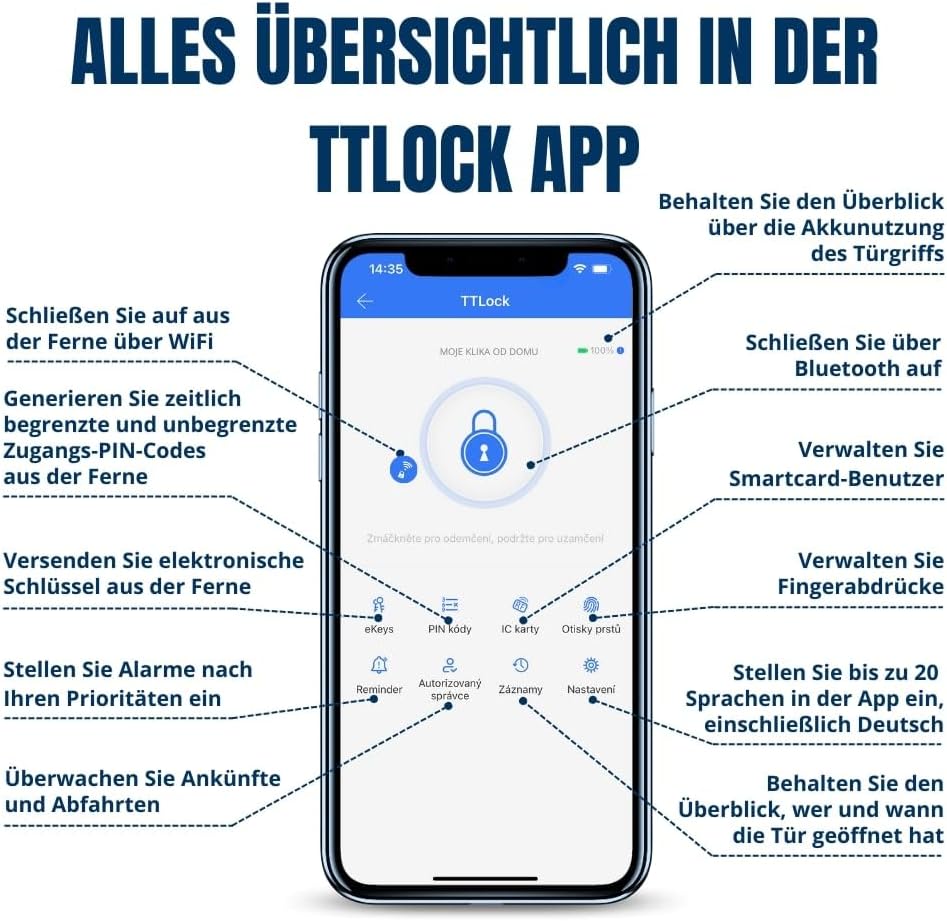
Image: A detailed view of the TTLock mobile application interface, illustrating its comprehensive features for managing the smart lock. Options for eKeys, PIN codes, IC cards (RFID), fingerprints, and various settings are clearly visible, along with remote access and monitoring capabilities.
5.4. Wi-Fi Gateway (Optional)
For remote control and monitoring from anywhere, a separately available Wi-Fi Gateway is required. Connect the gateway to your home Wi-Fi network and link it to your lock via the TTLock app. This enables features such as:
- Remote unlocking/locking.
- Real-time access logs.
- Integration with voice assistants like Alexa and Google Home.
6. Operating Instructions
The BoT Smart Lock H1 offers multiple convenient ways to unlock and lock your door.

Image: An infographic detailing the eight different methods available to unlock the BoT Smart Lock H1. These include fingerprint recognition, mobile app control, Apple Watch compatibility, voice control via Alexa or Google, PIN code entry, RFID card access, remote control via Wi-Fi, and traditional mechanical key usage.
6.1. Unlocking the Door
- Fingerprint: Place your registered finger on the fingerprint sensor. The lock will unlock if the fingerprint is recognized.
- PIN Code: Enter your valid PIN code on the keypad, then press the '#' key. The lock will unlock.
- RFID Card: Present your registered RFID card to the card reader area on the lock. The lock will unlock.
- TTLock App (Bluetooth): Open the TTLock app, select your lock, and tap the unlock icon when within Bluetooth range.
- Mechanical Key: Insert the mechanical key into the keyhole and turn to unlock. This is a reliable backup method.
- Remote (via Wi-Fi Gateway): If a Wi-Fi Gateway is connected, you can unlock the door remotely from anywhere using the TTLock app.
6.2. Locking the Door
- Automatic Locking: The lock is configured to automatically lock after a few seconds of being unlocked. This feature ensures the door is always secured.
- Manual Locking (from outside): After closing the door, the outer handle will be blocked, preventing entry.
- Manual Locking (from inside): The inner handle allows for easy exit at any time.
- TTLock App (Bluetooth/Wi-Fi): You can manually lock the door via the TTLock app, whether you are within Bluetooth range or remotely via the Wi-Fi Gateway.
7. Maintenance
7.1. Battery Replacement
The lock requires 4 AA batteries. When the battery level is low, the lock will provide an audible warning. Replace all four batteries simultaneously to ensure optimal performance. The battery life is approximately up to 10 months.
- Locate the battery compartment on the interior side of the lock.
- Open the compartment cover.
- Remove the old batteries and dispose of them responsibly.
- Insert new AA batteries, ensuring correct polarity (+/-).
- Close the battery compartment cover.
7.2. Cleaning
Clean the lock's surface with a soft, damp cloth. Do not use abrasive cleaners or solvents, as they may damage the finish or electronic components. Ensure the fingerprint sensor and keypad are free of dirt and debris for accurate operation.
7.3. Weather Resistance
The BoT Smart Lock H1 has an IP66 rating, meaning it is protected against dust ingress and strong jets of water. This makes it suitable for indoor and protected outdoor areas. While it can withstand rain, prolonged exposure to extreme weather conditions should be avoided to maximize its lifespan.
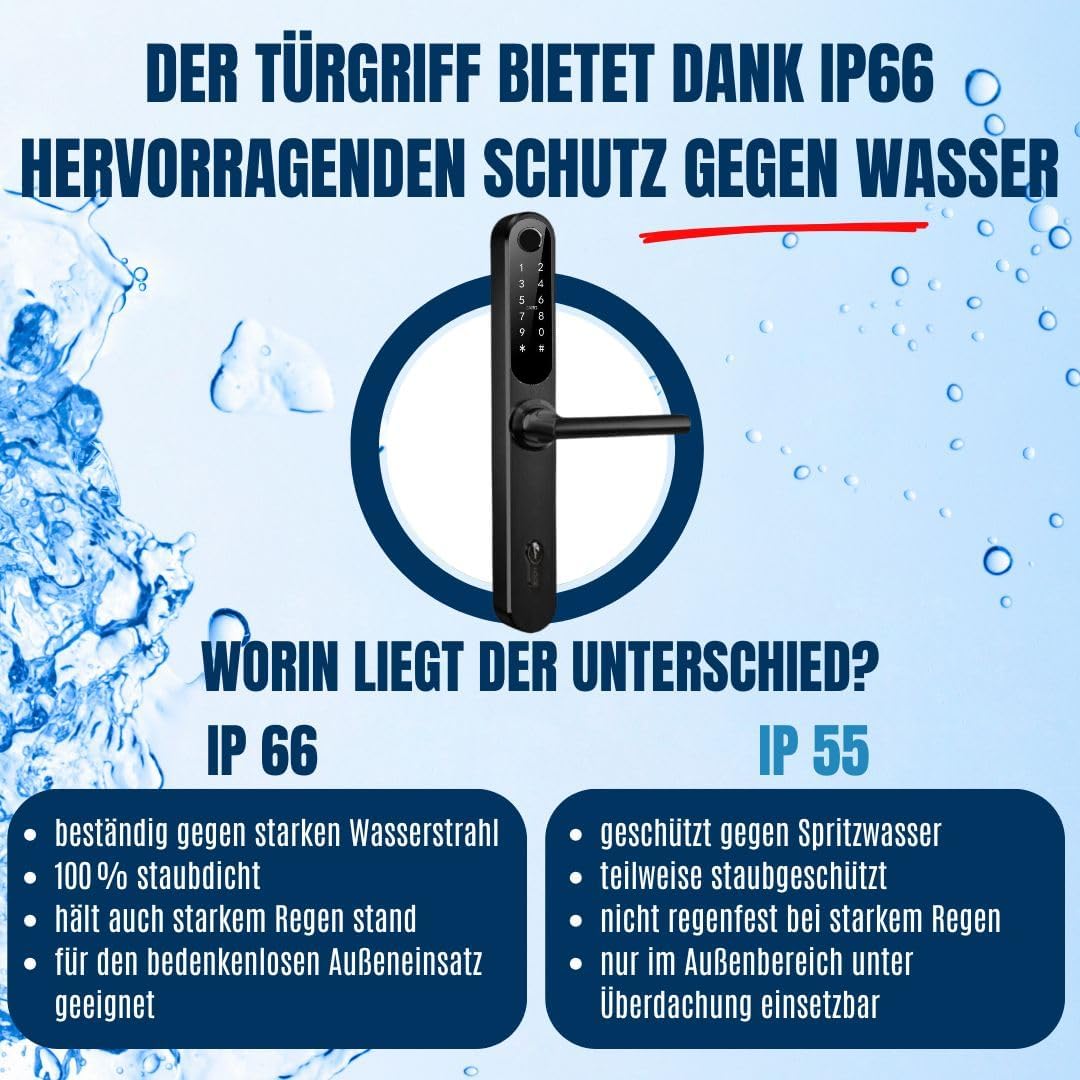
Image: An illustration comparing the IP66 and IP55 weather resistance ratings for door handles. It emphasizes that IP66 offers superior protection against strong water jets and is 100% dustproof, making it suitable for outdoor use, unlike IP55 which is only protected against splash water and not heavy rain.
8. Troubleshooting
| Problem | Possible Cause | Solution |
|---|---|---|
| Lock does not respond. | Low batteries; incorrect battery installation; system error. | Replace all 4 AA batteries. Ensure correct polarity. If problem persists, use mechanical key and contact support. |
| Fingerprint not recognized. | Finger not placed correctly; sensor dirty; unregistered fingerprint. | Ensure finger covers the sensor completely. Clean the sensor. Re-register fingerprint if necessary. |
| PIN code not working. | Incorrect code entered; code expired; keypad dirty. | Verify the PIN code. Check code validity in TTLock app. Clean keypad. |
| Cannot connect via Bluetooth. | Bluetooth off; too far from lock; app issue. | Ensure Bluetooth is on. Move closer to the lock. Restart the TTLock app or your phone. |
| Remote access not working. | Wi-Fi Gateway not connected; internet issue; gateway out of range. | Check Wi-Fi Gateway connection and internet access. Ensure gateway is within range of the lock. |
9. Specifications
| Feature | Detail |
|---|---|
| Model | H1 |
| Brand | BoT by BlueRoad |
| Dimensions (L x W x H) | 40 x 20 x 8 cm |
| Material | Stainless Steel |
| Color | Black |
| Power Supply | 4 x AA Batteries (not included) |
| Battery Life | Up to 10 months |
| Unlocking Methods | Fingerprint, PIN Code, RFID Card, TTLock App (Bluetooth), Mechanical Key, Remote (via Wi-Fi Gateway) |
| Fingerprint Capacity | Up to 200 |
| PIN Code Capacity | Up to 150 |
| RFID Card Capacity | Up to 200 |
| Connectivity | Bluetooth (Wi-Fi with optional Gateway) |
| Weather Resistance | IP66 (Dustproof, protected against strong water jets) |
| Door Thickness Compatibility | 35-75 mm |
| Adjustable Screw Distance | 175 mm - 230 mm |
| Applications | Home, Office, Garage, Rental Properties |
10. Warranty and Support
BoT by BlueRoad stands behind the quality of its products. For specific warranty details, please refer to the warranty card included with your purchase or visit the official BoT by BlueRoad website. If you encounter any issues or require technical assistance, please contact our customer support team. Have your model number (H1) and purchase details ready when contacting support.
Online Support: Visit the BoT by BlueRoad store on Amazon or their official website for FAQs and contact information.
Ask a question about this manual
Ask about setup, troubleshooting, compatibility, parts, safety, or missing instructions. Manuals+ will review the question and use this page’s manual context to help answer it.