
1. Introduction
1.1 Product Overview
The QUASIO LPK66 is a full-size wired USB keyboard designed for enhanced visibility and comfortable typing. It features large print keys, a 7-color adjustable backlight, and retro-style round keycaps. This keyboard is compatible with various operating systems and is suitable for users who benefit from oversized letters and illuminated keys.

Image 1.1: The QUASIO LPK66 Large Print Backlit Wired USB Keyboard, showcasing its design and illuminated keys.
1.2 Key Features
- Large Print Keys: Characters are 4 times larger than on traditional keyboards for improved readability.
- 7-Color Backlight: Features 7 distinct colors, 3 brightness levels, and 2 backlight modes for typing in various lighting conditions.
- Full-Size Ergonomic Design: Includes a numeric keypad and an ergonomic layout to reduce wrist fatigue.
- Retro Round Keycaps: Stylish design with removable keycaps for easy cleaning.
- Plug and Play: Simple USB-A connection requires no additional drivers.
- Wide Compatibility: Supports Windows XP/Vista/7/8/10/X, Mac, Chrome-book, PC, and Laptop systems.
- Quiet Typing: Effortless crater mechanism under each key provides a comfortable and silent typing experience.
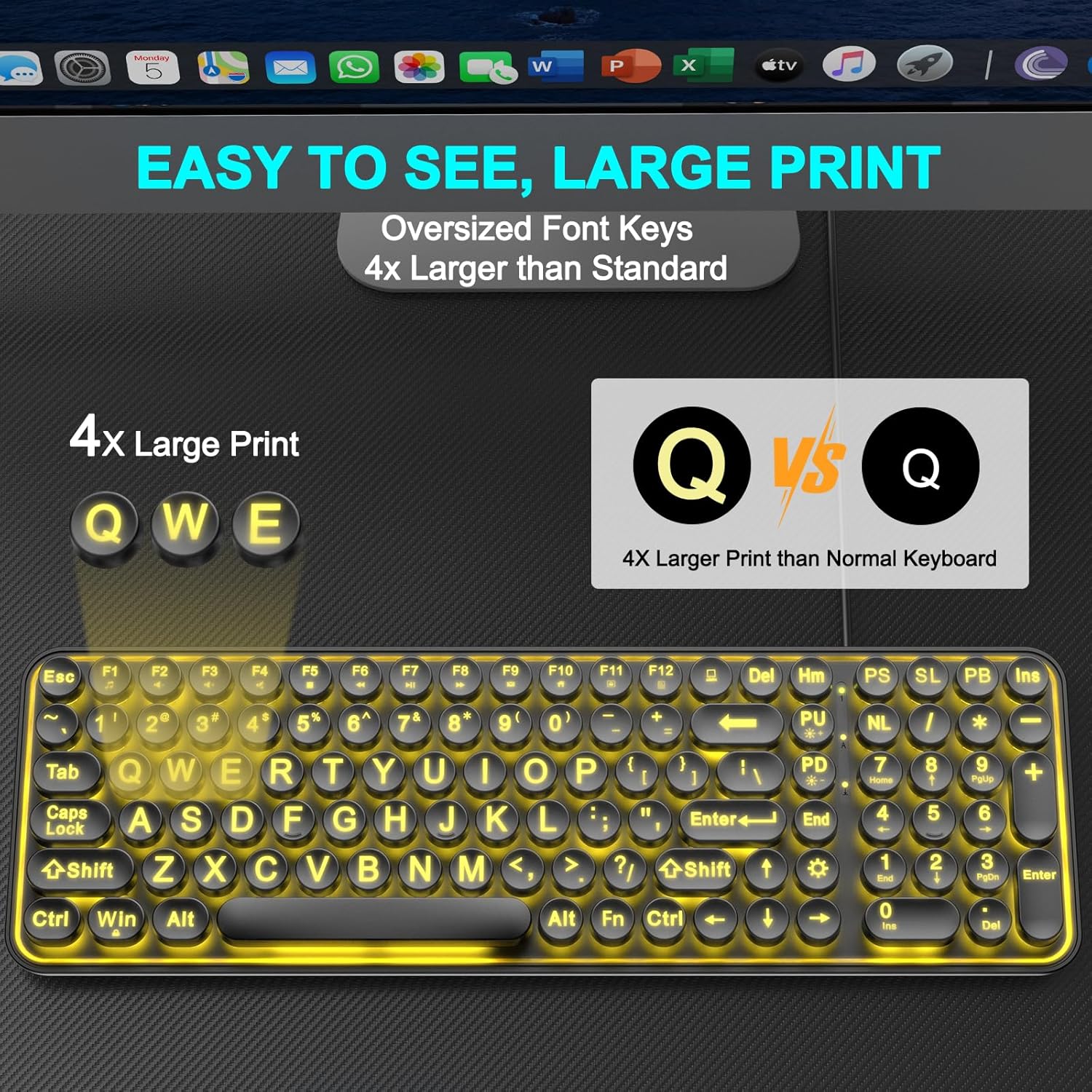
Image 1.2: A visual comparison highlighting the significantly larger print on the QUASIO LPK66 keyboard keys compared to standard keyboard keys.
2. Setup
2.1 Package Contents
Please verify that all items are present in your package:
- 1 x QUASIO LPK66 Keyboard
- 10 x Replacement Keycaps (for customization or replacement)
2.2 Connecting the Keyboard
The QUASIO LPK66 keyboard is a plug-and-play device, requiring no software installation.
- Locate an available USB-A port on your computer (desktop, laptop, or Chromebook).
- Insert the USB-A connector of the keyboard cable into the USB-A port.
- The operating system will automatically detect and install the necessary drivers. The keyboard will be ready for use within a few seconds.
Note: For optimal performance, connect the keyboard directly to a USB port on your computer. Connecting through a USB expansion hub may occasionally affect functionality.

Image 2.1: The USB-A connector, illustrating the simple plug-and-play connection process for the keyboard.
3. Operating Instructions
3.1 Basic Keyboard Functions
The QUASIO LPK66 functions as a standard full-size QWERTY keyboard. All keys operate as expected for typing text, numbers, and symbols. The numeric keypad on the right provides dedicated number entry.
3.2 Backlight Control
The keyboard features an adjustable 7-color backlight with multiple modes and brightness levels.
- Changing Backlight Color: Press the Fn key + Scroll Lock (SL) key to cycle through the 7 available backlight colors.
- Adjusting Brightness: Press the Fn key + Page Up (PU) to increase brightness, and Fn key + Page Down (PD) to decrease brightness. There are 3 adjustable brightness levels.
- Turning Backlight On/Off: Press the Fn key + Pause Break (PB) key to toggle the backlight on or off.

Image 3.1: The keyboard showcasing its ability to display 7 different backlight colors, allowing users to choose their preferred illumination.
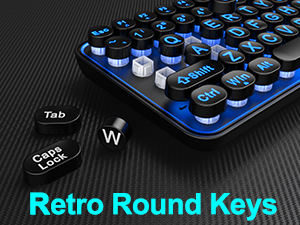
Image 3.2: A visual guide illustrating the use of the Fn key combined with Page Up (PU) and Page Down (PD) keys to adjust the backlight brightness through 3 levels.
3.3 Multimedia Functions
The keyboard includes 12 multimedia function shortcuts accessible via the Fn key in combination with the F1-F12 keys.
| Key Combination | Function |
|---|---|
| Fn + F1 | Music Player |
| Fn + F2 | Volume Down |
| Fn + F3 | Volume Up |
| Fn + F4 | Mute |
| Fn + F5 | Stop Playback |
| Fn + F6 | Previous Track |
| Fn + F7 | Play/Pause |
| Fn + F8 | Next Track |
| Fn + F9 | |
| Fn + F10 | Web Browser |
| Fn + F11 | Lock Keyboard |
| Fn + F12 | Calculator |

Image 3.3: A detailed diagram illustrating the 12 multimedia function shortcuts available by combining the Fn key with the F1-F12 keys.
4. Maintenance
4.1 Cleaning the Keyboard
Regular cleaning helps maintain the keyboard's performance and appearance.
- Disconnect the keyboard from your computer before cleaning.
- Use a soft, lint-free cloth slightly dampened with water or a mild cleaning solution to wipe the keycaps and surface.
- For dust and debris between keys, use compressed air.
- Avoid using harsh chemicals, abrasive cleaners, or excessive moisture.
4.2 Replacing Keycaps
The QUASIO LPK66 features removable round keycaps, allowing for deep cleaning or customization with the included spare keycaps.
- Gently pull the desired keycap upwards to remove it. A keycap puller (not included) can be used for easier removal.
- To replace, align the new keycap with the switch stem and press down firmly until it clicks into place.

Image 4.1: A close-up view of the retro round keycaps, demonstrating their removable nature for cleaning or replacement.
5. Troubleshooting
If you encounter issues with your QUASIO LPK66 keyboard, please refer to the following common problems and solutions:
- Keyboard Not Responding:
- Ensure the USB-A cable is securely plugged into a functioning USB port on your computer.
- Try connecting the keyboard to a different USB port.
- If using a USB hub, try connecting the keyboard directly to the computer's USB port.
- Restart your computer.
- Backlight Not Working:
- Ensure the backlight is not turned off. Press Fn + PB to toggle the backlight.
- Adjust the brightness using Fn + PU or Fn + PD.
- Keys Not Registering or Double Typing:
- Ensure the keycaps are properly seated. Remove and re-attach any problematic keycaps.
- Clean any debris or dust from under the keycaps using compressed air.
- Multimedia Keys Not Functioning:
- Ensure you are pressing the Fn key simultaneously with the desired F-key (F1-F12).
- Some operating systems or applications may require specific settings for multimedia keys. Check your system's keyboard settings.
6. Specifications
| Feature | Detail |
|---|---|
| Model Number | LPK66 |
| Connectivity Technology | USB-A (Wired) |
| Compatible Devices | Laptop, Notebook, Personal Computer, Chromebook |
| Operating Systems | Windows XP/Vista/7/8/10/X, Mac, Chrome OS |
| Keyboard Description | Spill Proof, Wired, Backlit (7 colors), Hotkeys and Media Keys, Large print keyboard |
| Special Features | Backlit, Ergonomic, Large Print, Quiet |
| Keyboard Backlighting Color Support | RGB (7 colors) |
| Material | Plastic |
| Item Weight | 1.17 pounds (approximately 530g) |
| Package Dimensions | 16.57 x 9.96 x 1.65 inches (42.1 x 25.3 x 4.2 cm) |
7. Warranty and Support
The QUASIO LPK66 keyboard comes with a 24-month support period from the date of purchase. If you experience any issues or have questions regarding your product, please contact QUASIO customer support through the retailer's platform or the official brand website for assistance. Please provide your purchase details and a description of the issue to facilitate a prompt resolution.