
PHILIPS 32M2C5501/00
PHILIPS Evnia 32M2C5501-32 Inch QHD Curved Gaming Monitor User Manual
Model: 32M2C5501/00
1. Introduction
Thank you for choosing the PHILIPS Evnia 32M2C5501-32 Inch QHD Curved Gaming Monitor. This manual provides essential information for setting up, operating, maintaining, and troubleshooting your new monitor. Please read it thoroughly before use to ensure optimal performance and safety.
Key Features:
- Curved Display Design: Experience an immersive viewing environment with the monitor's curved panel.
- 180Hz Refresh Rate: Enjoy ultra-smooth and brilliant images, crucial for fast-paced gaming.
- AMD FreeSync Premium: Synchronizes the display refresh rate with your graphics card, eliminating screen tearing and stuttering for fluid gameplay.
- Low Input Lag: Minimizes the delay between your input and the on-screen action, providing a competitive edge.
- Flicker-Free Technology: Reduces screen flickering to minimize eye strain during prolonged use.
- Quad HD (2560x1440) Resolution: Delivers sharp, detailed visuals with ample screen space.
- HDR Support: Enhances contrast and color for a more vibrant and realistic visual experience.

Figure 1.1: Front view of the Philips Evnia 32M2C5501 monitor, highlighting its 32-inch curved QHD display, 180Hz refresh rate, and HDR capabilities.
2. Safety Information
Please observe the following safety precautions to prevent damage to the monitor and to ensure your personal safety:
- Do not expose the monitor to rain or moisture.
- Do not open the monitor casing. There are no user-serviceable parts inside. Refer all servicing to qualified service personnel.
- Place the monitor on a stable, flat surface to prevent it from falling.
- Ensure proper ventilation around the monitor. Do not block ventilation openings.
- Use only the power adapter and cables supplied by the manufacturer.
- Disconnect the power plug from the wall outlet if the monitor will not be used for a long period.
- Avoid placing the monitor in direct sunlight or near heat sources.
3. Package Contents
Verify that all items are present and in good condition upon opening the package. If any items are missing or damaged, contact your retailer.
- PHILIPS Evnia 32M2C5501-32 Inch QHD Curved Gaming Monitor
- Monitor Stand (Base and Neck)
- Power Cable
- HDMI Cable
- DisplayPort Cable
- User Manual (this document)
4. Setup
4.1 Assembling the Stand
- Carefully place the monitor face down on a soft, clean surface to prevent scratches.
- Attach the stand neck to the back of the monitor, aligning the mounting holes. Secure with screws if provided.
- Attach the stand base to the bottom of the stand neck. Tighten the thumb screw or screws to secure the base.

Figure 4.1: Rear view of the Philips Evnia 32M2C5501 monitor, showing the clean design and the sturdy stand assembly area.
4.2 Connecting the Monitor
Connect the monitor to your computer or other devices using the appropriate cables.
- Power Connection: Connect the power cable to the monitor's power input and then to a wall outlet.
- Video Connection:
- HDMI: Connect one end of the HDMI cable to the monitor's HDMI port and the other end to your device's HDMI output. The monitor has two HDMI 2.0 ports.
- DisplayPort: Connect one end of the DisplayPort cable to the monitor's DisplayPort and the other end to your device's DisplayPort output.
- Audio Output: If you wish to use external speakers or headphones, connect them to the monitor's Audio Out jack.
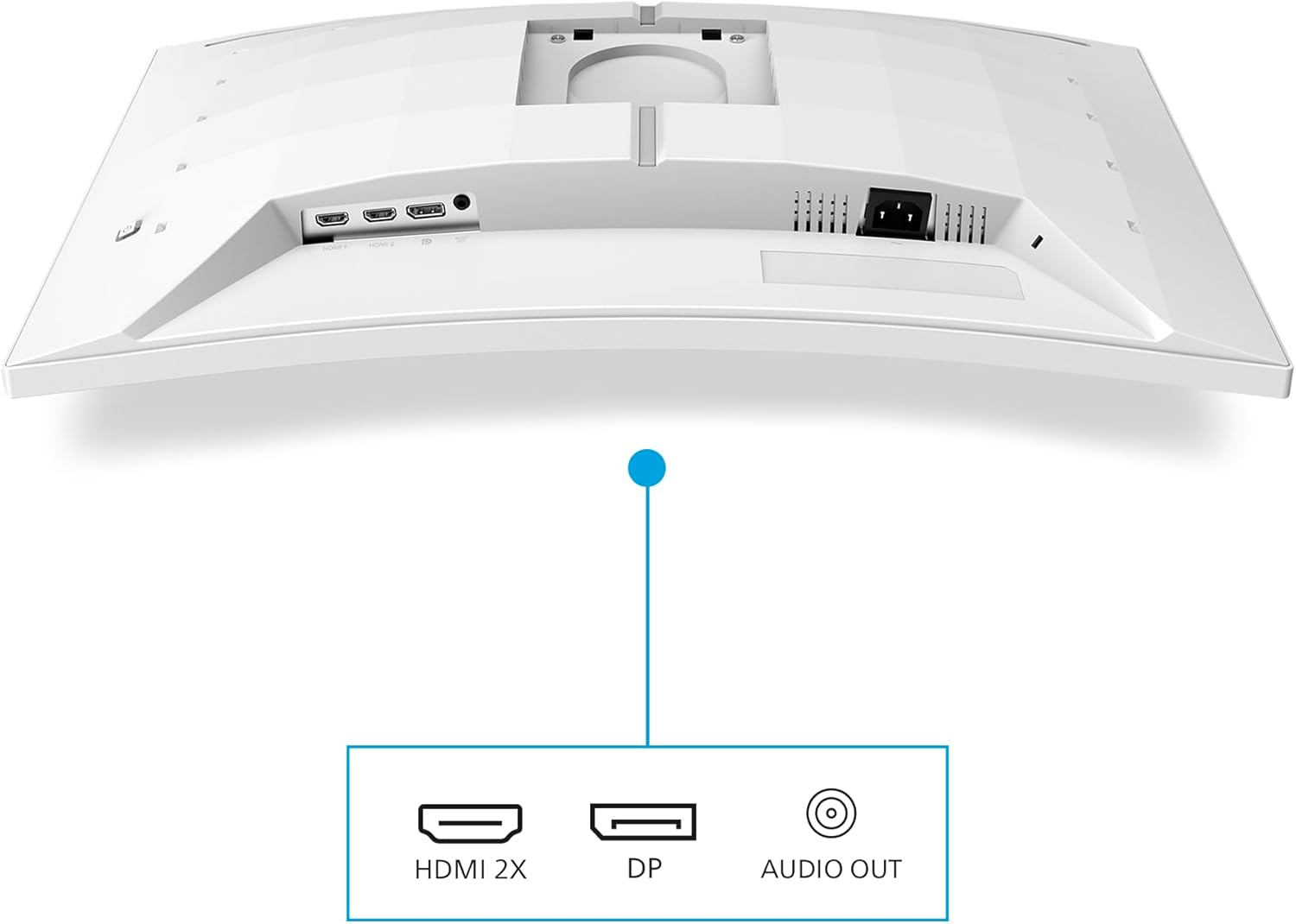
Figure 4.2: Close-up view of the input ports on the Philips Evnia 32M2C5501 monitor, including two HDMI ports, one DisplayPort, and an audio output jack.
4.3 Ergonomic Adjustments
The monitor offers various ergonomic adjustments for comfortable viewing:
- Height Adjustment: Adjust the monitor's height by gently pushing or pulling the display up or down. The monitor allows for 130mm of height adjustment.
- Tilt: Tilt the screen forward or backward to find your preferred viewing angle (-5° to 20°).
- Swivel: Rotate the monitor left or right on its base (+/- 30°).

Figure 4.3: Diagram illustrating the ergonomic adjustments of the Philips Evnia 32M2C5501 monitor, including height adjustment (130mm), tilt (-5° to 20°), and swivel (+/- 30°).
5. Operating the Monitor
5.1 Power On/Off
Press the power button, typically located on the back or bottom of the monitor, to turn it on or off. The power LED will indicate the monitor's status.
5.2 On-Screen Display (OSD) Menu
The monitor features an intuitive joystick control, usually located on the back, to navigate the OSD menu. This menu allows you to adjust various display settings.

Figure 5.1: Image showing the EasySelect Menu Toggle, a joystick control for navigating the On-Screen Display (OSD) menu.
Common OSD Menu Options:
- Picture: Adjust brightness, contrast, sharpness, and gamma.
- Color: Select color temperature, sRGB mode, or user-defined color settings.
- Audio: Control volume for the audio output.
- Input: Manually select the video input source (HDMI 1, HDMI 2, DisplayPort).
- OSD Settings: Adjust OSD language, transparency, and timeout.
- Setup: Access information about the monitor, reset settings, or enable/disable features like FreeSync.
5.3 Gaming Features
The PHILIPS Evnia monitor is equipped with features designed to enhance your gaming experience:
- 180Hz Refresh Rate: Provides incredibly smooth motion, reducing motion blur in fast-paced games.
- AMD FreeSync Premium: Automatically synchronizes the monitor's refresh rate with your AMD graphics card's frame rate, eliminating screen tearing and stuttering. Ensure this feature is enabled in your graphics card settings.
- Low Input Lag: Reduces the delay between your mouse/keyboard input and the corresponding action on screen, critical for competitive gaming.
- SmartImage Game Mode: Optimize display settings for different game genres (e.g., FPS, Racing, RTS) via the OSD menu.
- Ambiglow: This feature projects ambient light from the monitor's rear, matching the on-screen colors to enhance immersion and reduce eye strain in dark environments. Enable and customize Ambiglow settings in the OSD menu.

Figure 5.2: Comparison of 120Hz vs 180Hz refresh rates, showing smoother motion at higher refresh rates.

Figure 5.3: Illustration of low input lag, demonstrating reduced delay between input and on-screen action.

Figure 5.4: Image depicting the Ambiglow feature, which projects ambient light from the monitor's rear to enhance immersion.
5.4 Eye Care Features
- Flicker-Free Technology: This technology regulates brightness and reduces flickering, providing a more comfortable viewing experience and minimizing eye fatigue.
- LowBlue Mode: Reduces harmful shortwave blue light emissions, which can cause eye strain over long periods. Activate this mode via the OSD menu for improved eye comfort.

Figure 5.5: Image demonstrating Flicker-Free technology, which eliminates screen flickering for reduced eye strain.

Figure 5.6: Illustration of LowBlue Mode, showing reduced blue light emission for eye comfort.
6. Maintenance
6.1 Cleaning the Monitor
To ensure the longevity and optimal performance of your monitor, follow these cleaning guidelines:
- Always unplug the monitor from the power outlet before cleaning.
- Use a soft, lint-free cloth slightly dampened with water or a mild, non-abrasive screen cleaner.
- Do not spray cleaning solutions directly onto the screen. Apply to the cloth first.
- Wipe the screen gently to remove dust and smudges.
- For the monitor casing, use a soft, dry cloth. Avoid harsh chemicals or abrasive materials.
6.2 Storage
If storing the monitor for an extended period, disconnect all cables and pack it in its original packaging to protect it from dust and physical damage. Store in a cool, dry place.
7. Troubleshooting
If you encounter issues with your monitor, refer to the following common problems and solutions:
| Problem | Possible Solution |
|---|---|
| No image on screen |
|
| Image is blurry or distorted |
|
| Screen flickering |
|
| No audio from monitor's audio out |
|
| Monitor not detected by computer |
|
8. Specifications
| Feature | Specification |
|---|---|
| Model Number | 32M2C5501/00 |
| Screen Size | 32 inches |
| Panel Type | VA Curved |
| Resolution | 2560 x 1440 (QHD) |
| Aspect Ratio | 16:9 |
| Refresh Rate | 180Hz |
| Response Time | 0.5 ms (GtG) |
| Brightness | (Not specified in input, placeholder) |
| Contrast Ratio | High |
| Viewing Angles | (Not specified in input, placeholder) |
| Connectivity | 2x HDMI 2.0, 1x DisplayPort 1.4, Audio Out |
| Power Consumption | 31.4 Watts (typical) |
| Dimensions (W x H x D) | 70.9 x 51.9 x 25 cm (with stand) |
| Weight | 8 kg (with stand) |
| Color | White |
9. Warranty and Support
9.1 Warranty Information
Your PHILIPS Evnia monitor is covered by a limited warranty. Please refer to the warranty card included in your product packaging or visit the official Philips website for detailed warranty terms and conditions specific to your region.
9.2 Customer Support
For technical assistance, product inquiries, or service requests, please contact Philips customer support through their official website or the contact information provided in your warranty documentation. When contacting support, please have your monitor's model number (32M2C5501/00) and serial number ready.
You can find more information and support resources on the Philips Monitors website: www.philips.co.uk/c-m-pc/monitors
Related Documents - 32M2C5501/00
 |
Philips 32M2C5501 EVNIA Monitor User Manual This user manual provides comprehensive instructions for setting up, operating, and optimizing the Philips 32M2C5501 EVNIA monitor. It covers features like SmartImage, Ambiglow, HDR, AMD FreeSync, technical specifications, troubleshooting, and warranty information. |
 |
Philips 32M2C5501 User Manual - Curved Gaming Monitor Comprehensive user manual for the Philips 32M2C5501 EVNIA curved gaming monitor, covering setup, operation, image optimization, AMD FreeSync, Ambiglow, HDR, eye care features, technical specifications, power management, customer care, warranty, and troubleshooting. |
 |
Philips 32M2C5501 EVNIA Monitor User Manual Comprehensive user manual for the Philips 32M2C5501 EVNIA monitor, detailing setup, operation, features like SmartImage, AMD FreeSync, Ambiglow, HDR, technical specifications, troubleshooting, and warranty information. |
 |
Philips Evnia 32M2C5501 and 32M2C5591 Quick Start Guide Quick start guide for Philips Evnia 32M2C5501 and 32M2C5591 monitors. Includes setup, ergonomic adjustment, connectivity, and software instructions. |
 |
Philips Evnia 27M2C5201L: 27-inch Full HD 180Hz Curved Gaming Monitor Discover the Philips Evnia 27M2C5201L, a 27-inch Full HD curved VA gaming monitor designed for ultimate precision and speed. Featuring a 180Hz refresh rate, 0.5ms response time, AMD FreeSync, HDR support, and immersive features like ShadowBoost and Ambiglow, this monitor delivers an exceptional gaming experience. |
 |
Philips 34M2C8600/01 34-inch QD OLED Curved Gaming Monitor | Specifications and Features Explore the Philips 34M2C8600/01, a 34-inch QD OLED curved gaming monitor featuring UltraWide QHD resolution, 175Hz refresh rate, AMD FreeSync Premium Pro, and advanced features like Ambiglow and DisplayHDR True Black 400 for an immersive gaming experience. |
Ask a question about this manual
Ask about setup, troubleshooting, compatibility, parts, safety, or missing instructions. Manuals+ will review the question and use this page’s manual context to help answer it.