
Philips 27M2C5501/00
Philips Evnia 27M2C5501 27" LED Fast VA QHD 180Hz Curved Ambiglow Monitor User Manual
Model: 27M2C5501/00
Introduction
This manual provides essential information for the safe and efficient operation of your Philips Evnia 27M2C5501 monitor. Please read this manual thoroughly before using the product and retain it for future reference.
The Philips Evnia 27M2C5501 is a 27-inch curved LED monitor featuring Fast VA panel technology, QHD resolution, and a 180Hz refresh rate. It is designed to provide an immersive visual experience, with features like AMD FreeSync™ Premium for tear-free gaming and flicker-free technology to reduce eye strain during extended use.

Image: Front view of the Philips Evnia 27M2C5501 monitor, showcasing its curved display and sleek design.
Safety Information
Always observe the following safety precautions to prevent electric shock, injury, or damage to the monitor:
- Do not expose the monitor to rain or moisture.
- Do not open the monitor casing. There are no user-serviceable parts inside.
- Ensure proper ventilation around the monitor. Do not block ventilation openings.
- Use only the power cord and adapter supplied with the monitor.
- Place the monitor on a stable, flat surface to prevent it from falling.
- Unplug the monitor from the power outlet before cleaning.
Package Contents
Please check that all items are present in your package:
- Philips Evnia 27M2C5501 Monitor
- Monitor Stand (Base and Neck)
- Power Cable
- HDMI Cable
- DisplayPort Cable
- User Manual and Documentation
Setup
1. Assembling the Stand
- Carefully place the monitor face down on a soft, clean surface to prevent scratches.
- Attach the stand neck to the monitor's mounting area. Ensure it clicks securely into place or is fastened with screws as indicated in the quick start guide.
- Connect the stand base to the stand neck, securing it with the captive screw at the bottom of the base.

Image: Rear view of the monitor, illustrating the attachment point for the stand neck.

Image: Front view of the monitor with the stand fully assembled, ready for use.
2. Connecting to Your Device
The monitor supports HDMI and DisplayPort connections.
- HDMI Connection: Connect one end of the HDMI cable to the HDMI port on your computer's graphics card and the other end to one of the HDMI ports on the monitor.
- DisplayPort Connection: Connect one end of the DisplayPort cable to the DisplayPort on your computer's graphics card and the other end to the DisplayPort on the monitor.
- Audio Output: For external speakers or headphones, connect your audio device to the Audio Out port on the monitor.

Image: Detailed view of the monitor's input ports, including two HDMI ports, one DisplayPort, and an Audio Out jack.
3. Power Connection
Connect the power cable to the monitor's power input and then plug the other end into a grounded electrical outlet.
Operating the Monitor
Powering On/Off
Press the power button, usually located on the back or bottom right of the monitor, to turn the monitor on or off. The power indicator light will illuminate when the monitor is on.
On-Screen Display (OSD) Menu
The OSD menu allows you to adjust various monitor settings. Navigate the OSD using the joystick or buttons typically found on the back or bottom of the monitor.
- Picture Settings: Adjust brightness, contrast, sharpness, and color temperature.
- Input Selection: Manually switch between HDMI and DisplayPort inputs.
- Audio Settings: Control volume for the audio output.
- Ambiglow: Customize the ambient lighting feature.
- Gaming Settings: Enable/disable Adaptive Sync (AMD FreeSync Premium), adjust response time, and other gaming-specific features.
Ambiglow Feature
The Philips Ambiglow feature creates an immersive viewing experience by projecting a halo of light from the back of the monitor onto the surrounding wall. This light dynamically adapts to the on-screen content, enhancing perceived image depth and reducing eye strain in dark environments.
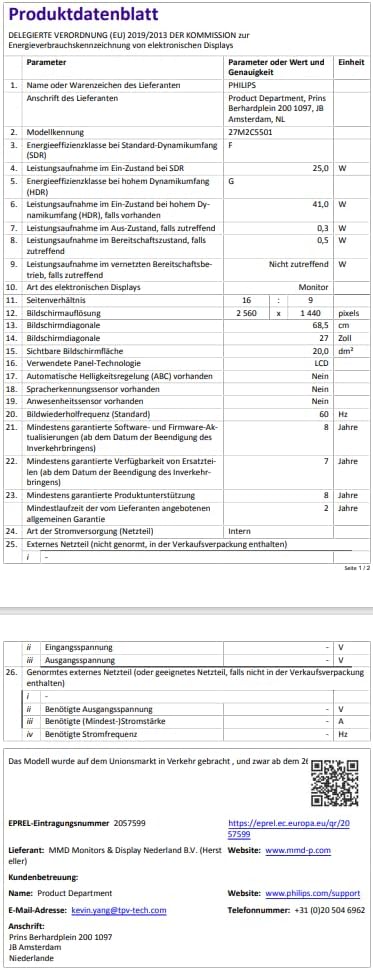
Image: Rear view of the monitor demonstrating the Ambiglow lighting feature in action, casting colored light onto the wall.
Monitor Adjustments
The monitor stand allows for various ergonomic adjustments:
- Height Adjustment: Raise or lower the monitor to your preferred viewing height.
- Tilt Adjustment: Tilt the screen forward or backward for optimal viewing angle (typically -5 to 20 degrees).
- Swivel Adjustment: Rotate the monitor horizontally on its base (typically +/- 30 degrees).

Image: Diagrams illustrating the range of height, tilt, and swivel adjustments available for the monitor.
Maintenance
Proper maintenance ensures the longevity of your monitor:
- Cleaning the Screen: Gently wipe the screen with a soft, lint-free cloth. For stubborn marks, use a monitor-specific cleaning solution applied to the cloth, not directly to the screen.
- Cleaning the Casing: Use a soft, dry cloth to wipe the monitor casing. Avoid abrasive cleaners.
- Storage: If storing the monitor for an extended period, unplug it and cover it to protect from dust. Store in a cool, dry place.
Troubleshooting
If you encounter issues with your monitor, refer to the following common problems and solutions:
| Problem | Possible Cause | Solution |
|---|---|---|
| No power | Power cable not connected; Power outlet not working | Ensure power cable is securely connected to monitor and outlet. Test outlet with another device. |
| No signal | Video cable not connected; Incorrect input selected | Check video cable connections (HDMI/DP). Use OSD to select correct input source. |
| Image flickering | Refresh rate mismatch; Cable issue | Ensure graphics card refresh rate matches monitor's 180Hz. Try a different video cable. |
| Distorted image | Resolution mismatch; Graphics driver issue | Set display resolution to 2560x1440. Update graphics drivers. |
If the problem persists after trying these solutions, please contact Philips customer support.
Specifications
| Feature | Detail |
|---|---|
| Brand | Philips |
| Model Number | 27M2C5501/00 |
| Screen Size | 27 Inches (68.5 cm) |
| Panel Type | Fast VA |
| Resolution | QHD Wide 1440p (2560 x 1440) |
| Refresh Rate | 180Hz |
| Aspect Ratio | 16:9 |
| Curvature | Curved |
| Connections | 2x HDMI, 1x DisplayPort, Audio Out |
| Power Consumption (Typical) | 24.7 Watt |
| Energy Efficiency Class | F |
| Special Features | Ambiglow, AMD FreeSync Premium, Flicker-Free, Adaptive Sync |
| Country of Origin | China |

Image: EU Energy Label for the Philips Evnia 27M2C5501 monitor, indicating an energy efficiency class of F.
For detailed product information, refer to the EPREL database.
Warranty and Support
Philips provides comprehensive support for your monitor:
- General Guarantee: Minimum 2 years from the date of purchase.
- Product Support: Minimum 8 years of guaranteed product support.
- Spare Parts Availability: Minimum 7 years of guaranteed spare parts availability from the end of market placement.
- Software/Firmware Updates: Minimum 8 years of guaranteed software and firmware updates from the end of market placement.
Customer Support Contact Information:
- Manufacturer: Philips
- Product Department: MMD Monitors & Display Nederland B.V.
- Address: Prins Bernhardplein 200 1097 JB Amsterdam, NL
- Email: kevin.yang@tpv-tech.com
- Website: www.philips.com/support
- Telephone: +31 (0)20 504 6962
Ask a question about this manual
Ask about setup, troubleshooting, compatibility, parts, safety, or missing instructions. Manuals+ will review the question and use this page’s manual context to help answer it.