
Introduction
Thank you for choosing the Generic H1000 Portable Document Scanner. This high-speed, versatile scanner is designed to efficiently digitize various documents, books, photos, and 3D objects. This manual provides essential information for proper setup, operation, and maintenance to ensure optimal performance and longevity of your device.
1. Setup
1.1 Unpacking and Components
Carefully unpack your scanner and ensure all components are present. The package should include:
- 1 x Foldable Scanner Unit
- 1 x USB Cable
- 1 x Scanning Mat
1.2 Hardware Connection
- Place the scanning mat on a flat, stable surface.
- Unfold the scanner unit and place it on the designated area of the scanning mat.
- Connect the scanner to your computer using the provided USB 2.0 cable.

Image: The Generic H1000 Document Scanner set up with a laptop, demonstrating the connection and scanning process.
1.3 Software Installation
The operating software can be downloaded. Please refer to the included manual (if physical) or the manufacturer's website for the download link.
- Download the software package to your computer.
- Run the installer and follow the on-screen instructions.
- The software supports multiple languages, including German, Russian, French, Japanese, Spanish, Italian, and English.
- After installation, launch the software to ensure proper communication with the scanner.
2. Operating Instructions
2.1 Basic Scanning Procedure
- Ensure the scanner is connected and the software is running.
- Place the document or object you wish to scan on the scanning mat, centered under the scanner's camera.
- In the software interface, select your desired scanning mode (e.g., document, book, photo).
- Click the "Scan" or "Capture" button. The scanner features 1-second high-speed scanning for quick digitization.
- The scanned image will appear in the software for preview and further processing.
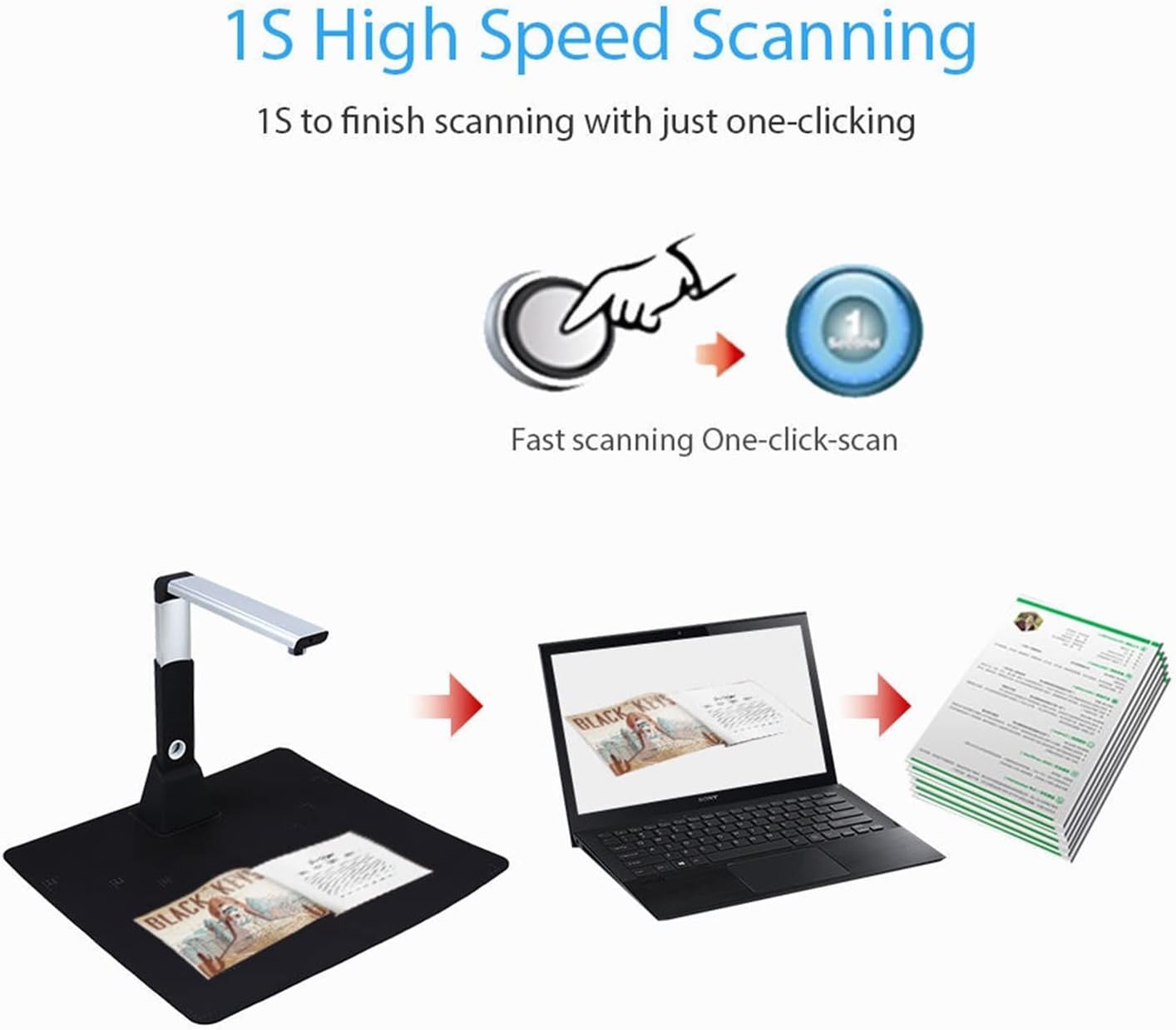
Image: Illustration of the 1-second high-speed scanning feature, activated with a single click.
2.2 Scanning Various Document Types
The H1000 scanner is capable of scanning a wide range of materials:
- Documents: A3, A4, A5, A6, A7 sizes.
- Books: The unique downward-facing lens design is ideal for scanning books without damaging the spine.
- Photos: Digitize your physical photographs.
- ID Cards/Receipts: Capture small items like identification cards, invoices, and receipts.
- 3D Objects: Scan small three-dimensional objects.
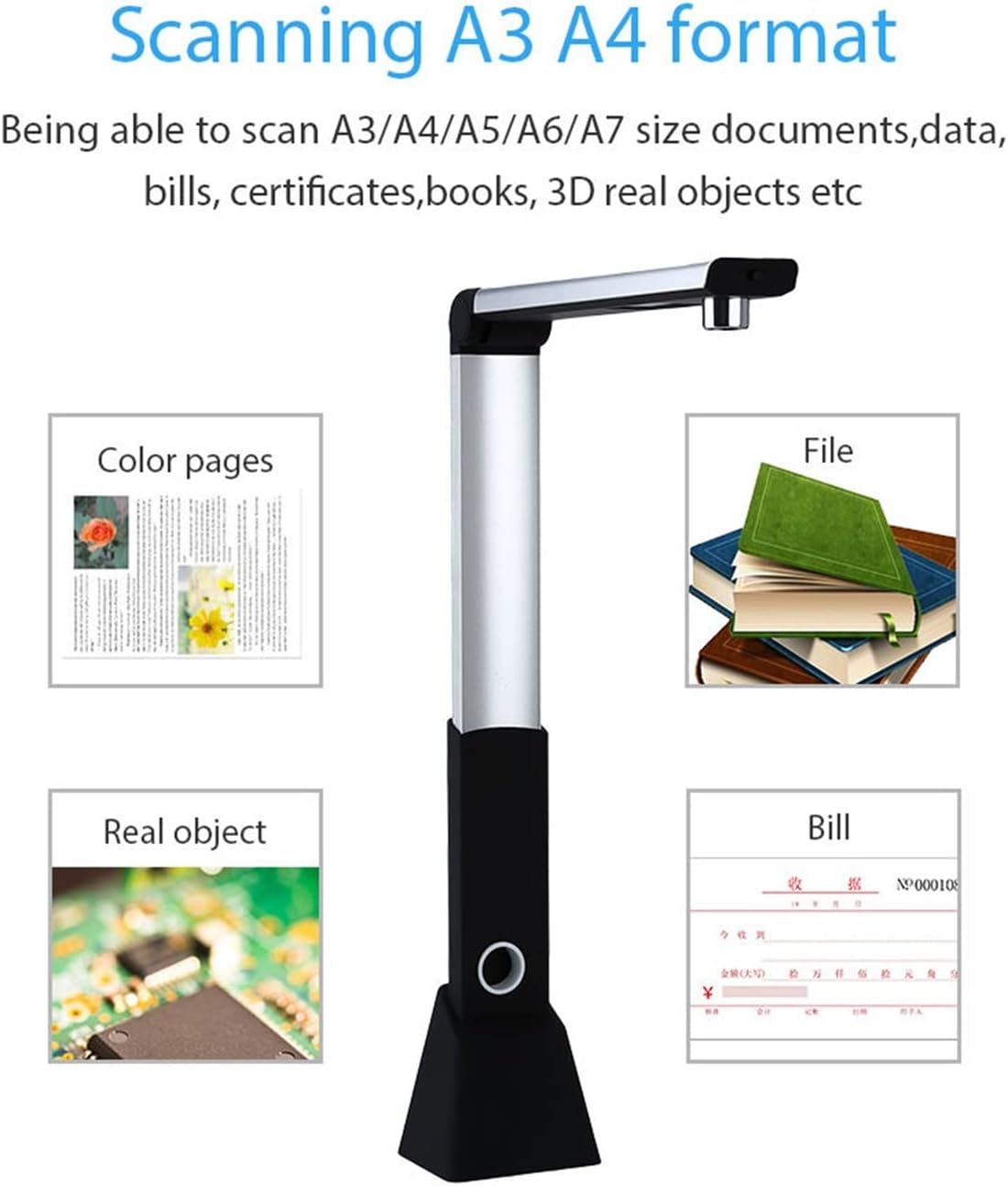
Image: Visual representation of the scanner's versatility, showing it can scan color pages, files, real objects, and bills across A3, A4, A5, A6, and A7 formats.
2.3 Advanced Features
- Timing Shooting/Fast Copying: Set an interval time for automatic, continuous scanning, useful for multi-page documents or books.
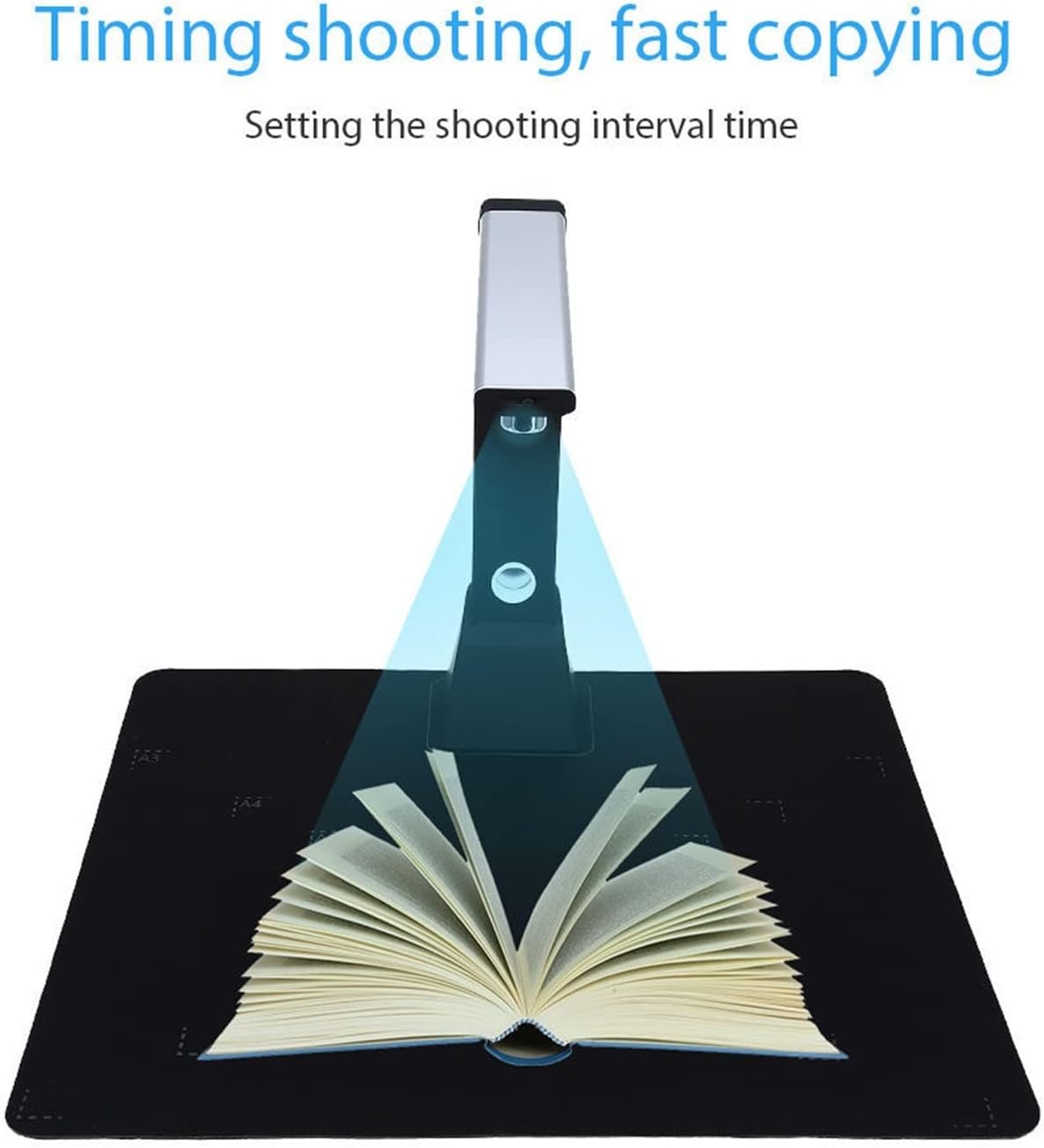
Image: The scanner positioned over an open book, demonstrating the "Timing shooting, fast copying" function by setting a shooting interval.
- OCR (Optical Character Recognition): Convert scanned images of text into editable and searchable text documents.
- Barcode Recognition: Automatically recognize and extract information from barcodes.
- Video Recording: Utilize the scanner's camera to record video, useful for demonstrations or tutorials.
- Whiteboard Display Function: Project scanned content or live camera feed onto a monitor or projector for presentations.
- Image Processing: The software offers various editing tools including:
- Automatic error correction
- Smart cropping and rotation
- Smart pagination and merging
- Saturation, contrast, and binarization adjustment
- Watermark settings
- Image quality compression
- Export Formats: Export scanned documents to various formats, including PDF.
3. Maintenance
To ensure the longevity and optimal performance of your H1000 scanner, follow these maintenance guidelines:
- Cleaning: Use a soft, dry, lint-free cloth to gently wipe the scanner's exterior. For the camera lens, use a specialized lens cleaning cloth and solution if necessary. Avoid abrasive cleaners or solvents.
- Storage: When not in use, fold the scanner for compact storage. Store it in a cool, dry place away from direct sunlight and extreme temperatures.
- Software Updates: Periodically check the manufacturer's website for software updates to ensure you have the latest features and bug fixes.
- Handling: Handle the scanner with care. Avoid dropping it or subjecting it to strong impacts.
4. Troubleshooting
If you encounter issues with your H1000 scanner, refer to the following common problems and solutions:
- Scanner not recognized by computer:
- Ensure the USB cable is securely connected to both the scanner and the computer.
- Try a different USB port on your computer.
- Restart your computer and the scanner software.
- Verify that the scanner drivers are correctly installed. Reinstall the software if necessary.
- Poor image quality:
- Ensure the document or object is placed flat and centered on the scanning mat.
- Check for sufficient lighting. The scanner has natural light and LED supplement light.
- Clean the camera lens if it appears dirty.
- Adjust image settings (focus, exposure, sharpness, contrast) within the software. The scanner features manual focus.
- Software crashes or freezes:
- Close and restart the software.
- Ensure your computer meets the minimum system requirements for the software.
- Check for and install any available software updates.
If the problem persists, please contact customer support for further assistance.
5. Specifications
| Model | H1000 (CADCYLJED) |
| Resolution | 10.0 Megapixel (3672 * 2856) |
| Scan Type | Documents, Files, Invoices, Books, Photos, ID Cards, 3D Objects |
| Scan Size | A3, A4, A5, A6, A7 |
| Image Format | JPEG, GIF, BMP, TIF, PDF |
| Color Type | Color, Black-White, Grayscale |
| Scan Speed | Less than 1 second |
| Color Depth | 24 bits |
| Focus | Manual Focus |
| Light Source | Natural Light + LED Supplement Light |
| Interface | USB 2.0 |
| Software Development Kit (SDK) | Provided (API and control) |
| Weight | 1000 Grams |
| Dimensions (Folded) | Approx. 31 cm (H) x 8.2 cm (W) x 6.5 cm (D) |
| Dimensions (Unfolded) | Approx. 31 cm (H) x 24.3 cm (W) x 6.5 cm (D) |

Image: A detailed view of the scanner's 10.0 Megapixel HD camera and built-in LED lights.

Image: Dimensions of the scanner in both folded and unfolded states, highlighting its portable design.
6. Warranty and Support
For warranty information, please refer to the documentation included with your purchase or contact the retailer.
For technical support or further inquiries, please visit the manufacturer's website or contact their customer service department.