Introduction
This manual provides detailed instructions for the NIZUUONE 61-Key RGB Mechanical Keyboard. This compact keyboard features customizable RGB backlighting, multiple connection modes including 2.4G wireless, Bluetooth 3.0/5.0, and wired USB-C, and an ergonomic design for comfortable use. It is compatible with various operating systems, offering versatility for different devices and platforms.
Package Contents
Please verify that all items are present in the package:
- NIZUUONE 61-Key Mechanical Keyboard
- 2.4G Wireless Adapter
- Key Puller
- USB-C Data Cable
- User Manual (this document)

The image above displays the mechanical keyboard alongside its essential accessories: a USB-C data cable for wired connection and charging, a 2.4G wireless adapter for wireless connectivity, and a key puller for easy keycap removal and maintenance.
Setup
Before first use, it is recommended to fully charge the keyboard using the provided USB-C cable.
- Charging the Keyboard: Connect the USB-C end of the data cable to the keyboard's USB-C port and the other end to a USB power source (e.g., computer USB port, wall adapter). The charging indicator will show the charging status.
- Wired Connection: Connect the USB-C data cable directly from the keyboard to your computer's USB port. The keyboard will be recognized automatically.
- 2.4G Wireless Connection:
- Insert the 2.4G wireless adapter into an available USB port on your computer.
- Ensure the keyboard is in 2.4G mode (refer to the 'Operating Instructions' section for mode switching).
- The keyboard should connect automatically.
- Bluetooth Connection:
- Ensure the keyboard is in Bluetooth mode (refer to the 'Operating Instructions' section for mode switching).
- On your device (computer, tablet, phone), open Bluetooth settings and search for new devices.
- Select 'NIZUUONE Keyboard' (or similar name) from the list to pair.

This image highlights the USB-C port located on the keyboard, which is used for both wired connectivity to a device and for recharging the keyboard's internal battery.
Operating Instructions
The NIZUUONE mechanical keyboard offers various functions and customizable settings.
Connection Mode Switching
The keyboard supports three connection modes: Wired (USB-C), 2.4G Wireless, and Bluetooth. Use the function key combinations to switch between modes:
- Wired Mode: Connect the USB-C cable. The keyboard will automatically switch to wired mode.
- 2.4G Wireless Mode: Press Fn + 2.4G key (often marked with a wireless icon or '2.4G'). Ensure the 2.4G adapter is plugged into your device.
- Bluetooth Mode: Press Fn + BT key (often marked with a Bluetooth icon or 'BT'). The keyboard will enter pairing mode.
RGB Lighting Control
The keyboard features multiple RGB lighting modes. Use the following key combinations to adjust the lighting:
- Change Lighting Mode: Press Fn + RGB key (often marked with an RGB icon or 'RGB'). Repeated presses cycle through available lighting effects.
- Adjust Brightness: Press Fn + Up Arrow to increase brightness, Fn + Down Arrow to decrease brightness.
- Adjust Speed: Press Fn + Left Arrow to decrease effect speed, Fn + Right Arrow to increase effect speed.
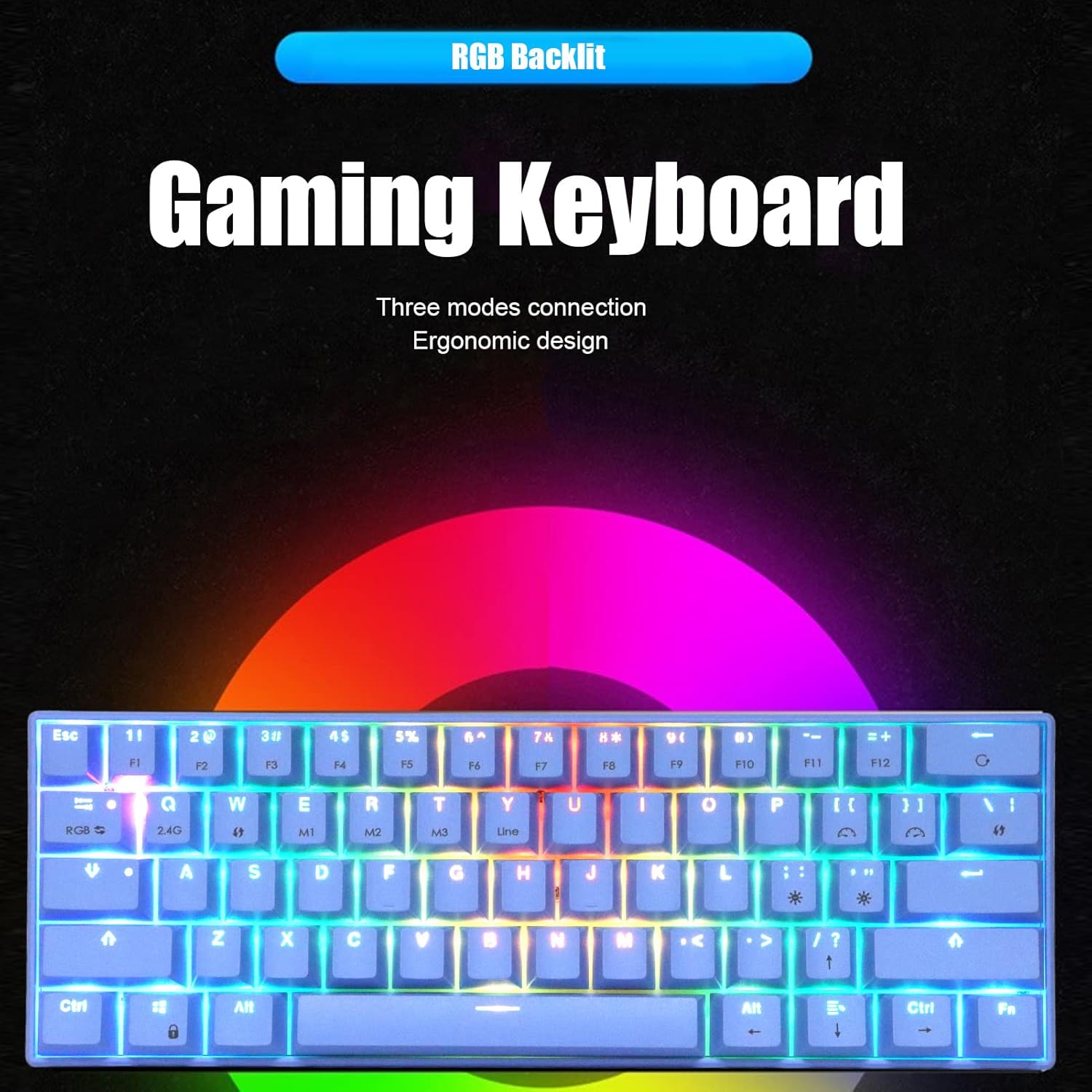
This image illustrates the keyboard with its RGB backlighting active, drawing attention to the keys that control connection modes (like '2.4G') and RGB lighting effects.
Multimedia and Function Keys
Many keys have secondary functions accessible by holding the Fn key and pressing the corresponding key. These include multimedia controls, volume adjustments, and other system functions. Refer to the keycap legends for specific functions (e.g., Fn + F1-F12, or other marked keys).

This close-up image shows various keys on the keyboard, highlighting the secondary functions printed on them, which are typically accessed by pressing the 'Fn' key simultaneously.
Maintenance
Proper maintenance ensures the longevity and optimal performance of your keyboard.
- Cleaning: Use a soft, dry cloth to wipe the keyboard surface. For deeper cleaning, use the provided key puller to remove keycaps and clean dust or debris from beneath. Avoid using harsh chemicals or abrasive materials.
- Battery Care: The keyboard has an inbuilt 1800mAh lithium battery. To prolong battery life, avoid fully discharging the keyboard frequently and store it in a cool, dry place when not in use for extended periods.
- Keycap Removal: Gently use the key puller to remove keycaps. Hook the puller onto two opposite sides of a keycap and pull straight up. Be careful not to damage the switch.

This image provides a detailed view of the blue mechanical switches, visible after keycaps have been removed, illustrating the components that can be accessed for cleaning or customization.
Troubleshooting
If you encounter issues with your keyboard, refer to the following common solutions:
- Keyboard Not Responding:
- Ensure the keyboard is charged.
- Check the connection mode (Wired, 2.4G, Bluetooth) and ensure it matches your device's connection.
- For 2.4G, ensure the adapter is securely plugged in. For Bluetooth, ensure it's paired correctly.
- Try connecting via USB-C cable to rule out wireless issues.
- Keys Not Working:
- Remove the keycap using the key puller and check for any debris obstructing the switch.
- Ensure the keyboard is not in a locked mode (e.g., Fn+Win key lock).
- RGB Lighting Not Working/Incorrect:
- Ensure the keyboard is powered on.
- Cycle through lighting modes using Fn + RGB key.
- Adjust brightness using Fn + Up/Down Arrow.
- Bluetooth Disconnection:
- Ensure the keyboard is within range of your device.
- Re-pair the keyboard with your device.
- Check for interference from other wireless devices.
Specifications
| Model Number | NIZUUONEfbkzx53w82-12 |
| Material | ABS |
| Keyboard Axis | Blue Switch (This variant) |
| Connection Modes | 2.4G Wireless, Bluetooth 3.0, Bluetooth 5.0, USB-C Wired |
| Lighting | RGB Multiple Luminous Modes |
| Key Conflict | Full Key Conflict |
| Battery Capacity | Inbuilt 1800mAh Lithium Battery |
| Ergonomics | Supported |
| Operating Current | 300mA (Maximum) |
| Standby Current | 0.5mA |
| Compatible Systems | Windows 2000, Windows ME, Windows XP, Windows Vista, Windows 7, HarmonyOS, Windows 8, Windows 10, macOS, iOS |
| Package Dimensions | 13.39 x 5.91 x 1.97 inches |
| Item Weight | 1.43 pounds |
Warranty and Support
This product comes with a standard manufacturer's warranty. For specific warranty details, technical support, or customer service inquiries, please refer to the documentation provided at the time of purchase or contact your retailer. You may also visit the official NIZUUONE website for further assistance.