
1. Product Overview
The 5G CPE 5 Router (Model H155-383) is a high-performance wireless device designed to provide fast and stable internet connectivity using 5G cellular networks. It supports all major network providers and is ideal for home, business, and gaming use, offering extensive coverage and high data transfer rates.

Figure 1.1: Front view of the 5G CPE 5 Router, showing the 'stc' logo and indicator lights for 5G, 4G, and Status.
2. Key Features
- 5G Compatibility: Compatible with 5G frequencies, offering download speeds up to 3.6 Gbps and upload speeds up to 500 Mbps.
- Universal Network Support: Supports all networks for broad compatibility.
- Efficient Cooling: Features a noiseless cooling fan for optimal performance.
- Extended Coverage: Designed to provide wider coverage with stronger signals.
- Wi-Fi 6 Technology: Supports dual-band Wi-Fi 6 technology with speeds up to 3000 Mbps.
- Multiple Connectivity Options: Equipped with one LAN port and one Gigabit Ethernet port.
- High User Capacity: Supports up to 128 connected users simultaneously.
- Enhanced Reception: Features a 5G reception antenna with up to 11 dB reception coverage.
- Turbo Rate Technology: Provides stable and high-speed Wi-Fi connection, ideal for online gaming.
3. Setup Guide
3.1 Package Contents
Before you begin, ensure all components are present:
- 5G CPE 5 Router (H155-383)
- Power Adapter/Charger
- Ethernet Cable
3.2 SIM Card Installation
- Locate the SIM card slot on the router. This model uses a Nano SIM card.
- Gently insert your Nano SIM card into the slot until it clicks into place. Ensure the SIM card is oriented correctly as indicated by the diagram near the slot.
3.3 Power Connection
- Connect the power adapter to the router's power input port.
- Plug the other end of the power adapter into a standard electrical outlet.
- The router will automatically power on. Wait for the indicator lights on the front panel to stabilize.
3.4 Initial Configuration
Upon first power-on, the router will attempt to connect to the cellular network. The default Wi-Fi network name (SSID) and password can be found on a label at the bottom of the router.
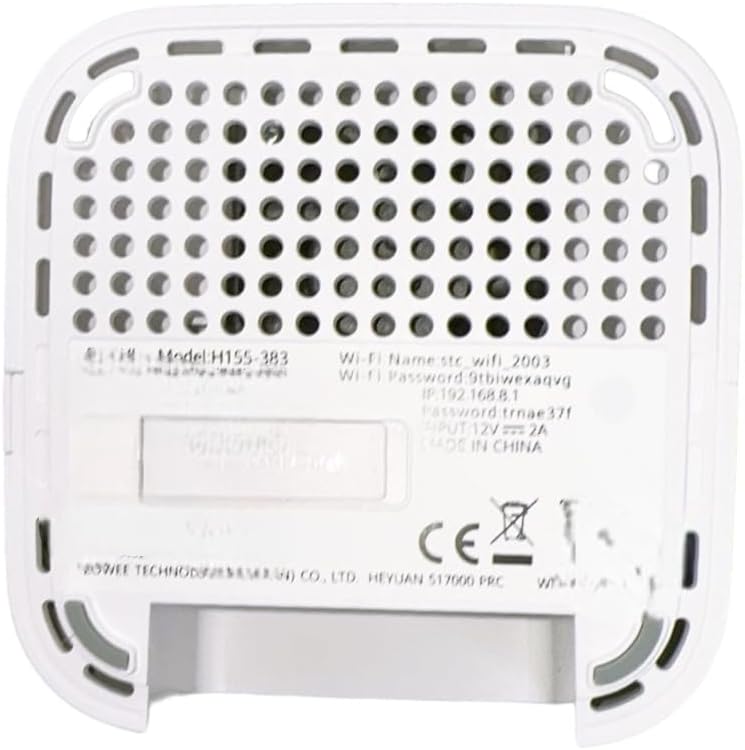
Figure 3.1: Bottom view of the router, displaying the model number (H155-383), default Wi-Fi name (stc_wifi_2003), Wi-Fi password (Stbiwexaqvg), and IP address (192.168.8.1).
To access the router's web interface for advanced settings, open a web browser and enter the IP address 192.168.8.1 (as shown on the bottom label).
4. Operating Instructions
4.1 Connecting Devices
You can connect devices to the router via Wi-Fi or Ethernet cable.
- Wi-Fi Connection: On your device (smartphone, tablet, PC), search for available Wi-Fi networks. Select the network name (SSID) found on the router's bottom label (e.g., 'stc_wifi_2003') and enter the corresponding password (e.g., 'Stbiwexaqvg').
- Ethernet Connection: Use the provided Ethernet cable to connect a device (e.g., desktop computer, gaming console) to one of the LAN ports on the back of the router.

Figure 4.1: Back view of the 5G CPE 5 Router, highlighting the three Ethernet ports, power input, and reset button.
4.2 Indicator Lights
The front panel of the router features several indicator lights that provide information about its status:
- 5G Indicator: Lit when connected to a 5G network.
- 4G Indicator: Lit when connected to a 4G network.
- Status Indicator: Indicates the overall operational status of the router (e.g., solid for normal operation, blinking for activity). Refer to the full manual for detailed light patterns.
5. Maintenance
To ensure optimal performance and longevity of your 5G CPE 5 Router, follow these maintenance guidelines:
- Cleaning: Regularly wipe the router with a soft, dry cloth. Do not use liquid cleaners or aerosols.
- Ventilation: Ensure the router is placed in a well-ventilated area to prevent overheating. Do not block the ventilation holes.
- Firmware Updates: Periodically check the manufacturer's website for firmware updates. Keeping the firmware updated can improve performance, security, and add new features.
- Restarting: If you experience connectivity issues, try restarting the router by unplugging the power adapter for 10 seconds and then plugging it back in.
6. Troubleshooting
This section addresses common issues you might encounter with your router.
6.1 No Internet Connection
- Check SIM Card: Ensure the SIM card is correctly inserted and active with your service provider.
- Network Signal: Verify that the 5G/4G indicator light is on, indicating a network connection. If not, try relocating the router to an area with better signal.
- Restart Router: Power cycle the router by unplugging and replugging the power adapter.
- Check Data Plan: Confirm your data plan is active and has not exceeded its limit.
6.2 Slow Internet Speed
- Signal Strength: Place the router in an open area, away from obstructions and other electronic devices that may cause interference.
- Number of Users: Too many devices connected simultaneously can reduce speed. The router supports up to 128 users, but performance may vary with heavy usage.
- Wi-Fi Interference: Change the Wi-Fi channel in the router's settings to avoid interference from neighboring networks.
- Firmware Update: Ensure your router's firmware is up to date.
6.3 Cannot Connect to Wi-Fi
- Correct Password: Double-check that you are entering the correct Wi-Fi password.
- Router Range: Ensure your device is within the router's Wi-Fi range.
- Restart Devices: Restart both your router and the device you are trying to connect.
7. Specifications
| Feature | Detail |
|---|---|
| Model Number | H155-383 |
| Brand | Generic |
| Connectivity Technology | 5G, Ethernet, Wi-Fi |
| Wireless Communication Standard | 802.11a |
| Frequency Band Class | Quad-Band |
| Compatible Devices | Tablet, Personal Computer, Smartphone |
| Recommended Uses | Gaming, Business, Home |
| Included Components | Charger, Ethernet Cable |
| Color | White |
| Shipping Dimensions | 20.3 x 17.9 x 10.1 cm |
| Item Weight | 250 grams |
| Manufacturer | China |
| First Available Date | August 24, 2024 |
8. Warranty and Support
For warranty information and technical support, please refer to the documentation provided with your purchase or visit the manufacturer's official website. Keep your proof of purchase for warranty claims.