
SDR987
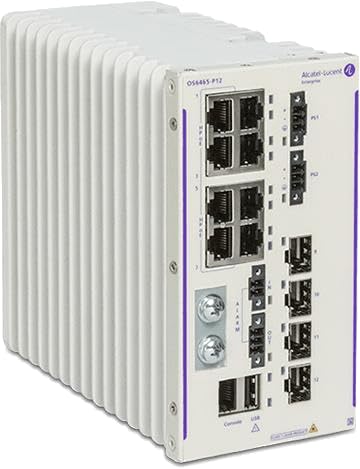
Alcatel OmniSwitch 6465 Hardened Ethernet Switch
Model: SDR987 - User Manual
1. Introduction
The Alcatel OmniSwitch 6465 is a series of hardened industrial Ethernet switches designed for demanding environments. These switches are engineered to provide high security, reliability, performance, and ease of management, making them ideal for a wide range of industrial applications such as intelligent transportation, railway systems, and electrical substations.
Built to operate in extended temperature ranges and offering enhanced EMI/EMC tolerance and surge protection, the OmniSwitch 6465 ensures robust and continuous network connectivity for critical infrastructure. Its DIN rail mountable design facilitates easy integration into industrial control cabinets.
Key Features
- Ideal for all types of Power over Ethernet (PoE) application requirements, including outdoor wireless access points, PTZ surveillance cameras, and video displays.
- Operates across a wider temperature range and withstands greater shock, vibrations, surge, and EMI/EMC variance.
- Includes alarm relays for connection to external alarm systems, enhancing system monitoring.
- Field-upgradable and features a highly redundant network solution to maximize network uptime.
- Provides precise nanosecond time synchronization for time-sensitive applications.
- Supports out-of-the-box Zero-touch provisioning and network automation for simplified deployment.
2. Safety Information
Please read all safety instructions carefully before installing, operating, or maintaining the Alcatel OmniSwitch 6465. Failure to follow these instructions may result in injury, damage to the product, or property damage.
- Electrical Safety: Ensure that the power source matches the voltage requirements specified for the device. Disconnect power before performing any installation or maintenance.
- Grounding: The device must be properly grounded to prevent electrical shock.
- Environment: Install the switch in an environment that complies with the specified operating temperature and humidity ranges. Avoid exposure to excessive dust, moisture, or direct sunlight.
- Qualified Personnel: Installation and servicing should only be performed by qualified and authorized personnel.
- Ventilation: Ensure adequate airflow around the device to prevent overheating. Do not block ventilation openings.
3. Package Contents
Verify that all items listed below are present in your product package. If any items are missing or damaged, please contact your vendor immediately.
- Alcatel OmniSwitch 6465 Hardened Ethernet Switch
- Power Cable (region-specific)
- DIN Rail Mounting Kit
- Quick Start Guide
- Safety and Regulatory Information
4. Setup and Installation
4.1 Mounting the Switch
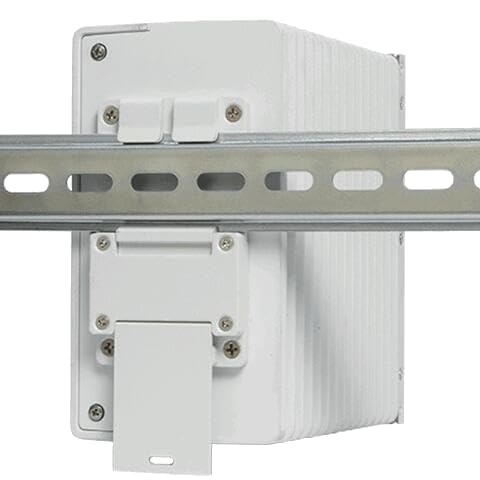
The Alcatel OmniSwitch 6465 is designed for DIN rail mounting. Follow these steps for secure installation:
- Ensure the DIN rail is securely fastened to a stable surface.
- Attach the DIN rail clip to the rear of the switch, if not already pre-installed.
- Hook the top edge of the DIN rail clip onto the top lip of the DIN rail.
- Push the bottom of the switch firmly towards the DIN rail until the clip snaps into place.
- Verify that the switch is securely mounted and does not wobble.
4.2 Power Connection
Connect the provided power cable to the power input port on the switch and then to a suitable AC power outlet. Ensure the power source meets the specified voltage and current requirements. The switch will power on automatically once connected.
4.3 Network Connection
Connect Ethernet cables from your network devices (e.g., computers, IP cameras, wireless access points) to the Ethernet ports on the switch. Use appropriate category cables (e.g., Cat5e, Cat6) for optimal performance.
4.4 Initial Configuration
For initial configuration and advanced management, connect a console cable to the console port on the switch and to a computer. Use a terminal emulation program (e.g., PuTTY, Tera Term) with the following settings:
- Baud Rate: 115200
- Data Bits: 8
- Parity: None
- Stop Bits: 1
- Flow Control: None
Refer to the comprehensive Alcatel-Lucent Enterprise documentation for detailed command-line interface (CLI) configuration instructions.
5. Operation
5.1 Basic Connectivity
Once powered on and connected, the Alcatel OmniSwitch 6465 will automatically establish network links. The switch operates as a Layer 2 Ethernet switch, forwarding data frames between connected devices based on MAC addresses.
5.2 Status Indicators
The front panel of the switch features LED indicators that provide real-time status information:
- Power LED: Indicates the power status of the device. (e.g., Solid Green: Power On)
- Link/Activity LEDs (per port): Indicate the link status and network activity for each Ethernet port. (e.g., Solid Green: Link Established; Blinking Green: Data Activity)
- Alarm LED: Indicates system alarms or errors. (e.g., Red: Critical Alarm)
Consult the full product documentation for a complete list and description of all LED indicators.
6. Maintenance
6.1 Cleaning
Periodically clean the exterior of the switch with a soft, dry cloth. Do not use liquid or aerosol cleaners. Ensure the device is powered off and disconnected from the power source before cleaning.
6.2 Firmware Updates
Regularly check the manufacturer's website for the latest firmware updates. Keeping the firmware up-to-date ensures optimal performance, security, and access to new features. Follow the provided instructions for firmware upgrade procedures, typically involving the console port or network management interface.
7. Troubleshooting
This section provides solutions to common issues you might encounter with the Alcatel OmniSwitch 6465.
| Problem | Possible Cause | Solution |
|---|---|---|
| No Power (Power LED Off) | Power cable disconnected; Power outlet fault; Device fault. | Check power cable connection; Test power outlet with another device; Contact support if problem persists. |
| No Network Link (Link LED Off) | Ethernet cable disconnected or faulty; Connected device off or faulty; Incorrect port configuration. | Verify Ethernet cable connection; Check status of connected device; Ensure port is enabled and configured correctly. |
| Slow Network Performance | Cable quality issues; Network congestion; Duplex mismatch; Firmware outdated. | Use high-quality Ethernet cables; Check network traffic; Verify duplex settings; Update firmware. |
| Alarm LED On | System error; Environmental issue (e.g., overheating); Hardware fault. | Check system logs via console/management interface; Ensure proper ventilation; Contact support. |
For more complex issues, refer to the detailed troubleshooting guide available in the full product documentation or contact technical support.
8. Technical Specifications
| Feature | Specification |
|---|---|
| Model Number | SDR987 |
| Brand | Generic |
| Operation Mode | OFF-NONE-ON |
| Current Rating | 2 Milliamps |
| Operating Voltage | 120 Volts (AC) |
| Contact Type | Normally Open |
| Connector Type | Plug In |
| Mounting Type | DIN Rail Mount |
| International Protection Rating | IP00 |
| Control Method | App |
| Connectivity Protocol | Ethernet |
| Colour | White |
| Net Quantity | 4000 gram |
| Number of Items | 1 |
| Manufacturer | Innovative Informatics. |
| Country of Origin | India |
| Special Feature | Backward Compatible |
| Item Weight | 5 kg |
| Hard Disk Interface | EIO |
| Connectivity Technology | Bluetooth |
| Data Transfer Rate | 50 Megabits Per Second |
| ASIN | B0DF595VQN |
| Date First Available | 24 August 2024 |
9. Warranty and Support
9.1 Warranty Information
This product comes with a standard manufacturer's warranty. Please refer to the warranty card included in your package or visit the manufacturer's official website for detailed terms and conditions regarding warranty coverage, duration, and claims procedures.
9.2 Technical Support
For technical assistance, troubleshooting, or product inquiries, please contact the manufacturer's customer support. Contact details can typically be found on the manufacturer's website or in the product documentation.
Manufacturer: Innovative Informatics.
Ask a question about this manual
Ask about setup, troubleshooting, compatibility, parts, safety, or missing instructions. Manuals+ will review the question and use this page’s manual context to help answer it.