
adsfvjndjcvdjcnjzsd qq5/26584
Wireless WiFi Fish Finder User Manual
Model: FF916 (qq5/26584)
Brand: adsfvjndjcvdjcnjzsd
1. Introduction
This manual provides comprehensive instructions for the operation and maintenance of your Wireless WiFi Fish Finder. This device is designed to assist in various fishing environments by providing real-time underwater data directly to your compatible smartphone or tablet.
Key features include:
- LCD liquid crystal display capability for clear images and excellent target separation.
- Robust design suitable for diverse fishing conditions.
- Ability to detect and display underwater contour, water depth, water temperature, fish size, and fish depth.
- Versatile application for ice fishing, river fishing, sea fishing, shore fishing, and kayaking fishing.
2. Product Overview and Package Contents
The Wireless WiFi Fish Finder is a compact, spherical device equipped with sonar technology to transmit underwater information wirelessly to your mobile device.

Figure 2.1: The main Wireless WiFi Fish Finder unit. This compact, green, spherical device is designed for easy deployment and wireless data transmission.
2.1 Package Contents
Upon unboxing, please verify that all items listed below are present:
- Wireless WiFi Fish Finder Unit
- USB Charging Cable
- Storage Pouch
- Operations Manual (this document)

Figure 2.2: Contents of the package, including the fish finder unit, charging cable, storage pouch, and operations manual.
3. Setup
3.1 Charging the Device
Before first use, fully charge the fish finder unit. Connect the provided USB charging cable to the device and a 5V, 1A charger (not included). The charging indicator light will be red during charging and turn off or change color when fully charged.
- Power: 3.7V rechargeable lithium battery
- Charger Requirement: 5V, 1A
- Charging Indicator: Red light
- Working Indicator: Blue light
- Working Hours (fully charged): Approximately 5 hours
3.2 App Installation
The device operates with a dedicated application compatible with Android and iOS systems. Search for the official "Fish Finder" app (or similar name as indicated in the manual's packaging) on your device's respective app store (Google Play Store for Android, Apple App Store for iOS) and install it.
3.3 Device Pairing
- Ensure the fish finder unit is sufficiently charged.
- Place the fish finder unit in water to activate it. The blue working indicator light should illuminate.
- On your smartphone or tablet, go to your Wi-Fi settings.
- Locate and connect to the Wi-Fi network broadcasted by the fish finder (e.g., "FishFinder_XXXX"). No password is typically required.
- Open the installed Fish Finder application. The app should automatically detect and connect to the device, displaying sonar data.
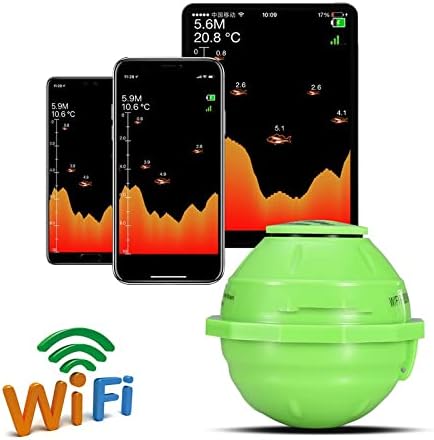
Figure 3.1: The Fish Finder application displaying sonar data on various mobile devices, illustrating the wireless connectivity.
4. Operating Instructions
Once the device is paired with your mobile application, you can begin using it for fishing. The app interface will display various real-time data points.
4.1 Deploying the Fish Finder
Gently cast or lower the fish finder unit into the water at your desired fishing location. Ensure it floats freely and is not obstructed.
4.2 Interpreting Sonar Data
The application screen will provide a visual representation of the underwater environment. Key parameters displayed include:
- Water Depth: Current depth of the water column.
- Water Temperature: Temperature of the water.
- Upper Zoom Range: Top boundary of the displayed sonar view.
- Middle Fish Icon with Depth: Indicates fish of medium size and their approximate depth.
- Large Fish Icon with Depth: Indicates larger fish and their approximate depth.
- Water Bottom Contour: Visual representation of the lakebed or seabed.
- Lower Zoom Range: Bottom boundary of the displayed sonar view.
- Battery Strength Indicator: Shows the remaining battery life of the fish finder unit.
- Wireless Signal: Indicates the strength of the Wi-Fi connection between the device and your phone.
- Small Fish Icon with Depth: Indicates smaller fish and their approximate depth.
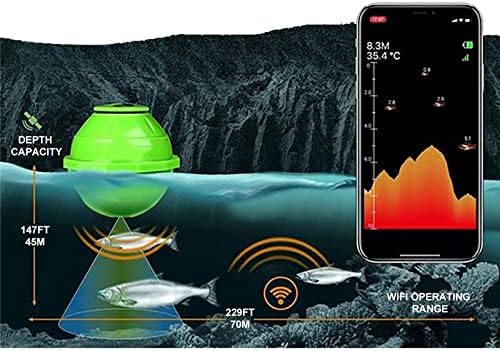
Figure 4.1: An illustration of the fish finder in water, demonstrating its depth capacity and Wi-Fi operating range, alongside a mobile screen displaying sonar data including fish icons and water contour.
Adjust settings within the app as needed for optimal performance, such as sensitivity or display range, if available.
5. Maintenance
5.1 Cleaning
After each use, especially in saltwater, rinse the fish finder unit with fresh water to remove any salt, dirt, or debris. Wipe it dry with a soft cloth. Do not use abrasive cleaners or solvents.
5.2 Storage
Store the device in a cool, dry place, away from direct sunlight and extreme temperatures. Use the provided storage pouch for protection.
5.3 Battery Care
To prolong battery life, avoid fully discharging the battery frequently. If storing for extended periods, charge the battery to approximately 50% every few months.
6. Troubleshooting
6.1 Device Not Activating in Water
- Ensure the device is fully charged.
- Verify that the water is deep enough for the device's sensors to activate.
6.2 No Wi-Fi Connection
- Confirm the fish finder is activated and broadcasting its Wi-Fi signal (blue light on).
- Check your mobile device's Wi-Fi settings to ensure you are connected to the fish finder's network.
- Ensure you are within the 70M Wi-Fi operating range.
- Restart both the fish finder (by taking it out of water and putting it back in) and your mobile device.
6.3 Inaccurate Readings or No Sonar Data
- Ensure the transducer area on the fish finder is clean and free of debris.
- Verify the device is fully submerged and floating correctly.
- Check for strong Wi-Fi signal strength in the app.
- The depth capacity is 135 feet (45m). Readings may be inaccurate or absent outside this range.
7. Specifications
| Feature | Specification |
|---|---|
| Compatibility | Android/iOS systems |
| Depth Capacity | 135 feet (45 meters) |
| Transducer Frequency | 125 KHz |
| Transducer Coverage | 90 degrees |
| Wi-Fi Operating Range | 70 meters |
| Wi-Fi Frequency | 2.4 GHz |
| Power Source | 3.7V rechargeable lithium battery |
| Charger Input | 5V, 1A |
| Charging Indicator | Red light |
| Working Indicator | Blue light |
| Working Hours (fully charged) | Approximately 5 hours |
| Model Number | qq5/26584 |
| Manufacturer | adsfvjndjcvdjcnjzsd |
8. Warranty and Support
For warranty information or technical support, please refer to the contact details provided with your purchase or visit the manufacturer's official website. Keep your purchase receipt as proof of purchase for any warranty claims.
If you encounter any issues not covered in this manual, please contact the manufacturer or seller for assistance.
Ask a question about this manual
Ask about setup, troubleshooting, compatibility, parts, safety, or missing instructions. Manuals+ will review the question and use this page’s manual context to help answer it.