Introduction
This manual provides detailed instructions for the QCOQ T60 Smart Watch. It covers setup, operation, maintenance, and troubleshooting to ensure optimal use of your device. The QCOQ T60 Smart Watch features a 1.91-inch display, Bluetooth call functionality, heart rate monitoring, and IP68 water resistance.
Package Contents
Please check the package for the following items:
- QCOQ T60 Smart Watch (1 unit)
- Charging Cable
- User Manual
Setup
1. Charging the Device
Before first use, fully charge the smart watch. Connect the magnetic charging cable to the charging contacts on the back of the watch and plug the USB end into a standard USB power adapter (not included).

Image: The QCOQ T60 Smart Watch connected to its magnetic charging cable, illustrating the charging process. The watch display shows an 80% battery level, indicating partial charge.
- Charging Time: Approximately 2 hours for a full charge.
- Battery Life: Up to 7 days of typical usage on a full charge.
2. App Installation and Pairing
To utilize all features of your QCOQ T60 Smart Watch, download and install the companion application on your smartphone.
- Scan the QR code provided in the quick start guide or search for the app name (usually indicated in the watch's initial setup screen or manual) in your smartphone's app store (App Store for iOS, Google Play Store for Android).
- Ensure Bluetooth is enabled on your smartphone.
- Open the installed app and follow the on-screen instructions to create an account or log in.
- Within the app, navigate to the device pairing section and select your QCOQ T60 Smart Watch from the list of available devices.
- Confirm the pairing request on both your smartphone and the smart watch.
Operating Instructions
1. Basic Navigation
The QCOQ T60 Smart Watch features a touchscreen display and a side button for navigation.
- Swipe Up/Down: Scroll through menus and notifications.
- Swipe Left/Right: Access quick functions or different widgets.
- Tap: Select an item or confirm an action.
- Side Button: Press to return to the home screen or wake the device. Long press for power options.
2. Bluetooth Call Functionality
Once paired with your smartphone, the QCOQ T60 Smart Watch allows you to make and answer calls directly from your wrist.
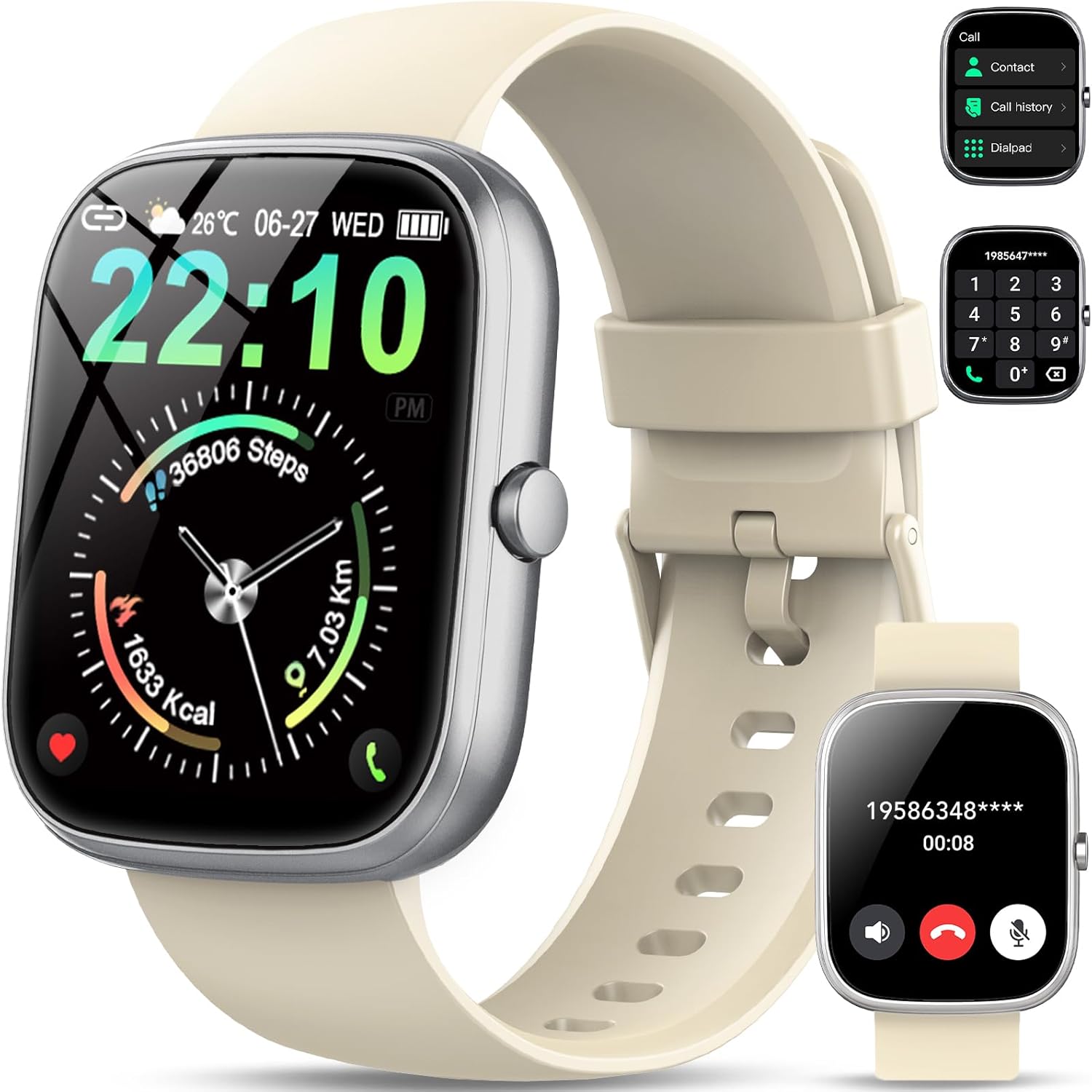
Image: The QCOQ T60 Smart Watch screen showing the call interface, including options to access contacts, view call history, and use a dialpad. A separate inset shows an incoming call notification.
- Answering Calls: When an incoming call is received, tap the green answer icon on the watch screen.
- Making Calls: Access the 'Call' menu on the watch, then select from contacts, call history, or use the dialpad to enter a number.
3. Notifications
Receive notifications from your smartphone directly on your watch.

Image: The QCOQ T60 Smart Watch screen showing notifications from various social media and messaging applications. Adjacent to it, a smartphone displays an incoming call, demonstrating the watch's Bluetooth call feature.
- Ensure notification permissions are enabled for the companion app on your smartphone.
- Swipe down from the top of the watch face to view recent notifications.
4. Fitness Tracking
The QCOQ T60 Smart Watch monitors various fitness metrics.

Image: A visual representation of the QCOQ T60 Smart Watch's fitness capabilities, highlighting over 110 sport modes, step counting, calorie expenditure tracking, IP68 water resistance, and comprehensive daily activity data.
- Heart Rate Monitoring: The watch provides real-time heart rate data. Access the heart rate function on the watch or through the app.
- Step Count & Calories: Tracks your daily steps, distance, and estimated calories burned.
- Sport Modes: Select from over 110 sport modes to track specific activities.
5. Sleep Monitoring
The watch automatically monitors your sleep patterns.

Image: The QCOQ T60 Smart Watch screen showing detailed sleep monitoring data, including deep, light, and awake sleep stages. Another section displays a 7-day weather forecast.
- Wear the watch while sleeping for accurate data.
- View detailed sleep analysis in the companion app, including deep sleep, light sleep, and awake times.
6. Other Features
- Weather Forecast: View current weather and a 7-day forecast.
- Music Control: Control music playback on your smartphone (play, pause, skip tracks).
- Camera Remote: Use the watch as a remote shutter for your smartphone camera.
- Voice Assistant: Access your smartphone's voice assistant.
- Sedentary Reminder: Receive alerts to move after periods of inactivity.
- Alarm: Set alarms directly from the watch.
- Blood Oxygen Monitoring: Measure your blood oxygen levels.
- Women's Health: Track menstrual cycles and related data.
- Calculator: Basic calculator function.
7. Customizing Watch Faces
Personalize your watch with various watch faces.

Image: A collage of various watch faces available for the QCOQ T60 Smart Watch, demonstrating the range of styles and information displays, including options for personalized backgrounds.
- Long press on the current watch face to enter the watch face selection menu.
- Swipe left or right to browse available watch faces. Tap to select.
- More watch faces and customization options (including custom backgrounds) are available through the companion app.
Maintenance
1. Cleaning
- Wipe the watch screen and body with a soft, lint-free cloth.
- For the strap, use a mild soap and water solution if necessary, then rinse thoroughly and dry completely before wearing.
- Avoid using harsh chemicals or abrasive materials.
2. Water Resistance (IP68)
The QCOQ T60 Smart Watch is IP68 rated, meaning it is resistant to dust and can withstand immersion in water up to 1.5 meters for up to 30 minutes. It is suitable for daily use, such as hand washing or light rain.
- Do not use the watch for diving, hot showers, saunas, or in environments with high-pressure water.
- Water resistance is not a permanent condition and may decrease over time with normal wear and tear.
3. Battery Care
- Avoid extreme temperatures, which can degrade battery performance.
- Charge the watch regularly; avoid letting the battery completely drain for extended periods.
Troubleshooting
- Watch not turning on: Ensure the watch is fully charged. Connect it to the charger for at least 10 minutes.
- Cannot pair with smartphone:
- Ensure Bluetooth is enabled on your phone and the watch.
- Make sure the watch is within range of your phone.
- Restart both the watch and your phone.
- Check if the companion app has necessary permissions.
- Notifications not received:
- Verify that notifications are enabled in the watch's settings and the companion app.
- Ensure the watch is properly connected via Bluetooth.
- Check your phone's notification settings for the app.
- Inaccurate heart rate/activity data: Ensure the watch is worn snugly on your wrist, not too tight or too loose. Clean the sensor regularly.
Specifications
| Feature | Specification |
|---|---|
| Brand | QCOQ |
| Model | T60 |
| Display Size | 1.91 Inches |
| Display Technology | LCD |
| Resolution | 240 x 240 |
| Connectivity | Bluetooth |
| Compatible Devices | Smartphone |
| Water Resistance | IP68 |
| Special Features | Heart Rate Monitor, Notifications, Camera Remote, Voice Assistant |
| Human Interface Input | Touchscreen |
| GPS | No GPS |
| Battery Type | Lithium Ion (1 required) |
| Dimensions (Parcel) | 17.4 x 9.4 x 1.8 cm |
| Weight (Parcel) | 38.19 g |
| Color | Creamy White |
Safety Information
- Consult your doctor before starting any new exercise regimen or if you have pre-existing health conditions.
- Do not attempt to disassemble or modify the watch.
- Keep the device away from extreme heat or cold.
- Dispose of the device and its battery according to local regulations.
Warranty and Support
For warranty information and customer support, please refer to the documentation included with your purchase or visit the official QCOQ website. Ensure you have your purchase receipt and product model number (T60) available when contacting support.


