
1. Introduction
Thank you for purchasing the Cinolink Portable Bluetooth Karaoke Speaker. This manual provides detailed instructions for the setup, operation, and maintenance of your new speaker system. Please read this manual thoroughly before use to ensure proper functionality and to maximize your enjoyment of the product.
This portable speaker system is designed for versatile use, offering powerful audio, vibrant LED lighting, and multiple connectivity options for various occasions, including family gatherings, parties, outdoor activities, and educational settings.
2. What's in the Box
Upon opening the package, please verify that all the following items are included:
- Cinolink Portable Bluetooth Karaoke Speaker (Model: 3317)
- Wired Microphone
- USB Charging Cable
- User Manual (this document)
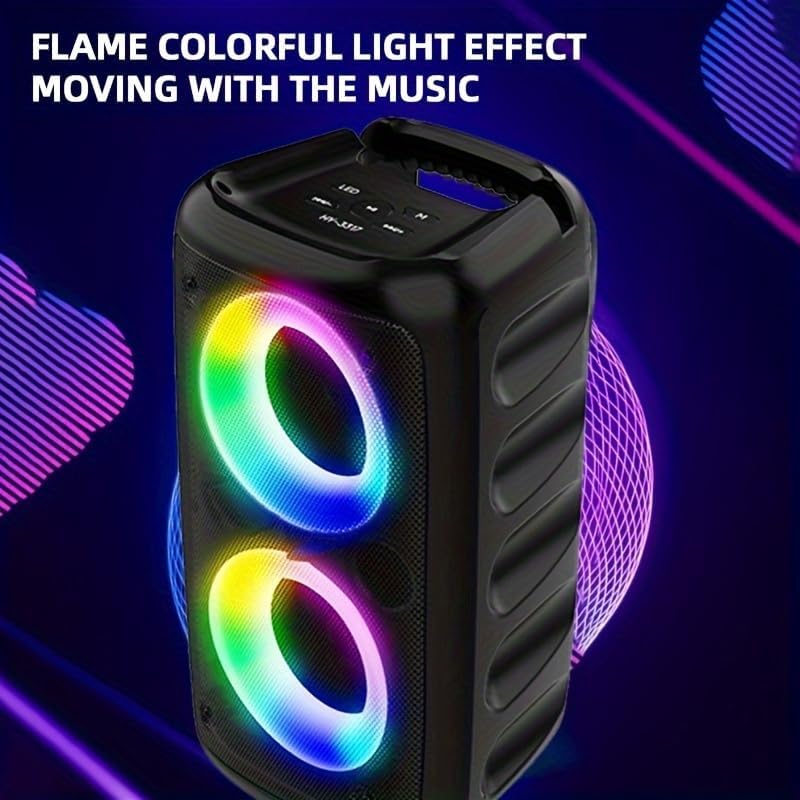
Figure 2.1: Included accessories with the Cinolink Portable Bluetooth Karaoke Speaker. This image shows the speaker, a wired microphone, and a USB charging cable, which are all part of the standard package contents.
3. Product Features
- Powerful 360° Stereo Sound: Equipped with an advanced digital signal processing chip and dual-chamber dual-diaphragm stereo drivers for clear, distortion-free audio.
- Bluetooth 5.0 Connectivity: Ensures stable and efficient wireless connection with compatible devices.
- True Wireless Stereo (TWS) Function: Allows pairing of two speakers for synchronized, immersive stereo sound.
- RGB Color Light Show: Integrated high-quality LED lights offer dynamic color-changing themes, enhancing the visual experience.
- Long-lasting Playtime: Features a built-in 2400mAh high-power rechargeable battery for extended use.
- Multiple Audio Inputs: Supports Bluetooth, AUX, TF Card, and USB disk for versatile music playback.
- Portable Design: Lightweight with a convenient handle for easy transport.
- Wired Microphone Included: Ready for karaoke and vocal performances.
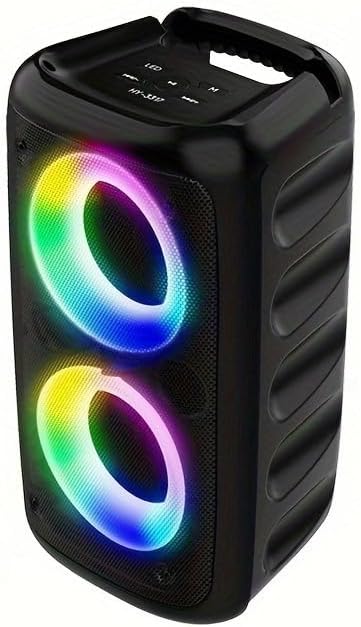
Figure 3.1: The Cinolink Portable Bluetooth Karaoke Speaker showcasing its vibrant RGB LED light display. The lights illuminate the speaker's front grilles, creating a dynamic visual effect.
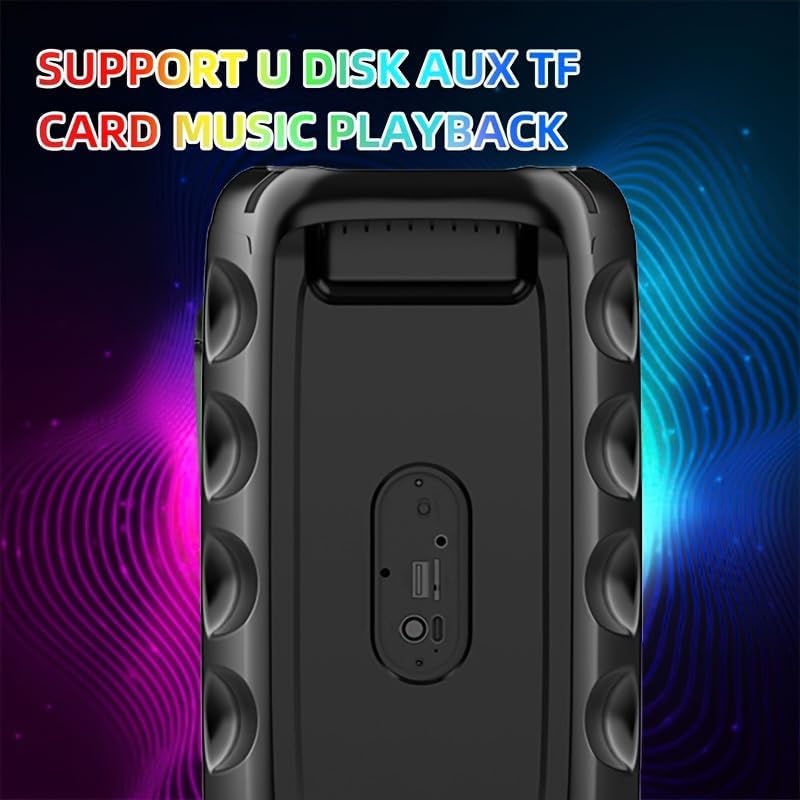
Figure 3.2: Rear panel of the Cinolink speaker, highlighting the various input ports including USB, TF card slot, and AUX input, allowing for diverse audio source connections.
4. Setup
4.1 Charging the Speaker
- Locate the USB charging port on the speaker.
- Connect one end of the provided USB charging cable to the speaker's charging port.
- Connect the other end of the USB cable to a standard USB power adapter (not included) or a computer's USB port.
- The charging indicator light will illuminate, typically red, during charging. It will turn off or change color (e.g., blue) when fully charged.
- A full charge typically takes approximately 3-4 hours.
4.2 Connecting the Wired Microphone
- Identify the microphone input jack on the speaker.
- Insert the plug of the wired microphone firmly into the microphone input jack.
- The microphone is now ready for use.
5. Operating Instructions
5.1 Power On/Off
- To power on the speaker, press and hold the Power button (usually marked with a power symbol) for a few seconds until you hear an audible prompt or see the LED lights illuminate.
- To power off, press and hold the Power button again until the speaker shuts down.
5.2 Bluetooth Pairing
- Ensure the speaker is powered on and in Bluetooth mode. If not, press the Mode button (if available) to switch to Bluetooth. The speaker will typically indicate "Bluetooth Mode" or a similar prompt, and the Bluetooth indicator light will flash.
- On your mobile device (smartphone, tablet, etc.), enable Bluetooth and search for available devices.
- Select "Cinolink 3317" or a similar name from the list of found devices.
- Once paired, the speaker will confirm with an audible prompt, and the Bluetooth indicator light will stop flashing and remain solid.
- You can now play audio from your device through the speaker.
5.3 True Wireless Stereo (TWS) Function
To pair two Cinolink 3317 speakers for a stereo experience:
- Ensure both speakers are powered on and not connected to any Bluetooth device.
- On one of the speakers (this will be the primary speaker), press and hold the TWS button (if available) or a designated pairing button.
- The speakers will automatically search for and connect to each other. You will hear a confirmation tone once connected.
- Now, connect your mobile device to the primary speaker via Bluetooth as described in Section 5.2. Audio will play through both speakers in stereo.
5.4 Using AUX Input
- Connect one end of a 3.5mm audio cable (not included) to the AUX port on the speaker.
- Connect the other end to the audio output jack of your device (e.g., MP3 player, computer).
- The speaker should automatically switch to AUX mode, or you may need to press the Mode button to select AUX.
5.5 TF Card and USB Disk Playback
- Insert a TF (microSD) card or a USB flash drive containing MP3 audio files into the respective slot/port on the speaker.
- The speaker will automatically detect the media and begin playing the audio files.
- Use the Previous/Next buttons to navigate tracks and the Play/Pause button for playback control.

Figure 5.1: Top panel of the Cinolink speaker, illustrating the control buttons for power, mode selection, volume, and playback, along with the integrated carrying handle.
6. Maintenance
- Cleaning: Use a soft, dry cloth to wipe the speaker's surface. Do not use abrasive cleaners, waxes, or solvents.
- Storage: Store the speaker in a cool, dry place away from direct sunlight and extreme temperatures.
- Battery Care: To prolong battery life, avoid fully discharging the battery frequently. Charge the speaker regularly, even if not in use for extended periods.
- Water Exposure: This speaker is not waterproof. Avoid exposing it to water or excessive moisture.
7. Troubleshooting
| Problem | Possible Cause | Solution |
|---|---|---|
| Speaker does not power on. | Low battery; Power button not pressed correctly. | Charge the speaker fully. Press and hold the Power button for a few seconds. |
| No sound from speaker. | Volume too low; Incorrect mode selected; Device not paired. | Increase speaker and device volume. Ensure correct input mode (Bluetooth, AUX, TF, USB). Re-pair Bluetooth device. |
| Bluetooth connection unstable. | Distance too far; Obstructions; Interference. | Move device closer to speaker. Remove obstructions. Avoid strong electromagnetic interference. |
| Microphone not working. | Microphone not fully plugged in; Microphone faulty. | Ensure microphone is securely plugged into the correct port. Test with another microphone if available. |
| LED lights not working. | Light function turned off. | Press the LED button (if available) to activate or change light modes. |
8. Specifications
| Feature | Detail |
|---|---|
| Model Number | 3317 |
| Brand | Cinolink |
| Connectivity Technology | Bluetooth 5.0, AUX, TF Card, USB |
| Power Source | Battery Powered |
| Battery Capacity | 2400mAh |
| Item Weight | 2 Pounds (approx. 0.91 kg) |
| Package Dimensions | 12.95 x 7.72 x 6.97 inches (approx. 32.9 x 19.6 x 17.7 cm) |
| Color | Black or Gray |
| Manufacturer | cinolink |
| UPC | 717328693370 |

Figure 8.1: Dimensional overview of the Cinolink speaker, showing its height, width, and depth measurements in both centimeters and inches for reference.
9. Warranty and Support
Cinolink provides a LIFETIME AFTERSALES and NO REASON REPLACEMENT service for this product. If you encounter any issues during the use of your speaker, please contact Cinolink customer support for assistance.
Support inquiries will be addressed within 24 hours.
For further information or support, please visit the official Cinolink store on Amazon: Cinolink Store.