
PHOVOLT B0DDXGD3XX
PHOVOLT Smart Hygrometer Thermometer User Manual
Model: B0DDXGD3XX
Introduction
Thank you for choosing the PHOVOLT Smart Hygrometer Thermometer. This device allows you to monitor temperature and humidity in real-time, both indoors and outdoors, through a smartphone application. It features an IP65 waterproof rating, multiple placement options, app alert notifications, smart linkage capabilities, and voice control compatibility with Amazon Alexa. This manual will guide you through the setup, operation, and maintenance of your device.

Image: The PHOVOLT Smart Hygrometer Thermometer, shown with water splashing around it to illustrate its waterproof design, alongside a smartphone displaying its real-time temperature and humidity readings.
Product Features
- IP65 Waterproof Rating: Suitable for both indoor and outdoor use, capable of withstanding rain.
- Flexible Placement: Includes a hanging rope, self-magnet, and 3M tape for versatile mounting options.
- App Alert Notifications: Receive real-time alerts on your smartphone when temperature or humidity levels exceed predefined ranges.
- Smart Linkage: Integrate with other smart devices via the Smart Life or Tuya Smart App to automate actions based on environmental conditions.
- Voice Control: Compatible with Amazon Alexa for hands-free monitoring of temperature and humidity.
- Data Storage & Export: Access and download historical data for analysis.

Image: An infographic highlighting the key features of the device, including thermometer, hygrometer, remote monitoring, data export, alert function, smart linkage, high accuracy, waterproof design, and self-magnet.
Setup
1. What's in the Box
- PHOVOLT Smart Hygrometer Thermometer
- AAA Battery (1, included)
- Hanging Rope
- 3M Adhesive Tape

Image: The retail packaging for the PHOVOLT Smart Hygrometer Thermometer, showing the device and its branding.
2. Battery Installation
- Locate the battery compartment on the device.
- Open the compartment cover.
- Insert one AAA battery, ensuring correct polarity (+/-).
- Close the battery compartment cover securely.
3. App Installation and Device Pairing
The PHOVOLT Smart Hygrometer Thermometer operates with the Smart Life or Tuya Smart App.
- Download the "Smart Life" or "Tuya Smart" app from your smartphone's app store (iOS App Store or Google Play Store).
- Register or log in to your account.
- Ensure your smartphone's Bluetooth is enabled and connected to a 2.4GHz Wi-Fi network. The device only supports 2.4GHz Wi-Fi.
- In the app, tap the "+" icon (usually in the top right corner) to add a new device.
- The app should automatically scan for nearby devices. Select the PHOVOLT Smart Hygrometer Thermometer when it appears.
- Follow the on-screen instructions to complete the pairing process, which may include confirming your Wi-Fi network and password.
- Once connected, you can rename the device for easier identification (e.g., "Living Room Sensor," "Outdoor Sensor").

Image: A smartphone screen showing the Smart Life app interface, displaying current temperature and humidity readings, along with alert settings.
4. Device Placement
The device offers multiple placement options:
- Hanging: Use the included rope to hang the device on a hook or bracket.
- Magnetic Attachment: The device has a self-magnet, allowing it to be attached to metal surfaces like a refrigerator door.
- Adhesive Mounting: Use the provided 3M tape to stick the device to a wall or other flat surface.
- Freestanding: Place the device on a flat surface such as a table or shelf.

Image: A collage demonstrating various ways to place the sensor: sticking it on a metal surface with its magnet, hanging it with a rope, placing it on a table, and sticking it on a wall with 3M tape.
Operating Instructions
1. Real-time Monitoring via App
Once paired, open the Smart Life or Tuya Smart App to view current temperature and humidity readings from your device. The app displays data in real-time and can show historical trends.
2. App Alert Function
Set custom temperature and humidity ranges within the app. If the environment changes and exceeds these set parameters, you will receive an alert notification on your smartphone.

Image: A smartphone screen displaying the app's settings for temperature and humidity alarms, allowing users to define upper and lower limits.
3. Create Smart Linkage
Utilize the app's smart scene feature to link your hygrometer thermometer with other smart devices. For example, you can set a rule to automatically turn on an air conditioner if the temperature exceeds a certain threshold.
4. Voice Control
The device is compatible with Amazon Alexa. After linking your Smart Life/Tuya Smart account to Alexa, you can ask for temperature readings using voice commands.
- Example command: "Alexa, what's the temperature now?"
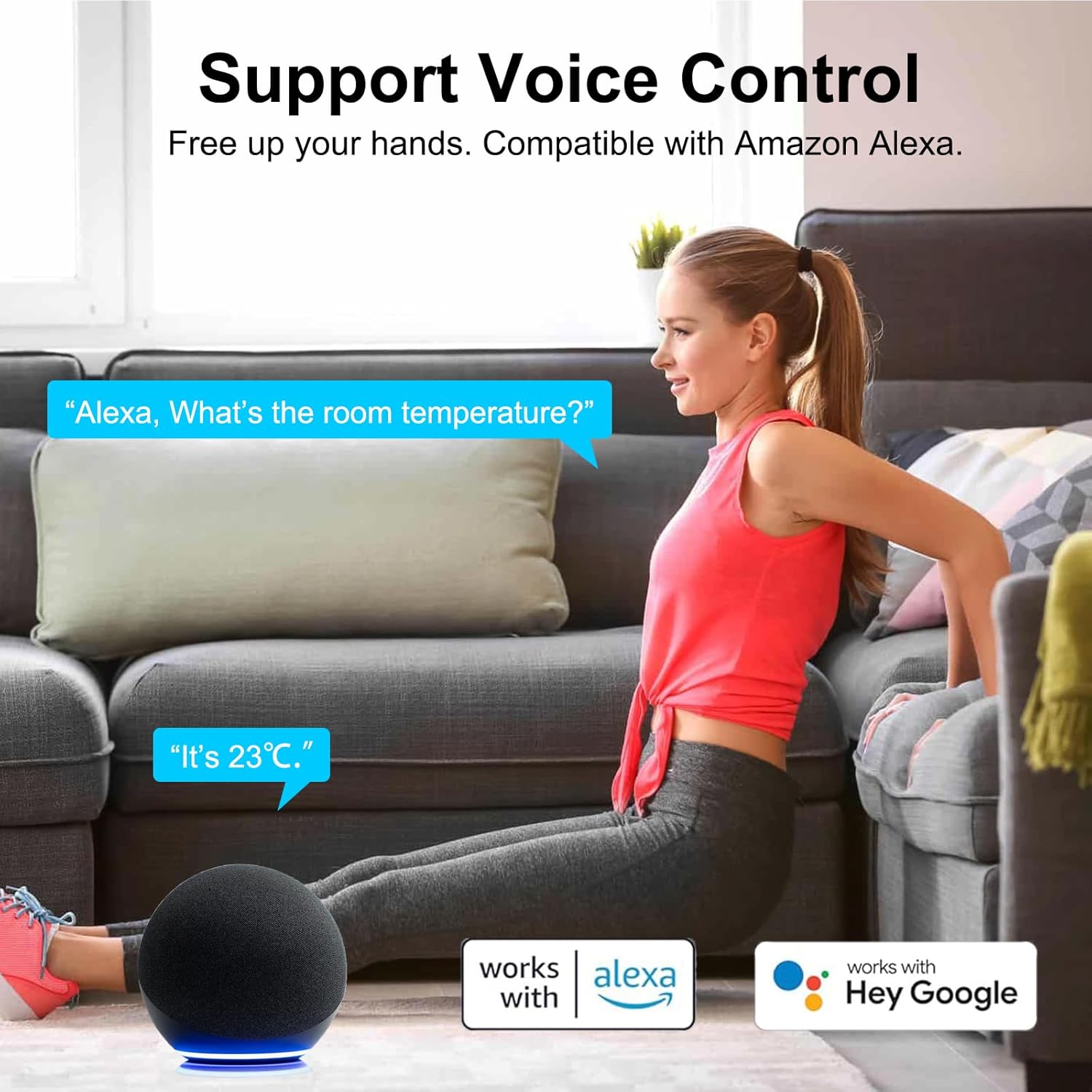
Image: A woman interacting with an Amazon Echo device, demonstrating voice control functionality to inquire about the room temperature, which is monitored by the PHOVOLT sensor.
5. Data Storage & Export
The app stores historical temperature and humidity data. You can view this data in graph format and export it for further analysis, which is useful for long-term environmental monitoring.

Image: An infographic illustrating the data storage and export capabilities, showing data graphs on a smartphone and a laptop, with icons for analysis and export.
Maintenance
1. Battery Replacement
When the battery level is low, the app will notify you. Replace the AAA battery by following the installation steps in the "Setup" section. Battery life can vary depending on usage and environmental conditions.
2. Cleaning
Wipe the device with a soft, dry cloth. Avoid using abrasive cleaners or solvents, as these can damage the device.
3. Waterproof Rating
The device has an IP65 waterproof rating, meaning it is protected against dust and low-pressure water jets from any direction. While suitable for outdoor use and resistant to rain, it should not be submerged in water.
Troubleshooting
1. Device Not Connecting to Wi-Fi
- Ensure your Wi-Fi network is 2.4GHz. The device does not support 5GHz networks.
- Verify that your Wi-Fi password is entered correctly in the app.
- Move the device closer to your Wi-Fi router to improve signal strength.
- Restart your Wi-Fi router and try pairing again.
- Ensure your smartphone's Bluetooth is enabled during the pairing process.
2. Inaccurate Readings
- Ensure the device is not placed in direct sunlight, near heat sources, or in areas with extreme drafts, as these can affect accuracy.
- Allow the device to stabilize for at least 30 minutes after placement before taking critical readings.
- The app may offer a calibration option for temperature and humidity. Refer to the app settings for this feature.

Image: A smartphone screen displaying the app's calibration options for both temperature and humidity, allowing for fine-tuning of readings.
3. Alexa Voice Control Issues
- Ensure the "Smart Life" or "Tuya Smart" skill is enabled in your Alexa app and linked to your account.
- Use clear and specific commands. For example, "Alexa, what's the [device name] temperature?"
- Note that full humidity reporting or integration into Alexa routines may have limitations depending on Alexa's current capabilities with third-party devices.
4. Excessive Battery Drain
- Frequent data updates or poor Wi-Fi signal can increase battery consumption.
- Consider using high-quality alkaline batteries.
- If possible, place the device in an area with stable Wi-Fi connectivity.
Specifications
| Feature | Detail |
|---|---|
| Model | B0DDXGD3XX |
| Brand | PHOVOLT |
| Waterproof Rating | IP65 |
| Power Source | 1 x AAA Battery (included) |
| Battery Type | Alkaline |
| Mounting Type | Surface Mount, Wall Mount |
| Upper Temperature Rating | 100°C (212°F) |
| Package Dimensions | 3.31 x 1.81 x 0.94 inches |
| Item Weight | 1.76 ounces |

Image: An infographic detailing the temperature accuracy (±1°C) and humidity accuracy (±5%RH) of the device.
Warranty and Support
For warranty information or technical support, please refer to the contact details provided with your product packaging or visit the official PHOVOLT website.

Image: The back of the product packaging, displaying manufacturer information and contact details, including an email address for support.
Ask a question about this manual
Ask about setup, troubleshooting, compatibility, parts, safety, or missing instructions. Manuals+ will review the question and use this page’s manual context to help answer it.