
1. Introduction
This manual provides detailed instructions for the safe and effective use of your i4SEE M35-640 LRF Thermal Monocular. Please read this manual thoroughly before operating the device to ensure proper functionality and to prevent damage. Keep this manual for future reference.

Image 1.1: The i4SEE M35-640 LRF Thermal Monocular, a handheld thermal imaging device with laser rangefinder capabilities.
2. Product Overview
2.1 Key Features
- High-Resolution Thermal Imaging: Equipped with a 640x480 thermal imaging camera sensor and a 12µm infrared detector, offering a detection range of up to 1500 yards.
- Integrated Laser Rangefinder (LRF): Accurately measures distances up to 650 yards, providing precise target distance approximation.
- AMOLED Display: Features a 0.23-inch 640x400 AMOLED display for clear imaging and comfortable viewing.
- Multiple Display Modes: Offers 5 color palettes (White Hot, Black Hot, Red Hot, Iron Red, Blue Heat) and Picture-in-Picture (PIP) mode for enhanced target identification.
- Digital Zoom: Provides 1x, 2x, 4x, and 8x digital zoom, with a magnification range of 1.7x to 13.6x.
- Extended Battery Life: Operates for more than 8 hours with two replaceable Lithium Ion batteries.
- Durable and Weather-Resistant: IP66 waterproof rating, suitable for harsh weather conditions with an operating temperature range of -86°F to 140°F.
- Wi-Fi Connectivity: Connects to a mobile application for real-time image sharing and OTA firmware upgrades.
2.2 Package Contents
Upon unpacking, please verify that all items listed below are present:
- i4SEE M35-640 LRF Thermal Monocular Device
- Lens Cover and Lanyard
- Battery Charger
- Two (2) Lithium Ion Batteries
- USB Type-C Cable
- Wrist Strap
- Carry Bag
- Eye Mask
- Quick Use Guide
- Warranty Card

Image 2.1: Illustration of the monocular's components and included accessories.
3. Setup
3.1 Battery Installation
- Locate the battery compartment on the device.
- Open the battery compartment cover.
- Insert the two provided Lithium Ion batteries, ensuring correct polarity as indicated inside the compartment.
- Close the battery compartment cover securely.
3.2 Charging the Batteries
Use the provided battery charger and USB Type-C cable to charge the batteries. Ensure batteries are fully charged before first use for optimal performance.
3.3 Initial Power-On
Press and hold the power button (refer to the component illustration for location) for approximately 2 seconds to power on the device. The AMOLED display will activate.
3.4 App Connection (Wi-Fi)
To connect the monocular to the companion mobile application:
- Download the 'TargetIR' app from your device's app store (available for Android and iOS).
- Power on the M35-640 LRF Thermal Monocular.
- Activate Wi-Fi on the monocular (refer to operating instructions for specific button/menu).
- On your smartphone, connect to the monocular's Wi-Fi network. The network name and password can typically be found in the monocular's Wi-Fi settings menu.
- Open the TargetIR app. The app should automatically detect and connect to the monocular, allowing for real-time image viewing and control.
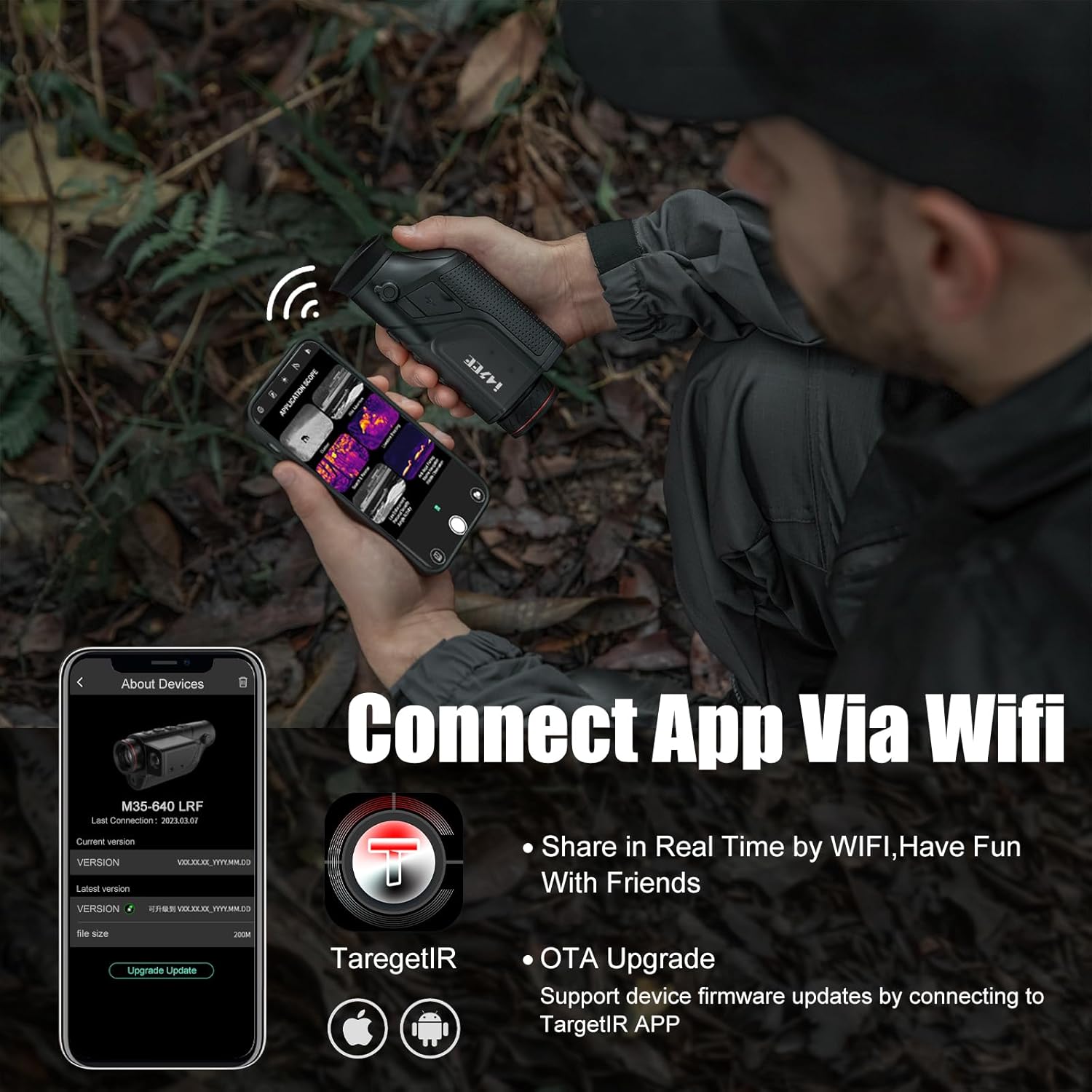
Image 3.1: The monocular connected to a smartphone app via Wi-Fi for real-time image transmission and sharing.
4. Operating Instructions
4.1 Power On/Off
- Power On: Press and hold the power button for 2 seconds.
- Power Off: Press and hold the power button for 3 seconds until the device shuts down.
4.2 Focus Adjustment
Rotate the focus ring located near the objective lens to achieve a clear image. Adjust until the target appears sharp on the display.
4.3 Diopter Adjustment
Adjust the diopter ring near the eyepiece to match your individual eyesight, ensuring the on-screen menu and reticle appear sharp.
4.4 Display Modes and Color Palettes
The monocular offers various display modes and color palettes to optimize viewing for different environments and preferences.
- Color Palettes: Cycle through White Hot, Black Hot, Red Hot, Iron Red, and Blue Heat using the dedicated palette button.
- PIP Mode: Activate Picture-in-Picture mode to display a magnified view of the central area of the image, highlighting target details while maintaining a wider field of view.

Image 4.1: Examples of the 5 color palettes and scene modes available on the monocular.
4.5 Digital Zoom
Use the zoom buttons to cycle through 1x, 2x, 4x, and 8x digital magnification levels. This allows for closer inspection of distant targets.

Image 4.2: Visual representation of the digital zoom capabilities.
4.6 Laser Rangefinder (LRF) Usage
To activate the laser rangefinder:
- Aim the monocular at your target.
- Press the LRF button (refer to component illustration).
- The measured distance will be displayed on the screen. The LRF has a detection range of 5-600 meters.
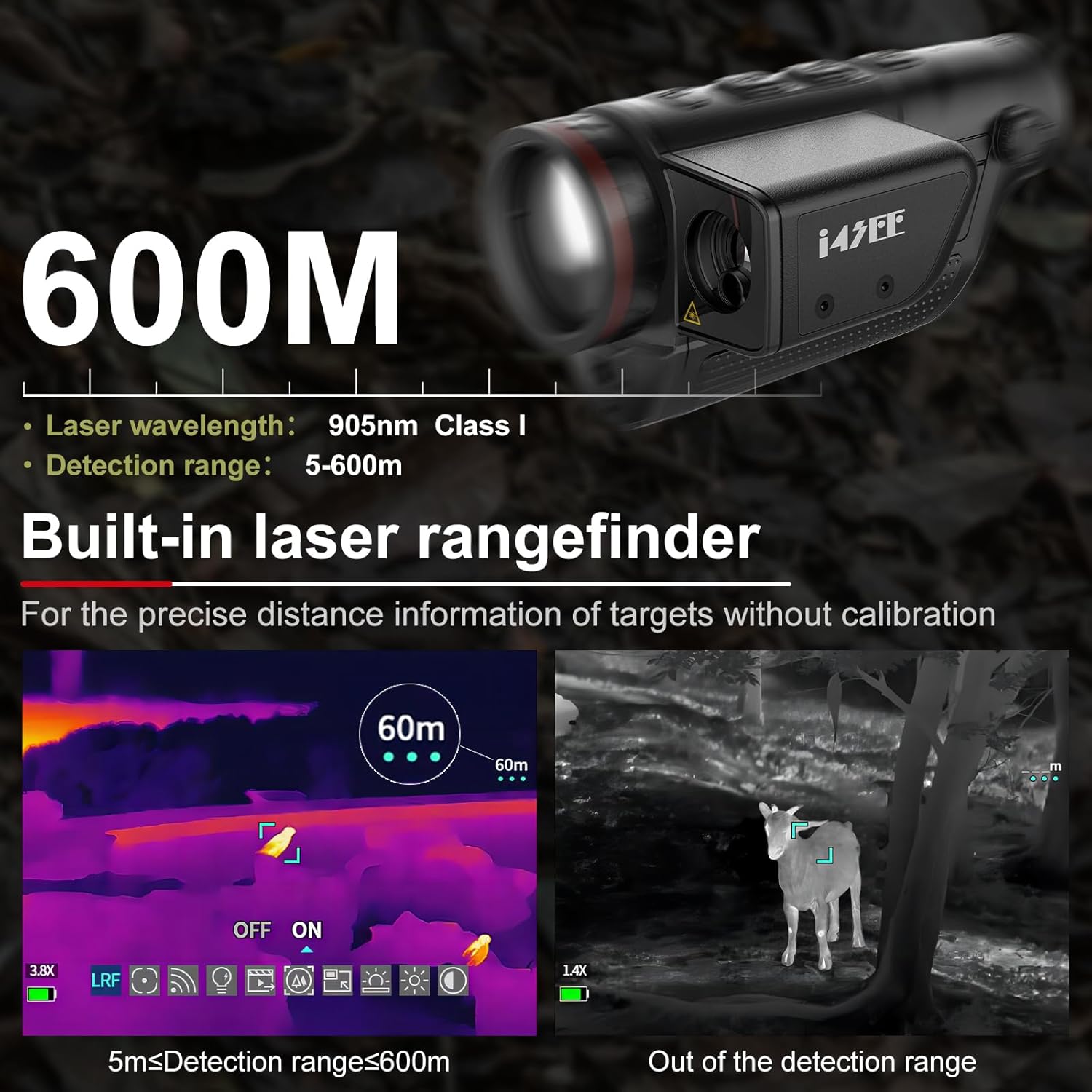
Image 4.3: The monocular's built-in laser rangefinder in action, displaying target distance.
4.7 App Functions
When connected via Wi-Fi, the TargetIR app allows you to:
- View the thermal image in real-time on your smartphone.
- Capture photos and videos.
- Share thermal images and videos.
- Perform Over-The-Air (OTA) firmware upgrades to keep your device updated.
5. Maintenance
5.1 Cleaning
- Lenses: Use a soft, lint-free cloth specifically designed for optical lenses. Gently wipe the lens surfaces. For stubborn smudges, use a small amount of lens cleaning solution.
- Body: Wipe the device body with a soft, damp cloth. Avoid abrasive cleaners or solvents.
- Ensure the lens cover is in place when not in use to protect the optics.
5.2 Battery Care
- Always use the provided charger and batteries.
- Do not expose batteries to extreme temperatures or direct sunlight.
- If storing the device for an extended period, remove the batteries.
5.3 Storage
Store the monocular in its carry bag in a cool, dry place, away from direct sunlight and extreme temperatures. Ensure the lens cover is securely attached.

Image 5.1: The monocular's robust design, highlighting its IP66 waterproof rating and durability.
6. Troubleshooting
If you encounter issues with your i4SEE M35-640 LRF Thermal Monocular, please refer to the following common problems and solutions:
| Problem | Possible Cause | Solution |
|---|---|---|
| Device does not power on. | Low or depleted batteries; incorrectly installed batteries. | Charge batteries fully. Ensure batteries are inserted with correct polarity. |
| Image is blurry or out of focus. | Focus ring not adjusted; diopter not adjusted. | Rotate the focus ring until the image is sharp. Adjust the diopter ring to match your eyesight. |
| Wi-Fi connection fails. | Wi-Fi not enabled on monocular; incorrect network password; app not updated. | Ensure Wi-Fi is active on the monocular. Verify network name and password. Update the TargetIR app to the latest version. |
| Laser Rangefinder not working. | Obstruction in front of LRF; target out of range. | Ensure a clear line of sight to the target. Verify target is within the 5-600 meter range. |
| Lens cover detaches easily. | Wear and tear on attachment mechanism. | Ensure the lens cover is properly seated. If the issue persists, contact customer support for assistance. |
7. Specifications
| Feature | Specification |
|---|---|
| Brand | i4SEE |
| Model Number | i4SEE-M35-640 LRF |
| Thermal Sensor Resolution | 640x480 (50Hz) |
| Infrared Detector | 12µm |
| Detection Range | Up to 1500 yards |
| Laser Rangefinder Range | Up to 650 yards (5-600 meters) |
| Display Type | AMOLED |
| Display Size | 0.23 inches |
| Display Resolution | 640x400 |
| Digital Zoom | 1x, 2x, 4x, 8x |
| Magnification | 1.7x – 13.6x |
| Focal Length | 35mm |
| Maximum Aperture | f/1 |
| Battery Type | 2 x Lithium Ion (included) |
| Battery Life | 8+ hours |
| Waterproof Rating | IP66 |
| Operating Temperature | -86°F to 140°F (-65°C to 60°C) |
| Connectivity | Wi-Fi (for app connection) |
| Item Weight | 2.78 pounds |
| Product Dimensions | 6.02 x 2.91 x 3.03 inches |
| Video Capture Resolution | 480p |
| Video Capture Format | MP4 |
| Flash Memory Type | Internal flash memory |
8. Warranty and Support
8.1 Warranty Information
The i4SEE M35-640 LRF Thermal Monocular comes with a 5-year warranty for the entire device, covering manufacturing defects and malfunctions under normal use.
8.2 Technical Support and Firmware Updates
Lifetime firmware updates and technical support are included with your purchase. For assistance, please refer to the contact information provided on your warranty card or visit the official i4SEE website.