
1. Introduction
This manual provides detailed instructions for the setup, operation, and maintenance of your Desiontal 10.1 Inch WiFi Smart Digital Picture Frame. Please read this manual thoroughly before using the device to ensure proper functionality and to maximize your experience.

Image: The Desiontal digital picture frame showcasing a family photo, alongside a smartphone displaying the Uhale application for photo sharing.
2. Package Contents
Upon unboxing, please verify that all the following items are included:
- 1 x Desiontal 10.1-inch Digital Photo Frame
- 1 x Frame Stand/Bracket
- 1 x Power Adapter (DC: 5V2A US standard)

Image: A visual representation of the digital picture frame from various angles, detailing its dimensions and the items included in the package.
3. Key Features
- 10.1-inch HD IPS Touch Screen: Features a 1280x800 resolution IPS display with a 16:10 aspect ratio and 250cd/m² brightness for clear and vibrant image display from various viewing angles.
- Built-in 32GB Memory: Provides ample storage for approximately 8,000 high-definition photos (4MB each).
- WiFi Connectivity: Supports 2.4GHz WiFi for instant photo and video sharing via the Uhale app.
- Uhale App Integration: Securely share photos and videos (up to 15 seconds) from anywhere in the world using the dedicated Uhale application for iPhone/Android smartphones.
- Automatic Rotation: The frame automatically adjusts image orientation for both horizontal and vertical placement.
- Versatile Placement: Can be placed on a desktop using the included bracket or wall-mounted horizontally or vertically.
- Multimedia Support: Supports JPEG/JPG/PNG/WEBP image formats and MP4/M4V/3GP/MOV video formats.
- External Storage: Includes an SD card slot (supports up to 32GB Micro SD cards) and a USB-C interface for importing media.
- Integrated Speakers: Built-in 2*2W high-quality speakers for video playback.

Image: An overview of the Desiontal Smart Digital Photo Frame highlighting its various functionalities through illustrative icons.

Image: The digital picture frame integrated into a home setting, with icons illustrating its core features.
4. Setup
4.1 Powering On
- Connect the provided power adapter to the frame's power port.
- Plug the power adapter into a standard electrical outlet.
- The frame will automatically power on. Follow the on-screen prompts for initial setup.
4.2 Connecting to WiFi
- During the initial setup, select your preferred language.
- The frame will scan for available 2.4GHz WiFi networks. Select your network from the list.
- Enter your WiFi password using the on-screen keyboard and tap 'Connect'.
- Once connected, the frame will display a confirmation message.
4.3 Uhale App Installation and Pairing
The Uhale app allows you to easily send photos and videos to your digital picture frame from your smartphone.
- Download the "Uhale" app from the Apple App Store (for iOS devices) or Google Play Store (for Android devices).
- Install and open the Uhale app on your smartphone.
- Create a new account or log in if you already have one.
- On your digital picture frame, navigate to the 'Settings' menu and locate the 'Bind Code' or 'Add Device' option. A unique code will be displayed.
- In the Uhale app, select 'Add Device' and enter the bind code displayed on your frame.
- Once paired, your frame will be connected to your Uhale account, allowing you to send media.

Image: The digital picture frame and a smartphone illustrating the process of searching for and downloading the Uhale app for seamless photo sharing.
5. Operating Instructions
5.1 Sending Photos and Videos via Uhale App
- Open the Uhale app on your paired smartphone.
- Select the photos or videos (up to 15 seconds in length) you wish to send.
- Tap the 'Send' or 'Share' button and choose your digital picture frame as the destination.
- The media will be instantly uploaded to your frame, provided both devices are connected to the internet.
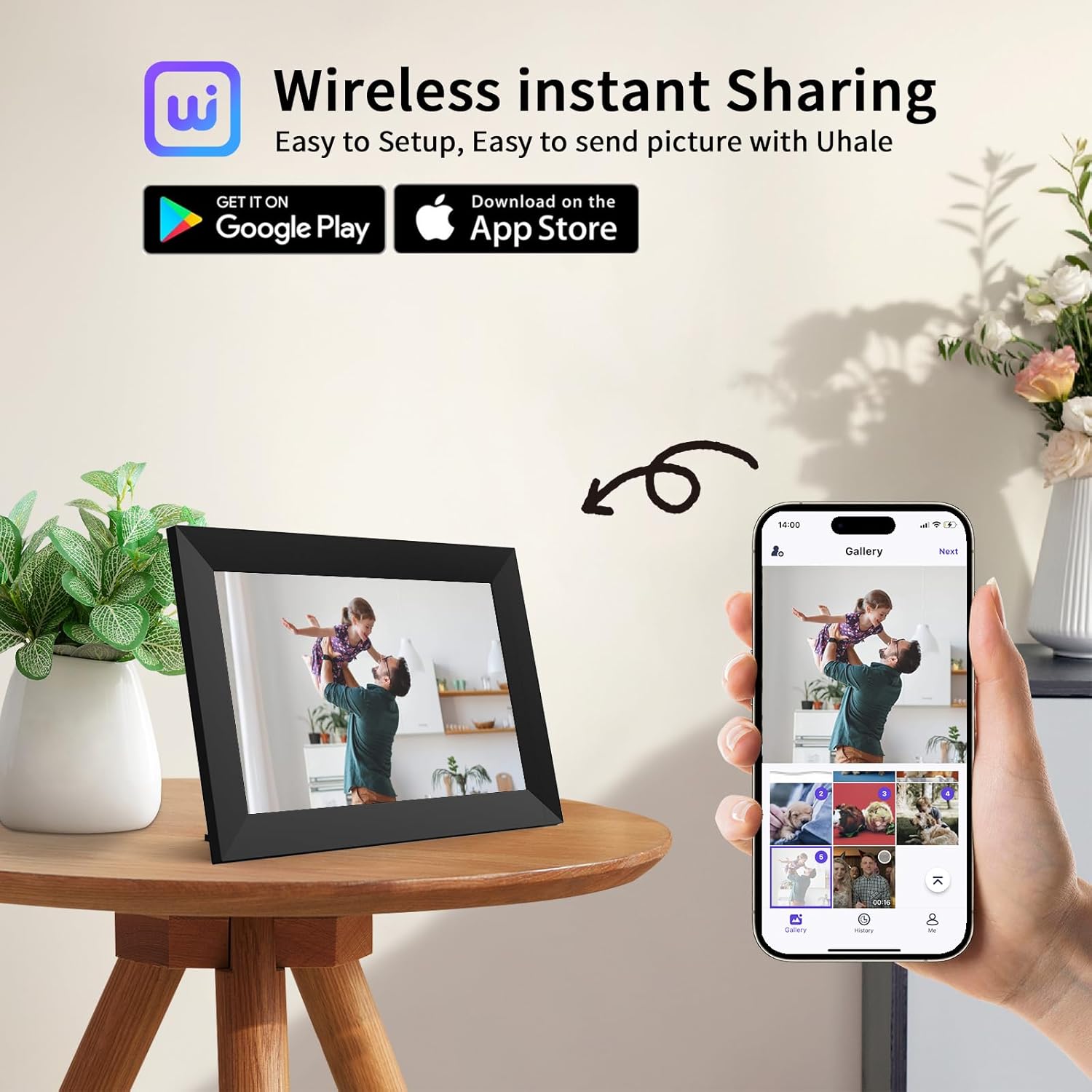
Image: The digital picture frame and a smartphone demonstrating the wireless instant sharing feature through the Uhale app.

Image: An illustration depicting how multiple family members can connect and share photos with the digital picture frame.
5.2 Importing Media via SD Card or USB-C
- For SD Card: Insert a Micro SD card (up to 32GB) containing your photos and videos into the SD card slot on the back of the frame.
- For USB-C: Connect a USB drive or your computer to the USB-C port on the back of the frame using a compatible cable.
- The frame will detect the external storage. Follow the on-screen prompts to browse and import media to the frame's internal memory.

Image: A visual guide to the four available methods for uploading photos to the digital picture frame.
5.3 Touch Screen Navigation
The frame features an intuitive touch screen interface. Tap, swipe, and pinch gestures can be used to navigate menus, view photos, and adjust settings.
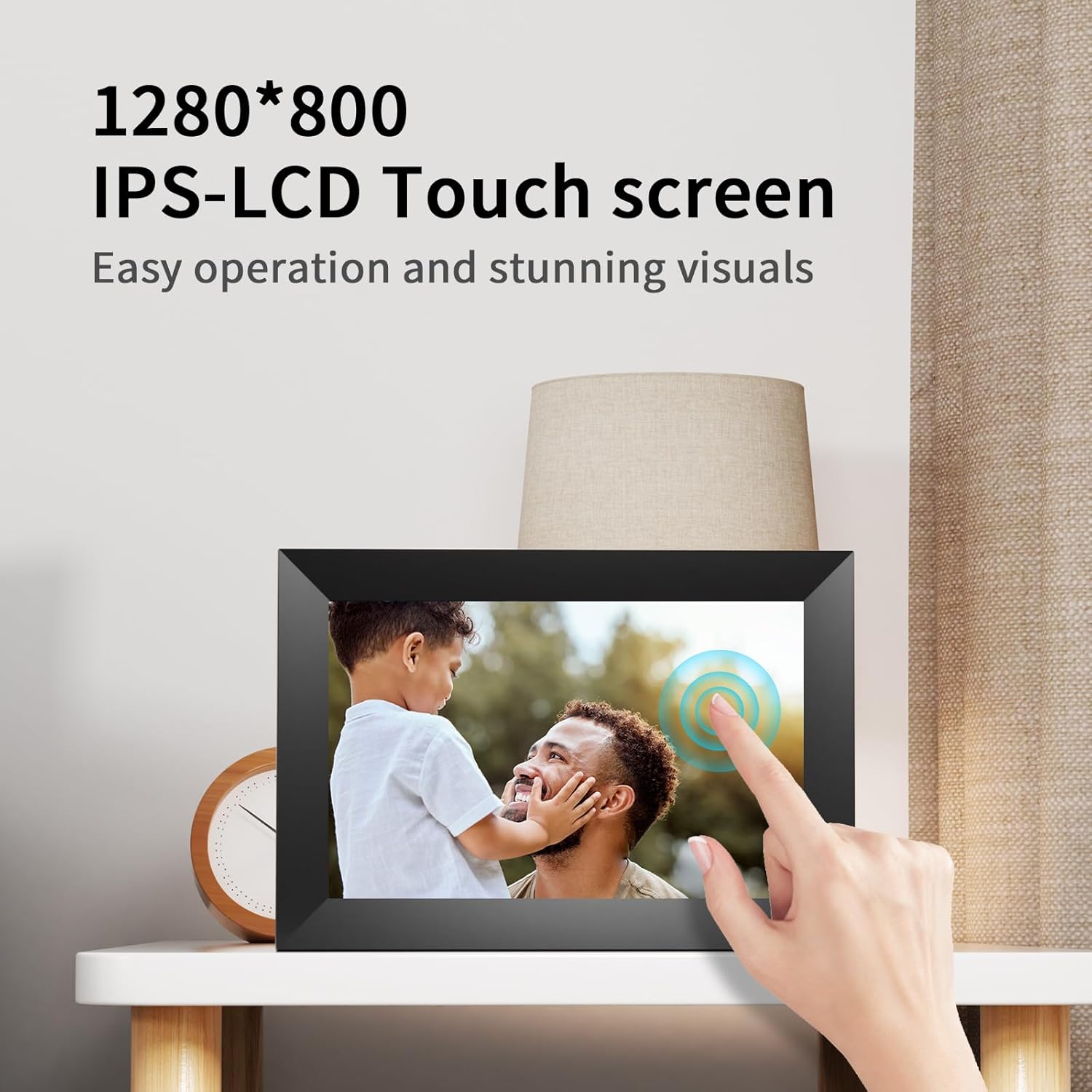
Image: A close-up of the digital picture frame's IPS-LCD touch screen, demonstrating its ease of operation.
5.4 Automatic Rotation
The frame is equipped with an automatic rotation sensor. When you change the frame's orientation from horizontal to vertical, or vice-versa, the displayed image will automatically adjust to fit the screen correctly.

Image: The automatic rotation feature shown with the frame displaying an image correctly in both landscape and portrait modes.
5.5 Slideshow Settings
Access the 'Settings' menu on the frame to customize your slideshow experience. Options typically include:
- Display Interval: Adjust how long each photo is displayed.
- Transition Effects: Choose from various effects between photos.
- Play Order: Select sequential or random playback.
- Background Music: Enable or disable background music for slideshows.
5.6 Sleep Mode
To conserve energy, you can set a schedule for the frame to enter and exit sleep mode automatically. This feature can be configured in the 'Settings' menu under 'Sleep Mode' or 'Timer'.
6. Maintenance
6.1 Cleaning the Screen
To clean the IPS touch screen, gently wipe it with a soft, lint-free cloth. For stubborn smudges, slightly dampen the cloth with water or a screen-safe cleaning solution. Avoid using harsh chemicals or abrasive materials.
6.2 General Care
- Keep the frame away from direct sunlight, excessive heat, and moisture.
- Avoid dropping the device or subjecting it to strong impacts.
- Ensure proper ventilation around the frame to prevent overheating.
7. Troubleshooting
7.1 Frame Not Powering On
- Check if the power adapter is securely connected to both the frame and the electrical outlet.
- Verify that the electrical outlet is functional by plugging in another device.
- Ensure you are using the original power adapter provided with the frame.
7.2 Unable to Connect to WiFi
- Confirm that your WiFi router is powered on and broadcasting a 2.4GHz signal. The frame does not support 5GHz networks.
- Double-check the WiFi password for accuracy.
- Move the frame closer to your WiFi router to improve signal strength.
- Restart your WiFi router and the digital picture frame.
- If your home WiFi is unavailable, you can create a mobile hotspot from your smartphone to connect the frame.
7.3 Photos/Videos Not Displaying
- Ensure the media files are in supported formats (JPEG/JPG/PNG/WEBP for images; MP4/M4V/3GP/MOV for videos).
- Check if the files are corrupted or too large.
- If using the Uhale app, confirm that the frame is successfully paired and connected to WiFi.
- If using an SD card or USB-C, ensure the storage device is properly inserted and recognized by the frame.
7.4 Uhale App Connection Issues
- Verify that both your smartphone and the digital picture frame are connected to the internet.
- Ensure you have the latest version of the Uhale app installed.
- Re-enter the bind code if the connection was lost or if you are setting up for the first time.
- Restart the Uhale app and the digital picture frame.
8. Specifications
| Feature | Specification |
|---|---|
| Model Number | US-WF105T |
| Screen Size | 10.1 Inches |
| Resolution | 1280 x 800 (HD IPS) |
| Aspect Ratio | 16:10 |
| Internal Memory | 32GB |
| External Storage | Micro SD card (up to 32GB), USB-C |
| WiFi Connectivity | 2.4GHz |
| Supported Image Formats | JPEG, JPG, PNG, WEBP |
| Supported Video Formats | MP4, M4V, 3GP, MOV (up to 15 seconds via app) |
| Product Dimensions | 10.4 x 7.4 x 0.99 inches (26.2 x 18.2 x 2.4 cm) |
| Item Weight | 1.07 pounds (0.48 kg) |
| Power Adapter | DC 5V2A |

Image: Detailed product dimensions of the digital picture frame, including width, height, and thickness.
9. Warranty and Support
For warranty information and technical support, please refer to the documentation included with your purchase or contact Desiontal customer service. Details for contacting support are typically available on the manufacturer's official website or through your retailer.
Please retain your proof of purchase for any warranty claims.