GOWENIC Detachable Case and Bluetooth Keyboard User Manual
Brand: GOWENIC | Model: GOWENIC37kish5y9z-12
1. Introduction
This manual provides comprehensive instructions for the GOWENIC Detachable Case and Bluetooth Keyboard for iOS Pro 11 Inch. It covers setup, operation, maintenance, and troubleshooting to ensure you get the most out of your product. Please read this manual thoroughly before using the device.
The GOWENIC keyboard case is designed to enhance your tablet experience with its intelligent touchpad, magnetic adhesion, floating stand, and robust protection. Its thin and lightweight design makes it an ideal companion for your iOS Pro 11 Inch tablet.
2. Key Features
2.1 Intelligent Touchpad
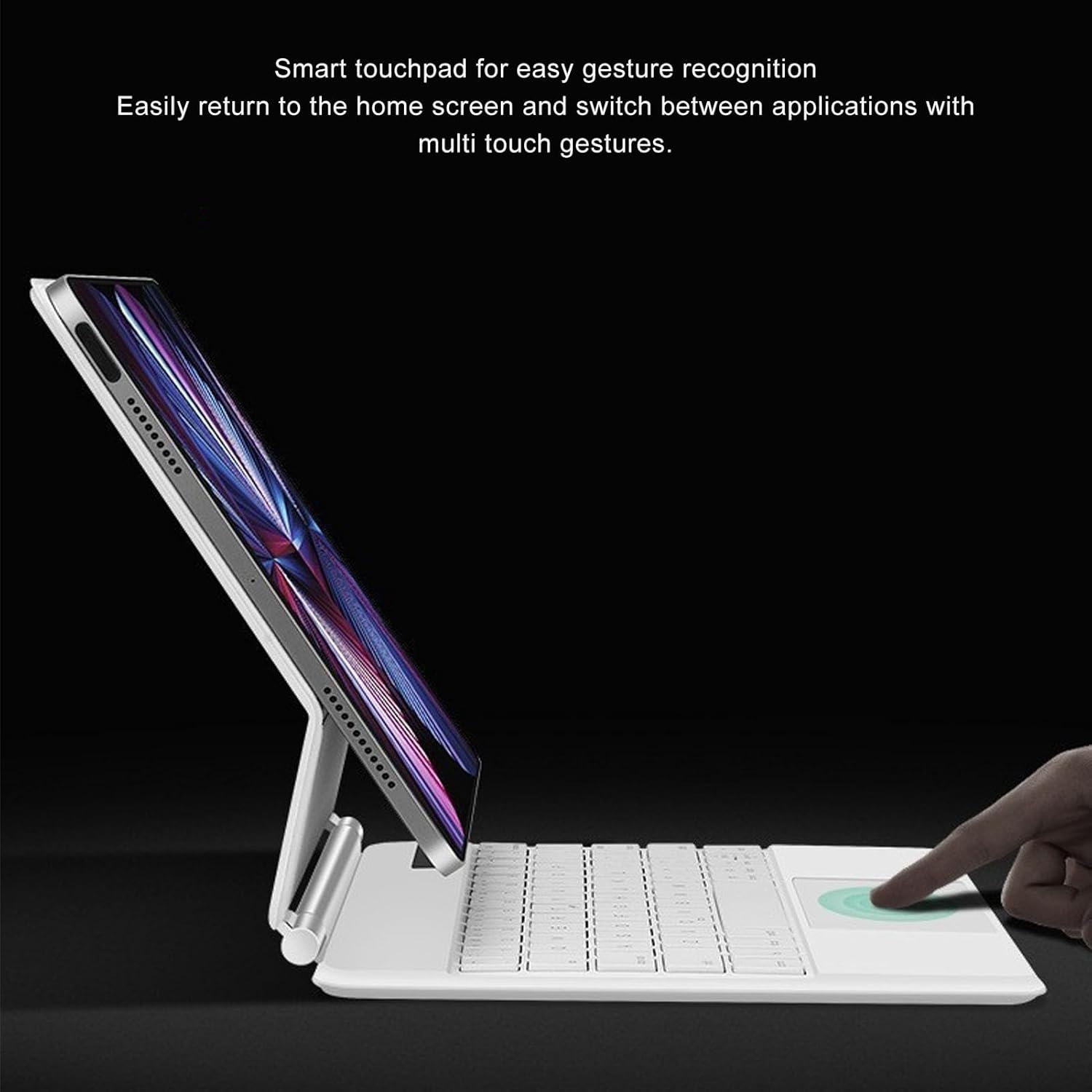
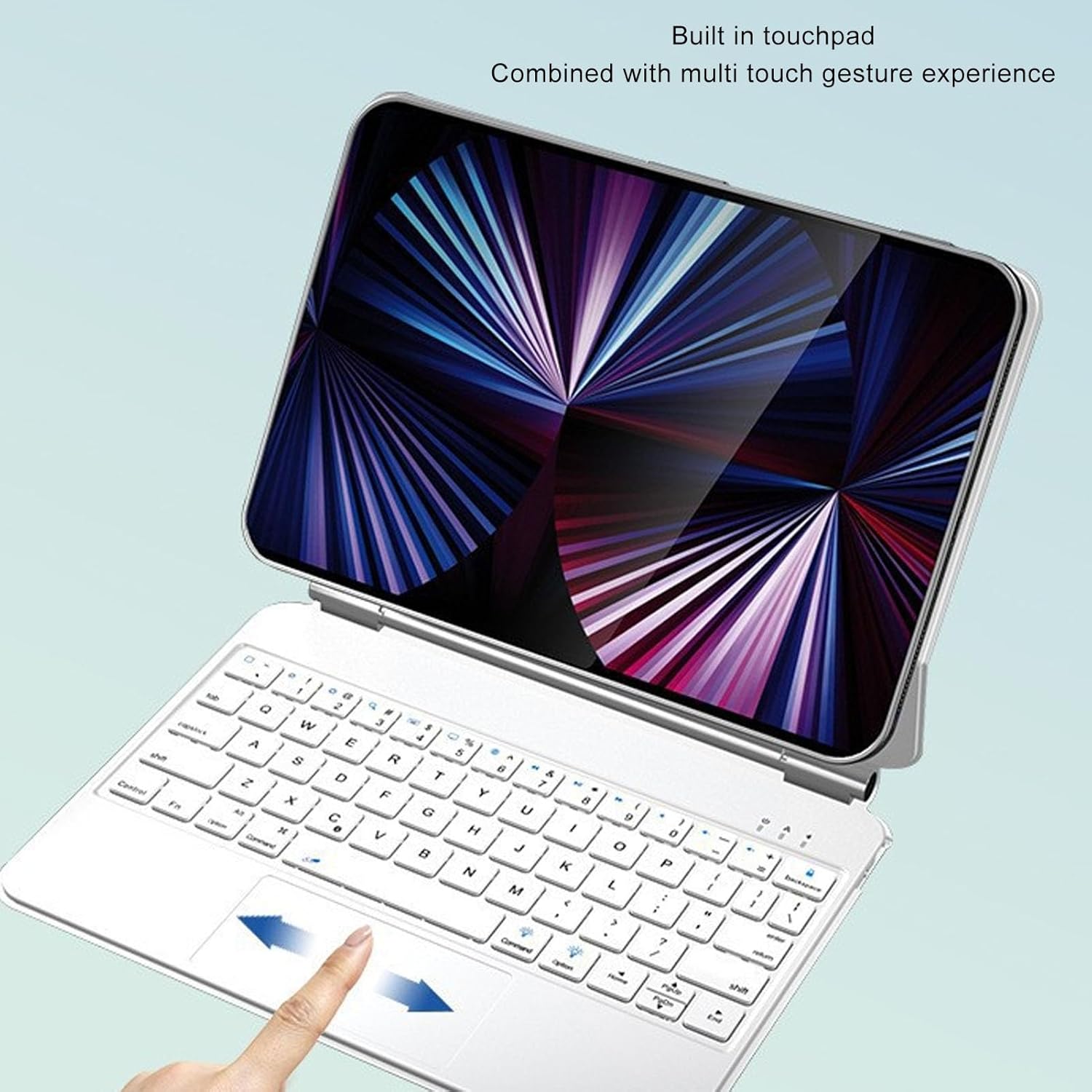
The intelligent touchpad supports multiple touch gestures, reducing the need to frequently touch the screen and significantly enhancing work efficiency. It allows for easy return to the home screen and seamless switching between different applications.
Image: The touchpad supports multi-touch gestures for enhanced navigation and efficiency.
Image: The built-in touchpad offers a combined multi-touch gesture experience for intuitive control.
2.2 Magnetic Adhesion
The interior of the case features a suede design to prevent any damage to your tablet upon adsorption. Equipped with multiple powerful magnets, it firmly holds your tablet in place, ensuring security and stability.
Image: The magnetic attachment design securely holds your tablet within the case.
Image: The case's interior is designed with suede and powerful magnets for secure tablet adhesion without damage.
2.3 Floating Stand Design
The case incorporates a floating stand design, which magnetically attaches to the device. This allows you to easily adjust the viewing angle to your preference, providing optimal comfort for various tasks.
Image: The floating stand design allows for easy adjustment of the tablet's viewing angle.
2.4 Full Wrapped and Drop Proof Protection
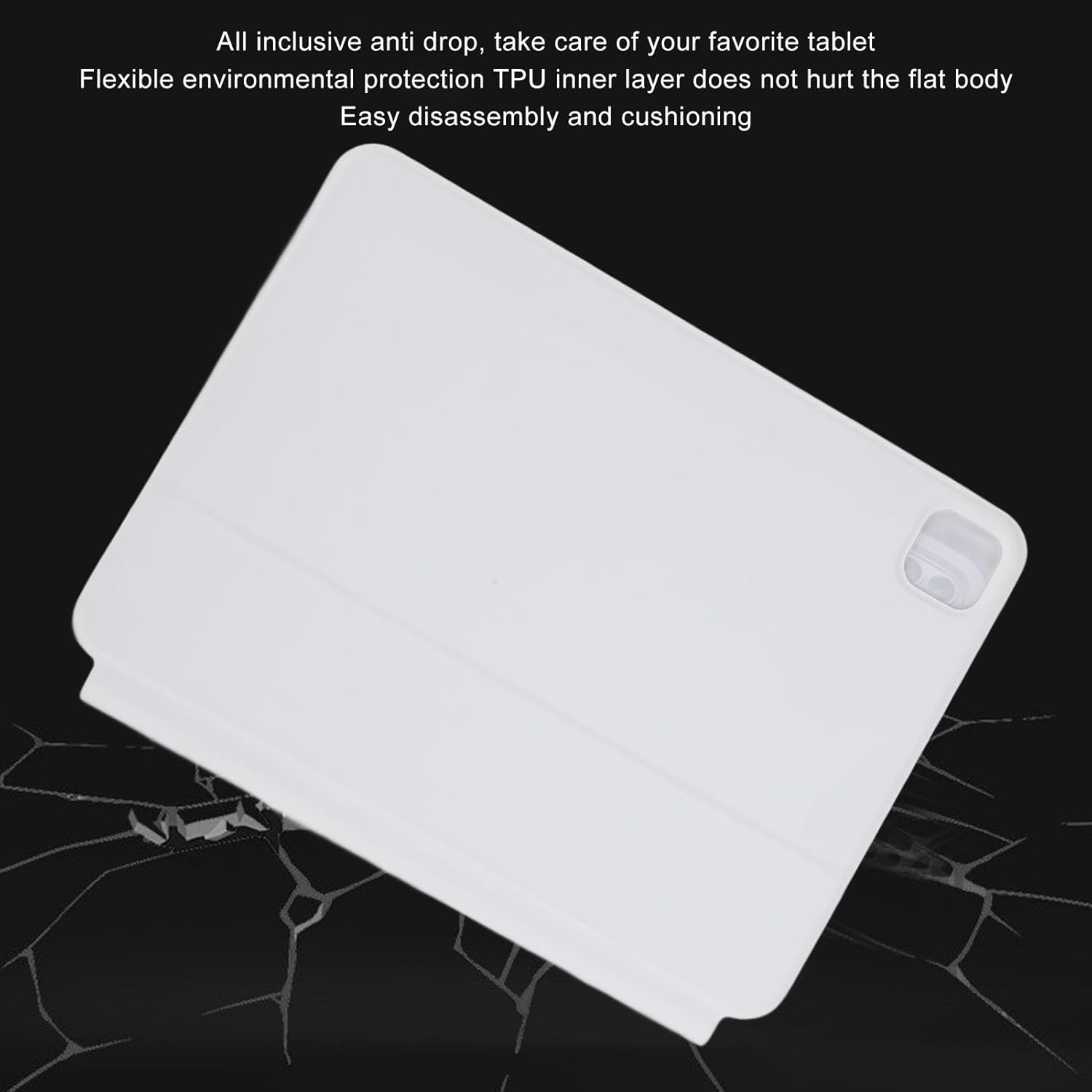
Featuring a flexible, environmentally friendly TPU inner layer, the case provides comprehensive protection for your tablet body. It is easy to disassemble, cushioned, and drop-proof, safeguarding your tablet from accidental impacts.
Image: The case offers all-inclusive anti-drop protection to safeguard your tablet.
Image: The flexible TPU inner layer provides full wrapped and drop-proof protection for the tablet.
2.5 Quiet and Comfortable Typing
The keyboard features an optimized scissor structure, ensuring sensitive, comfortable, and quiet typing. It includes a row of shortcut keys and a backlight function with three adjustable brightness gears, making it convenient for use in low-light conditions.
Image: The optimized scissor structure provides sensitive, comfortable, and quiet typing, complemented by shortcut keys and adjustable backlight.
3. Setup Guide
Charge the Keyboard: Before first use, ensure the keyboard is fully charged using the provided charging cable. Connect the cable to the keyboard's charging port and a suitable USB power source.
Power On the Keyboard: Locate the power switch on the keyboard and slide it to the "ON" position. The indicator light should illuminate briefly.
Enable Bluetooth on Your Tablet: On your iOS Pro 11 Inch tablet, go to Settings > Bluetooth and turn Bluetooth ON.
Pair the Keyboard:
Press the Bluetooth pairing button on the keyboard (usually indicated by a Bluetooth icon or "Connect"). The indicator light will start blinking, indicating it's in pairing mode.
On your tablet, look for "GOWENIC Keyboard" or a similar name in the list of available Bluetooth devices.
Tap on the keyboard's name to initiate pairing. Follow any on-screen prompts, such as entering a code, if required.
Once successfully paired, the indicator light on the keyboard will stop blinking and remain solid or turn off, and your tablet will show the keyboard as "Connected".
Attach Your Tablet: Carefully place your iOS Pro 11 Inch tablet into the case. The magnetic adhesion will securely hold it in place. Adjust the floating stand to your desired viewing angle.
4. Operation
4.1 Using the Keyboard
The keyboard functions like a standard QWERTY keyboard. Utilize the shortcut keys for quick access to common functions:
Function Keys: The top row of keys often includes media controls, volume adjustments, and other system functions. Press the Fn key in combination with these keys to activate their secondary functions.
Backlight Control: To adjust the keyboard backlight brightness, locate the backlight control key (often indicated by a light bulb icon). Press this key repeatedly to cycle through the three adjustable brightness levels or to turn the backlight off.
4.2 Using the Touchpad
The integrated touchpad supports multi-touch gestures for intuitive navigation:
Single Finger Tap: Left-click.
Two Finger Tap: Right-click (context menu).
Two Finger Scroll: Swipe up or down with two fingers to scroll content.
Pinch to Zoom: Pinch in or out with two fingers to zoom.
Swipe Up with Three Fingers: Return to the home screen.
Swipe Left/Right with Three Fingers: Switch between open applications.
Swipe Up with Four Fingers: Open App Switcher.
5. Maintenance and Care
Cleaning: Use a soft, dry, lint-free cloth to clean the keyboard and case. For stubborn dirt, slightly dampen the cloth with water. Avoid using harsh chemicals, abrasive cleaners, or solvents.
Storage: When not in use for extended periods, store the keyboard case in a cool, dry place. Ensure the keyboard is turned off to conserve battery life.
Battery Care: To prolong battery life, avoid fully discharging the keyboard frequently. Charge it regularly, even if not in constant use. Do not expose the battery to extreme temperatures.
Protection: While the case offers drop protection, avoid intentionally dropping the device. Keep the keyboard away from liquids and sharp objects.
6. Troubleshooting
Problem
Possible Cause / Solution
Keyboard not connecting to tablet.
Ensure the keyboard is powered on and charged.
Make sure Bluetooth is enabled on your tablet.
Re-enter pairing mode on the keyboard and re-pair with the tablet.
Forget the device on your tablet's Bluetooth settings and try pairing again.
Ensure the keyboard is within the effective operating range (10 meters).
Keys are not responding.
Check if the keyboard is connected via Bluetooth.
Ensure the keyboard battery is not critically low.
Restart both the keyboard and your tablet.
Touchpad is not working.
Ensure the keyboard is connected.
Check if the touchpad has been accidentally disabled (some keyboards have a function key for this).
Clean the touchpad surface.
Restart the keyboard and tablet.
Backlight is not working or dim.
Press the backlight control key to cycle through brightness levels.
Ensure the keyboard has sufficient battery charge.
7. Specifications
Item Type
Tablet Keyboard Case
Material
ABS, TPU
Effective Operating Range
Within 10 Meters
Modulation Mode
GFSK
Battery Type
Built-in Lithium Polymer Battery
Battery Capacity
480mAh
Continuous Operating Time (Backlight On)
4 Hours
Continuous Operating Time (Backlight Off)
80 Hours
Key Force
80±10g
Key Life
5 Million Clicks
Package Dimensions
11.02 x 8.27 x 1.18 inches
Item Weight
2.2 pounds
Model Number
GOWENIC37kish5y9z-12
Color
White
8. Warranty Information
GOWENIC products are manufactured to high quality standards. While specific warranty details are not provided in this manual, most GOWENIC products come with a standard manufacturer's warranty covering defects in materials and workmanship from the date of purchase. Please retain your proof of purchase for warranty claims.
For detailed warranty terms and conditions, please refer to the warranty card included with your product packaging or visit the official GOWENIC website.
9. Customer Support
If you encounter any issues or have questions regarding your GOWENIC Detachable Case and Bluetooth Keyboard that are not covered in this manual, please contact our customer support team for assistance.
Online Support: Visit the official GOWENIC website for FAQs, support resources, and contact forms.
Email Support: Refer to your product packaging or the GOWENIC website for the customer support email address.
Seller Support: For purchase-related inquiries, you may also contact the seller directly through the platform where you purchased the product.
When contacting support, please have your product model number (GOWENIC37kish5y9z-12) and purchase details ready.
Ask a question about this manual
Ask about setup, troubleshooting, compatibility, parts, safety, or missing instructions. Manuals+ will review the question and use this page’s manual context to help answer it.