
Introduction
This manual provides instructions for the safe and efficient use of your Reletech USB 3.2 Gen 1 Flash Drive 32GB. Please read this manual thoroughly before using the device to ensure optimal performance and data integrity.

Image: The Reletech USB 3.2 Gen 1 Flash Drive, white with a blue retractable button and the Reletech logo.
The Reletech USB 3.2 Gen 1 Flash Drive is designed for high-speed data transfer and reliable storage of various file types, including documents, photos, music, and videos. It features a retractable design for protection and ease of use.
Setup
The Reletech USB 3.2 Gen 1 Flash Drive is a plug-and-play device, requiring no special driver installation for most operating systems.
- Prepare the Flash Drive: Gently push the blue button on the flash drive to extend the USB-A connector.
- Connect to a Device: Insert the extended USB-A connector into an available USB port on your computer, laptop, or other compatible device. For optimal performance, use a USB 3.0 or USB 3.2 Gen 1 port. The drive is backward compatible with USB 2.0 ports, but data transfer speeds will be reduced.
- Device Recognition: Your operating system should automatically detect the flash drive. It will typically appear as a removable disk or mass storage device in your file explorer (e.g., "This PC" on Windows, "Finder" on macOS).

Image: The Reletech USB flash drive inserted into the USB port of a laptop, illustrating the connection process.
Operating Instructions
Once connected, you can perform various operations with your flash drive.
Transferring Files
- Open the Drive: Navigate to the flash drive in your computer's file explorer. Double-click its icon to open it.
- Copy Files:
- To copy files to the flash drive: Locate the files on your computer, select them, right-click (or use Ctrl+C/Cmd+C), then navigate to the flash drive, right-click an empty area, and select "Paste" (or use Ctrl+V/Cmd+V).
- To copy files from the flash drive: Locate the files on the flash drive, select them, right-click (or use Ctrl+C/Cmd+C), then navigate to your desired location on your computer, right-click, and select "Paste" (or use Ctrl+V/Cmd+V).
- Drag and Drop: Alternatively, you can drag and drop files or folders directly between your computer's storage and the flash drive's window.
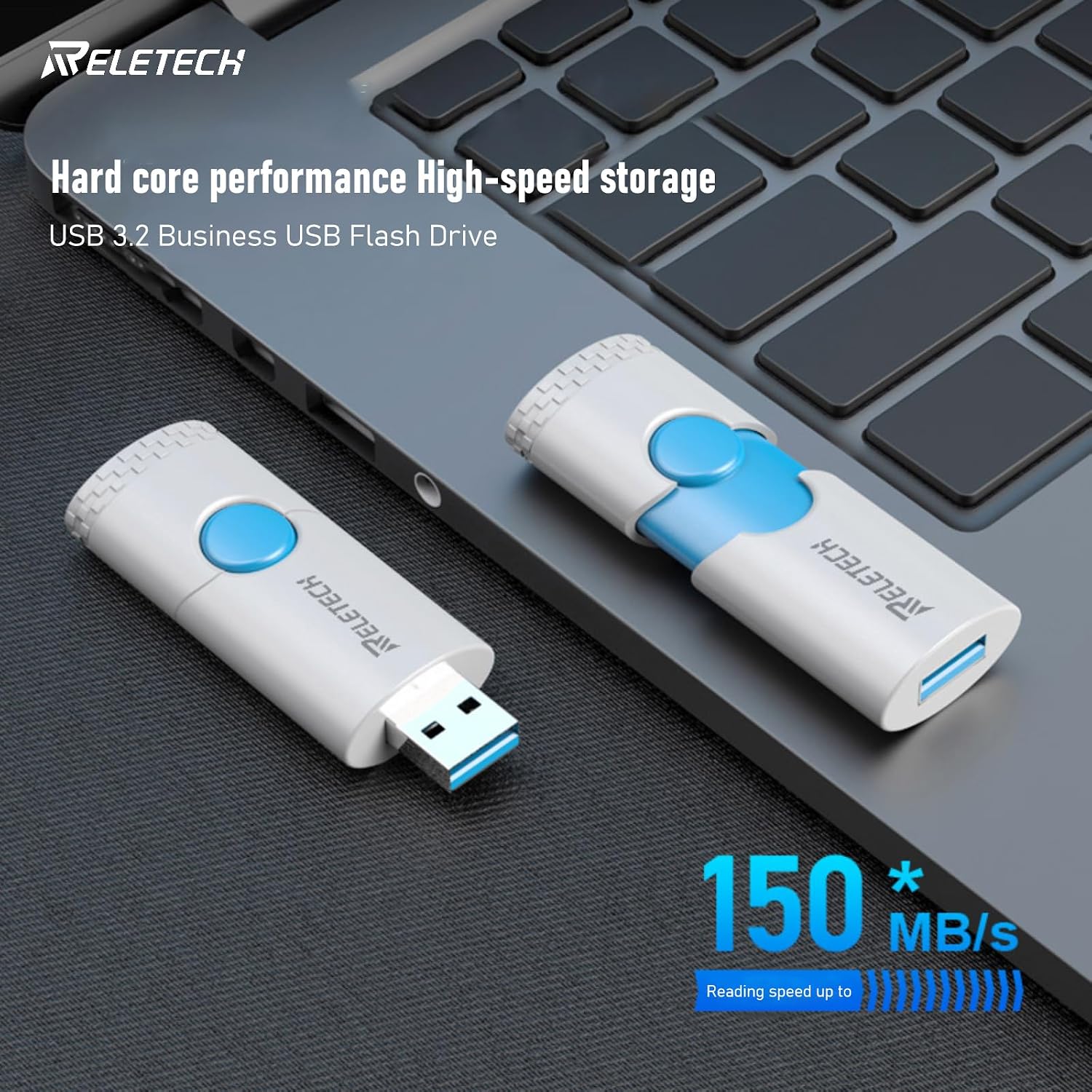
Image: Two Reletech USB flash drives on a laptop keyboard, with an overlay indicating a reading speed of up to 150MB/s, highlighting its high-speed data transfer capability.
Safe Removal
Always safely remove the flash drive before physically disconnecting it to prevent data corruption.
- Windows: Click the "Safely Remove Hardware and Eject Media" icon in the system tray (bottom-right corner), then select your flash drive and click "Eject". Wait for the "Safe to Remove Hardware" notification.
- macOS: Drag the flash drive icon from your desktop or Finder sidebar to the Trash icon, or right-click the icon and select "Eject".
- Linux: Right-click the drive icon on your desktop or file manager and select "Eject" or "Unmount".
Maintenance
Proper care ensures the longevity and reliability of your Reletech flash drive.
- Physical Protection: Utilize the retractable design to protect the USB connector when not in use. Avoid exposing the drive to extreme temperatures, direct sunlight, or moisture.
- Data Integrity: Always perform a safe ejection before removing the drive to prevent data corruption. Regularly back up important data stored on the flash drive to another storage medium.
- Cleaning: If necessary, gently wipe the exterior of the drive with a soft, dry, lint-free cloth. Do not use liquid cleaners or solvents.
- Firmware Updates: Periodically check the official Reletech website for any available firmware updates for your model.

Image: A close-up of the Reletech USB flash drive highlighting its push-pull retractable design, dual colors, and pixel block texture.
Troubleshooting
If you encounter issues with your Reletech flash drive, try the following solutions:
- Drive Not Detected:
- Try inserting the drive into a different USB port on your computer.
- Test the drive on another computer to rule out a port or system issue.
- Ensure the USB connector is fully extended and properly seated in the port.
- Check your computer's Device Manager (Windows) or System Information (macOS) to see if the drive is listed.
- Slow Transfer Speeds:
- Ensure you are connected to a USB 3.0 or USB 3.2 Gen 1 port. USB 2.0 ports will result in slower speeds.
- Avoid transferring many small files simultaneously, as this can reduce overall speed.
- Close other applications that might be using system resources or accessing other storage devices.
- Cannot Write Files (Read-Only):
- Check if the drive is full. Delete unnecessary files or transfer them to another location.
- The drive might be formatted with a file system (e.g., NTFS on macOS without third-party software) that is read-only on your operating system. Consider reformatting the drive (Note: This will erase all data).
- The drive might be corrupted. Running a disk check utility (e.g., `chkdsk` on Windows, Disk Utility on macOS) might resolve the issue.
- Data Corruption:
- Always use the "Safely Remove Hardware" option before disconnecting the drive.
- If data corruption persists, the drive may be faulty. Contact customer support.
Specifications
| Brand | Reletech |
| Model | Z3 |
| Memory Storage Capacity | 32 GB |
| Hardware Interface | USB 3.2 Gen 1 (USB 3.0 compatible) |
| Connectivity Technology | USB |
| Hardware Connectivity Technology | USB Type A |
| Read Speed (Max) | Up to 150 MB/s (requires USB 3.2 Gen 1 / USB 3.0 port) |
| Flash Memory Type | NAND FLASH |
| Special Feature | Lightweight, Retractable Design |
| Color | White |
| Item Weight | 0.035 ounces |
| UPC | 792522680203 |
Note: Actual storage capacity shown by a device's operating system may be less than the indicated capacity due to different measurement standards. Performance may vary based on host device, file attributes, and other factors.
Support and Warranty
For technical support or warranty inquiries, please refer to the official Reletech website or contact their customer service directly. Keep your purchase receipt as proof of purchase.
Online Resources: Visit the Reletech Store on Amazon for product information and updates.