
1. Introduction
Thank you for choosing the YUNZII B68 Wireless Mechanical Keyboard. This keyboard offers versatile connectivity options, a compact layout, and customizable features designed for both productivity and gaming. Please read this manual carefully to ensure proper setup and operation of your device.

Image: The YUNZII B68 Wireless Mechanical Keyboard, showcasing its compact 65% layout and RGB backlighting.
2. Package Contents
The YUNZII B68 package includes the following items:
- YUNZII B68 Wireless Mechanical Keyboard
- USB-C to USB-A Cable
- Keycap Puller
- Switch Puller
- Additional Gradient Rainbow Keycaps
- User Manual
Video: An unboxing video demonstrating the contents of the YUNZII B68 Wireless Mechanical Keyboard package, including the keyboard, cables, tools, and extra keycaps.
3. Setup
3.1 Connectivity Modes
The YUNZII B68 supports three connectivity modes: Bluetooth 5.0, 2.4GHz wireless, and wired USB-C. It is compatible with Windows, macOS, iOS, and Android devices, and can connect to up to five devices simultaneously.

Image: Diagram illustrating the three connectivity modes (Bluetooth, 2.4GHz, Wired) and compatibility with various operating systems.
3.1.1 Bluetooth Connection
- Switch the mode button on the keyboard to the BT position.
- Press and hold FN + Q/W/E to enter Bluetooth pairing mode. The Q/W/E keys will flash cyan/pink/yellow.
- On your device, search for "B68 3.0/5.0" in Bluetooth settings and connect.

Image: Step-by-step visual guide for connecting the keyboard via Bluetooth.
3.1.2 2.4GHz Wireless Connection
- Switch the mode button on the keyboard to the 2.4G position.
- Press and hold FN + R to enter 2.4GHz pairing mode. The R key will flash blue.
- Plug the 2.4G USB receiver into your computer's USB port.

Image: Step-by-step visual guide for connecting the keyboard via 2.4GHz wireless.
3.1.3 Wired USB-C Connection
- Connect the provided USB-C cable to the keyboard's USB-C port.
- Connect the other end of the cable to your computer's USB port.
- The keyboard will automatically switch to wired mode.

Image: Illustration of connecting the keyboard using the USB-C cable for wired operation and charging.
3.2 Operating System Switch
Use the dedicated switch on the back of the keyboard to toggle between Windows and Mac operating system layouts.

Image: Close-up of the physical switch on the keyboard to select between Windows and Mac modes.
3.3 Battery Charging
The keyboard features a 5000mAh battery. Connect the USB-C cable to charge the keyboard. The battery level can be checked in wireless mode by pressing FN + Right Alt.

Image: Visual representation of the keyboard's 5000mAh battery capacity and the key combination to check battery level.
4. Operating Instructions
4.1 Multifunction Knob
The keyboard includes a multifunction knob for quick adjustments:
- Multimedia Mode (Default): Rotate to adjust volume. Press to mute/unmute.
- RGB Mode: Long-press the knob to switch to RGB mode. Rotate to change RGB effect. Press to increase/decrease RGB brightness.

Image: Diagram detailing the functions of the multifunction knob in both multimedia and RGB modes.
4.2 RGB Backlighting Control
The YUNZII B68 features RGB backlighting with south-facing LEDs. Use the following FN key combinations to control the lighting:
- FN + Backspace: Backlight Effect ON/OFF
- FN + |: Change Backlight Effect
- FN + Enter: Change Backlight Color
- FN + Tab: White Light ON/OFF
- FN + Up/Down Arrow: Brightness Increase/Decrease
- FN + Left/Right Arrow: Blinking Speed Increase/Decrease
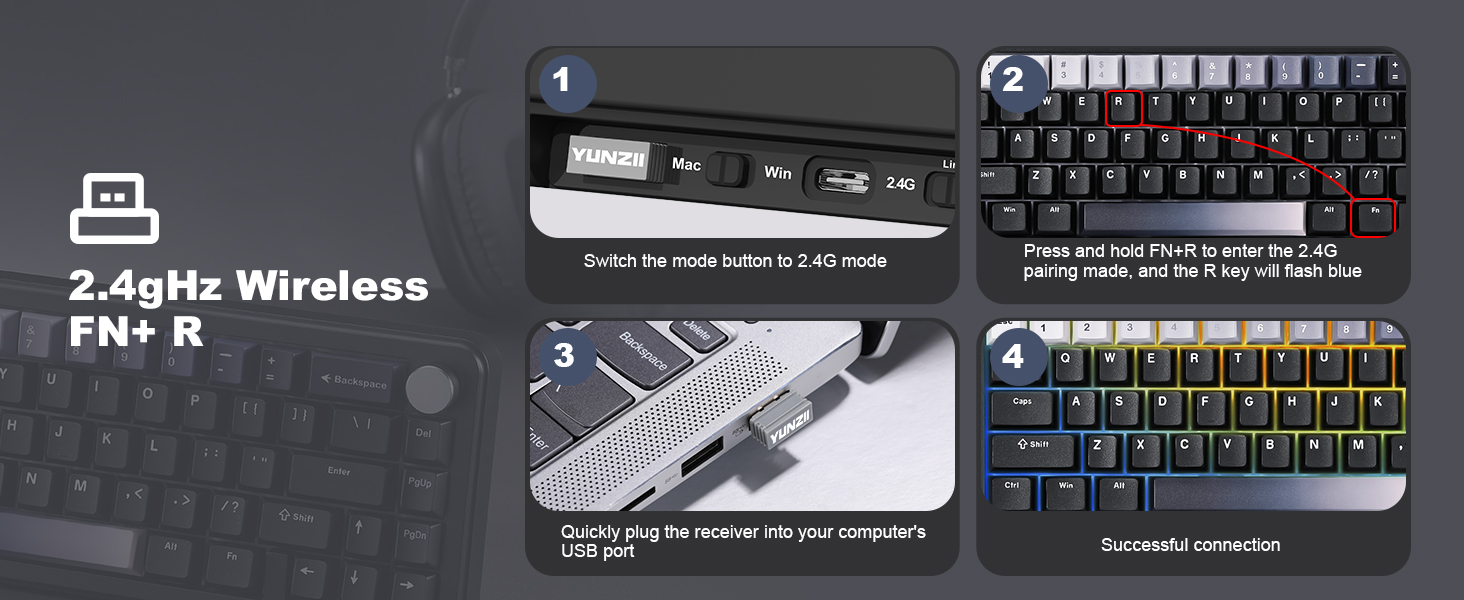
Image: Visual guide to FN key combinations for controlling RGB backlight effects, colors, brightness, and speed.
4.3 Hot-Swappable Switches
The B68 keyboard features full-key hot-swappable sockets compatible with 3-pin and 5-pin mechanical switches. This allows for easy customization of your typing experience without soldering.

Image: Close-up view of the hot-swappable switch sockets, demonstrating how switches can be removed and inserted.
4.3.1 Changing Switches
- Use the provided keycap puller to carefully remove the desired keycap.
- Use the provided switch puller to gently grip the switch and pull it straight up.
- Align the pins of the new switch with the holes on the PCB and press down firmly until it clicks into place. Ensure pins are not bent.
- Replace the keycap.

Image: Detailed view of a Cocoa Cream V2 linear switch, highlighting its components and specifications.
4.4 PBT Keycaps
The keyboard comes with durable double-shot PBT keycaps, along with additional gradient rainbow keycaps for personalization. PBT material offers enhanced durability and resistance to shine compared to ABS keycaps.
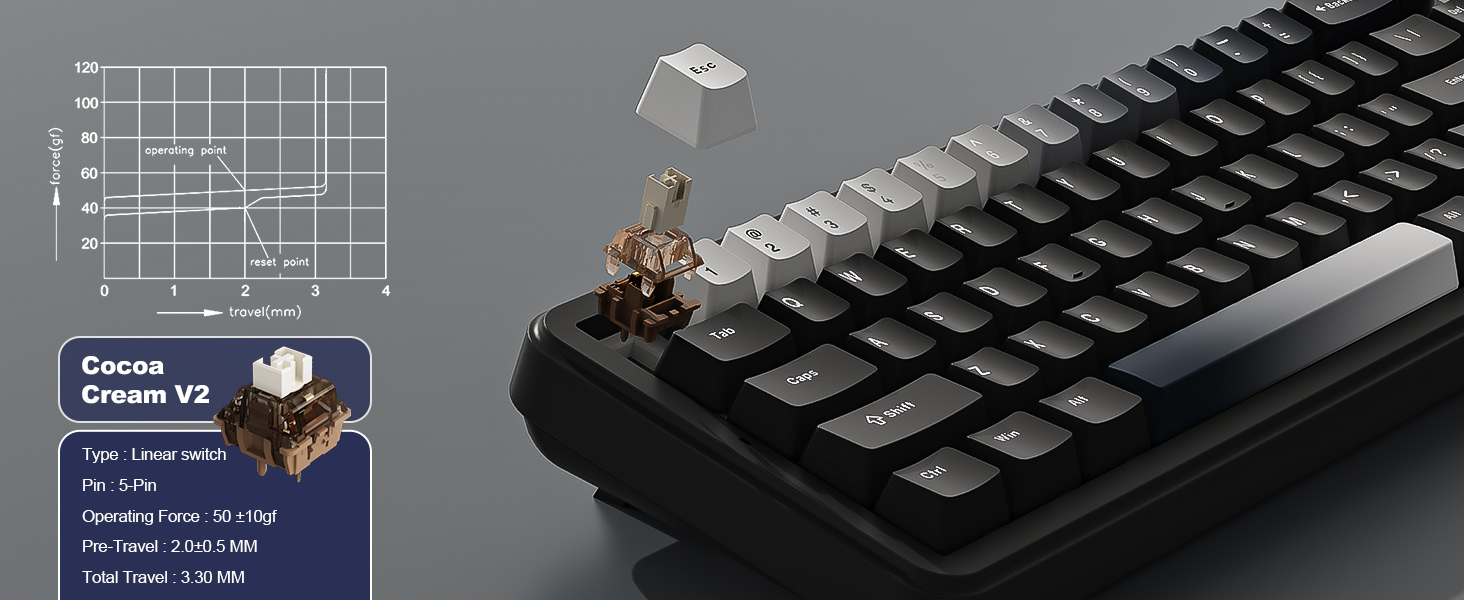
Image: The keyboard with its PBT keycaps, including a set of gradient rainbow keycaps for customization.
4.5 Programmable Software
Customize key settings, RGB lighting, and macros using the dedicated software. Note: The software is compatible with Windows operating systems only.

Image: Screenshot of the YUNZII B68 programmable software interface, showing options for key remapping, RGB customization, and macro creation.
5. Maintenance
5.1 Cleaning the Keyboard
To maintain your keyboard's performance and appearance:
- Disconnect the keyboard from your device before cleaning.
- Use a soft, lint-free cloth dampened with a small amount of water or isopropyl alcohol to wipe down the keycaps and casing.
- For deeper cleaning, remove keycaps using the provided keycap puller and use compressed air to clear debris from between switches.
- Avoid using harsh chemicals or abrasive materials.
5.2 Gasket Mount Design
The keyboard features a gasket mount design with five layers of sound-absorbing padding (PE sandwich foam, IXPE switch pad, PET sound foam, switch foam, and a silicone button pad) for a quieter and smoother typing experience. This internal structure requires no special maintenance from the user.

Image: Exploded view of the keyboard's internal gasket mount structure, showing the various layers of padding for sound absorption and typing feel.
6. Troubleshooting
- Keyboard not responding: Ensure the keyboard is charged. Check the connection mode switch (BT, 2.4G, Wired) and ensure it matches your connection method. For wireless modes, re-pair the device.
- Bluetooth connection issues: Ensure the keyboard is in pairing mode. Remove the keyboard from your device's Bluetooth list and try re-pairing. Ensure no other devices are interfering.
- 2.4GHz connection issues: Ensure the USB receiver is securely plugged in. Try a different USB port. Re-pair the device by pressing FN + R.
- RGB lights not working: Check if the backlight is turned off (FN + Backspace). Adjust brightness using FN + Up/Down Arrow.
- Keys not registering: If specific keys are not working, try replacing the switch using the hot-swap feature. Ensure the switch is fully seated.
- Software not detecting keyboard: Ensure the keyboard is connected via wired USB-C mode. The software is only compatible with Windows.
Video: A demonstration of the typing sound of the YUNZII B68 Wireless Keyboard, useful for assessing switch performance.
7. Specifications
| Product Dimensions | 12.83 x 12.83 x 1.26 inches |
| Item Weight | 2.35 pounds |
| Manufacturer | YUNZII |
| Model Number | B68 |
| Battery | 1 Lithium Ion battery (included), 5000mAh |
| Connectivity Technology | Bluetooth, 2.4GHz, Type-C |
| Keyboard Description | Mechanical |
| Compatible Devices | iOS, Windows, Mac, Android |
| Special Features | Backlit, Ergonomic, 3 Modes, Customizable Display Keys, Hot-Swappable |
| Keyboard Backlighting | RGB |
8. Warranty and Support
YUNZII products come with a standard manufacturer's warranty. For specific warranty details, please refer to the warranty card included in your package or visit the official YUNZII website. For technical support, troubleshooting assistance, or any product-related inquiries, please contact YUNZII customer service through the following methods:
- Email: Refer to your product packaging or the official YUNZII website for contact information.
- Online Support: Visit the YUNZII support page on their official website.
- Amazon Seller Contact: If purchased on Amazon, you can contact the seller directly through your order history for assistance.

Image: A graphic detailing YUNZII's mission to create high-quality, aesthetic mechanical keyboards.