
1. Introduction
This manual provides instructions for the proper setup, operation, and maintenance of your GoodQbuy OPC-1122 USB Programming Cable. This cable is designed to facilitate communication between your computer and compatible Icom radio models for programming purposes. Please read this manual thoroughly before use.
2. Package Contents
Verify that all items are present in your package:
- 1 x GoodQbuy OPC-1122 USB Programming Cable
- 1 x USB Driver CD
Note: CPS (Customer Programming Software) is not included and must be obtained separately from Icom or an authorized dealer.

Image: The GoodQbuy OPC-1122 USB Programming Cable alongside its included USB driver CD.
3. Setup
3.1 System Requirements
- Operating Systems: Windows 2000, XP, Server 2003, Vista, Server 2008, 7, 8, Windows 10, Windows 11 (32-bit and 64-bit versions), and Mac operating systems.
- Available USB Port
3.2 Driver Installation
- Insert the provided USB Driver CD into your computer's optical drive.
- Navigate to the CD's contents and locate the driver installation file.
- Follow the on-screen instructions to install the USB drivers. Administrator privileges may be required.
- Restart your computer if prompted to ensure proper driver integration.
3.3 Connecting the Cable
- Connect the USB Type-A end of the programming cable to an available USB port on your computer.
- Connect the RJ-45 (8-pin) end of the programming cable to the programming port on your compatible Icom radio. Ensure a secure connection.

Image: The GoodQbuy OPC-1122 USB Programming Cable, showing both the USB and RJ-45 connectors.
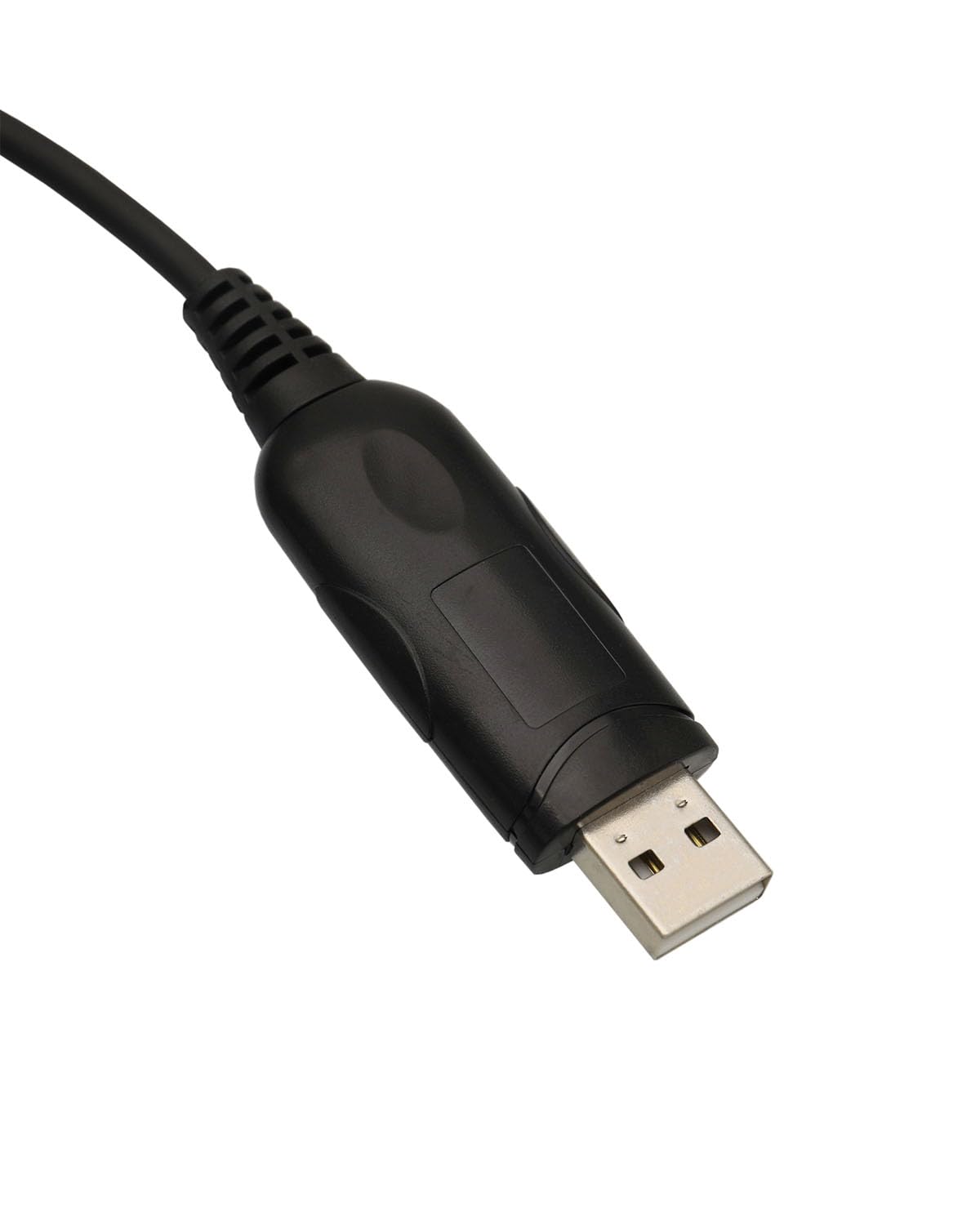
Image: A detailed view of the USB connector, which plugs into your computer.
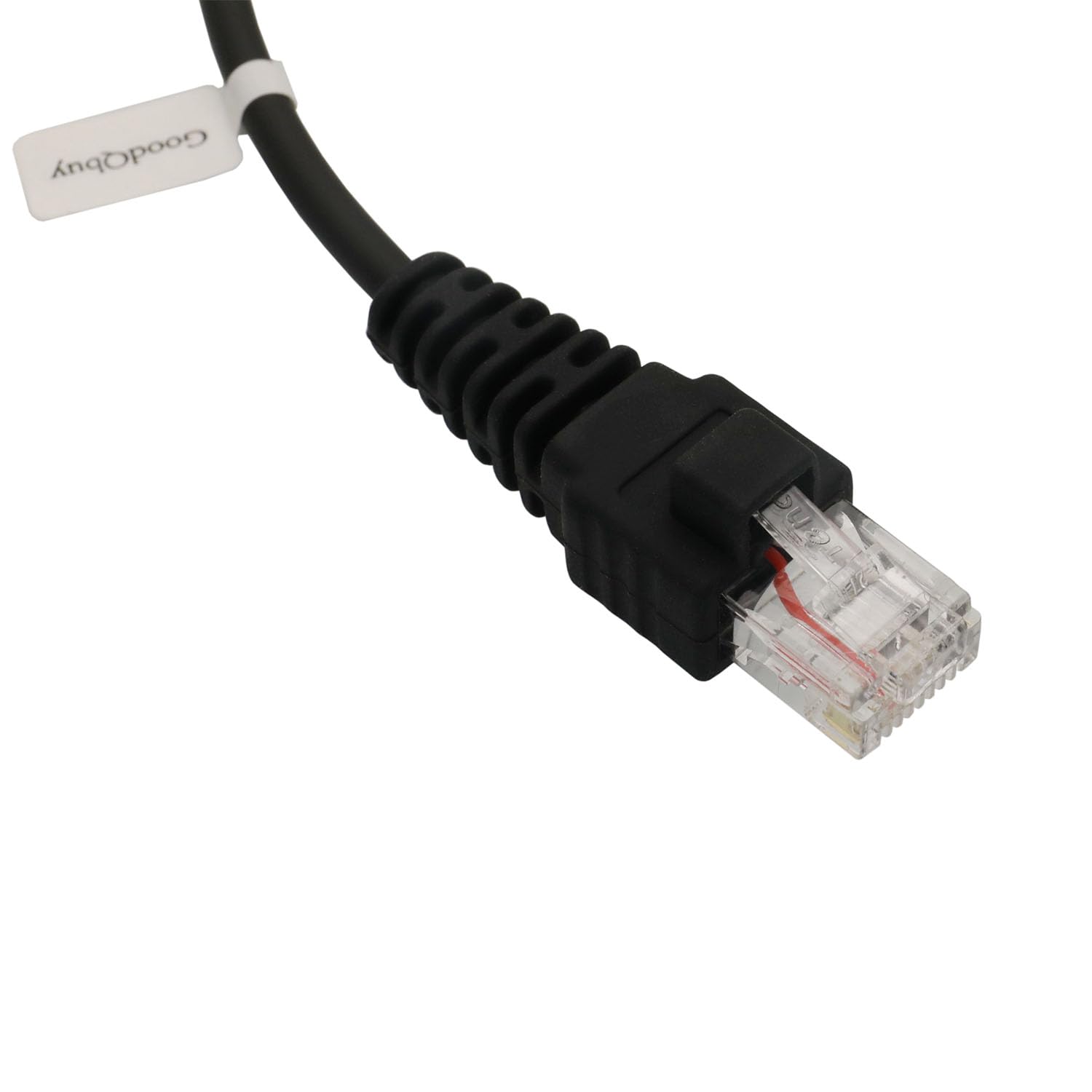
Image: A detailed view of the RJ-45 (8-pin) connector, designed to connect to compatible Icom radios.
4. Operating Instructions
4.1 Using Programming Software
Once the cable drivers are installed and the cable is connected to both your computer and radio, you can proceed with programming using your Icom Customer Programming Software (CPS). This cable acts as the interface between the software and the radio.
4.2 Basic Programming Steps
- Launch the appropriate Icom CPS on your computer.
- Ensure your radio is powered on.
- Within the CPS, select the correct communication port (COM port) that corresponds to your USB programming cable. This is typically found in the software's settings or preferences.
- Use the software's functions to 'Read' the current configuration from your radio. This verifies the connection.
- Modify frequencies, channels, and other settings as needed within the CPS.
- Use the software's functions to 'Write' the new configuration to your radio.
- After writing, disconnect the cable and power cycle your radio to apply the new settings.
The cable is designed for stable and efficient data transfer, ensuring reliable reading and writing of radio frequencies and settings.
5. Maintenance
5.1 Cable Care
- Avoid bending or kinking the cable sharply, especially near the connectors.
- Do not pull on the cable itself to disconnect; always grasp the connector housing.
- Keep the connectors clean and free from dust or debris.
5.2 Storage
When not in use, store the cable in a cool, dry place, away from direct sunlight and extreme temperatures. Coiling the cable loosely can help prevent damage.
6. Troubleshooting
6.1 Driver Not Recognized
- Ensure the driver installation process was completed successfully. Try reinstalling the drivers from the provided CD.
- Verify that your operating system is compatible with the drivers.
- Try connecting the cable to a different USB port on your computer.
- Check Device Manager (Windows) or System Information (Mac) to see if the cable is listed and if there are any driver errors.
6.2 Radio Not Communicating
- Confirm that the RJ-45 connector is fully inserted into the radio's programming port.
- Ensure the radio is powered on.
- In your CPS, verify that the correct COM port is selected.
- Check the radio's manual for any specific settings required for programming mode.
- Ensure you are using the correct version of CPS for your specific radio model.
6.3 Programming Errors
- Ensure the radio's battery is sufficiently charged or that it is connected to a stable power source during programming.
- Avoid interrupting the programming process once it has started.
- If errors persist, consult the documentation for your specific Icom radio model and CPS.
7. Specifications
- Model: OPC-1122 (USB-IC-1122)
- Connector Type: USB Type-A to RJ-45 (8-pin)
- Cable Length: Approximately 1 meter (3.3 feet)
- Cable Diameter: 4.2mm
- Cable Material: Durable PU (Polyurethane)
- Compatible Operating Systems: Windows 2000, XP, Server 2003, Vista, Server 2008, 7, 8, 10, 11 (32/64-bit), Mac OS
- Function: Data Transfer for Radio Programming
7.1 Compatible Icom Radio Models
This cable is compatible with a wide range of Icom radio models, including but not limited to:
- CY-5000, CY-6000, CY-F121S, CY-F221S
- IAS-100, IASVOTINGRX, IASX-BAND50
- IC-400 pro, IC-440
- IC-A110, IC-A110 EURO, IC-A200
- IC-F110, IC-F110N, IC-F110S, IC-F110SN, IC-F111, IC-F120, IC-F121, IC-F121S
- IC-F210, IC-F210S, IC-F211, IC-F211S, IC-F220, IC-F220S, IC-F221, IC-F221S
- IC-F310, IC-F310S, IC-F320, IC-F320S
- IC-F410, IC-F410S, IC-F420, IC-F420S
- IC-F500, IC-F510, IC-F510N, IC-F511, IC-F520, IC-F521
- IC-F610, IC-F610MPT, IC-F610MPTN/W, IC-F610N, IC-F610N/W, IC-F611, IC-F620, IC-F620TR, IC-F621, IC-F621TR
- IC-F1010, IC-F1020, IC-F1610, IC-F1710, IC-F1721, IC-F1721D, IC-F1810, IC-F1821, IC-F1821D
- IC-F2010, IC-F2020, IC-F2610, IC-F2710, IC-F2721, IC-F2721D, IC-F2810, IC-F2821, IC-F2821D
- IC-F5010, IC-F5011, IC-F5021, IC-F5023, IC-F5060, IC-F5061, IC-F5062, IC-F5063, IC-F5120, IC-F5121, IC-F5123D, IC-F5220D
- IC-F6010, IC-F6011, IC-F6021, IC-F6023, IC-F6060, IC-F6061, IC-F6062, IC-F6063, IC-F6120, IC-F6121, IC-F6121D, IC-F6123D, IC-F6220D
- IC-F9511, IC-F9521, IC-F9523
- IC-FR3000, IC-FR3100, IC-FR4000, IC-FR4100, IC-FR5000, IC-FR6000
8. Warranty and Support
8.1 Warranty Information
This GoodQbuy OPC-1122 USB Programming Cable comes with a 12-month worry-free warranty from the date of purchase. This warranty covers manufacturing defects and ensures the product performs as intended under normal use. Please retain your proof of purchase for warranty claims.
8.2 Customer Support
For technical assistance, troubleshooting, or warranty inquiries, please contact GoodQbuy customer support through the retailer where the product was purchased or visit the official GoodQbuy store page for contact options.