
Introduction
This manual provides comprehensive instructions for the WLMOUSE Sword X Lightweight Magnesium Alloy Wireless Gaming Mouse. It covers setup, operation, maintenance, and troubleshooting to ensure optimal performance and longevity of your device. The Sword X mouse features an ultra-lightweight design, high-performance sensor, and flexible connectivity options for an enhanced gaming experience.

Figure 1: WLMOUSE Sword X Wireless Gaming Mouse (Red variant).
Product Features
- Ultra-lightweight Design: Weighs approximately 47g, crafted from magnesium alloy and ABS plastic.
- High-Performance Sensor: Custom PAW3950HS Sensor with a DPI range of 50-30000.
- Adjustable Polling Rate: 125-8000Hz for precise tracking.
- Dual Connectivity: 2.4G Wireless with 8KHz Sword Box Receiver and Wired USB Type-C.
- Durable Switches: Available with TTC Nihil Transparent Black Dot or OM Switches.
- Long-lasting Battery: 300mAh Lithium-Ion battery.
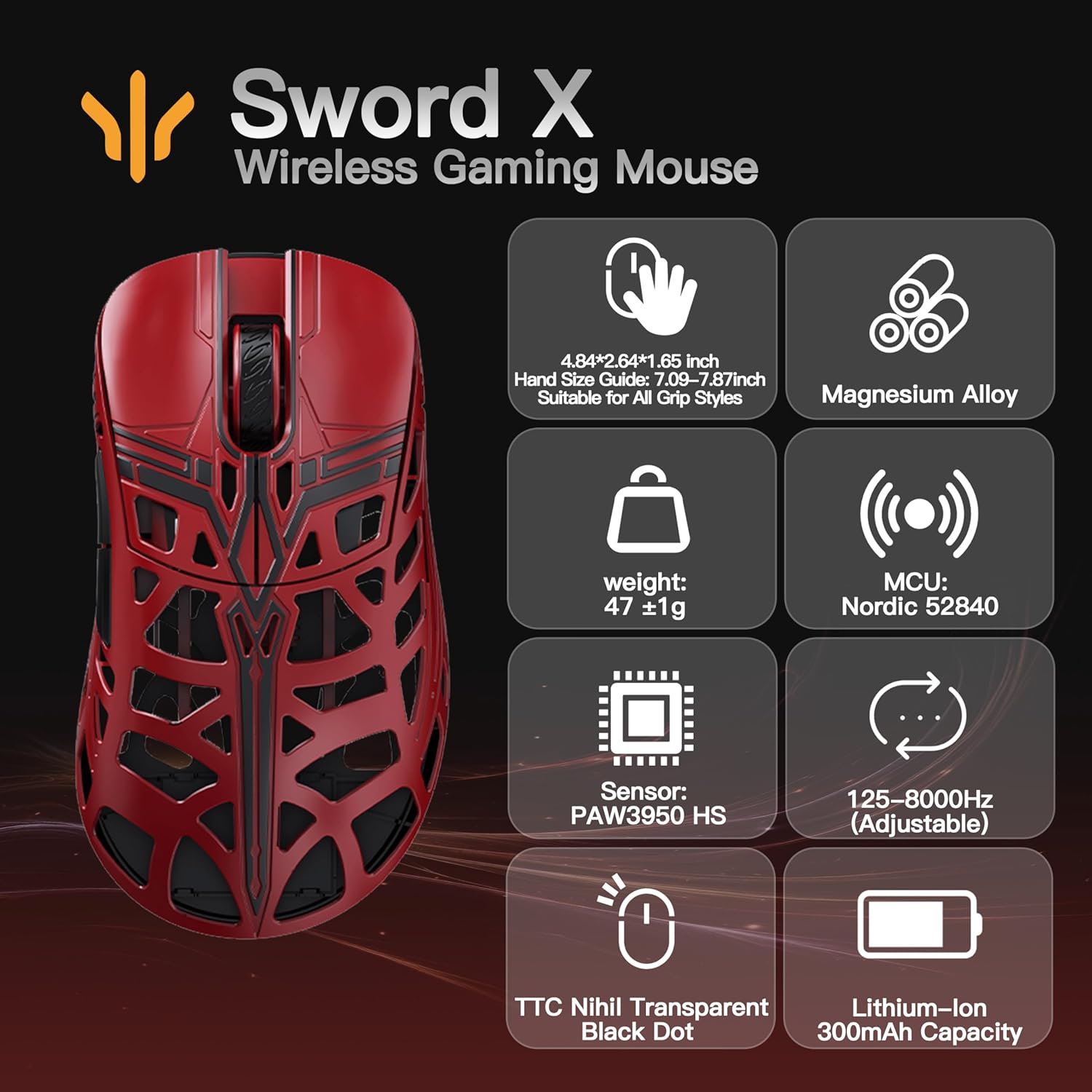
Figure 2: Overview of Sword X features including dimensions, weight, sensor, polling rate, switches, and battery capacity.
Setup Guide
1. Package Contents
Before proceeding, ensure all items are present in the package:
- 1x WLMOUSE Sword X Gaming Mouse
- 1x USB-C Cable
- 1x 1K Nano Receiver (for 2.4G wireless)
- 1x 8K Sword Receiver (for 8KHz wireless)
- 1x Teflon Feet set
- 2x Anti-slip Pads
- 1x DIY Anti-slip Pad
- 1x User Manual (this document)
2. Charging the Mouse
The mouse comes with a built-in 300mAh Lithium-Ion battery. For first-time use, it is recommended to fully charge the mouse.
- Connect the provided USB-C cable to the USB-C port on the front of the mouse.
- Connect the other end of the USB-C cable to an available USB port on your computer or a USB wall adapter.
- The mouse's indicator light will show charging status (refer to the LED indicator section for details).

Figure 3: USB Type-C port for charging and wired connection, alongside the 8K wireless receiver.
3. Connecting the Mouse
The WLMOUSE Sword X supports both 2.4G wireless and wired connectivity.
3.1. Wireless Connection (2.4G)
- Locate the 1K Nano Receiver or the 8K Sword Receiver.
- Plug the desired receiver into an available USB port on your computer.
- Turn on the mouse using the power switch located on the bottom of the mouse.
- The mouse should automatically connect to the receiver. If not, press the pairing button (if available, refer to the mouse bottom diagram) or re-plug the receiver.
3.2. Wired Connection
- Connect the provided USB-C cable to the mouse.
- Connect the other end of the USB-C cable to an available USB port on your computer.
- The mouse will function immediately in wired mode and will charge simultaneously.
Operating Instructions
1. Button Functions
The WLMOUSE Sword X features a 5-button design plus a scroll wheel:
- Left Button: Primary click function.
- Right Button: Secondary click function.
- Scroll Wheel: Scroll up/down, middle click.
- Forward Button: Navigates forward in web browsers or applications.
- Backward Button: Navigates backward in web browsers or applications.

Figure 4: Layout of the mouse buttons: Left, Right, Scroll Wheel, Forward, and Backward.
2. DPI Adjustment
The mouse features a customizable DPI range from 50 to 30000. DPI (Dots Per Inch) controls the sensitivity of the mouse cursor. Higher DPI means the cursor moves further with less physical mouse movement.
To adjust DPI, use the dedicated DPI button (if present, typically on the bottom or top of the mouse) or the customizable driver software.

Figure 5: Visual representation of adjustable DPI and polling rate capabilities.
3. Polling Rate Adjustment
The polling rate can be adjusted from 125Hz to 8000Hz. A higher polling rate means the mouse reports its position to the computer more frequently, resulting in smoother and more responsive cursor movement, especially beneficial for gaming.
Polling rate adjustments are typically made through the mouse's dedicated software driver.
4. Customizable Driver Software
For advanced customization of DPI, polling rate, button assignments, and macros, download the official driver software from the KEEBMONKEY website. The software allows for fine-tuning your mouse settings to match your preferences.

Figure 6: Example interface of the customizable driver software for the Sword X mouse.
Maintenance
1. Cleaning
To maintain optimal performance and appearance, clean your mouse regularly.
- Use a soft, lint-free cloth slightly dampened with water or a mild cleaning solution.
- Avoid using harsh chemicals, abrasive cleaners, or solvents.
- For the sensor lens, use a cotton swab lightly dampened with isopropyl alcohol.
- Ensure the mouse is powered off and disconnected before cleaning.
2. Battery Care
The mouse uses a Lithium-Ion battery. Follow these guidelines for battery longevity:
- Avoid fully discharging the battery frequently.
- Store the mouse in a cool, dry place when not in use for extended periods.
- Do not expose the mouse to extreme temperatures.
Troubleshooting
| Problem | Possible Cause | Solution |
|---|---|---|
| Mouse not responding (Wireless) | Low battery; Receiver not connected; Pairing issue; Interference. | Charge the mouse; Ensure receiver is fully plugged into a working USB port; Re-pair the mouse with the receiver; Move mouse closer to receiver; Remove other wireless devices. |
| Mouse not responding (Wired) | Cable not connected properly; Faulty USB port; Driver issue. | Ensure USB-C cable is securely connected to both mouse and computer; Try a different USB port; Reinstall mouse drivers. |
| Cursor movement is erratic or jumpy | Dirty sensor lens; Unsuitable mouse pad surface; High DPI setting. | Clean the sensor lens; Use a clean, uniform mouse pad; Lower the DPI setting. |
| Buttons not responding | Software conflict; Physical damage. | Restart your computer; Check for driver updates; If physical damage is suspected, contact support. |
| Cannot adjust DPI/Polling Rate | Driver software not installed or outdated. | Download and install the latest driver software from the KEEBMONKEY website. |
Specifications
| Feature | Detail |
|---|---|
| Model | WLMOUSE Sword X |
| Dimensions | 4.84 x 2.64 x 0.1 inches (Product Dimensions) / 123mm x 67mm x 42mm (Specification) |
| Weight | 1.66 ounces / 47g ±2g |
| Sensor | Custom PAW3950HS Sensor |
| DPI Range | 50-30000 (Customizable) |
| Polling Rate | 125-8000Hz (Adjustable) |
| Connectivity | 2.4G Wireless / Wired (USB Type-C) |
| Switches | TTC Nihil Transparent Black Dot / OM Switch |
| Encoder | TTC Dust-Proof Silver Encoder |
| Battery Capacity | 300mAh Lithium-Ion |
| Main IC | Nordic 52840 |
| Acceleration | 50G |
| Tracking Rate | 750 IPS |

Figure 7: Comprehensive technical specifications of the WLMOUSE Sword X Gaming Mouse.
Warranty and Support
1. Warranty Information
KEEBMONKEY products are manufactured to high quality standards. For specific warranty terms and conditions, please refer to the warranty card included with your product or visit the official KEEBMONKEY website. The warranty typically covers manufacturing defects under normal use.
2. Customer Support
If you encounter any issues or have questions regarding your WLMOUSE Sword X, please contact KEEBMONKEY customer support. You can usually find contact information (email, phone, or support portal) on the official KEEBMONKEY website or through your purchase platform.
For the latest drivers and software, please visit the official KEEBMONKEY support page.